

Exports reference#
This reference lists the export types, the filters you can use to narrow down each export, and the columns of each export file. It also describes the Exports list, the export statuses, and how long files are kept. For the steps, see Create and download an export.
Export types#
To create an export, in the DIDWW User Panel, go to Logs & Analytics > Exports, click Create Export, and select the export type.
Export type |
Contents |
|---|---|
Records of calls to your DID numbers. |
|
Records of calls sent through your outbound trunks. |
|
Records of SMS received on your DID numbers, one record for each SMS. |
|
Records of SMS received on your DID numbers, one record for each fragment of each delivery attempt. |
|
Records of SMS sent through your SMS trunks. |
|
Records of the verifications of your OTP Verify applications. |
|
The DID numbers on your account, with their configuration. |
|
The orders created on your account. |
|
The payments made on your account. |
Exports are generated files of records. They are separate from the invoice and receipt PDFs that you download from Billing.
Export date range#
Every export type except DID Numbers has a date range. Select a preset, or select the start and end dates and times in the From and To calendars. The end date cannot be later than today.
Export types |
Presets |
Earliest start date |
|---|---|---|
Call logs, SMS logs, and OTP Verification Logs |
|
The earliest retained date. Logs are retained for the current month and the previous two months. The default range is the last 24 hours. |
Orders and Payments |
|
No limit. The default range is |
The earliest start date of the log exports follows how long DIDWW keeps call and SMS logs: the current calendar month and the previous two calendar months. A generated export file is not affected by this limit. It can be downloaded for 30 days. See Export files.
Exports list#
The Exports page lists the exports that you created. To find an export, filter the list by Friendly name, Status, or Type.
Column |
Description |
|---|---|
Created at |
When you created the export. |
Friendly Name |
The name you entered for the export. |
Status |
The status of the export. See Export statuses. |
Type |
The export type, for example |
Date Range |
The date range of the export. |
Filters |
The number of filters set for the export. Click the number to see
the filters and their values. |
Expires in |
How long the file can still be downloaded, for example |
Link |
Download when the export is completed. |
Export statuses#
Status |
Description |
|---|---|
|
The export is waiting to be generated. |
|
DIDWW is generating the file. |
|
The file is ready. Click Download in the Link column. |
Export files#
Each export is one CSV file with a header row. The first row lists the column names, and each next row is one record.
Export types |
File |
Notes |
|---|---|---|
Call logs, SMS logs, and OTP Verification Logs |
|
The CSV file is compressed with gzip. Extract it before you open it in a spreadsheet. Some browsers, for example Safari, extract it automatically when you download it. |
DID Numbers, Orders, and Payments |
|
Open the file directly. |
Each file columns section below has a sample file to download. The sample files contain example data, not real records, and are not compressed.
A file can be downloaded for 30 days after the export is completed. After that, DIDWW deletes the file, and the export is removed from the list. To get the records again, create a new export. Call logs and SMS logs can be exported only within the date range limits. See Export date range.
Inbound call logs#
The Inbound call logs export contains records of calls to your DID numbers.
Inbound call logs filters#
Use these filters to narrow down the export:
Filter |
Description |
|---|---|
Source |
Includes only calls from the entered caller number. Select |
Destination DID |
Includes only calls to the entered DID number. Select |
Voice IN trunk(s) |
Includes only calls delivered to the selected inbound trunks. |
Trunk group(s) |
Includes only calls delivered through the selected trunk groups. |
Capacity group(s) |
Includes only calls that used the selected capacity groups. |
Status |
Includes only calls with the selected status:
|
Reason |
Available when the Status is
|
Type(s) |
Includes only calls with the selected charge types: |
Call ID |
Includes only the call with the entered Call ID. Select |

Fig. 1. The Export Inbound Call Logs page.#
Inbound call logs file columns#
Each row is one routing attempt of an inbound call. The file has the fields of the inbound call logs page, plus Customer ID and Sell Amount (Points).
To see the format, download the sample file
inbound-call-logs.csv.
Column |
Description |
|---|---|
Date/Time Start (UTC) |
When the call reached DIDWW. |
Date/Time Connect (UTC) |
When the call was answered. Empty if the call was not answered. |
Date/Time End (UTC) |
When the call ended. |
Status |
|
Source |
The caller’s number. |
Source Name |
The caller name, when one was received. Empty otherwise. |
Destination DID |
The DID number that was called. |
Duration (sec) |
The duration of the answered call, in seconds. |
Attempt |
The number of the routing attempt. See Inbound call logs. |
Response |
How the call or attempt ended, for example |
Disconnect Initiator |
The side that ended the call: |
Voice IN Trunk |
The inbound trunk that the call was delivered to. |
Destination |
The address the trunk delivered the call to, for example
|
Trunk Group |
The trunk group of the inbound trunk. Empty if the trunk is not in a trunk group. |
Capacity Group |
The capacity group of the DID number. Empty if the number is not in a capacity group. |
Toll-free (USD) |
The toll-free charge for the call, in USD. |
PSTN (USD) |
The PSTN forwarding charge for the call, in USD. |
Metered (USD) |
The metered channel charge for the call, in USD. |
CNAM IN (USD) |
The CNAM IN lookup charge for the call, in USD. |
Total (USD) |
The sum of the charges for the call, in USD. |
Call ID |
The identifier of the call. |
Customer ID |
Not used for most accounts. Empty or |
Sell Amount (Points) |
Not used for most accounts. |
Outbound call logs#
The Outbound call logs export contains records of calls sent through your outbound trunks.
Outbound call logs filters#
Use these filters to narrow down the export:
Filter |
Description |
|---|---|
Source |
Includes only calls from the entered source number. Select
|
CLI |
Includes only calls with the entered CLI. Select |
Destination number |
Includes only calls to the entered number. Select |
Voice OUT trunk(s) |
Includes only calls sent through the selected outbound trunks. |
Status |
Includes only calls with the selected status: |
Source countries |
Includes only calls from the selected countries. |
Destination countries |
Includes only calls to the selected countries. |
Call types |
Includes only calls of the selected types: |
P-Charge-Info |
Includes only calls with the entered |
Call ID |
Includes only the call with the entered Call ID. Select |

Fig. 2. The Export Outbound Call Logs page.#
Outbound call logs file columns#
Each row is one outbound call. For more about each field, see Outbound call logs.
To see the format, download the sample file
outbound-call-logs.csv.
Column |
Description |
|---|---|
Date/Time Start (UTC) |
When the call reached DIDWW. |
Date/Time Connect (UTC) |
When the call was answered. Empty if the call was not answered. |
Date/Time End (UTC) |
When the call ended. |
Status |
|
Source |
The source number that your system sent. |
CLI |
The Caller ID presented to the called party. It can differ from the Source when DIDWW replaces the source number. |
Destination Number |
The dialed number. |
Call / Billing Duration (sec) |
The billed duration of the call, in seconds, after rounding up to the
billing intervals. For example, a 9-second call on a |
Response |
The SIP code and text of the final response, for example
|
Voice OUT Trunk |
The outbound trunk that the call was sent through. |
Destination Country |
The country of the dialed number. |
Network |
The network of the dialed number, for example |
Call Type |
The route type: |
Rate (USD) |
The rate per minute for the destination, in USD. |
Charged (USD) |
The charge for the call, in USD, including VAT when VAT applies to
your account. |
P-Charge-Info |
The value of the |
Call ID |
The identifier of the call. |
Inbound SMS logs#
The Inbound SMS logs export contains one record for each SMS received on your DID numbers.
Inbound SMS logs filters#
Use these filters to narrow down the export:
Filter |
Description |
|---|---|
Source address |
Includes only SMS from the entered sender. Select |
Destination address |
Includes only SMS received on the entered DID number. Select
|
SMS trunk(s) |
Includes only SMS delivered to the selected SMS trunks. |
Status |
Includes only SMS with the selected status:
|
Trunk type(s) |
Includes only SMS delivered to the selected trunk types: |
SMS ID |
Includes only the SMS with the entered SMS ID. |
Fig. 3. The Export Inbound SMS Logs page.#
Inbound SMS logs file columns#
Each row is one inbound SMS. For more about each field, see Inbound SMS logs.
To see the format, download the sample file
inbound-sms-logs.csv.
Column |
Description |
|---|---|
Time Received (UTC) |
When DIDWW received the SMS. |
Time Sent (UTC) |
When DIDWW last tried to deliver the SMS to your SMS trunk. |
Status |
|
Error Code |
The response code from your SMS trunk, for example |
Reason |
|
Source Address |
The sender of the SMS. |
Destination Address |
The DID number that received the SMS. |
SMS Trunk |
The SMS trunk that the SMS was delivered to. |
Type |
The trunk type, for example |
Destination |
Where the trunk delivers the SMS, for example the email address of an SMS to Email trunk. |
Fragments |
The number of fragments of the SMS. Empty if the SMS was not delivered. |
SMS ID |
The identifier of the SMS. |
Billed Fragments |
The number of billed fragments. See How inbound SMS are billed. |
Charged (USD) |
The charge for the SMS, in USD. |
Note
The Legacy inbound SMS logs export contains the records of the
deprecated Legacy Inbound tab of the SMS logs: one record for each
fragment of each delivery attempt. It has the same filters as Inbound
SMS logs, except that Status has only Any status, Success,
and Failed. Its file has the columns of Inbound SMS logs without
Error Code and SMS Trunk, plus Attempt, the number of the
delivery attempt. Only the first attempt is charged. See Inbound
SMS logs.
Outbound SMS logs#
The Outbound SMS logs export contains records of SMS sent through your SMS trunks.
Outbound SMS logs filters#
Use these filters to narrow down the export:
Filter |
Description |
|---|---|
Source address |
Includes only SMS sent from the entered source address. Select
|
Destination address |
Includes only SMS sent to the entered number. Select |
SMS trunk(s) |
Includes only SMS sent through the selected SMS trunks. |
Status |
Includes only SMS with the selected status: |
Service type |
Includes only |
Sender ID Verifications |
Available when the Service type is |
SMS ID |
Includes only the SMS with the entered SMS ID. |
Fig. 4. The Export Outbound SMS Logs page.#
Outbound SMS logs file columns#
Each row is one outbound SMS. For more about each field, see Outbound SMS logs.
To see the format, download the sample file
outbound-sms-logs.csv.
Column |
Description |
|---|---|
Date/Time (UTC) |
When DIDWW received the SMS from your SMS trunk. |
Status |
The status of the SMS, for example |
Reason |
Why the SMS was not sent. Empty for a successful SMS. |
Source Address |
The sender of the SMS: a phone number or a Sender ID. |
Destination Address |
The number the SMS was sent to. |
Trunk |
The SMS trunk that the SMS was sent through. |
Sender ID Verification |
The Sender ID verification used for an A2P SMS. Empty for a P2P SMS. |
SMS ID |
The identifier of the SMS. |
Billed Fragments |
The number of billed fragments. See How outbound SMS are billed. |
Charged (USD) |
The total charge for the billed fragments, in USD. |
OTP Verification Logs#
The OTP Verification Logs export contains records of the verifications of your OTP Verify applications.
OTP Verification Logs filters#
Use these filters to narrow down the export:
Filter |
Description |
|---|---|
Destination |
Includes only verifications sent to the entered phone number. Select
|
Status |
Includes only verifications with the selected status: |
Country |
Includes only verifications sent to numbers in the selected country. |
Application |
Includes only verifications of the selected OTP Verify application. |
Template Group |
Includes only verifications that used the selected template group. |
Verification ID |
Includes only the verification with the entered ID. |
Custom Sender ID |
Includes only verifications sent with the entered custom Sender ID. |
Previous Secret Used |
Select |
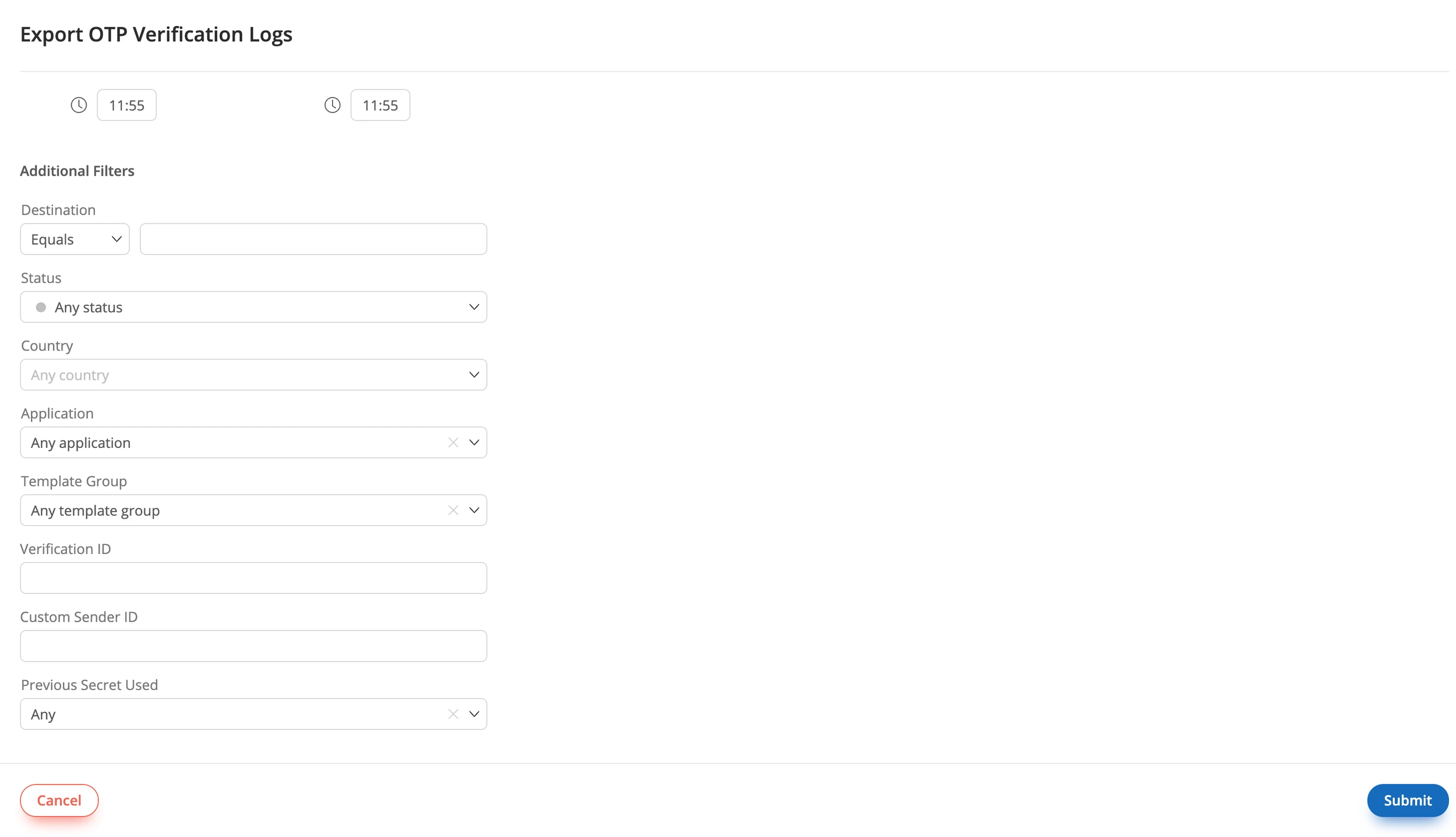
Fig. 5. The Export OTP Verification Logs page.#
OTP Verification Logs file columns#
Each row is one verification. For more about the values, see The verification object.
To see the format, download the sample file
otp-verification-logs.csv.
Column |
Description |
|---|---|
Started At (UTC) |
When the verification started. |
Finished At (UTC) |
When the verification reached its final status. |
Status |
|
Error Code |
The reason for a failed, expired, or denied verification, for
example |
Error Detail |
The text of the Error Code. |
Destination |
The phone number that was verified. |
Country |
The country of the phone number. |
Delivery Method |
How the code was delivered: |
Auth Mode |
The authentication mode of
the start request, for example |
Attempts |
The number of codes reported for the verification. |
Application |
The OTP Verify application. |
Verification ID |
The identifier of the verification. |
Fee (USD) |
The verification fee, in USD, including VAT. It is charged only when
the verification becomes |
Custom Sender ID |
The custom Sender ID that the SMS was sent from. Empty if none was used. |
Previous Secret Used |
|
DID Numbers#
The DID Numbers export contains the DID numbers on your account. It has no date range.
DID Numbers filters#
Use these filters to narrow down the export:
Filter |
Description |
|---|---|
Quick filter |
Includes only DID numbers that match a preset:
|
DID Number |
Includes only the entered DID numbers. To enter several numbers,
separate them with commas, for example
|
Description |
Includes only DID numbers with the entered description. |
Country |
Includes only DID numbers in the selected country. |
Region |
Available after you select a Country. Includes only DID numbers in the selected region of that country. For some countries, the field is named after the region type, for example State for the United States. |
Feature |
Includes only DID numbers with the selected feature: |
Order ref |
Includes only DID numbers from the order with the entered reference. |
Voice trunk |
Includes only DID numbers assigned to the selected voice trunk.
Select |
SMS trunk |
Includes only DID numbers assigned to the selected SMS trunk. Select
|
Capacity pool |
Includes only DID numbers in the selected capacity pool. |
Capacity group |
Includes only DID numbers in the selected capacity group. |
Verification ref |
Includes only DID numbers with the address verification of the entered reference. |
Identity |
Includes only DID numbers with the selected identity. |
Address |
Available after you select an Identity. Includes only DID numbers with the selected address of that identity. |
Regulatory area |
Includes only DID numbers in the selected regulatory area. |
Number type(s) |
Includes only DID numbers of the selected types: |
Fig. 6. The Export DID Numbers page.#
DID Numbers file columns#
Each row is one DID number.
To see the format, download the sample file
did-numbers.csv.
Column |
Description |
|---|---|
Order Ref |
The reference of the order that the number was bought in. |
Country |
The country of the number. |
Region |
The region of the number. Empty for numbers without a region. |
City |
The city of the number, or the number type for numbers without a
city, for example |
DID Number |
The number. |
Description |
The description you added to the number. |
Capacity (Included / Dedicated / Shared / Metered) |
The channels of the number by type, for example |
DID Status |
The status of the number, for example |
Activation Date (original) |
When the number was first activated. |
Billing Period |
The length of one billing cycle, for example |
Billing Cycles Left |
The number of billing cycles left, or |
Next Billing Cycle |
When the next billing cycle starts. |
NRC (current) |
The current non-recurring charge of the number, in USD. |
MRC (current) |
The current monthly recurring charge of the number, in USD. |
Trunk name |
The voice trunk assigned to the number. Empty if none is assigned. |
Trunk Details |
The destination of the voice trunk, for example
|
SMS Trunk |
The SMS trunk assigned to the number. Empty if none is assigned. |
Identity |
The identity assigned to the number. Empty if none is assigned. |
Customer ID |
Not used for most accounts. Empty or |
Orders#
The Orders export contains the orders created on your account.
Orders filters#
Use these filters to narrow down the export:
Filter |
Description |
|---|---|
Reference |
Includes only the order with the entered reference. |
Status |
Includes only orders with the selected status: |
Refunded |
Select |
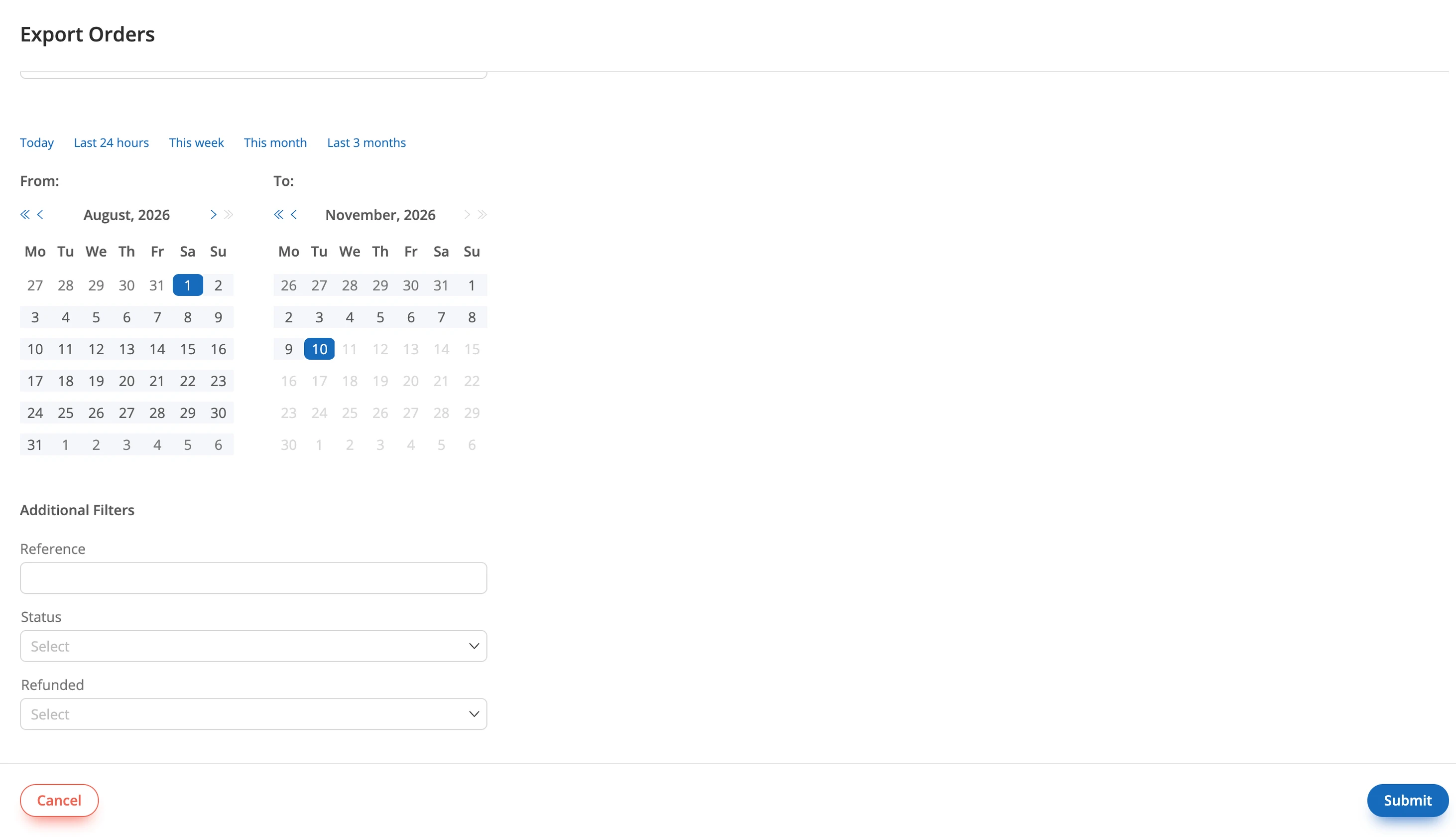
Fig. 7. The Export Orders page.#
Orders file columns#
Each row is one order.
To see the format, download the sample file
orders.csv.
Column |
Description |
|---|---|
Order Ref |
The reference of the order. |
Order date |
When the order was created. |
Status |
|
Amount |
The order amount, in USD. |
Description |
What the order is for, for example |
VAT |
The VAT rate of the order, in percent, for example |
Payments#
The Payments export contains the payments made on your account.
Payments filters#
Use this filter to narrow down the export:
Filter |
Description |
|---|---|
Status |
Includes only payments with the selected status: |
Fig. 8. The Export Payments page.#
Payments file columns#
Each row is one payment.
To see the format, download the sample file
payments.csv.
Column |
Description |
|---|---|
Payment Ref |
The reference of the payment. |
Payment date |
When the payment was created. |
Paid at |
When the payment was completed. Empty if it is not completed. |
Status |
|
Type |
The type of the payment. |
Method |
The payment method. |
Amount |
The payment amount, in USD. |
Payer name |
The name of the payer. |
Payer email |
The email address of the payer. |