

Create a Trunk Group#
Create an inbound Trunk Group to combine existing SIP and PSTN trunks into one routing destination for failover, load balancing, or both. Configure the group name and capacity, and select the member trunks.
For how DIDWW selects trunks within a group, see Trunk groups.
Before you begin#
An active DIDWW account is required. Sign in to DIDWW or Create DIDWW account.
Create the SIP or PSTN trunks to include in the group. See Create a SIP trunk or Create a PSTN trunk. You can also create an empty group and add trunks later.
Step 1: Open the creation form#
In the DIDWW User Panel, open Voice.
Select Inbound Trunks.
Click Create New.
Select Trunk Group.

Fig. 1. Select Trunk Group#
Step 2: Configure and create the Trunk Group#
On the Create Inbound Trunk Group page:
Enter a unique Name to identify the group in the DIDWW User Panel.
Optionally set Capacity Limit to restrict the number of simultaneous calls delivered through the entire group. The default value is Unlimited. Calls that exceed the limit are rejected.
Under Trunks, select the SIP and PSTN trunks to include. Each trunk can belong to only one Trunk Group, so the list shows only trunks that are not already in another group. phone.systems™ trunks cannot be added.
Click Create.
New member trunks use the default Priority of 1 and Weight of
65535, so DIDWW distributes calls evenly among them. To create routing
tiers or change the distribution, see Configure member trunk routing.
Field definitions, available values, and constraints are listed in General settings.
A confirmation message appears, and the View Inbound Trunk Group page opens with the group settings and member trunks. Creating the group does not assign it to a DID number.
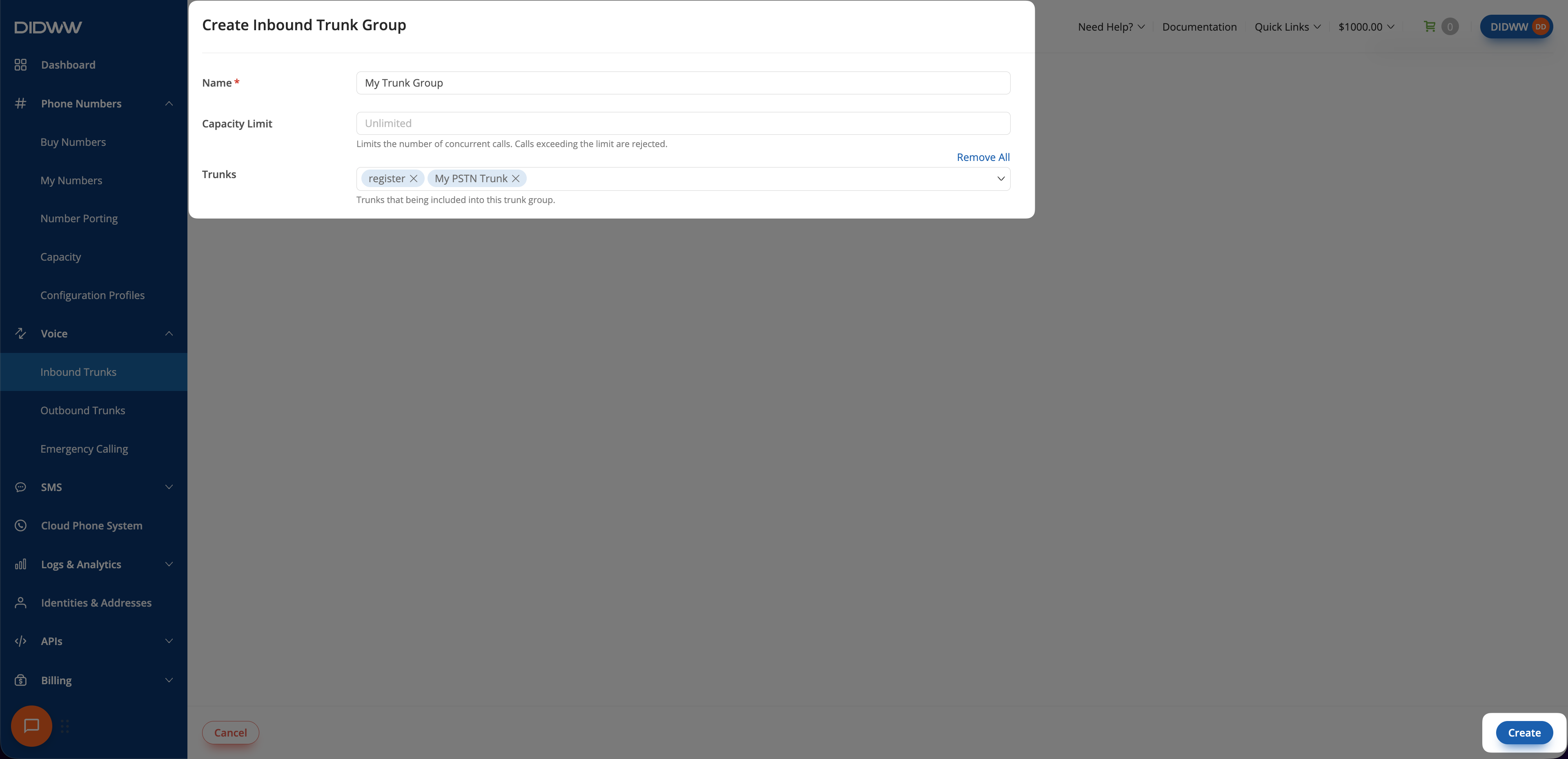
Fig. 2. Configure and create the Trunk Group#
Next steps#
Configure member trunk routing to set Priority and Weight for failover or load balancing.
Assign the Trunk Group to one or more DID numbers before receiving calls. Each DID number must have sufficient Capacity.
Place a test call to an assigned DID number, then review Inbound Call Logs to see which member trunk handled the call.