

Edit an outbound trunk#
Update the configuration of an existing outbound trunk in the DIDWW User Panel.
Before you begin#
An active DIDWW account is required. Sign in to DIDWW.
An existing outbound trunk is required. Create an outbound trunk if you do not have one yet.
Step 1: Open the outbound trunk edit form#
In the DIDWW User Panel, go to Voice > Outbound Trunks.
Locate the trunk and click the actions button.
Click Edit.
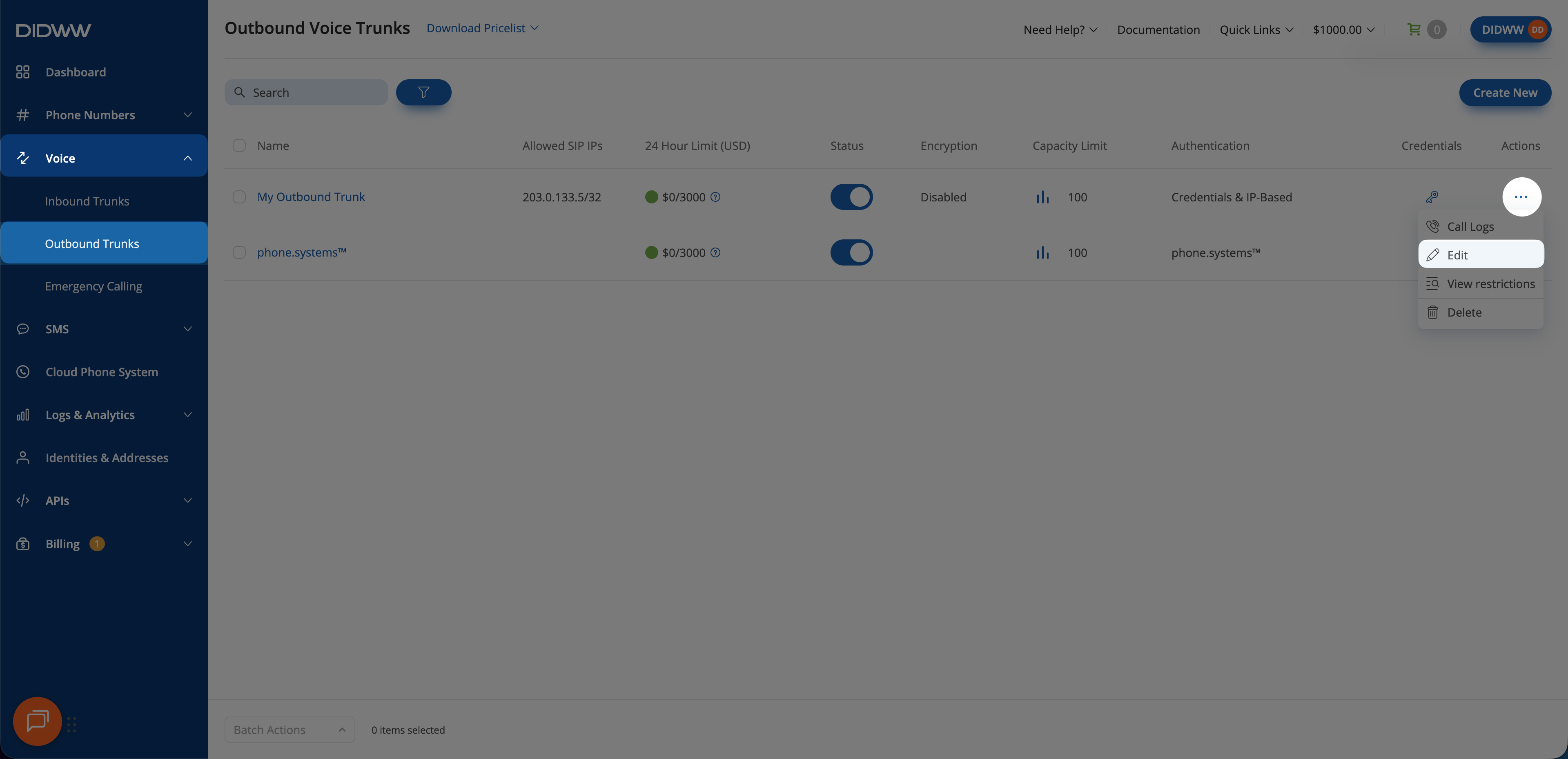
Fig. 1. Open the outbound trunk edit form#
Step 2: Update the trunk settings#
Update any of the trunk’s settings under General, Authentication, Media, Termination, and Emergency Calling. Field definitions, available values, and constraints are listed in Outbound trunk reference.
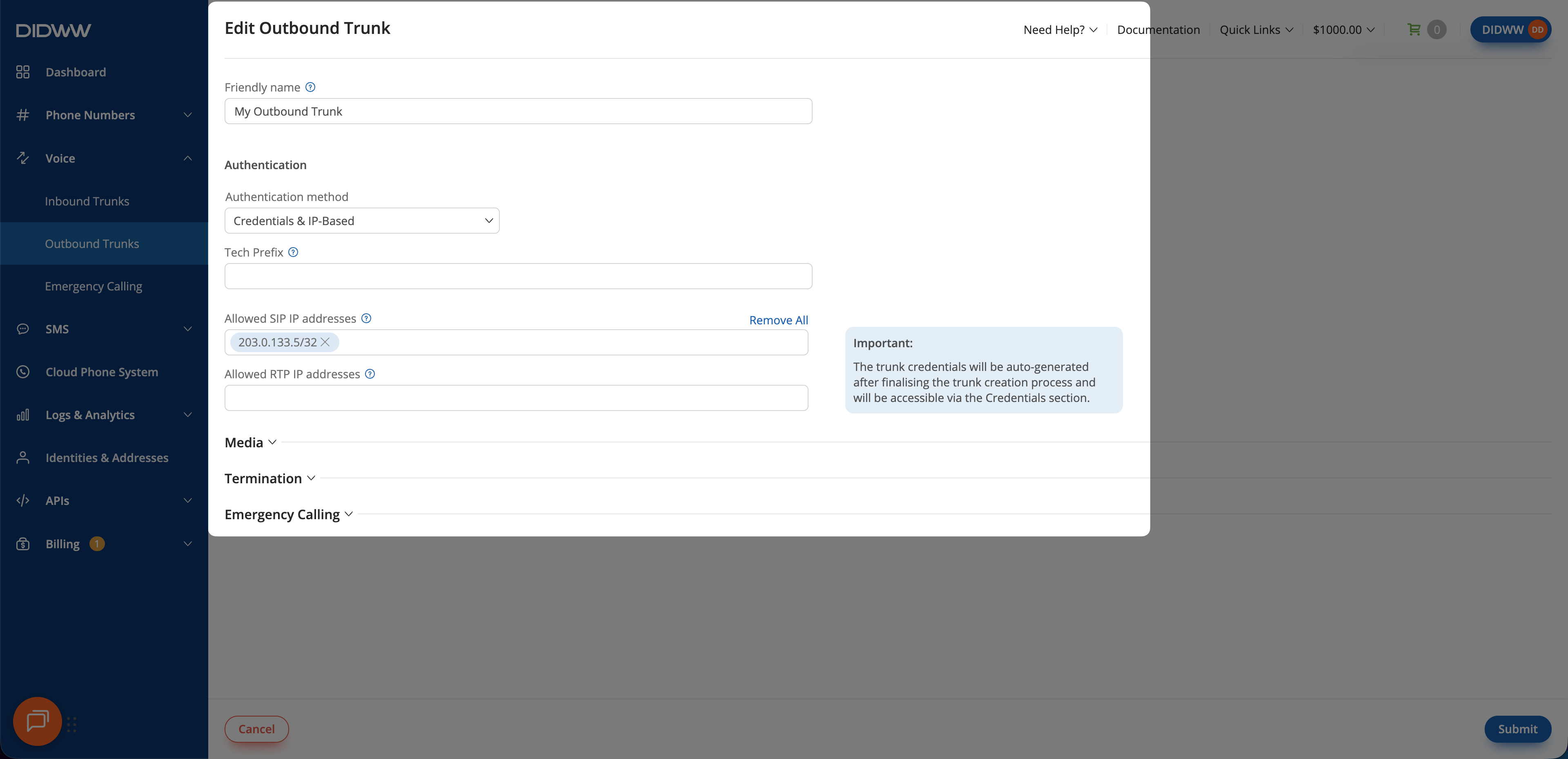
Fig. 2. Update the trunk settings#
Step 3: Save the changes#
Review the updated configuration.
Click Submit.
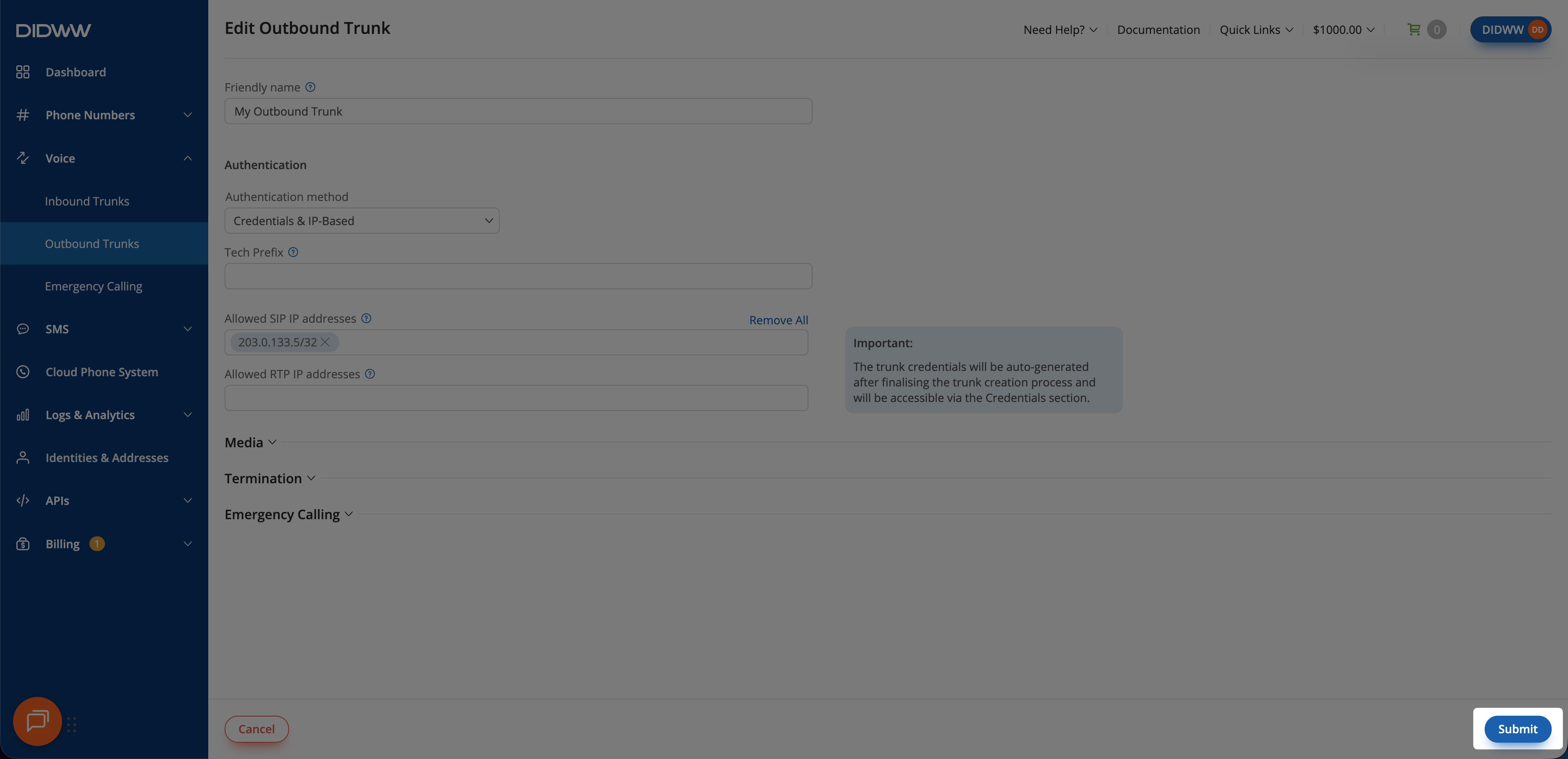
Fig. 3. Save the outbound trunk changes#