

Create a phone.systems™ trunk#
Create an inbound phone.systems™ trunk to deliver calls from DIDWW DID numbers to your phone.systems™ PBX. Configure the trunk name, caller ID delivery, and optional caller name lookup in the DIDWW User Panel. Configure how the PBX answers and routes those calls in phone.systems™.
A phone.systems™ trunk named phone.systems is created automatically with your phone.systems™ subscription. Create an additional trunk only when some DID numbers need different caller ID or caller name lookup settings.
For how the trunk connects DID numbers to the PBX, see phone.systems™ trunks.
Before you begin#
An active DIDWW account is required. Sign in to DIDWW.
An active phone.systems™ subscription is required. See phone.systems™ prerequisites.
To receive calls after creating the trunk, you need a DID number with sufficient Capacity.
Step 1: Open the creation form#
In the DIDWW User Panel, go to Voice > Inbound Trunks.
Click Create New.
Select phone.systems Trunk.
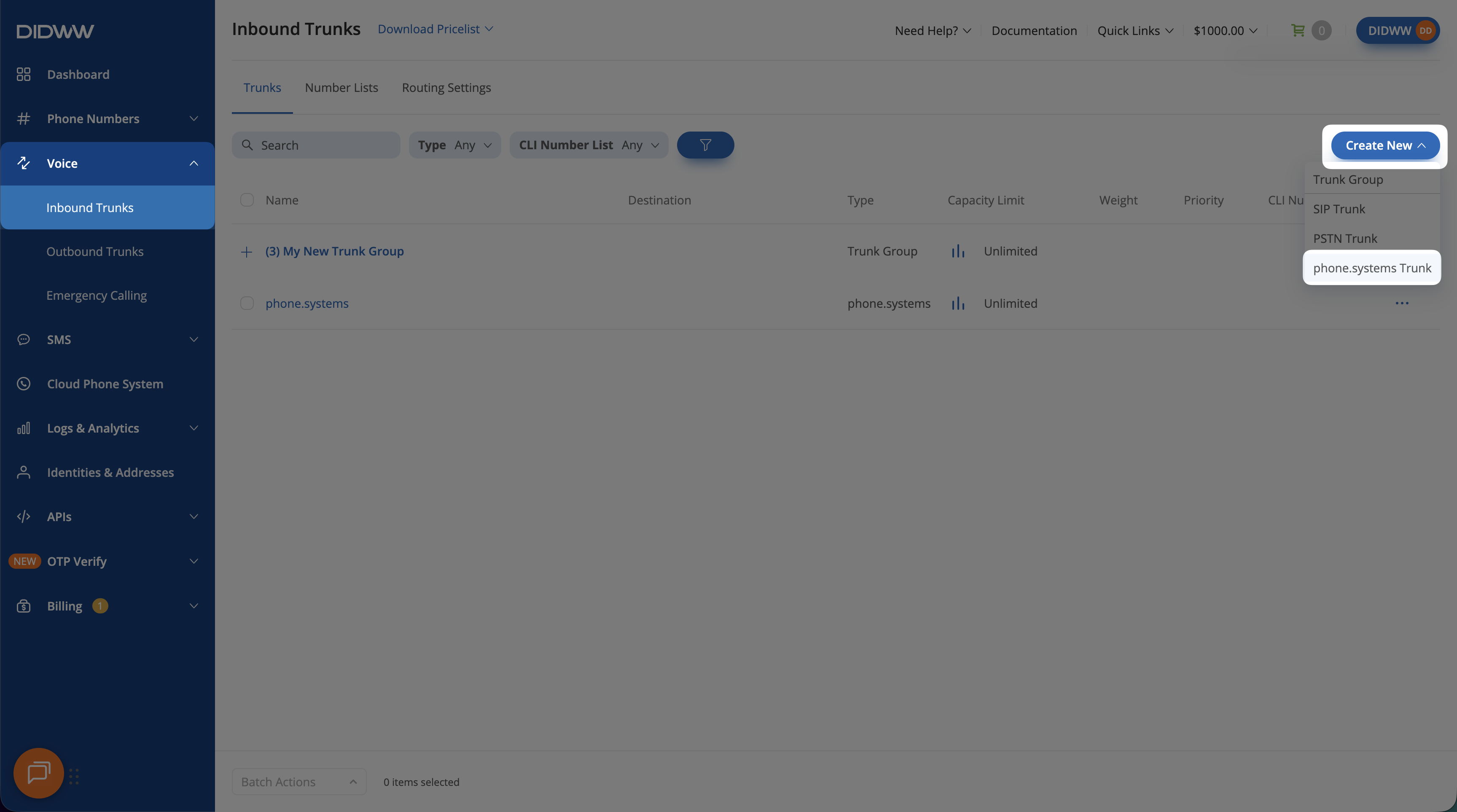
Fig. 1. Select phone.systems Trunk#
Step 2: Configure the General settings#
On the General tab, enter the required Name used to identify the trunk.
You can keep the default value, phone.systems, or enter a different name.
Field definitions are listed under General settings in the phone.systems™ trunk settings reference.
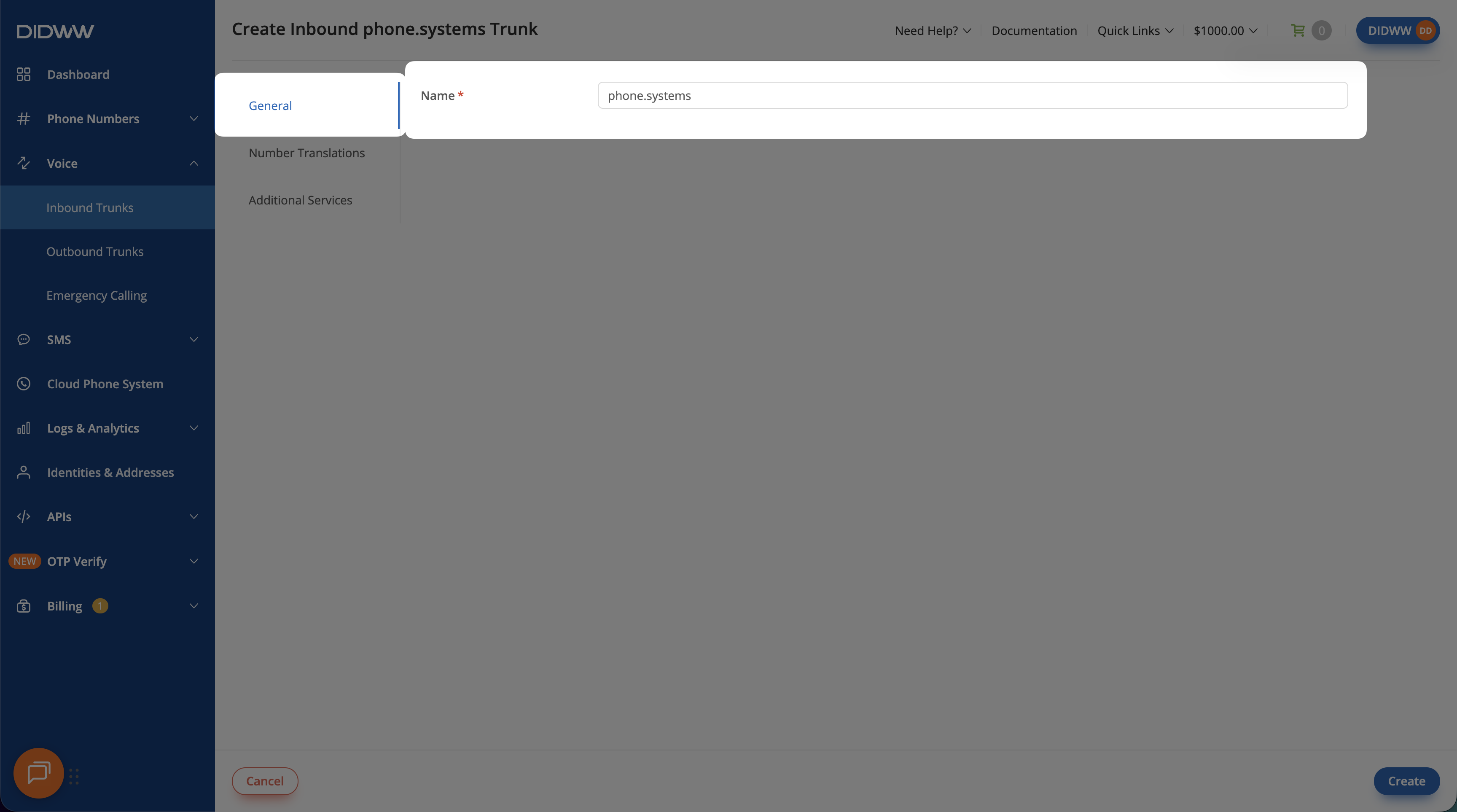
Fig. 2. Enter the trunk name#
Step 3: Configure optional settings#
Keep the default settings unless you need to change caller ID delivery or enable caller name lookup. You can skip this step and create the trunk with the General settings only.
Number Translations#
Select the Number Translations tab.
Select the CLI Format applied to inbound caller IDs. E.164 is the default and recommended value and delivers the number without
+.Optionally enter a CLI Prefix to add a prefix before the caller ID. The prefix can contain up to six characters consisting of digits or
#, optionally preceded by+.
Field definitions and constraints are listed under Number Translations. For the available formats and examples, see CLI Format values.
Note
DIDWW transfers the caller ID accurately for local calls. International caller ID conversion depends on third-party providers and may not always produce the expected value.
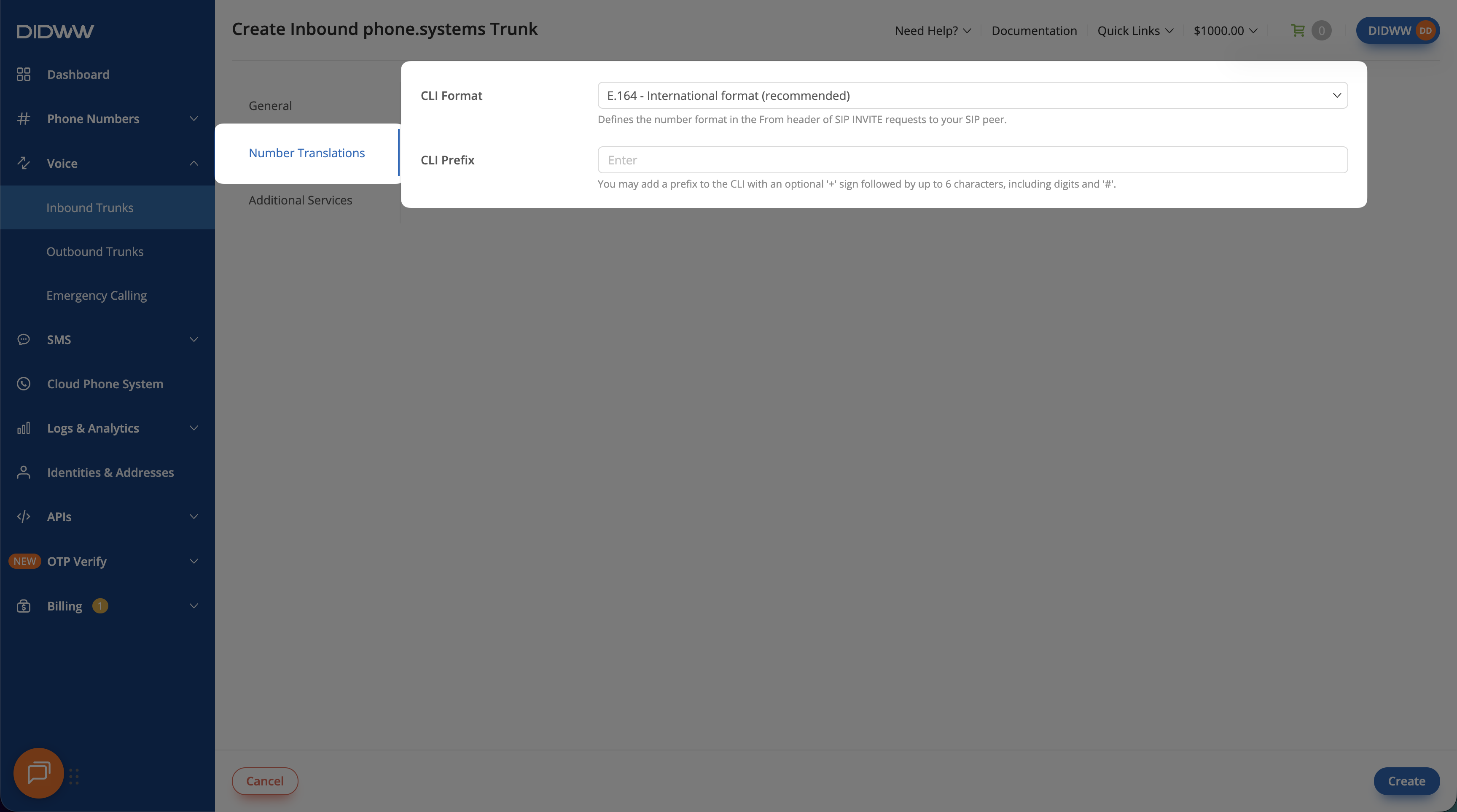
Fig. 3. Configure Number Translations#
Additional Services#
Select the Additional Services tab.
Turn on Enable CNAM Lookup if you want DIDWW to look up the caller name associated with a United States caller ID. Leave it disabled if caller name lookup is not required.
CNAM lookup adds a charge for each call from a U.S. number.
For the field definition and default, see Additional Services. For availability, billing, and caller name delivery, see CNAM IN.
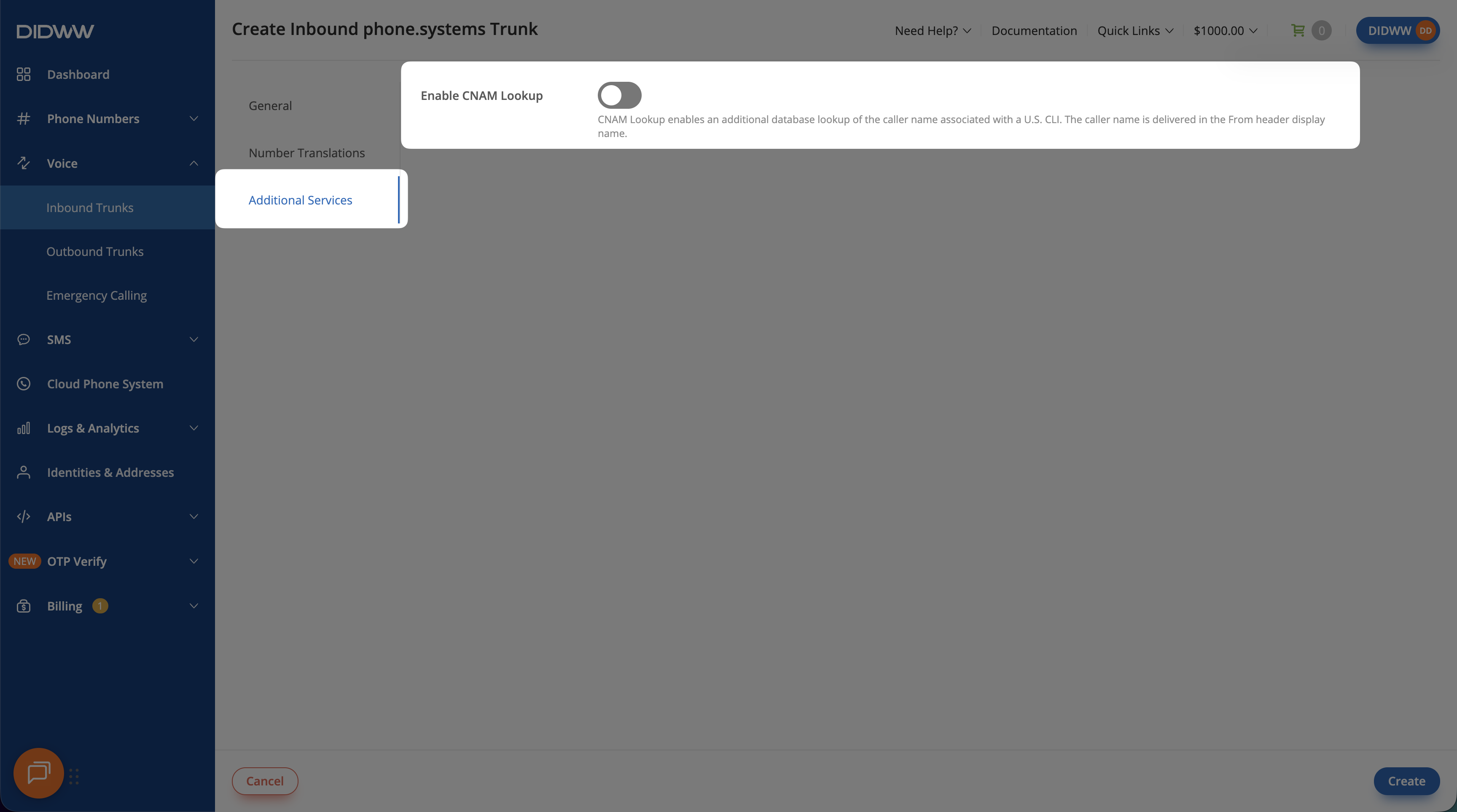
Fig. 4. Configure Additional Services#
Step 4: Create the trunk#
Review the trunk configuration.
Click Create to save the trunk.
The new trunk appears on the Trunks tab under Voice > Inbound Trunks.
Before using the trunk for incoming calls, assign it to one or more DID numbers. Then launch and configure phone.systems™ to define how the PBX handles those calls.
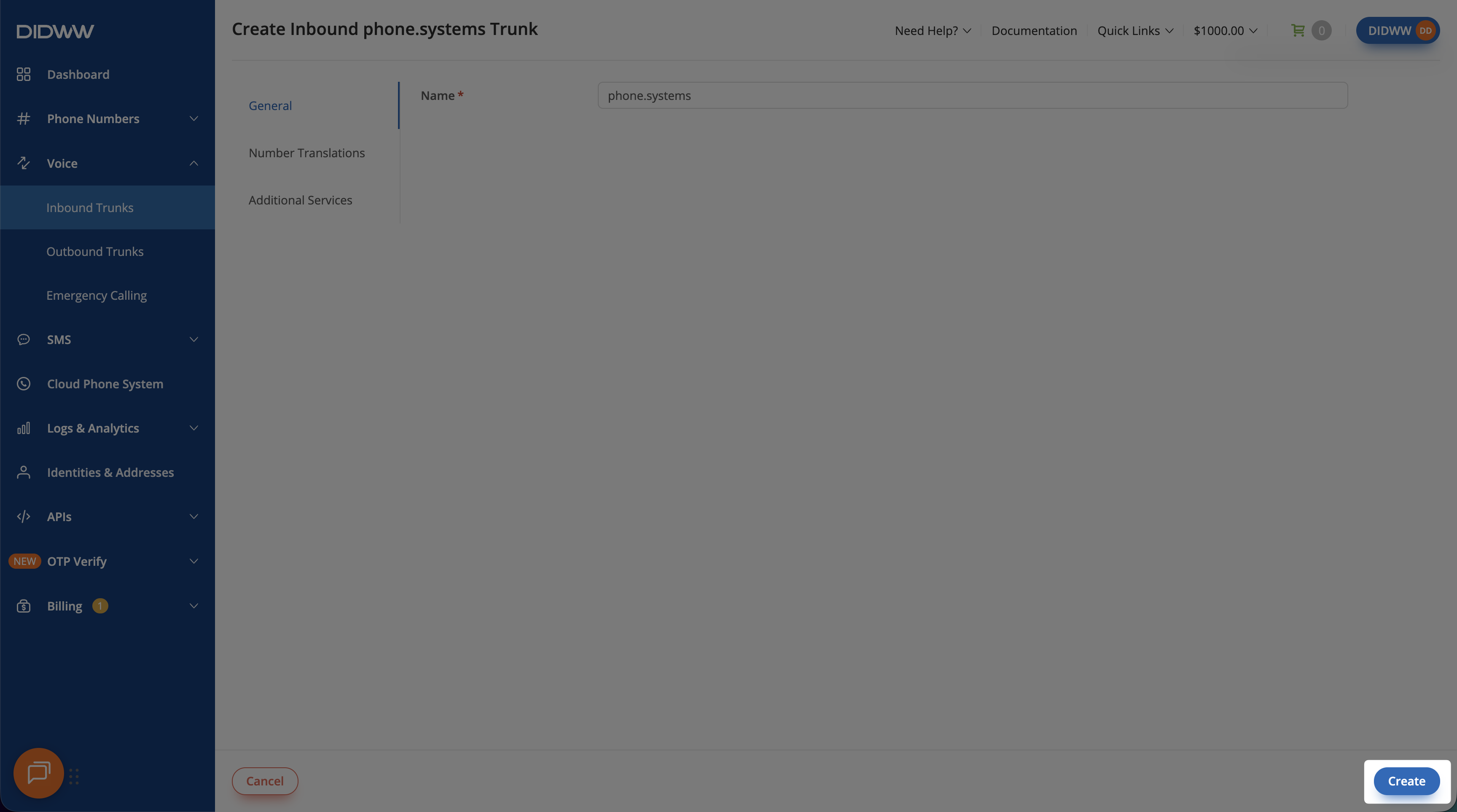
Fig. 5. Create the trunk#