

Apply configuration profile manually#
Apply a configuration profile manually to existing DID numbers in a single action. This allows you to quickly configure voice, SMS, and capacity settings without creating rules.
Before you begin#
At least one active DID number is required to apply configuration profile.
At least one configuration profile is required.
Step 1: Select DID(s) and open batch actions#
In the Phone Numbers > My Numbers section, select one or more DIDs you want to configure.
At the bottom of the page, open the Batch Actions menu.
Choose Apply Configuration Profile from the list.
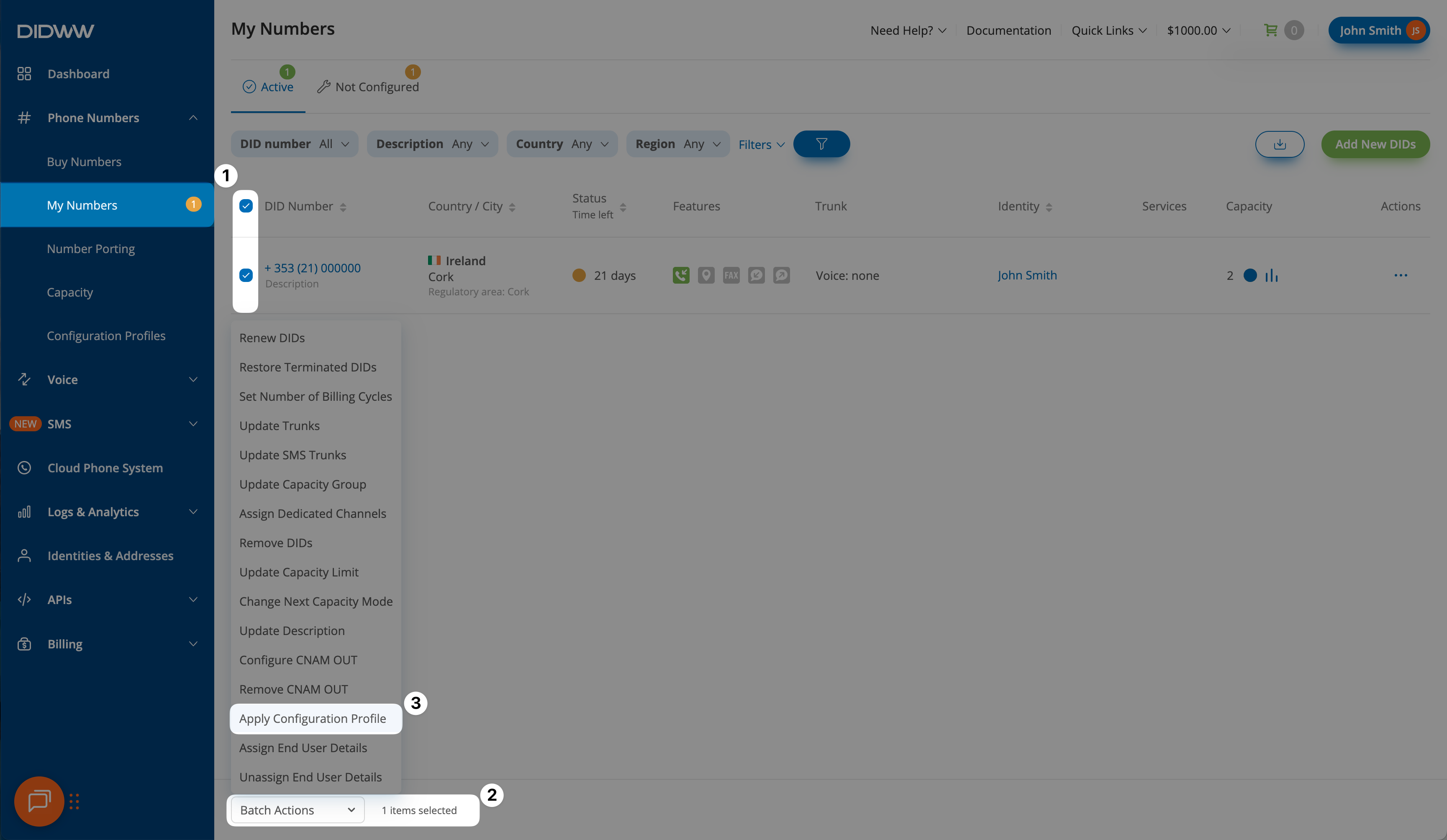
Fig. 3. Selecting DID(s) and opening Batch Actions to apply a configuration profile#
Step 2: Apply configuration profile#
In the Apply Configuration Profile pop-up, review the selected DID number(s).
From the Configuration Profile dropdown, select the profile you want to apply.
Click Confirm to apply the settings to all selected numbers.
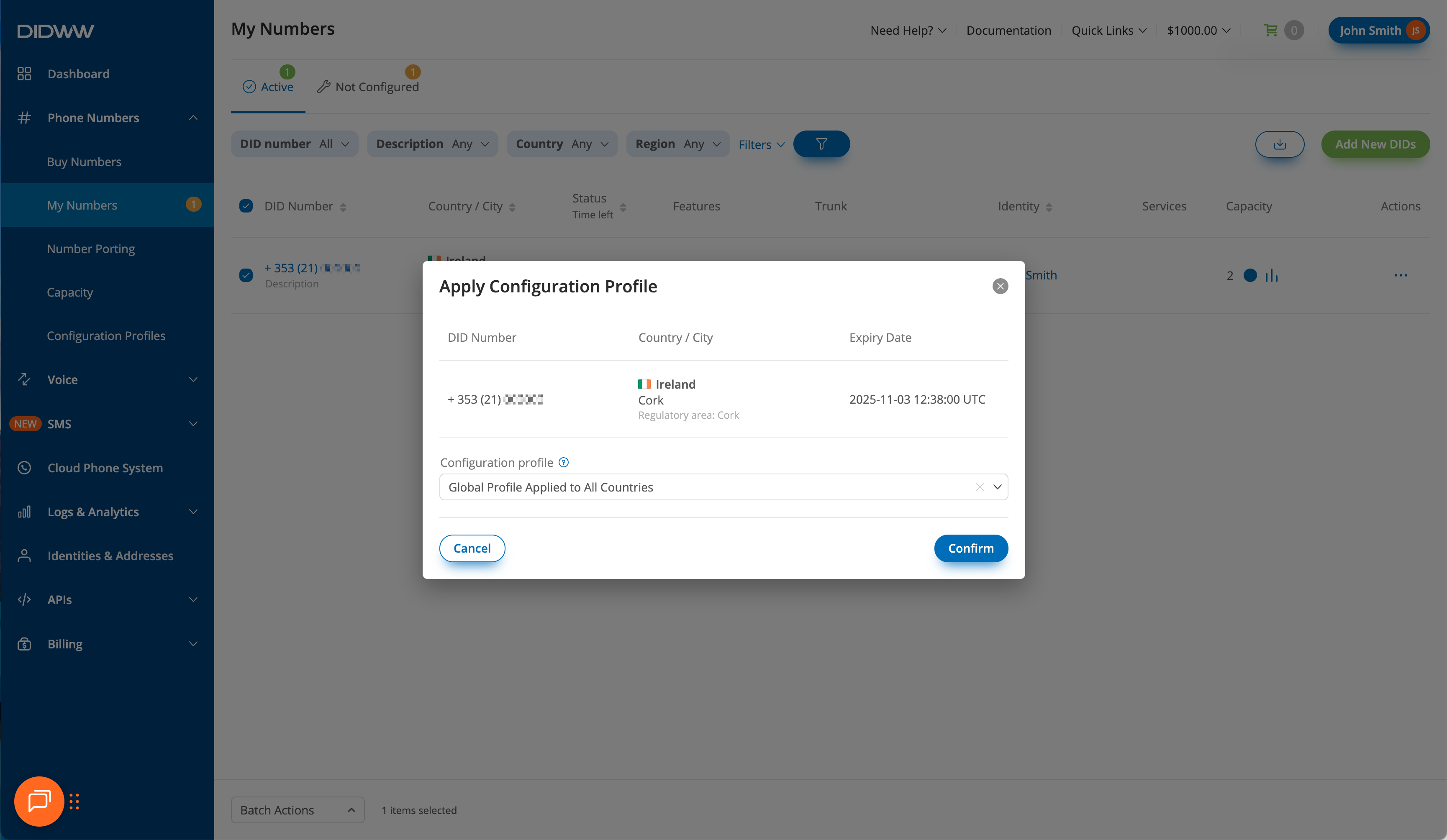
Fig. 4. Applying a configuration profile to selected DID numbers#