

Create an emergency calling service#
Create an Emergency Calling Service request to register DID numbers for emergency calling. Select the country and number type, assign the end user’s identity and emergency address, choose the source numbers, and submit the request for verification. After DIDWW verifies the request, the source numbers can be used as the caller ID for emergency calls through your outbound trunks.
For how verification, requirements, and charges work, see How emergency calling service works.
Note
Your account balance is charged when the service is verified and becomes Active. The setup fee and monthly fee per number are shown in the form after you select a country and number type.
Before you begin#
Emergency calling must be enabled on your account. It is not enabled by default. To enable it, contact sales@didww.com.
At least one active DID number with the Emergency Calling feature is required.
An identity and address that meet the requirements for the country and number type are required. See Requirements and Create New Identity & Address.
Step 1: Open the creation form#
In the DIDWW User Panel, open Voice.
Select Emergency Calling.
Click Create New.
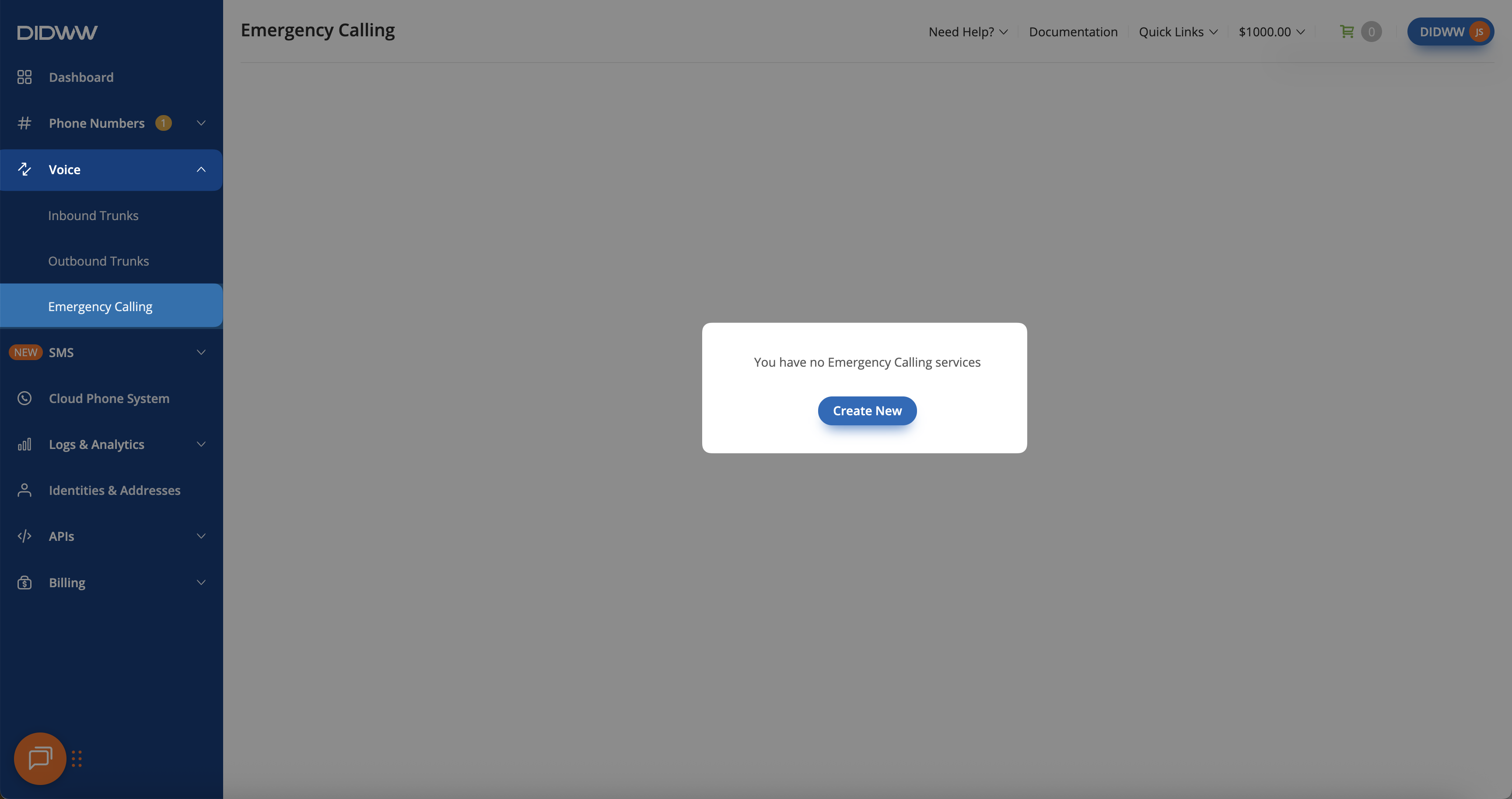
Fig. 1. Create a new Emergency Calling Service#
Step 2: Enter the service details#
On the Service details step, enter the basic information for the request.
Enter a Friendly name to identify the service in the DIDWW User Panel.
Select the Country of the DID numbers you want to use as source numbers.
Select the Number type of those DID numbers. Only the number types available for emergency calling in the selected country are listed.
Review the estimated verification time, the Service setup fee per number, the Monthly fee per number, and the Requirements panel.
Click Next.
Field definitions and available values are listed in Service details.
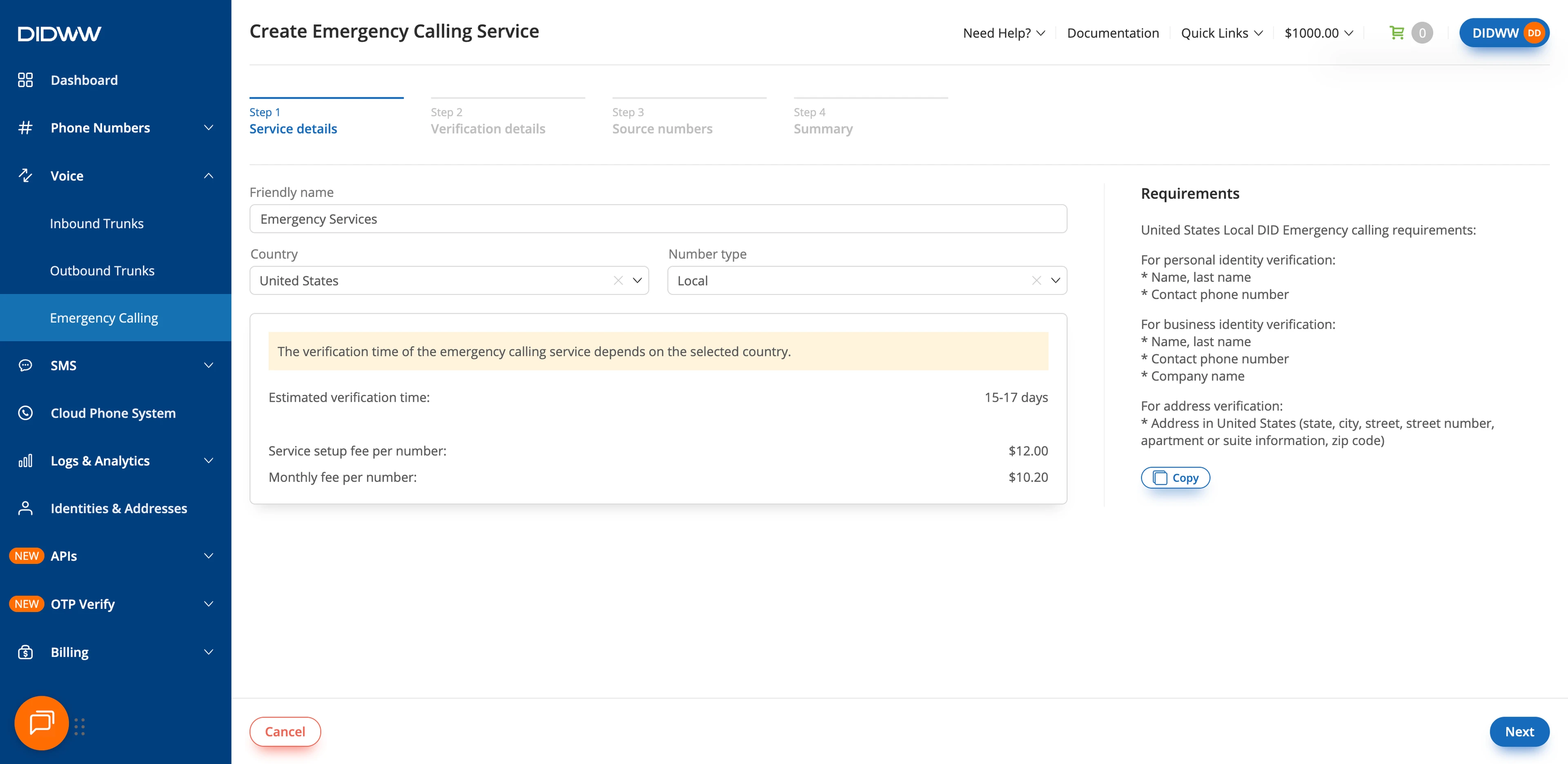
Fig. 2. Enter the service details#
Step 3: Select the identity and address#
On the Verification details step, select the identity and address that will be assigned to the source numbers. Both must meet the requirements for the selected country and number type.
Select an Identity. Identities that do not meet the requirements are disabled. Hover over one to see why. To add an identity, click Create New.
Select an Address of the selected identity. Addresses that do not meet the requirements are disabled in the same way. To add an address, click Create New.
If an Additional Information section is shown, download the emergency calling form template, fill it out, and upload it.
Click Next.
Field definitions are listed in Verification details.
The identity cannot be changed after the request is created. To use a different identity later, cancel the request and create a new one.
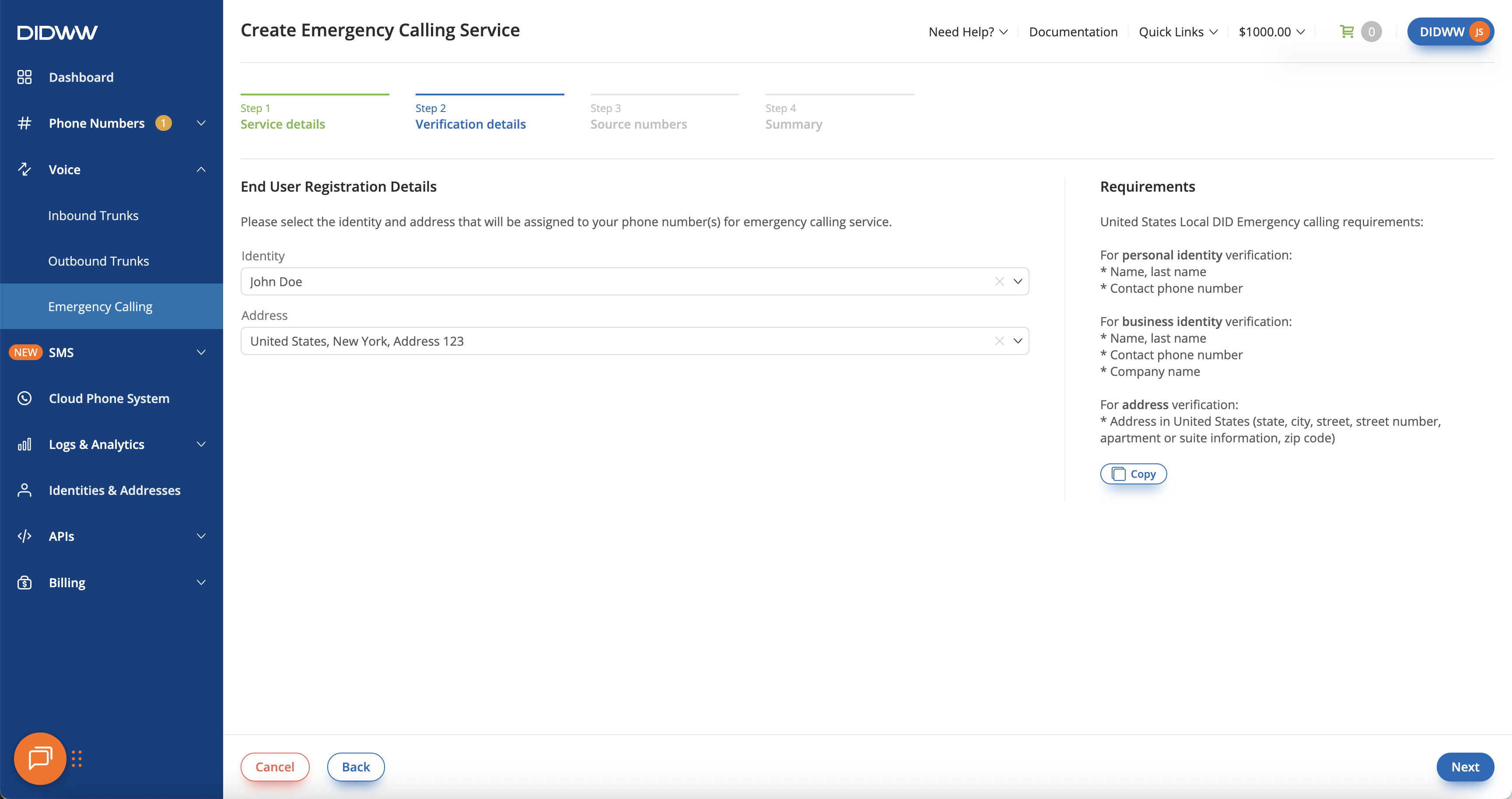
Fig. 3. Select the identity and address#
Step 4: Select the source numbers#
On the Source numbers step, Available source addresses lists your DID numbers of the selected country and number type. A banner above the list shows which numbers can be selected for the chosen identity.
Optionally filter the list by DID number or Description.
Select the DID numbers to use as source numbers. Selected numbers move to Allowed source addresses, and Numbers to be submitted shows how many are selected.
Click Next.
Numbers that cannot be selected are greyed out. Hover over the icon next to a number to see why, for example Number already linked to <identity> identity. or Number already has Emergency calling service assigned. To use a number that is linked to another identity, click Back and select that identity. If more than 200 numbers are available, the list is paginated with 200 numbers per page.
Field definitions are listed in Source numbers.
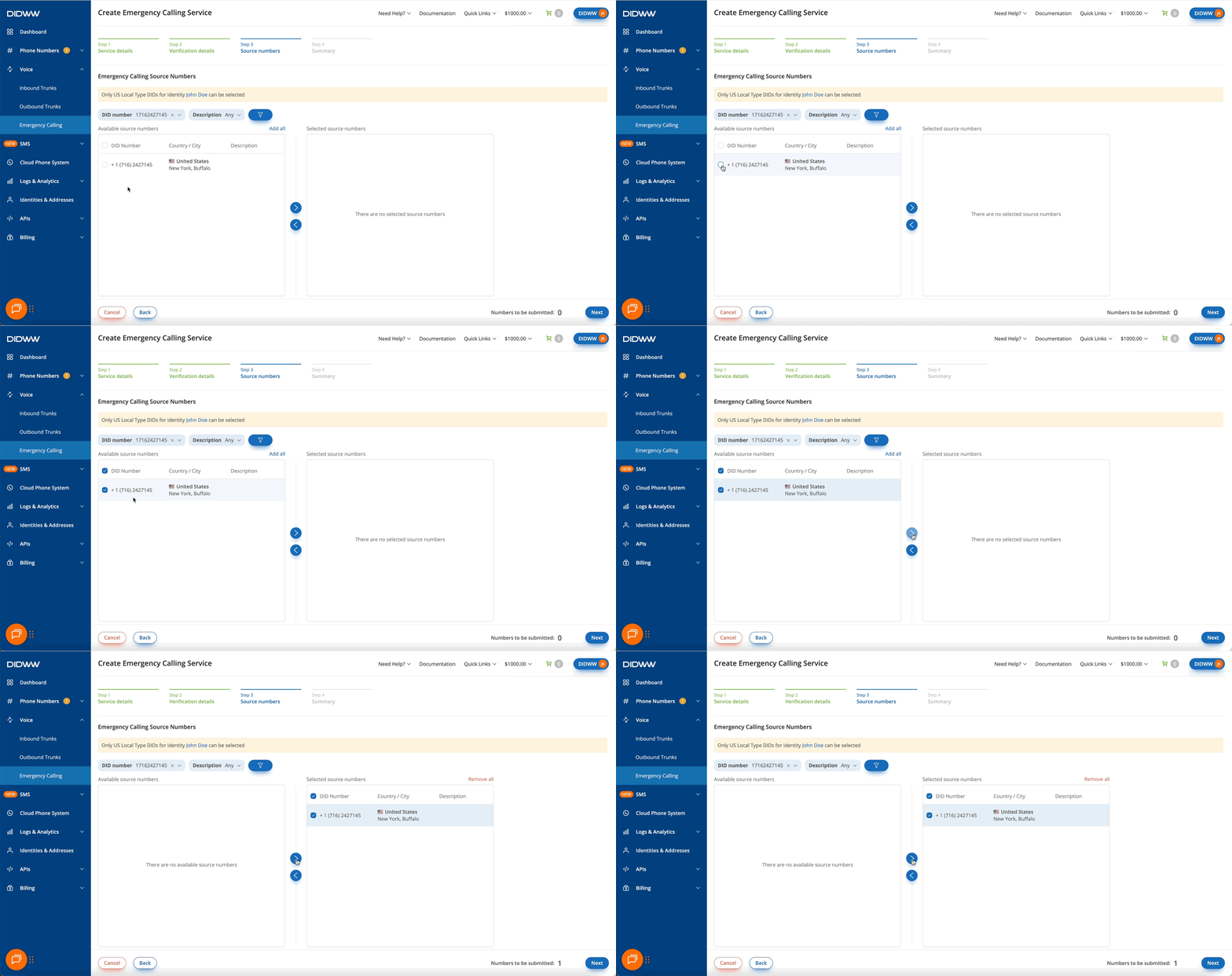
Fig. 4. Select the source numbers#
Step 5: Review and submit the request#
On the Summary step, review the request before you submit it.
Check the Service details, Verification Details, and Selected Source Numbers.
Review the estimated verification time and the Recurring monthly, Setup, and VAT amounts, and the total charged when the service is verified.
Click Submit.
If your balance does not cover the charges yet, a warning is shown. You can still submit the request, but your balance must cover the charges before verification can be completed and the service activated.
Field definitions are listed in Summary.
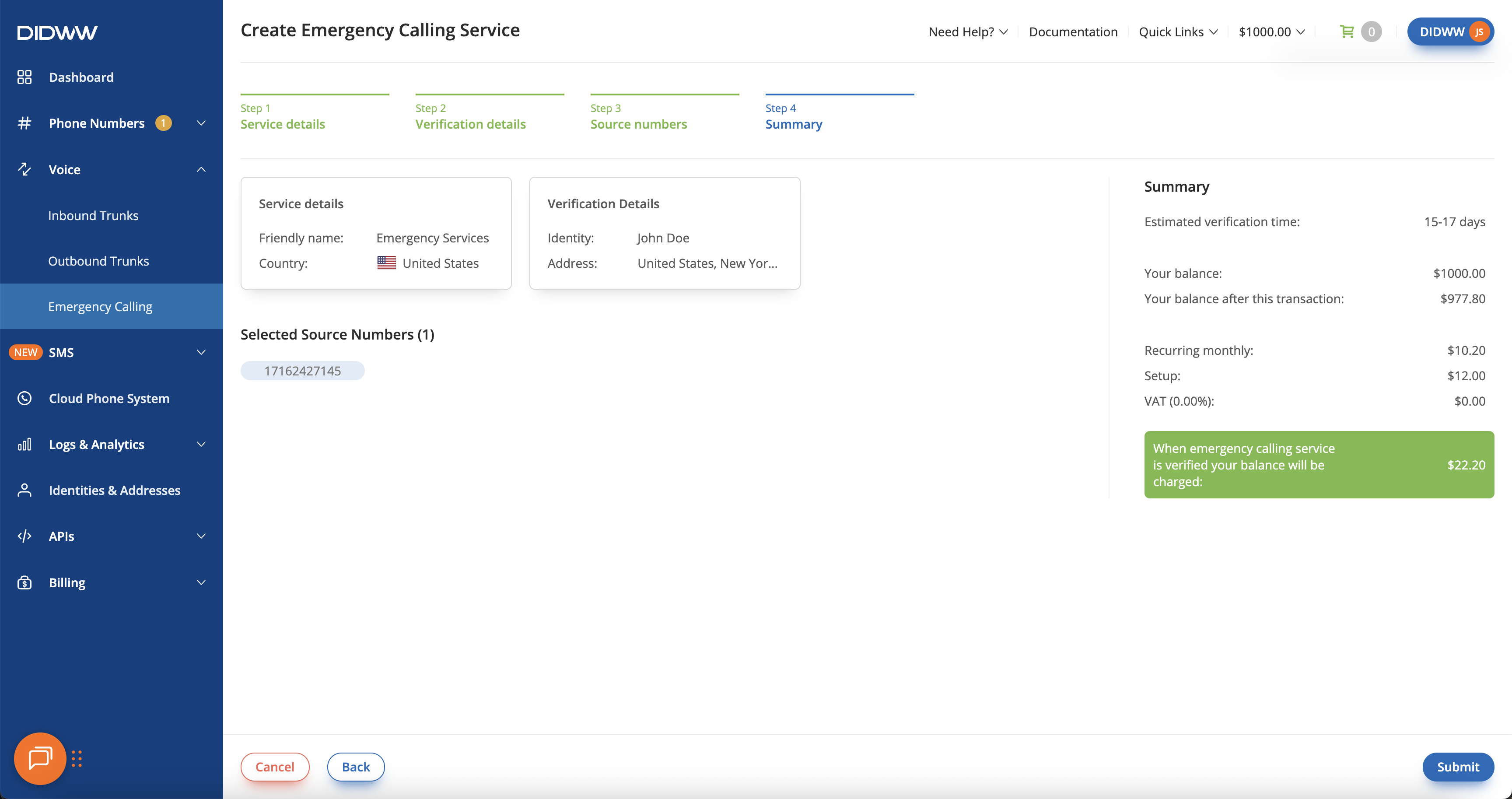
Fig. 5. Review and submit the request#
Step 6: Accept the emergency service restrictions#
This step applies only to countries and number types with emergency calling restrictions. For the others, Submit creates the request directly.
In the Important VoIP Emergency Service Information window, read the restrictions and notes.
Select the checkbox to confirm that you agree to all restrictions and notes.
Click Agree & Complete Order.
Important
By agreeing, you confirm that you have read and understood the information about the Emergency Calling Service, and you accept responsibility for making sure that the end users of the service are aware of it. You also authorize the creation of the request for the selected numbers.
When the request is created, a confirmation message is shown and the service appears on the Emergency Calling page with the New status.
Next steps#
Wait for DIDWW to verify the request. If its status changes to Changes required, correct the details and resubmit the request.
When the service is Active, make sure an outbound trunk allows the source numbers for emergency calling. Existing trunks allow all available DID numbers by default. See Configure emergency calling for outbound trunks.
Dial emergency numbers exactly as listed in the Emergency number dialing reference.