

Unassign DID numbers from a capacity group#
Unassign DID numbers from a Capacity group when they should no longer use the group’s shared or metered channels.
Before you begin#
Review the DID number’s capacity mode before unassigning it from a group. A DID+0 number needs additional Capacity to receive inbound calls. See How capacity works.
Review the Capacity group behavior and constraints before removing numbers from the group. See Capacity groups.
If you plan to delete the group after unassigning DID numbers, see Delete a Capacity group.
Step 1: Filter DID numbers by capacity group#
In the DIDWW User Panel, go to Phone Numbers > My Numbers.
Select the Active or All Numbers tab.
Open Filters and enable the Capacity group filter.
Select the pool and Capacity group.
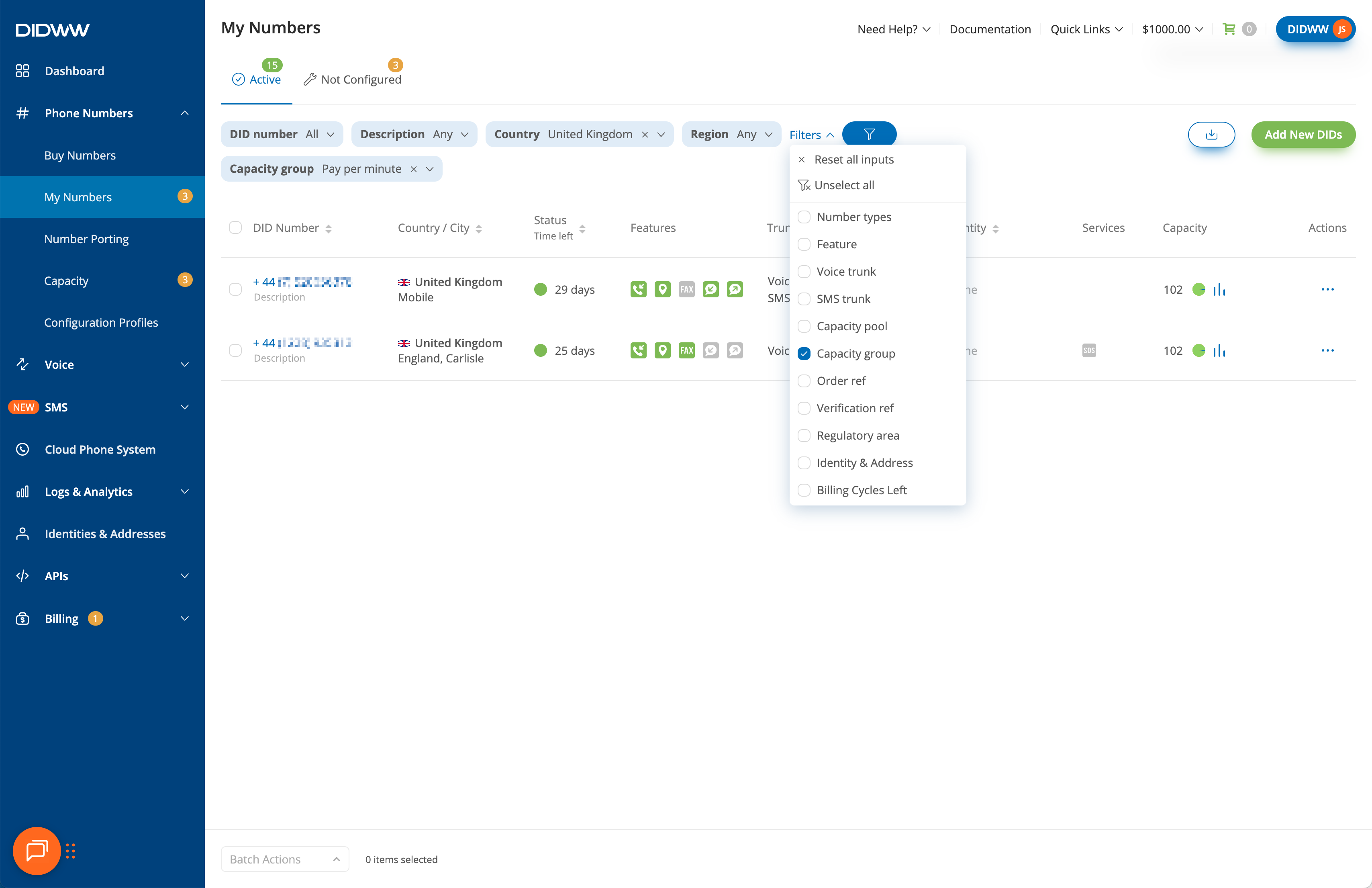
Fig. 1. Filter DID numbers by Capacity group#
Step 2: Open the Update Capacity Group action#
Select the DID numbers.
At the bottom of the page, click Batch Actions.
Select Update Capacity Group.
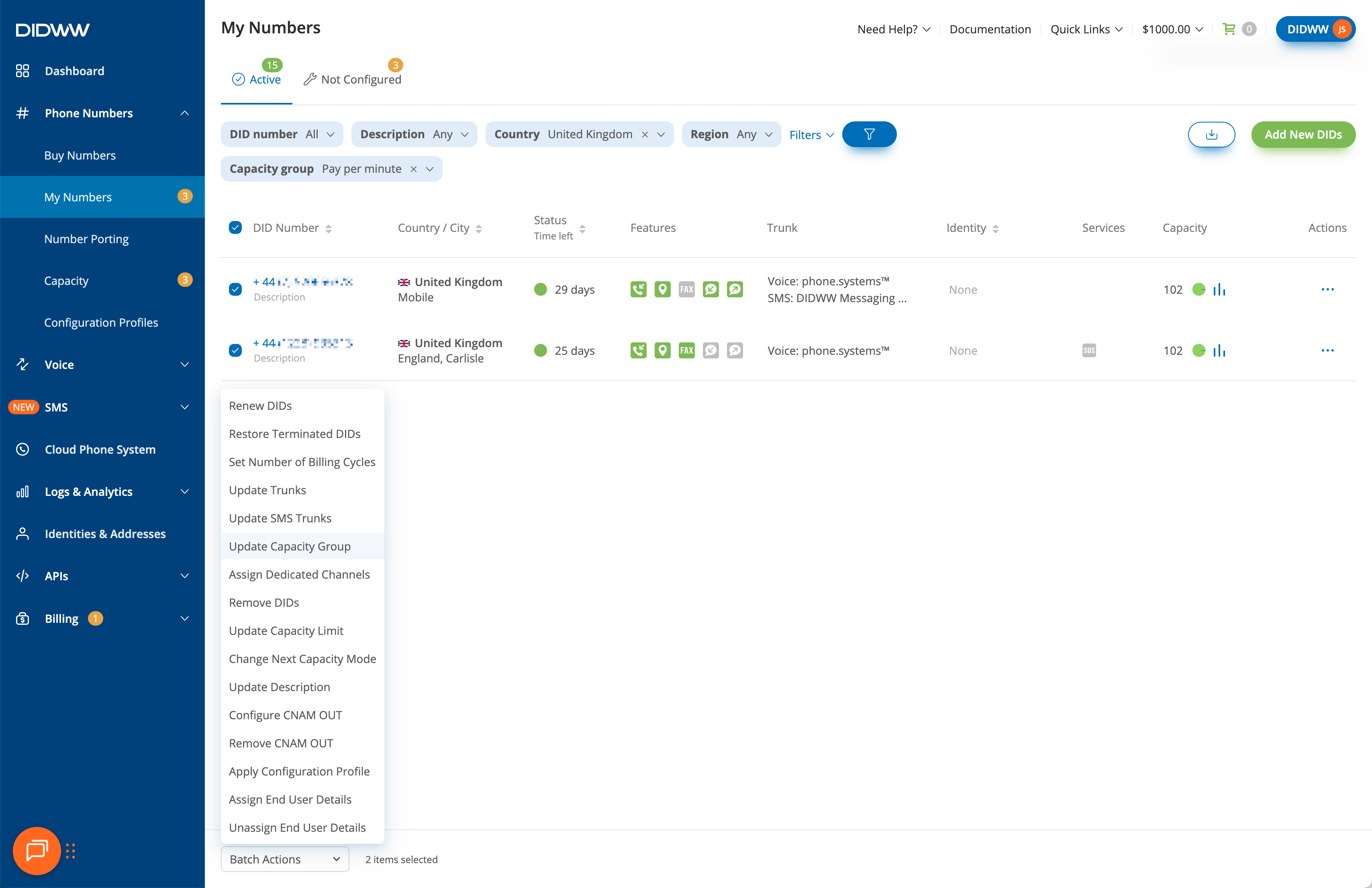
Fig. 2. Open Update Capacity Group#
Step 3: Unassign the capacity group#
In the Update Capacity Group window, open the Capacity group dropdown.
Select Unassign Capacity Group.
Click Confirm.
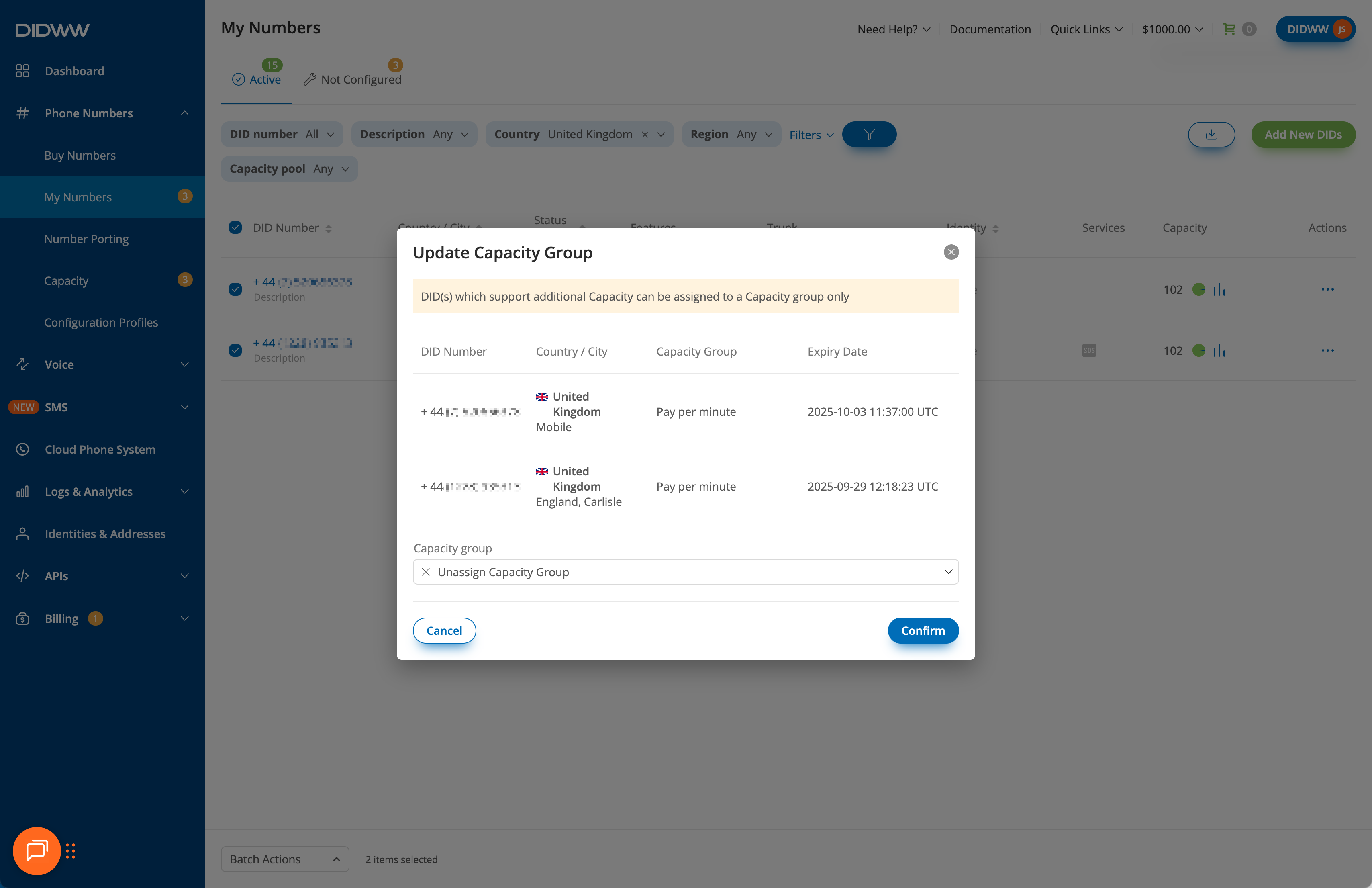
Fig. 3. Unassign Capacity Group#