

Configure Preferred Server routing#
Configure the DIDWW Points of Presence used for inbound call delivery when a SIP trunk’s Preferred Server is set to Auto.
Before you begin#
An active DIDWW account is required. Sign in to DIDWW.
Important
Configure your SIP endpoint and firewall to accept signaling and media from the DIDWW SIP signaling and RTP addresses for the Points of Presence you use. When using Auto, allow all DIDWW signaling and RTP addresses.
Step 1: Open Routing Settings#
In the DIDWW User Panel, go to Voice > Inbound Trunks.
Select the Routing Settings tab.
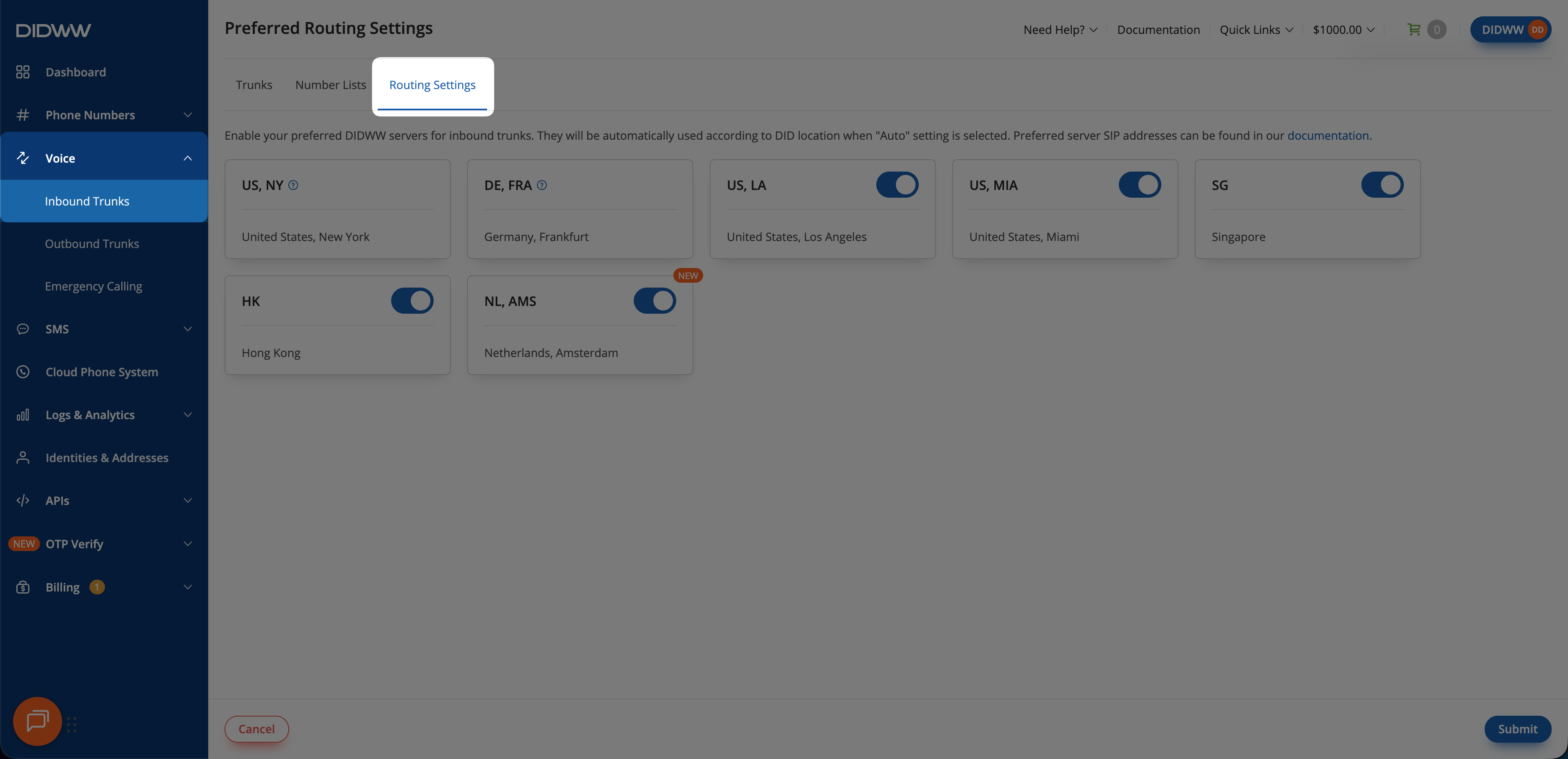
Fig. 1. Open Routing Settings#
Step 2: Configure the Points of Presence#
On Preferred Routing Settings, enable or disable the available Points of Presence using their switches.
Click Submit to save the changes.
US, NY and DE, FRA are always enabled and cannot be disabled.
Auto is the default and recommended trunk setting. It allows DIDWW to deliver calls from the Point of Presence that received them, and use an alternative location if one becomes unavailable. To deliver a trunk’s calls through one location instead, select a specific Preferred Server on a Static Endpoint trunk. See Preferred Server values for the available settings and locations, and Preferred Server routing examples for an illustrated comparison.
Tip
Keep all Points of Presence enabled when using Auto. Disabling a location can cause unnecessary routing hops.
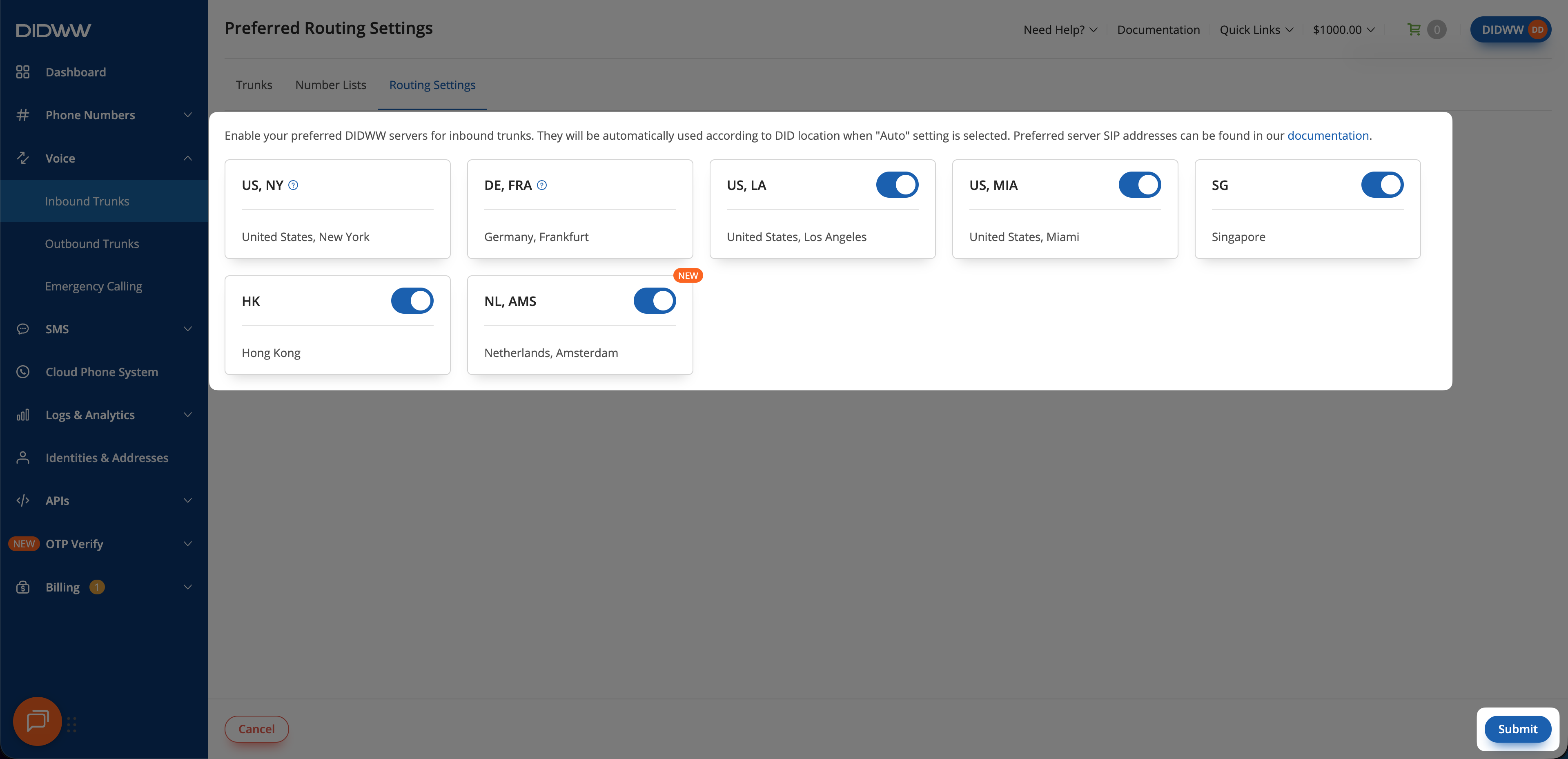
Fig. 2. Configure the Points of Presence#