

Restore a number#
Restore a manually canceled DID number from the Terminated quick filter on the My Numbers page. You can also restore multiple terminated DID numbers at once with Batch Actions.
Before you begin#
You can restore only manually canceled DID numbers.
If the number has active service time, you can restore it immediately at no additional cost.
DID numbers remain in the Service Aging Pool (SAP) for 34 days after the expiration date.
Restore a single terminated number#
Use this flow when you need to restore one DID number from its row-level actions menu.
Go to Phone Numbers > My Numbers.
Select the Terminated quick filter.
Locate the DID number you want to restore.
In the Actions column, click the
 button and select Restore.
Fig. 1. Restore action.#
In the pop-up window, click Submit to send the restore request.
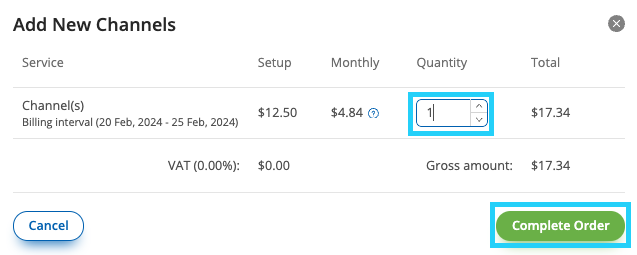
Fig. 2. Restore DID number request window.#
Restore multiple terminated numbers#
Use this flow when you need to restore more than one terminated DID number in the same batch action.
Step 1: Select terminated numbers#
Go to Phone Numbers > My Numbers.
Select the Terminated quick filter.
Select the DID numbers you want to restore.
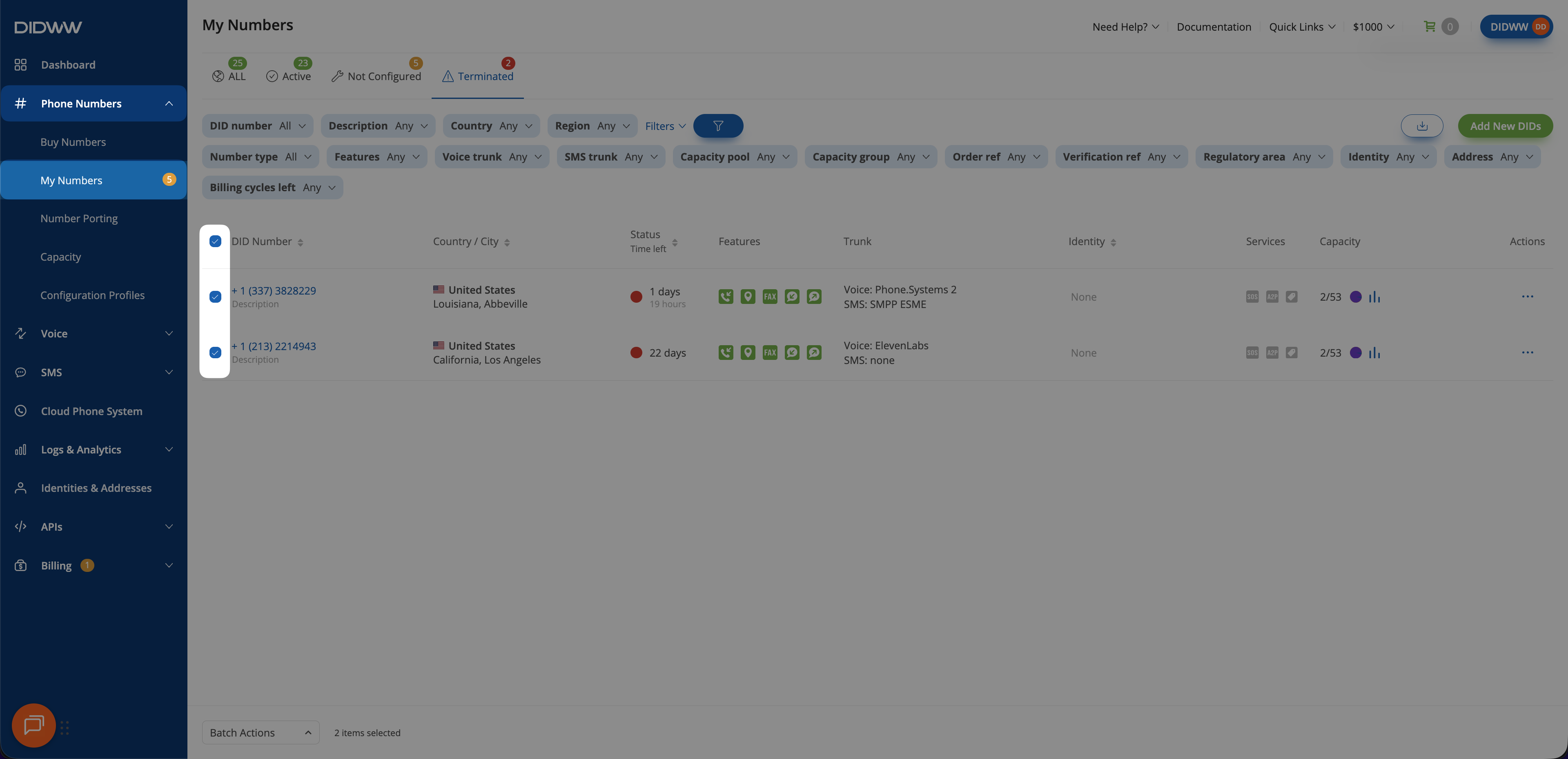
Fig. 3. Selecting multiple terminated DID numbers.#
Step 2: Open the batch restore action#
At the bottom of the page, open Batch Actions.
Select Restore Terminated DIDs.
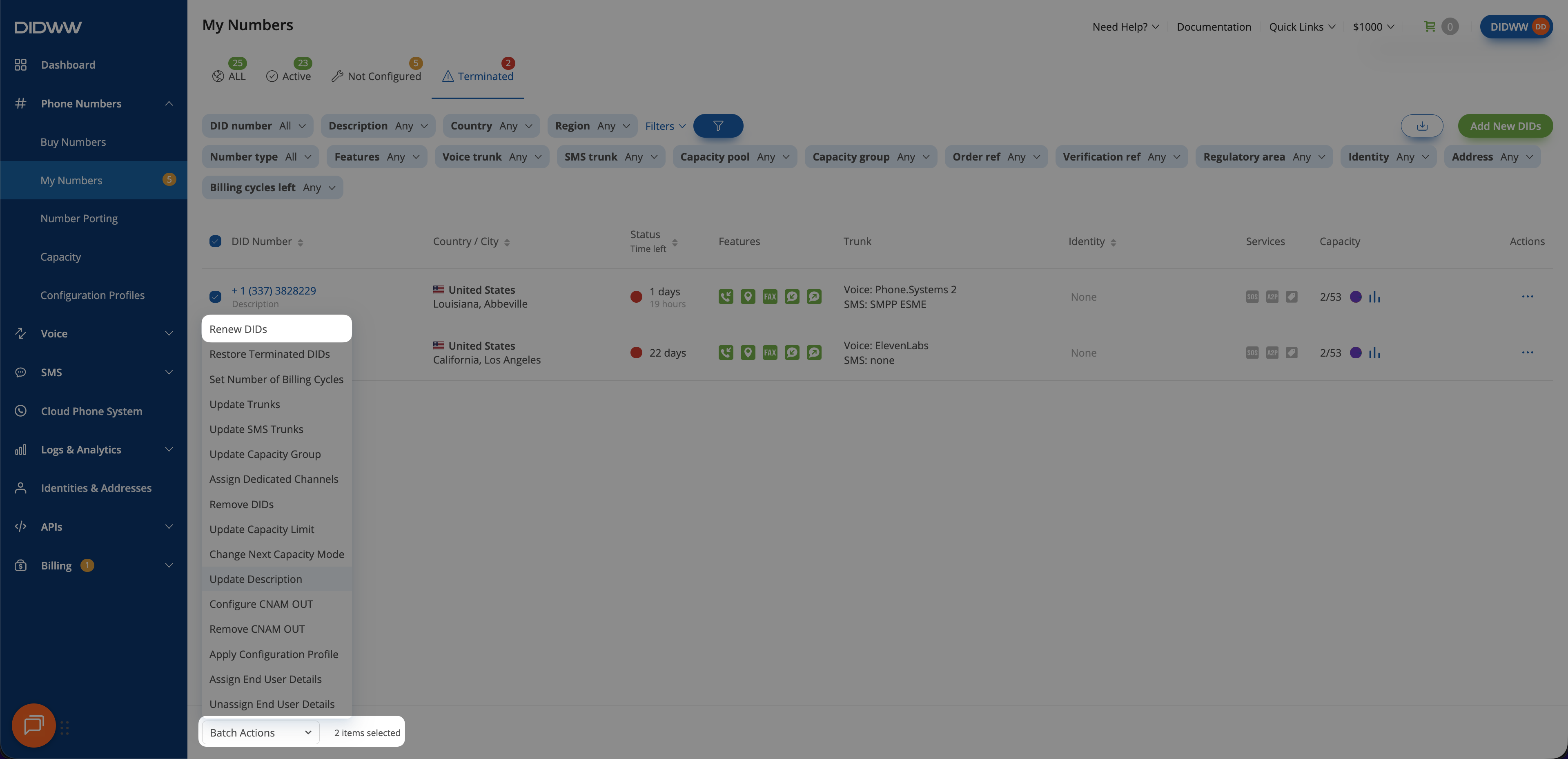
Fig. 4. Selecting the Restore Terminated DIDs batch action.#
Step 3: Submit the restore request#
In the Restore Terminated DID(s) pop-up window, review the selected DID numbers.
Click Submit.
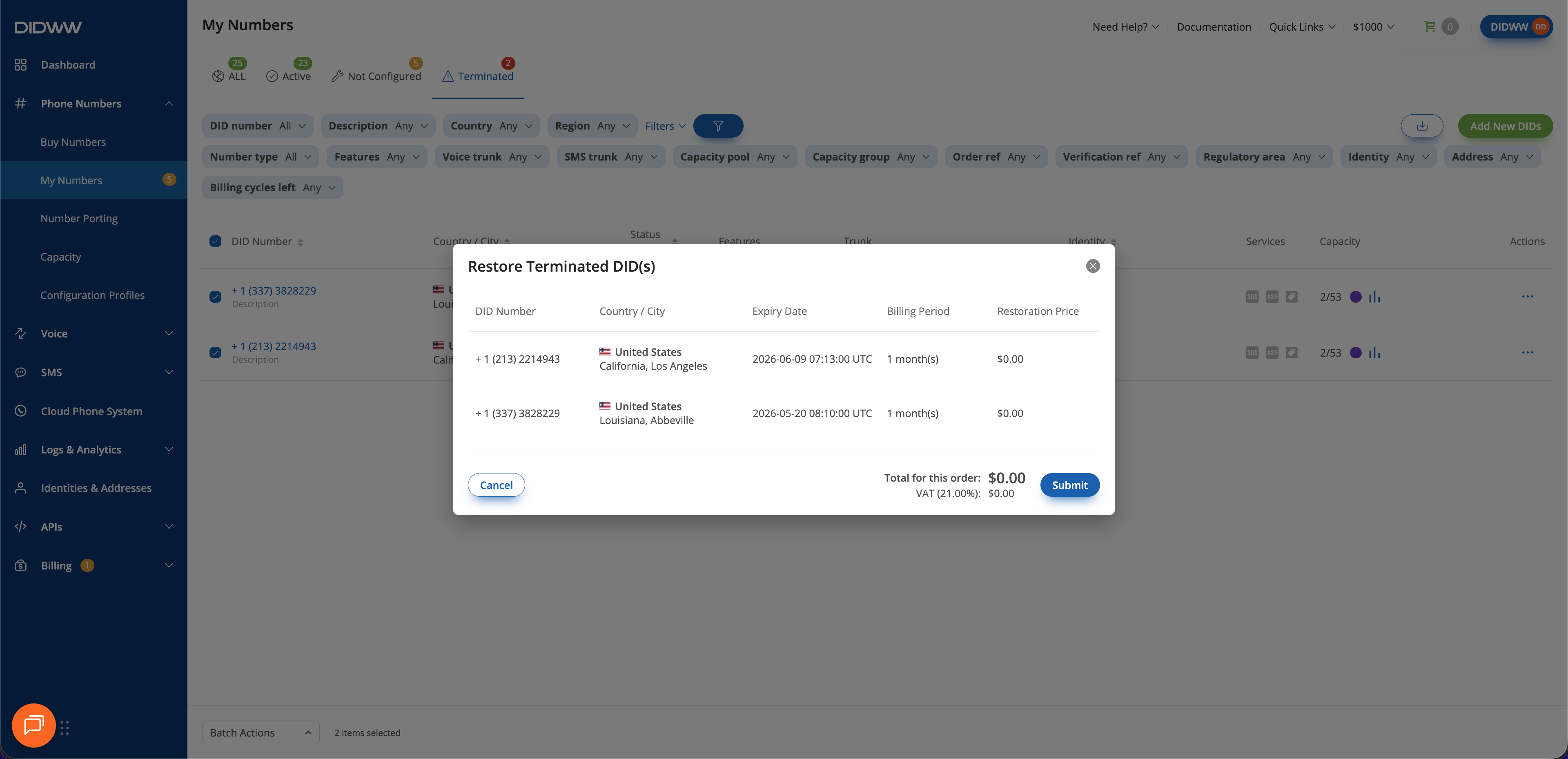
Fig. 5. Submitting a restore request for multiple DID numbers.#