

Set priorities in an SMS trunk group#
Priority controls the order in which the trunks in an SMS trunk group are used for message delivery. After creating a trunk group, you can set the Priority of each member trunk from the SMS Trunks list. The trunk with the highest number in the Priority field is attempted first.
Before you begin#
An active DIDWW account is required. Sign in to DIDWW.
An SMS trunk group with two or more member trunks is required. If you do not have one, see Create an SMS trunk group. To add trunks to an existing group, see Edit an SMS trunk group.
Step 1: Set trunk priorities#
Set the priorities in the SMS Trunks list or in the settings of each member trunk.
In the DIDWW User Panel, go to SMS > SMS Trunks.
Click the plus icon next to the trunk group to expand it. The member trunks are displayed, each with a Priority field.
Enter a new value from
0to32767in the Priority field of a member trunk, or use the arrows in the field to change it. A higher value represents a higher priority.
The new value is saved when you leave the field, and the Trunk updated successfully message appears.
Fig. 1. Edit member trunk priorities#
In the DIDWW User Panel, go to SMS > SMS Trunks.
Click the name of the member trunk to open its edit form.
In the Trunk Group Configuration section, change the Priority value from
0to32767.Click Submit.
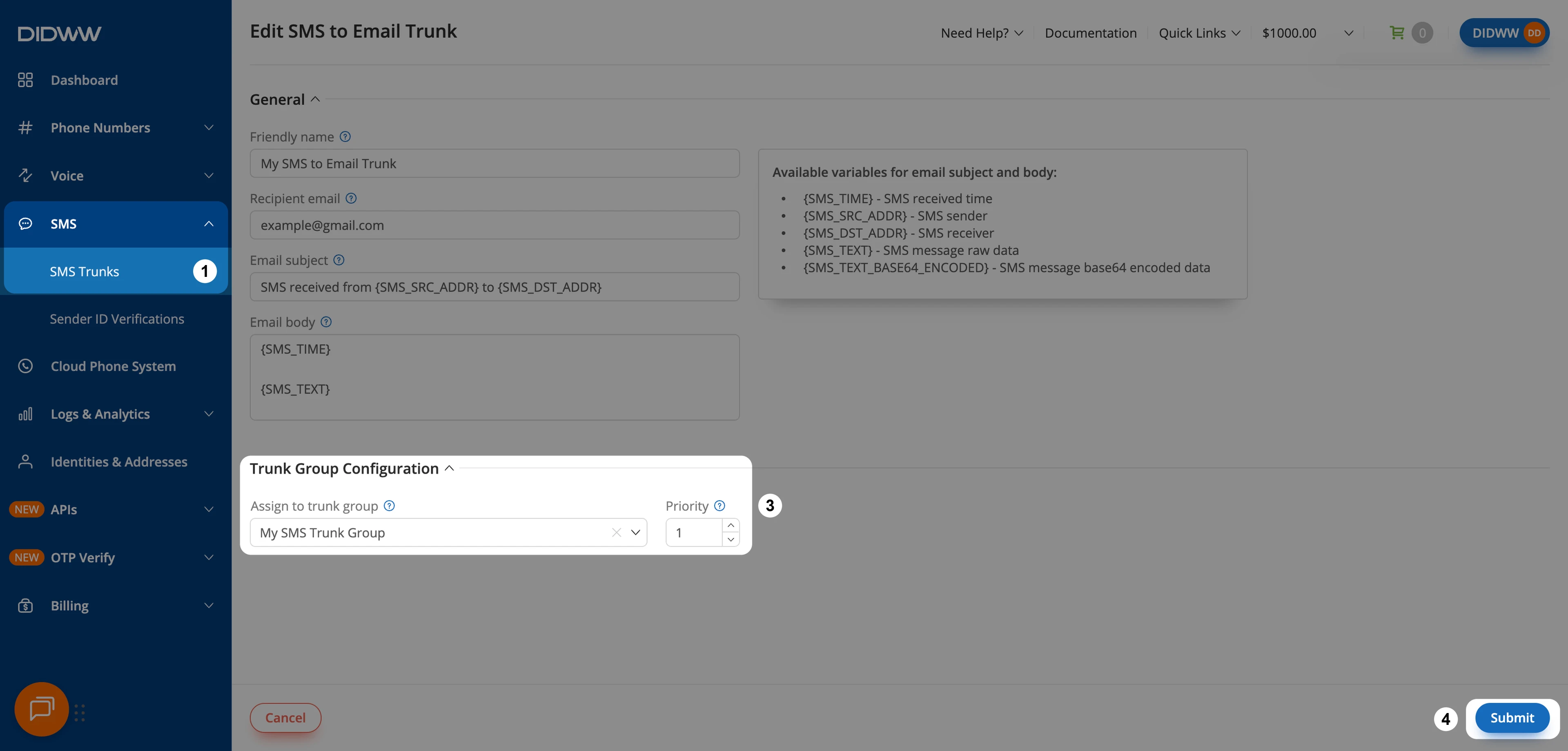
Fig. 2. Set the priority in the trunk settings#
Step 2: Check the routing order#
In the SMS Trunks list, review the Priority values of the member trunks in the expanded trunk group.
Make sure that the trunk you want DIDWW to attempt first has the highest value.
DIDWW attempts the member trunks from the highest to the lowest Priority
value. For example, if trunks have priorities 2, 1, and 0, DIDWW
attempts the trunk with priority 2 first. If it fails, DIDWW tries
priority 1, followed by priority 0. Member trunks with the same
Priority value are attempted in random order. For more information, see
Priority and failover.