

Purchase flat-rate channels#
Purchase flat-rate channels when you need additional inbound call capacity billed at a fixed monthly rate. Purchased channels become available for dedicated or shared assignment.
Before you begin#
You need at least one active DID number.
Your account needs a positive prepaid balance equal to or greater than the cost of the additional channels. To add funds, go to Payment Methods.
Verify that the DID numbers are covered by the Standard, Extended, or Custom pool you plan to use.
Note
Additional channels cannot be added to numbers that already include fixed capacity, such as toll-free numbers with 300 default channels.
Step 1: Open Capacity and select a channel pool#
In the DIDWW User Panel, go to Phone Numbers > Capacity.
Select the channel pool, such as Standard or Extended, based on the country of your DID numbers.
Click Add New Channels.
Note
The monthly cost of flat-rate channels is shown in the pricing block under Channels cost. To view volume-based pricing details, hover over the tooltip next to Channels cost.
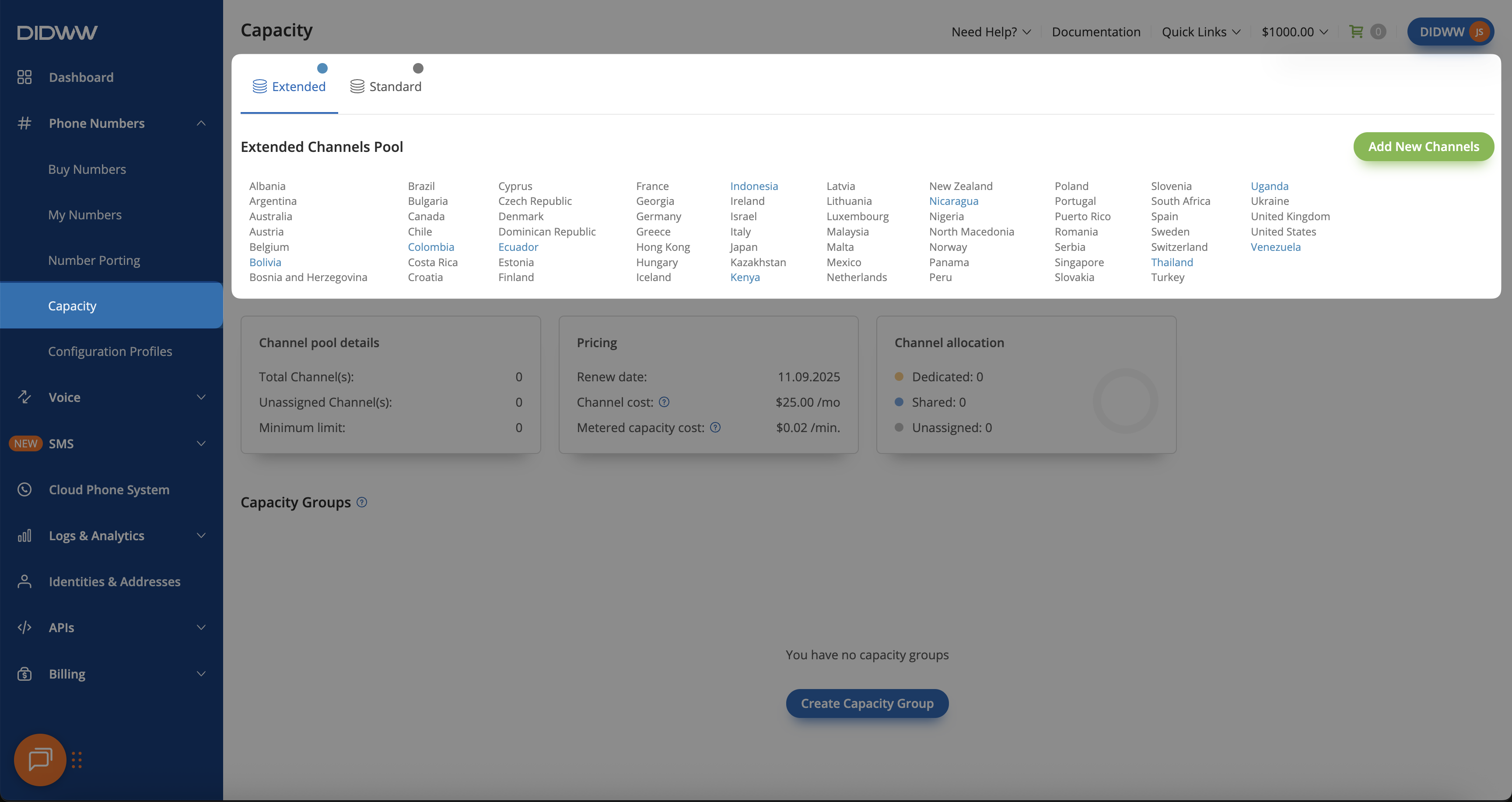
Fig. 1. Open the Capacity page and select a pool#
Step 2: Select the channel quantity#
In the pop-up window, review the channel setup fee, monthly fee, and billing interval.
Enter the channel quantity.
Review the cost summary.
Important
Pricing is volume-based. If you add channels in the middle of a billing cycle, the monthly fee is prorated for the remaining days of that cycle. A one-time setup fee is applied when capacity channels are activated.
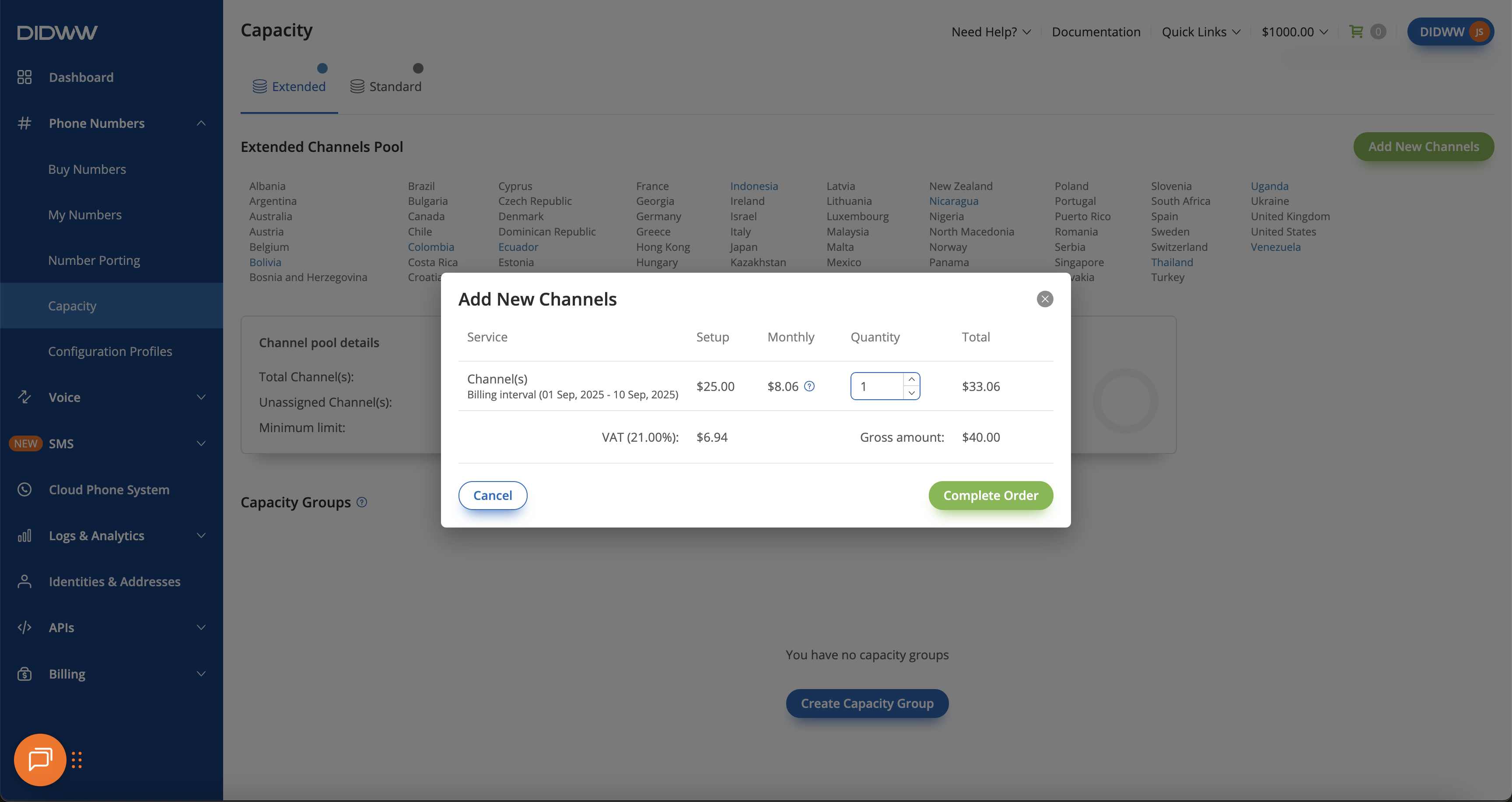
Fig. 2. Select the channel quantity#
Step 3: Complete the order#
Click Complete Order.
The system charges your prepaid balance immediately.
Note
If your prepaid balance is insufficient, the order cannot be placed and a notification appears.
When the order is successful, you are redirected to the order completed page with a confirmation screen. The ordered channels are immediately available.
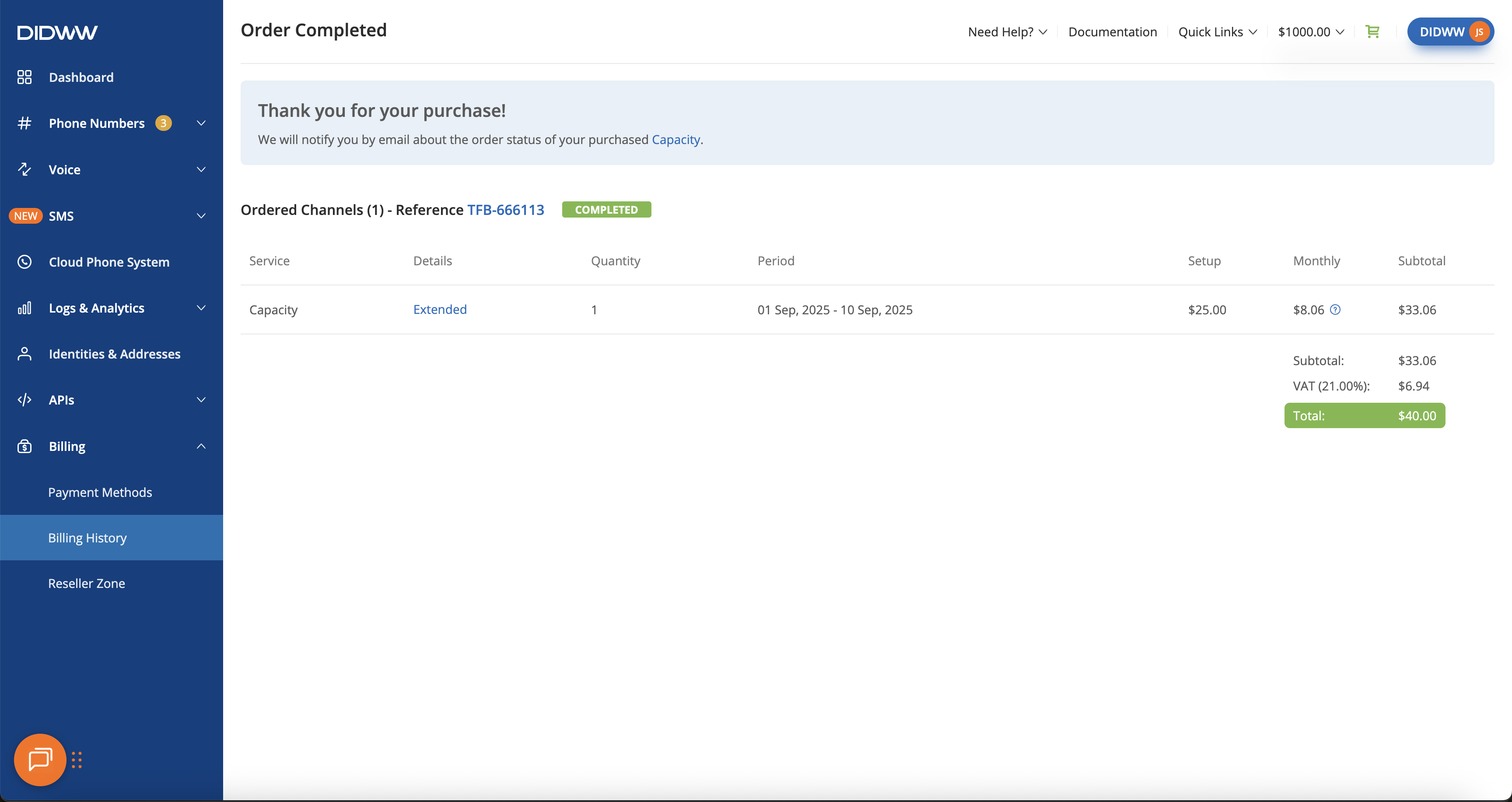
Fig. 3. Flat-rate channel order completed confirmation page#