

Batch actions reference#
Batch actions in My Numbers apply supported changes to selected DID numbers. Use this reference to understand available batch actions, when to use them, and documented constraints before applying updates to multiple numbers.
Selecting numbers for batch actions#
To use Batch Actions, select one or more DID numbers from the My Numbers table. You can select numbers manually or use the checkbox next to the DID Number column to open bulk selection options.
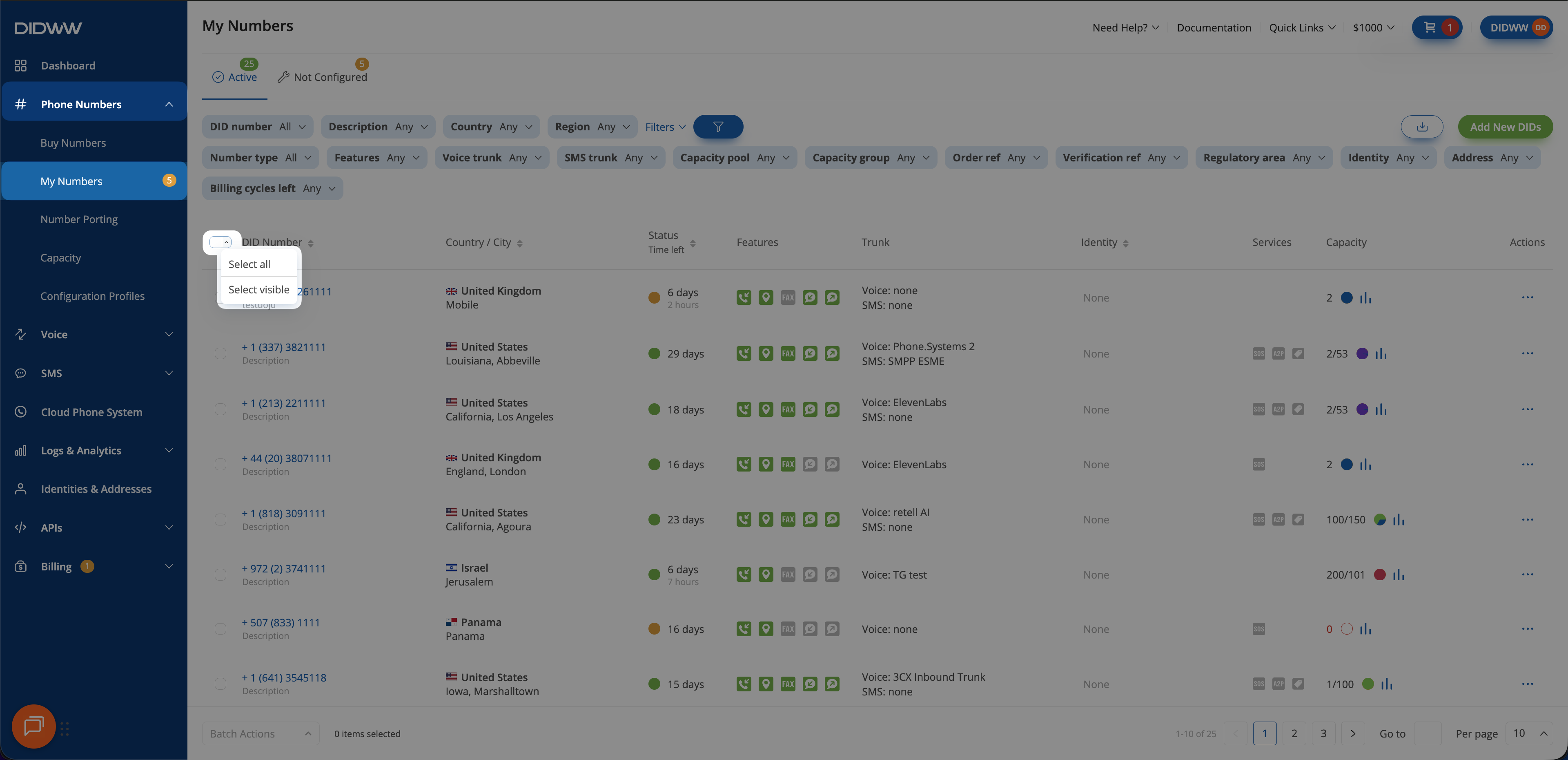
Fig. 1. Batch Actions menu with selected DID numbers.#
Selection option |
Description |
|---|---|
Select All |
Selects all DID numbers matching the current filter criteria, including DID numbers on other pages. |
Select Visible |
Selects only the DID numbers currently displayed on the page. |
Available batch actions#
Batch action |
Description |
Notes and constraints |
|---|---|---|
Renew DIDs |
Renews selected DID numbers. |
DID numbers can be renewed at any time. Expired numbers remain in the Service Aging Pool (SAP) for 34 days. Manually canceled DID numbers must be restored before they can be renewed. See Renew a number. |
Restore Terminated DIDs |
Restores selected terminated DID numbers. |
Only manually canceled DID numbers can be restored. If the number has active service time, it can be restored immediately at no additional cost. DID numbers remain in Service Aging Pool (SAP) for 34 days after the expiration date. See Restore a number. |
Set Number of Billing Cycles |
Sets how many billing cycles remain before automatic renewal stops for selected DID numbers. |
Newly purchased DID numbers are set to Unlimited billing cycles by default. The maximum value is 999. Leave the field empty to set an unlimited number of billing cycles. |
Update Trunks |
Assigns or unassigns inbound voice trunks for selected DID numbers. |
Use Unassign Voice Trunk to remove the current voice trunk from selected numbers. See Assign a voice trunk. |
Update SMS Trunks |
Assigns or unassigns an SMS trunk for selected DID numbers. |
Use Unassign SMS Trunk to remove the current SMS trunk from selected numbers. See Assign an SMS trunk. |
Update Capacity Group |
Assigns selected DID numbers to a capacity group or unassigns them from a capacity group. |
Only DID numbers that support additional capacity can be assigned to a capacity group. To remove group assignment, select Unassign Capacity Group in the Update Capacity Group window. |
Assign Dedicated Channels |
Assigns flat-rate dedicated channels to selected DID numbers. |
Select the capacity pool and enter the number of dedicated channels to assign. To unassign dedicated channels, set Assigned Dedicated Channels to 0. |
Remove DIDs |
Cancels selected DID numbers. |
A confirmation dialog lists the selected DID numbers and allows an optional cancellation reason. See Remove a number. |
Update Capacity Limit |
Sets a maximum number of concurrent inbound calls for selected DID numbers. |
Updating this value limits concurrent calls for the DID number and does not increase overall account capacity. Clear the field to remove an existing limit. See Set capacity limits. |
Change Next Capacity Mode |
Changes the capacity mode that selected DID numbers use in the next billing cycle. |
Available options are Clear (remove the scheduled mode change), 2 included (DID+2), and 0 included (DID+0). The update takes effect in the next billing cycle unless the DID number is renewed immediately after the change. See Change next capacity mode. |
Update Description |
Updates the description for selected DID numbers. |
Use this action when the same description should be applied to multiple selected numbers. |
Configure CNAM OUT |
Submits a CNAM OUT configuration request for selected DID numbers that support CNAM OUT. |
CNAM OUT can contain up to 15 characters. An identity is required. Submitted requests usually complete review within 48–72 hours. See Manage CNAM OUT. |
Remove CNAM OUT |
Submits a CNAM OUT removal request for selected DID numbers with active CNAM OUT. |
The request remains in Cancellation Pending status until verified. CNAM cannot be modified or reapplied while the removal task is pending. Submitted requests usually complete review within 48–72 hours. See Manage CNAM OUT. |
Apply Configuration Profile |
Applies a configuration profile to selected DID numbers. |
At least one configuration profile is required. A profile can apply voice, SMS, capacity, and description settings in one action. See Configuration profiles. |
Assign End user Details |
Assigns identity and address details to selected DID numbers that require registration. |
Use for DID numbers in Awaiting Registration status. Assigned end-user details are submitted for verification review. See Assign end-user details. |
Unassign End user Details |
Removes assigned End user Details from selected DID numbers. |
Use this action when End user Details should no longer be assigned to the selected DID numbers. |