

Edit a Sender ID Verification#
Use this guide to change a verification’s friendly name or associated SMS trunk, remove supported Sender IDs, or request additional Sender IDs where available.
Step 1: Open the verification#
In the DIDWW User Panel, go to SMS > Sender ID Verifications.
Open the Verifications tab.
Find the verification and click the actions button.
Select Edit campaign.
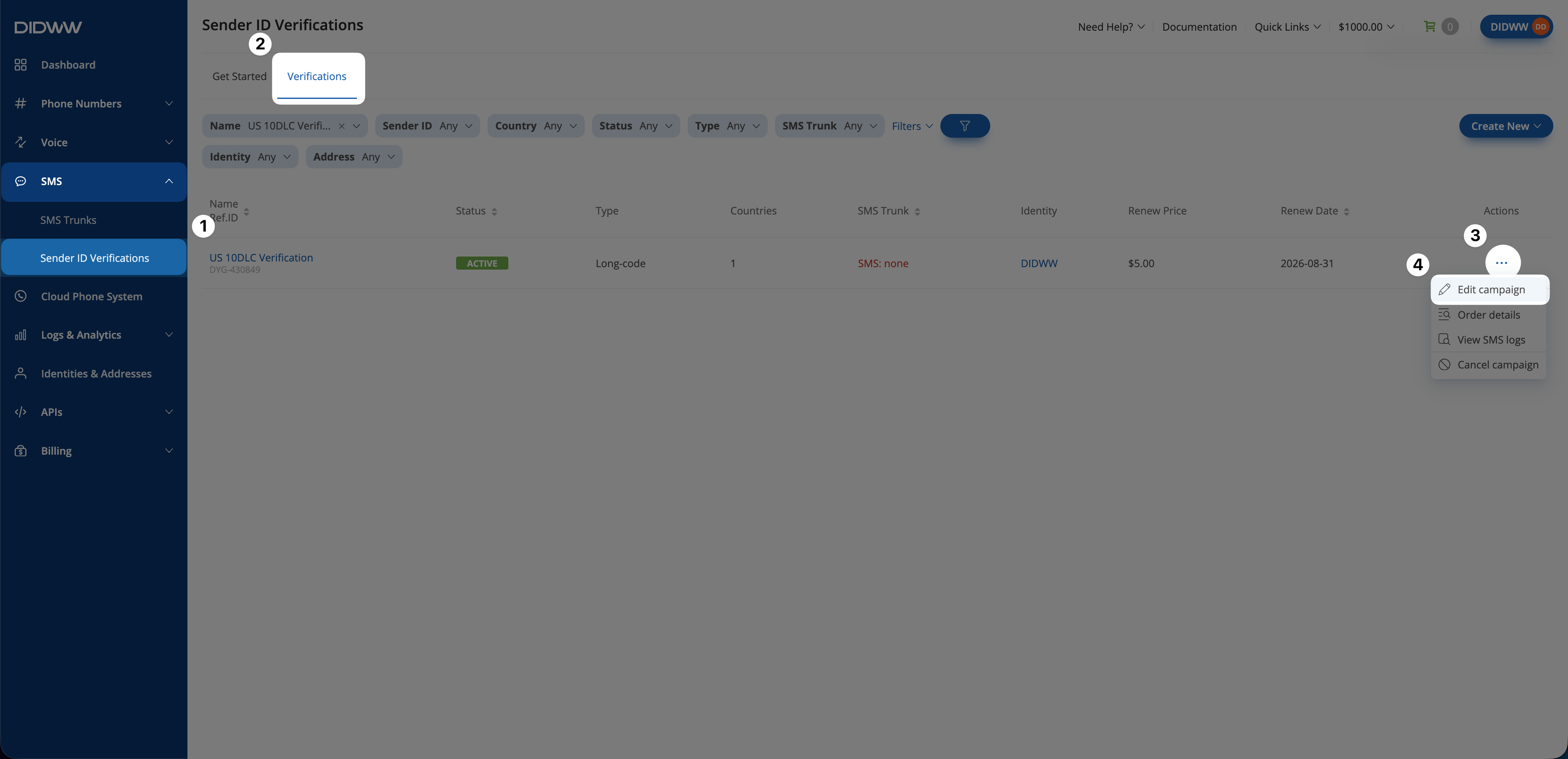
Fig. 1. Open the Edit campaign action.#
Step 2: Update the verification#
You can update the Friendly name, manage the associated SMS trunk, or add or remove Sender IDs where supported. Follow the applicable tab below.
Under General, make any required changes:
To change the verification name, update the Friendly name.
To associate an outbound SMS trunk, select it under SMS trunk.
To remove the associated trunk, clear the SMS trunk field.
An HTTP OUT SMS trunk is required to send an individual message directly from the verification in the DIDWW User Panel. For instructions, see Send an SMS using a verified Sender ID.
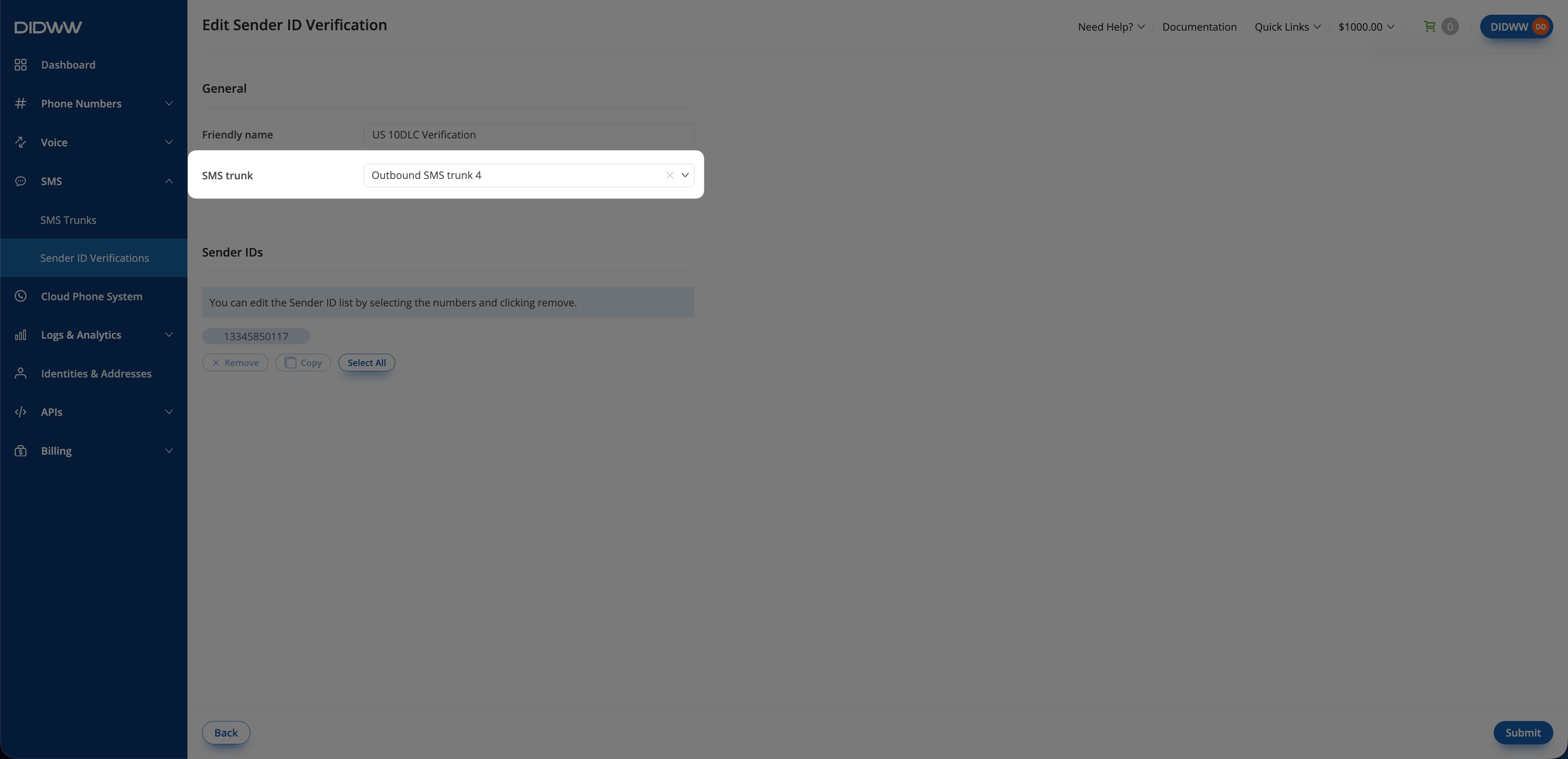
Fig. 2. Manage the SMS trunk.#
Sender IDs can be removed from Long-code and Toll-Free verifications.
Note
To change an Alphanumeric Sender ID, contact sales@didww.com.
A Carrier Sender ID is generated by DIDWW and cannot be changed or removed. It remains available on this page as a copyable value.
Under Sender IDs, select one or more numbers, or click Select All.
To copy the selected values, click Copy.
To remove the selected numbers, click Remove.
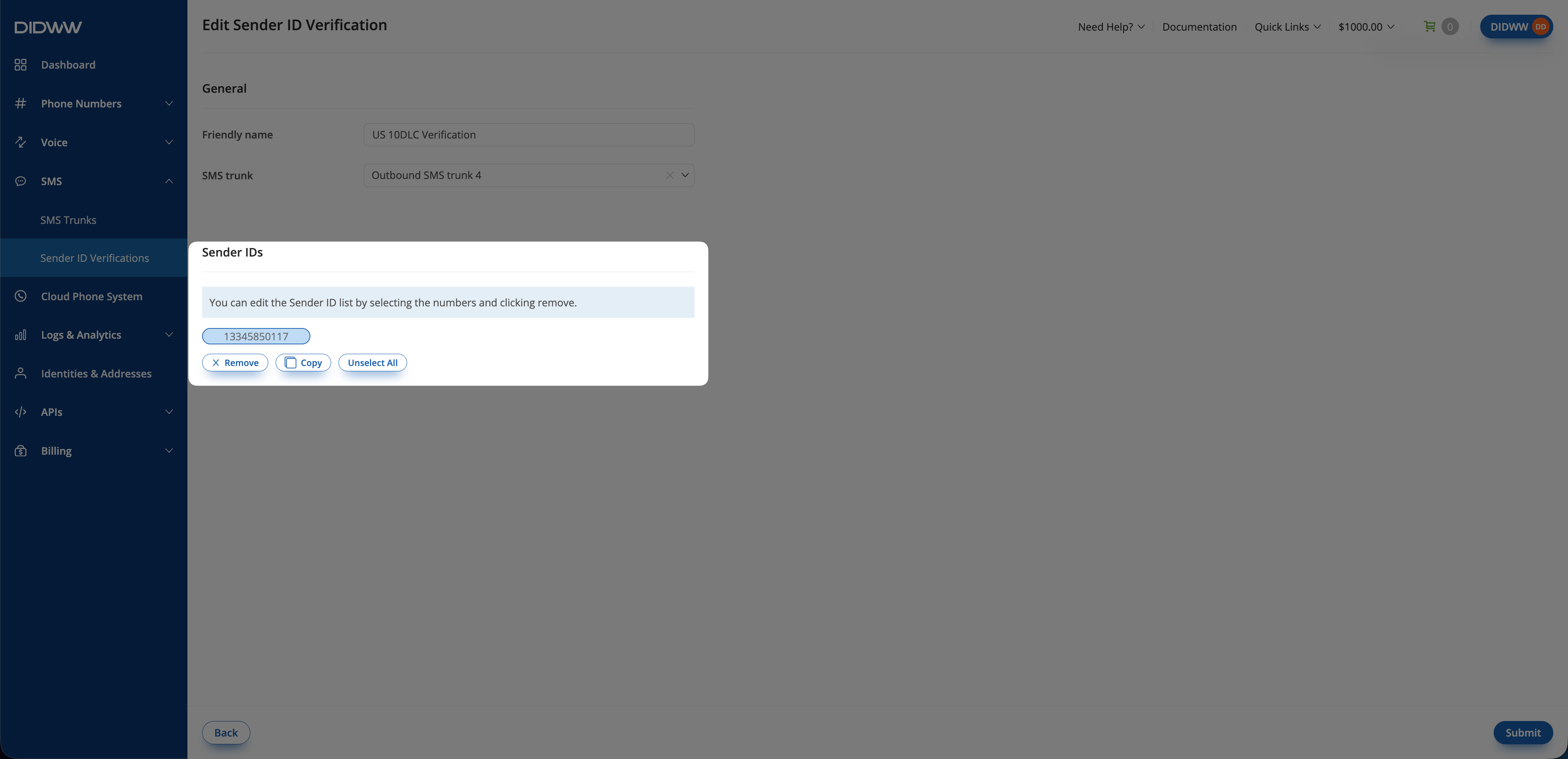
Fig. 3. Select, copy, or remove Sender IDs.#
In the Remove Sender ID(s) dialog, click Remove.
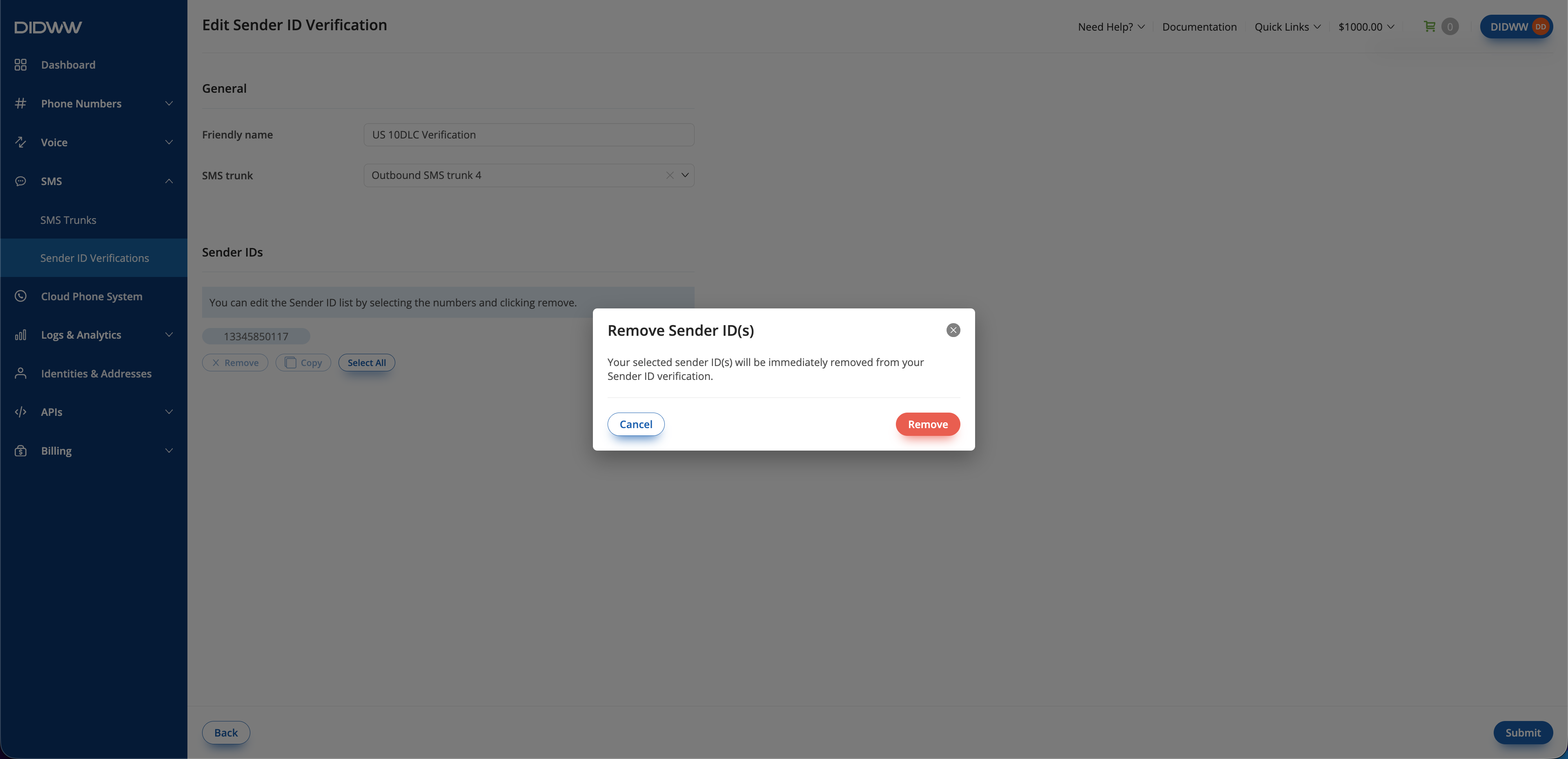
Fig. 4. Confirm removal.#
To add Sender IDs to an existing US 10DLC or Toll-Free verification, contact your account manager or DIDWW Customer Support at customer.care@didww.com. Include the DID numbers that you want to add.
Note
A verification can include up to 49 Sender IDs.
Sender IDs cannot be added to other verification types. Create a new verification instead.
Step 3: Submit the changes#
Review your changes and click Submit.
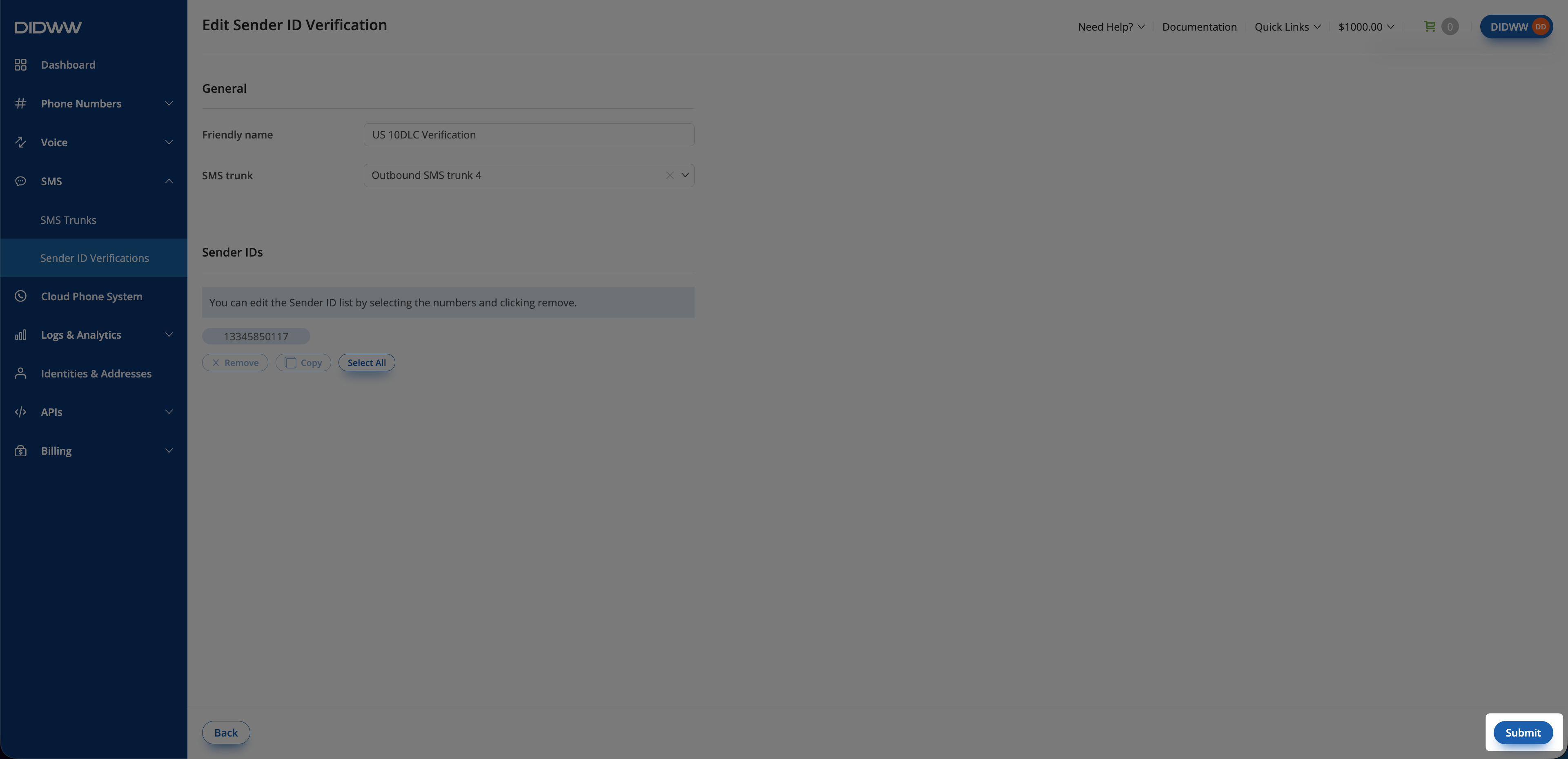
Fig. 5. Submit the changes.#