

How to buy numbers#
Purchase DID numbers from DIDWW inventory by searching available numbers, applying filters, reviewing pricing and service options, and completing checkout.
Before you begin#
Sufficient prepaid balance is required to complete the purchase. See getting started with billing.
Important
If you haven’t added a credit card, you’ll be prompted to do so during checkout or you can choose an instant payment method to complete the purchase.
Step 1: Select a country#
Go to the Phone Numbers > Buy Numbers menu.
In the Country dropdown, choose the country where you want to purchase phone numbers.
Fig. 1. Selecting a country.#
Step 2: Select a number type#
Select a number type to display only numbers available in that category.
Available number types include Local, National, Mobile, Toll-free, Shared Cost, and Global / UIFN.
See Filters reference for detailed number type information.
Fig. 2. Selecting a number type.#
Step 3: Apply filters#
Use the available filters to narrow the search results by geography, whether registration is required, supported features, billing options, area name, or prefix.
For detailed filter descriptions, see Filters reference.
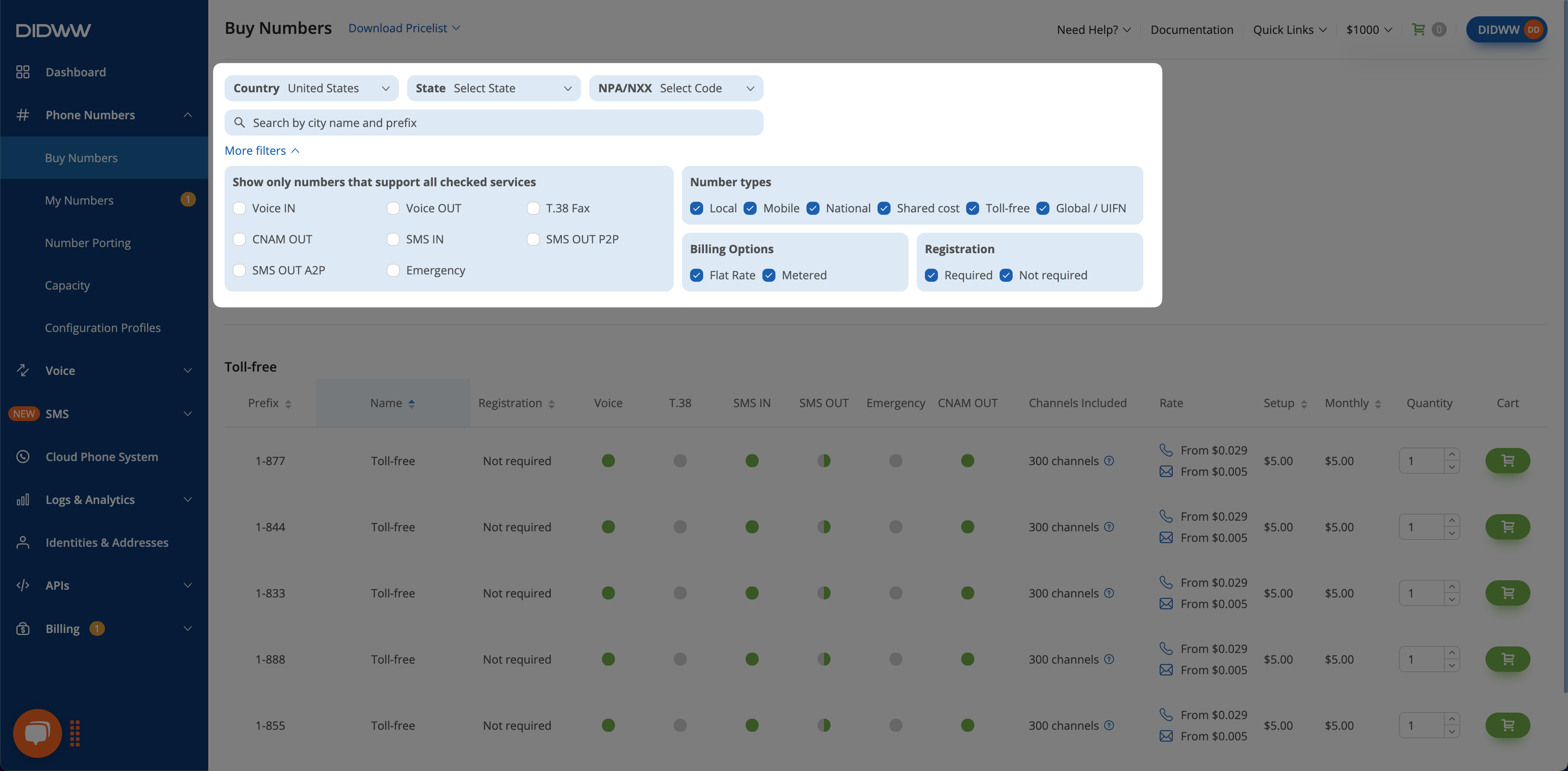
Fig. 3. Applying additional filters.#
Step 4: Add numbers to the shopping cart#
Review the available number options and their pricing.
Select the number of Channels Included.
Set the Quantity of numbers to purchase.
Click the cart icon to add the selected numbers to your shopping cart.
Fig. 4. Adding numbers to the shopping cart.#
Step 5: Review the shopping cart#
Open the Shopping Cart to review your selected numbers. In the shopping cart, you can review the selected numbers and adjust the Channels Included or Quantity before checkout.
Fig. 5. Review shopping cart.#
Step 6: Select billing period and proceed to checkout#
In the Shopping Cart, select your preferred billing period and click Proceed to Checkout.
Fig. 6. Selecting a billing period.#
Step 7: Review order summary and continue#
On the Checkout page, review the order details in the Order Summary panel and click Continue.
Note
To make changes before finalizing your order, click the Modify Order button. This will return you to the shopping cart for adjustments.
Fig. 7. Modify Order button.#
Step 8: Acknowledge service restrictions#
If any of your selected numbers have service restrictions, a Service Restrictions pop-up will appear. Review the terms, check the confirmation box, and click Agree & Complete Order to finalize your purchase.
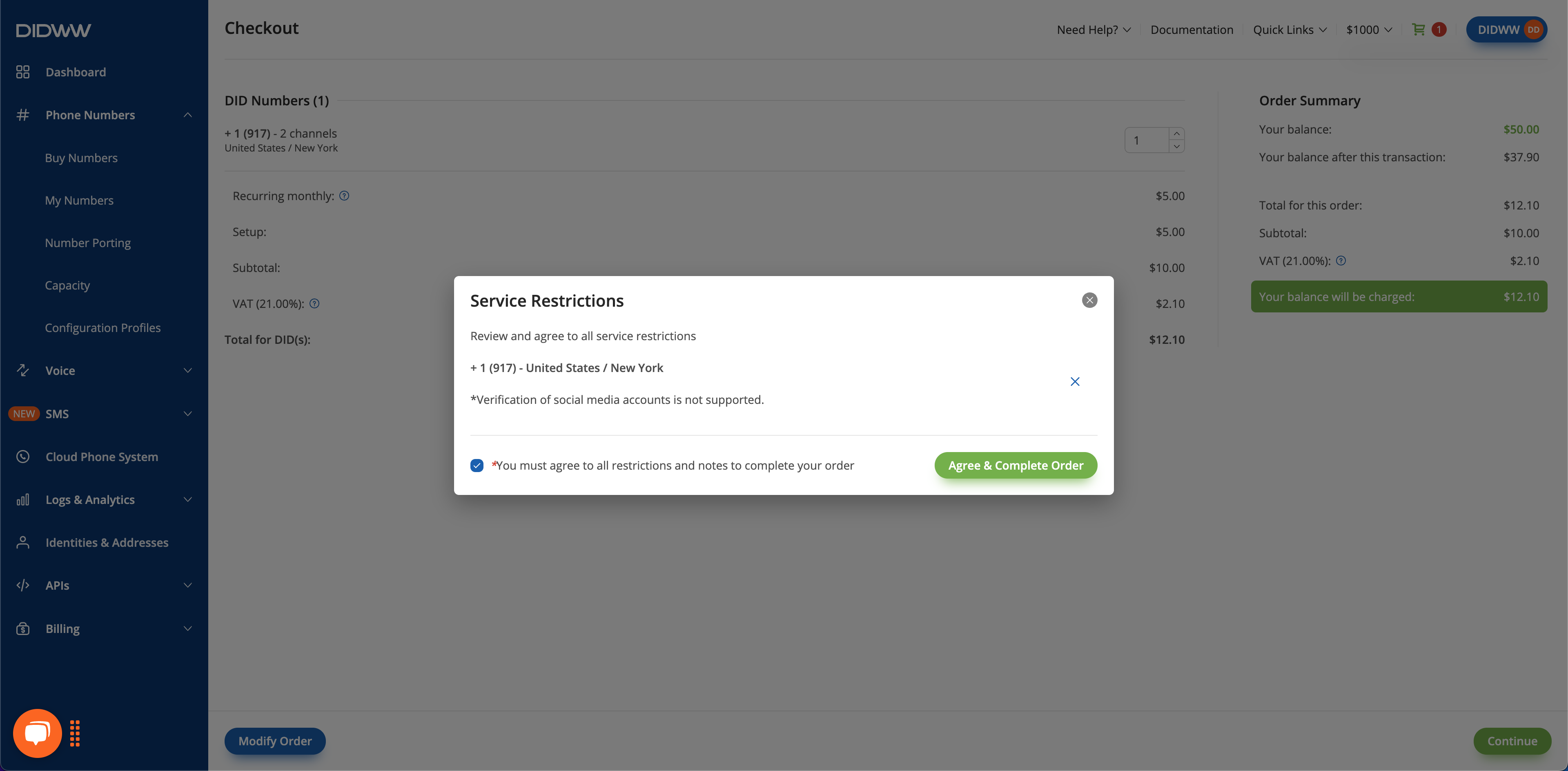
Fig. 8. Service Restrictions pop-up.#
Next steps#
Assign a voice trunk — Configure inbound routing for purchased DID numbers.
Capacity — Configure capacity for purchased DID numbers.
End-user verification — Complete End-user verification before activation, when required.