

Manage SMPP ESME trunks#
Manage existing SMPP ESME trunks from the SMS Trunks page. Edit a trunk’s settings, move it to another Server location, or delete trunks that are no longer required.
Before you begin#
An active DIDWW account is required. Sign in to DIDWW.
An existing SMPP ESME trunk is required. If you do not have one, see Create an SMPP ESME trunk.
Edit an SMPP ESME trunk#
In the DIDWW User Panel, go to SMS > SMS Trunks.
Locate the trunk you want to edit and click the Actions button next to it.
Select Edit.
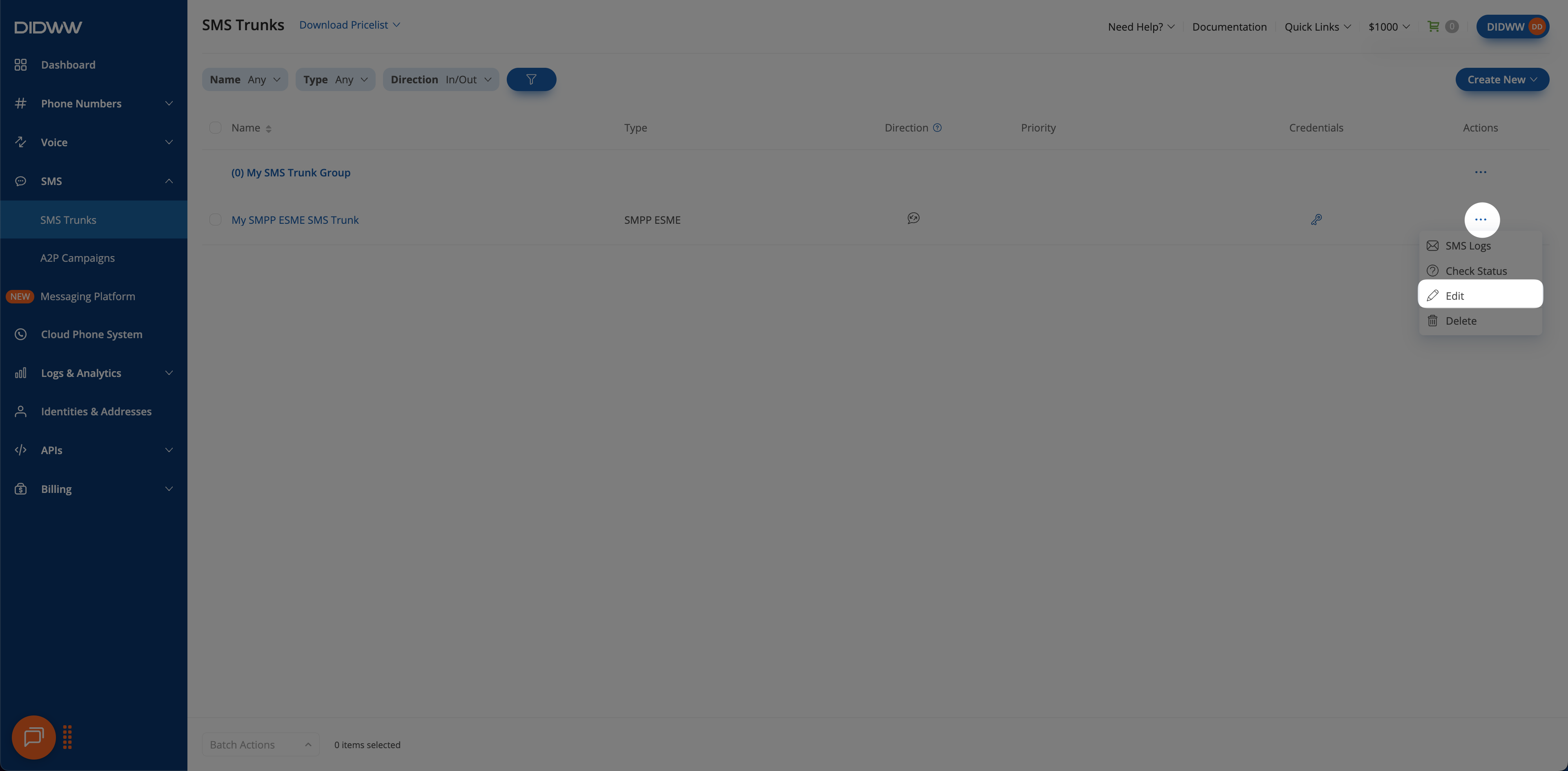
Fig. 1. Open the SMPP ESME trunk edit form#
On the Edit SMPP ESME Trunk page, modify the settings as needed. The sections match those on the creation form. See Configure the General settings, Configure the source addresses, and Add the trunk to a trunk group.
Click Submit to apply your changes.
For definitions, defaults, and constraints of all settings, see SMPP ESME trunk settings reference.
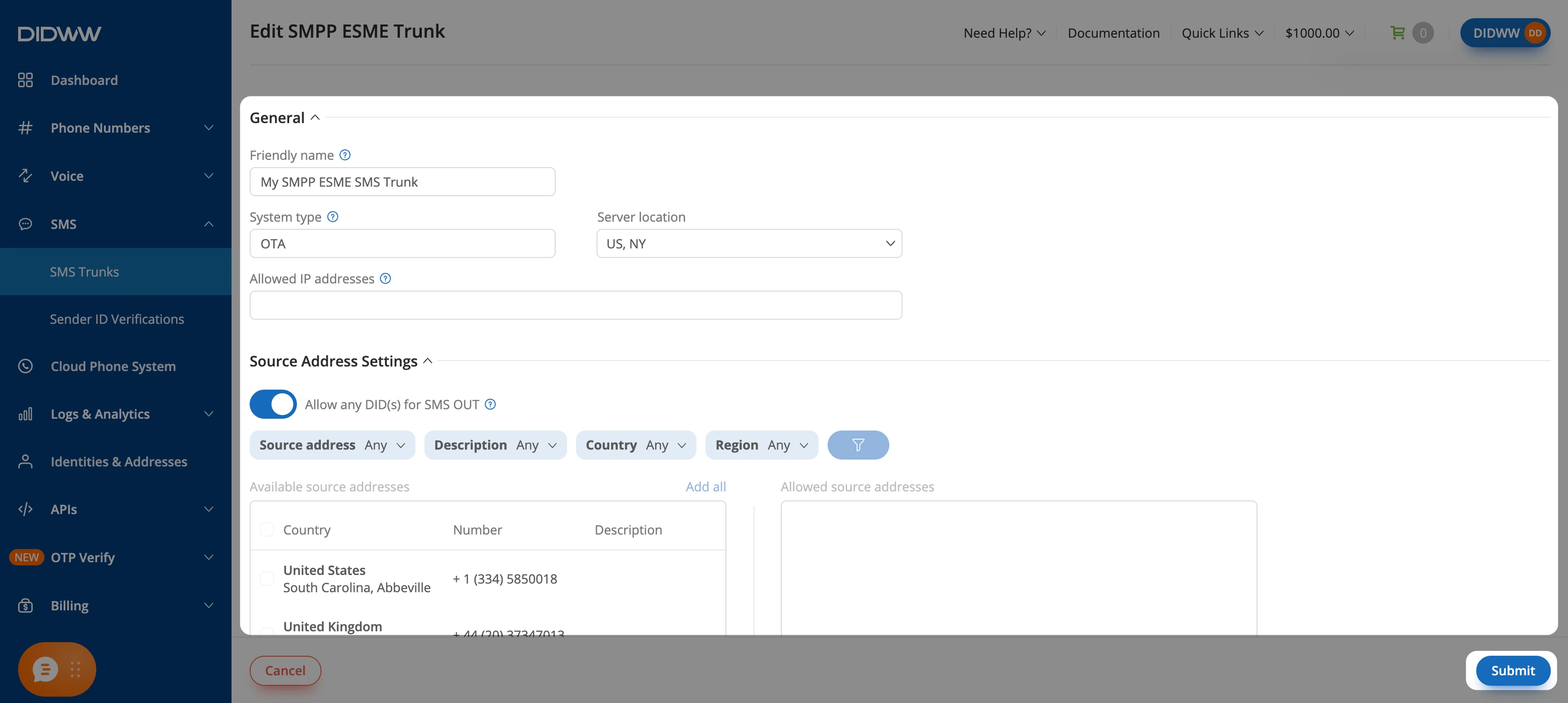
Fig. 2. Update and save the SMPP ESME trunk settings#
Move a trunk to another Server location#
To move the trunk to another DIDWW SMPP server location, change its Server location.
Important
Before you save a new Server location, make sure your firewall allows your application to open connections to the IP address of the new location. See Server locations and IP addresses.
In the DIDWW User Panel, go to SMS > SMS Trunks.
Locate the trunk, click the Actions button next to it, and select Edit.
Select a different Server location.
Click Submit.
The trunk’s credentials then show the host for the new location. Update your application to bind to that host. See View SMPP ESME trunk credentials.
Delete SMPP ESME trunks#
Delete one SMPP ESME trunk from its Actions menu, or delete multiple trunks using Batch Actions.
Warning
Deleting a trunk is permanent and cannot be undone. A trunk that is assigned to any DID number cannot be deleted until it is unassigned. See Assign an SMS trunk.
In the DIDWW User Panel, go to SMS > SMS Trunks.
Locate the trunk you want to remove and click the Actions button next to it.
Select Delete.
Fig. 3. Delete one SMPP ESME trunk#
In the Delete SMS Trunk(s) confirmation window, review the trunk and click Delete to permanently remove it.
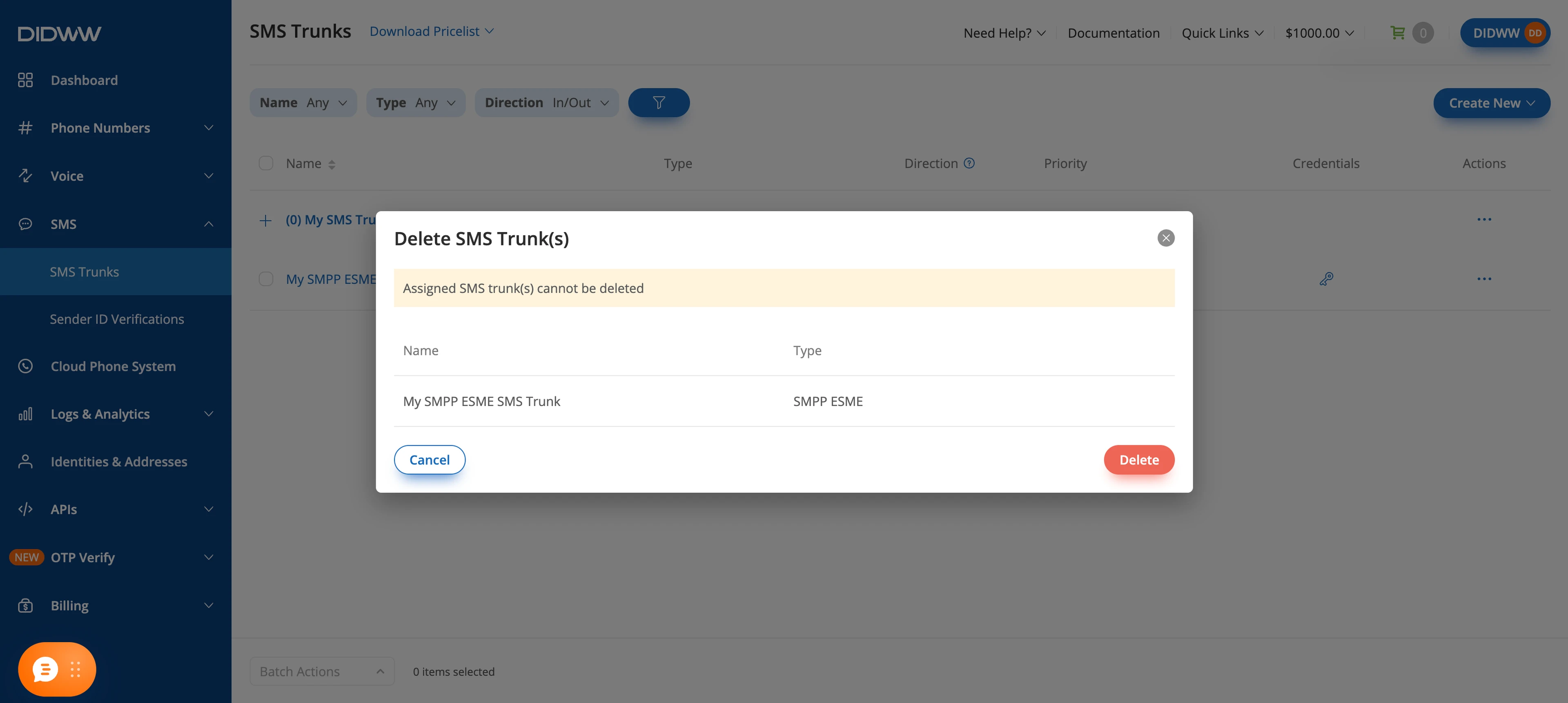
Fig. 4. Confirm the deletion#
In the DIDWW User Panel, go to SMS > SMS Trunks.
Select the trunks you want to delete by checking the boxes next to them.
At the bottom of the page, click Batch Actions > Delete SMS Trunk(s).
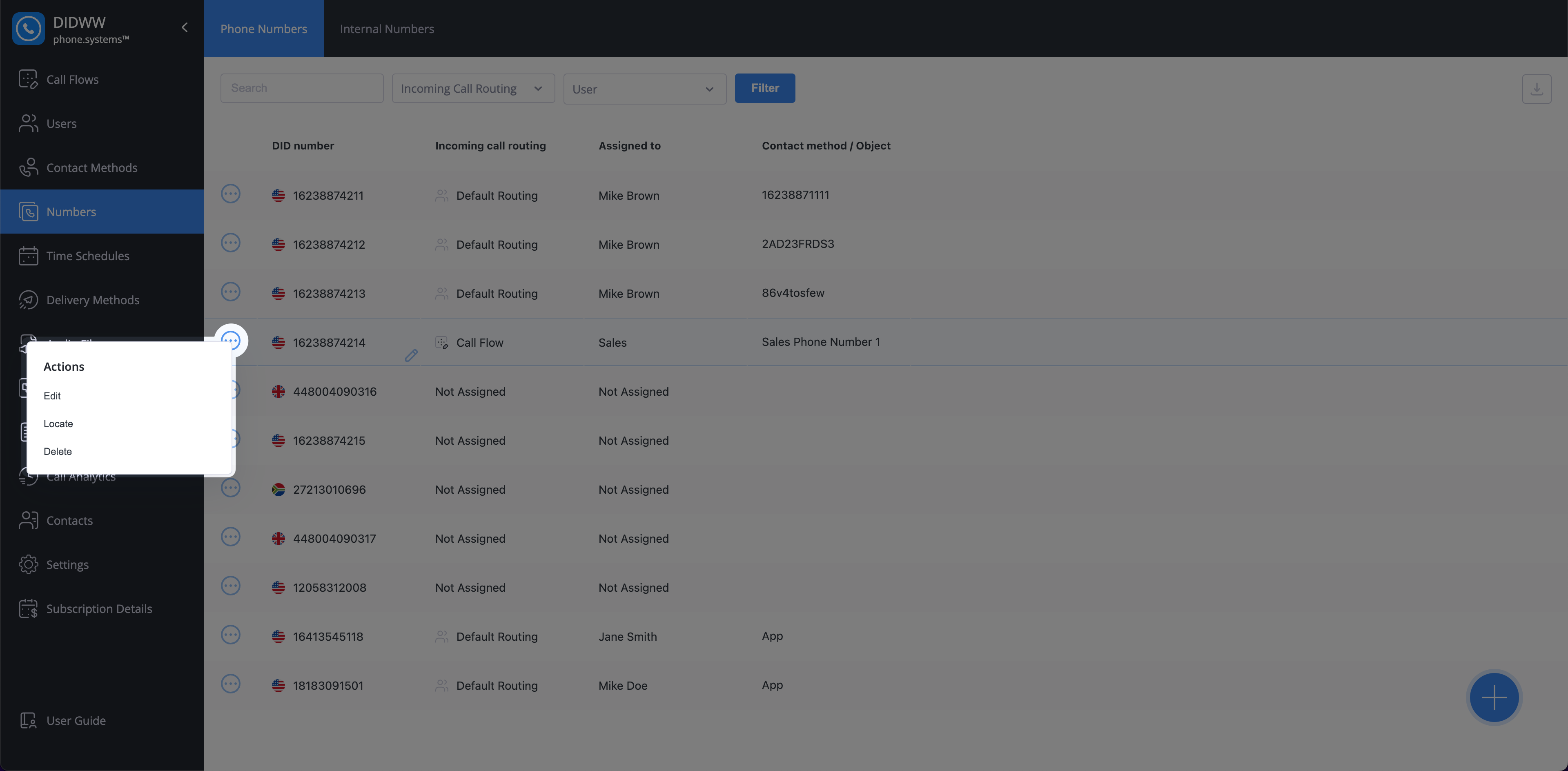
Fig. 5. Delete multiple SMPP ESME trunks#
In the Delete SMS Trunk(s) confirmation window, review the selected trunks and click Delete to permanently remove them.
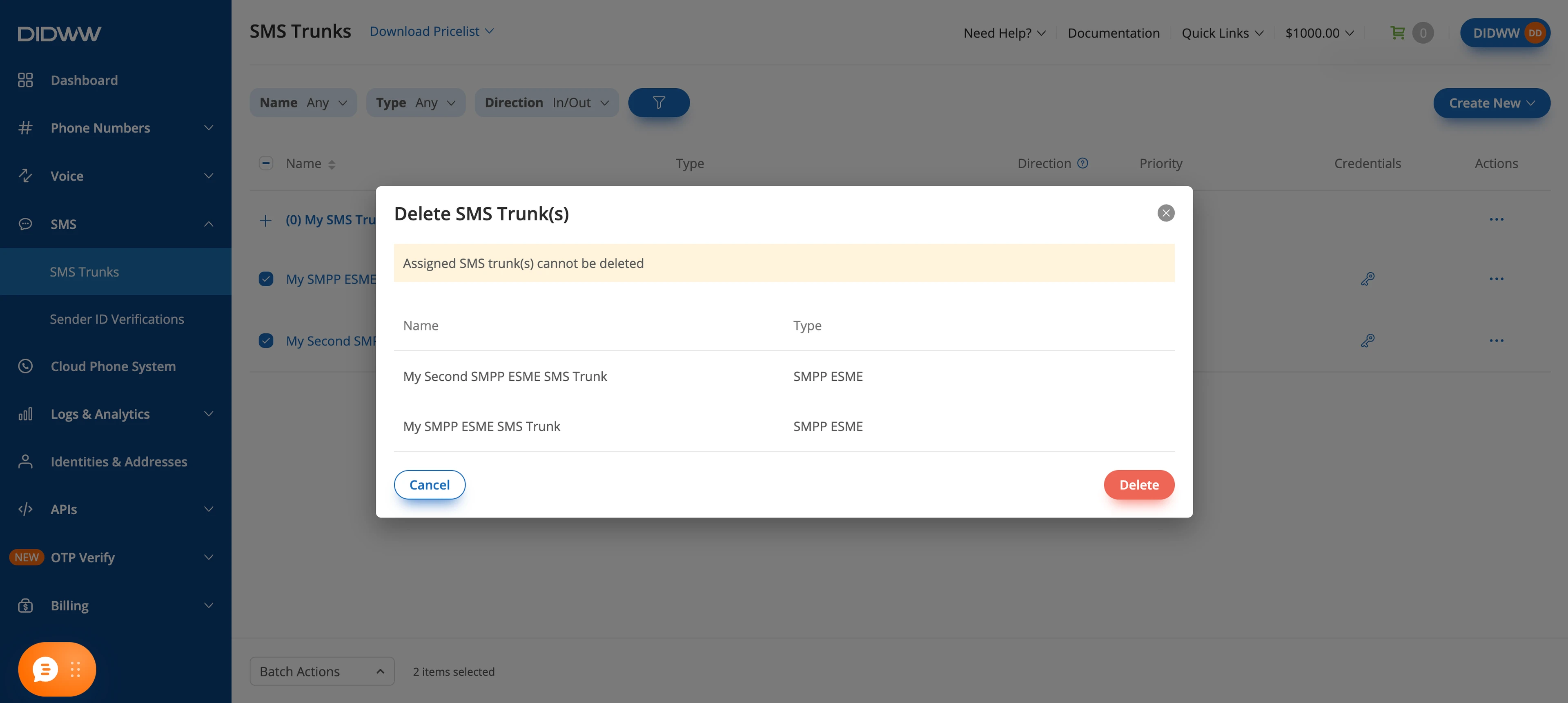
Fig. 6. Confirm the batch deletion#