

View capacity usage#
Use Capacity usage statistics to review concurrent inbound call demand for Capacity groups and compare configured channels with actual usage. Usage review helps determine whether the current shared and metered channel allocation is sufficient, whether channels should be moved or reduced, and whether recent call failures may be related to Capacity.
For Capacity priority and field meanings, see Capacity priority and Capacity reference.
View concurrent call usage#
In the DIDWW User Panel, go to Phone Numbers > Capacity.
In the Capacity Groups table, find the group you want to review and click the chart icon in Assigned Channel(s) to open the usage view.
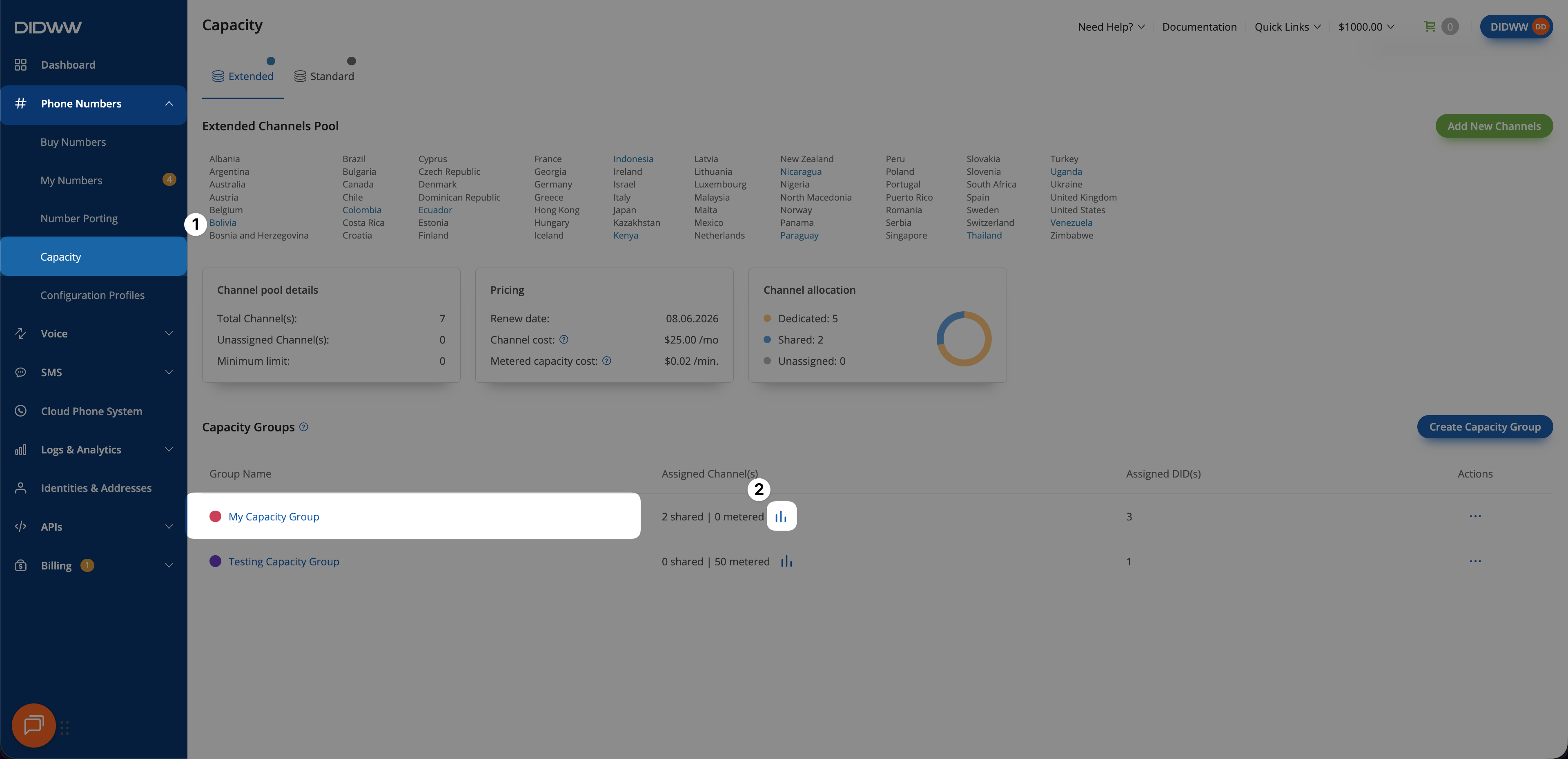
Fig. 1. Open Capacity group usage from the Capacity Groups table.#
Use the Timeframe filters to focus on the period you want to review.
Use concurrent call usage to understand how often a Capacity group approaches its configured allocation and which channel types are being consumed. In the Concurrent calls chart, Shared and Metered are shown separately so you can see whether the group is relying on flat-rate shared Capacity, pay-per-minute overflow Capacity, or both.
If shared channel usage regularly approaches the assigned shared channel amount, the group may need more shared channels or a different allocation strategy.
If metered channels are used frequently, compare the current metered usage with the existing flat-rate allocation to decide whether additional shared channels would be more cost-effective.
If usage remains far below the configured allocation for long periods, the group may have more channels assigned than it needs.
If usage spikes are short and infrequent, metered overflow may already be sufficient without increasing shared channels.
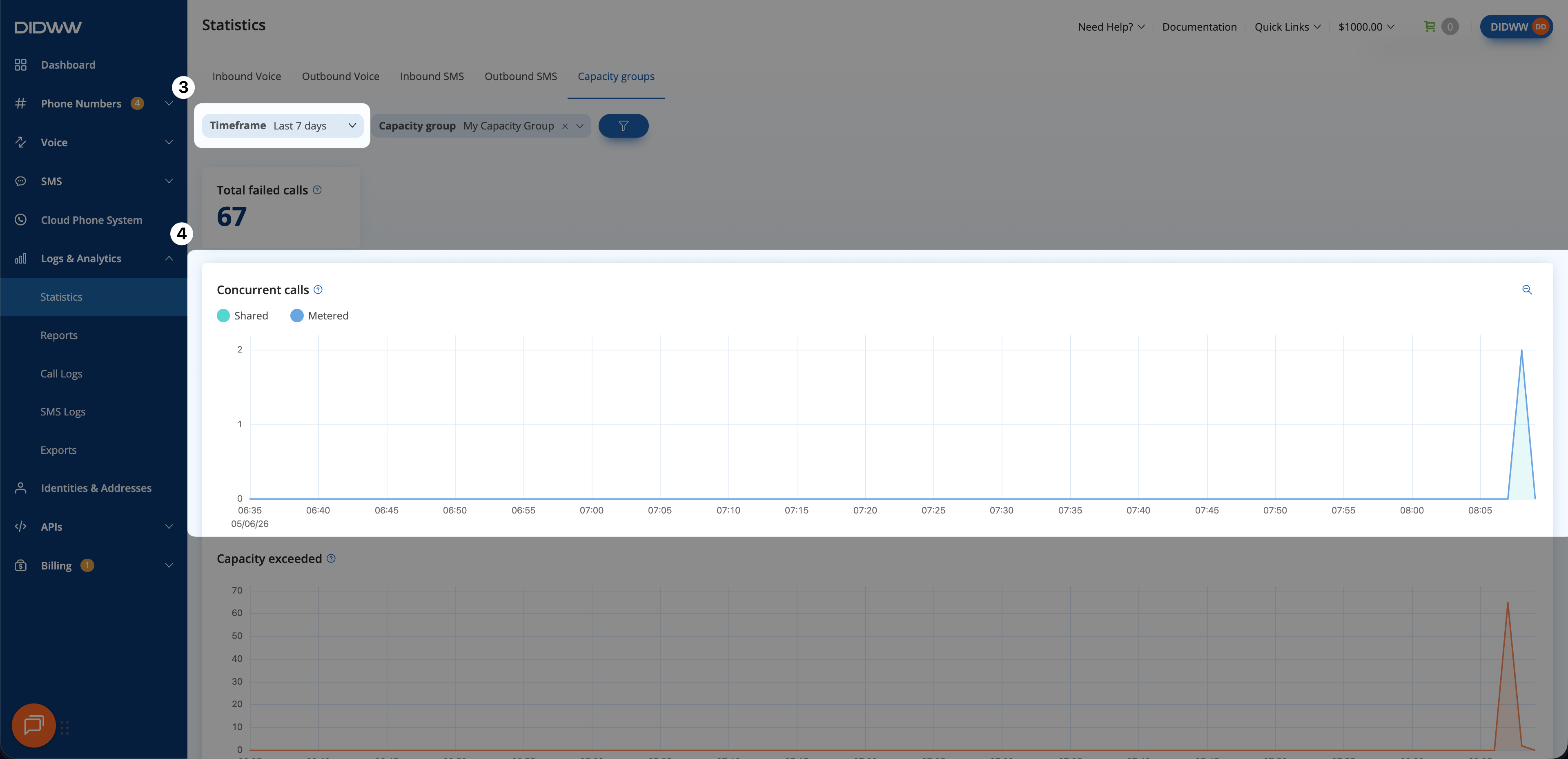
Fig. 2. Review Capacity group usage in Statistics > Capacity groups.#
Review capacity exceeded events#
In the DIDWW User Panel, go to Phone Numbers > Capacity.
In the Capacity Groups table, find the group you want to review and click the chart icon in Assigned Channel(s) to open the usage view.
Fig. 1. Open Capacity group usage from the Capacity Groups table.#
Use the Timeframe filters to focus on the period you want to review.
Review Total failed calls and Capacity exceeded together with concurrent call usage:
Total failed calls shows how many inbound calls failed during the selected timeframe.
Capacity exceeded shows how often the configured Capacity was not sufficient for incoming traffic during that timeframe.
If Capacity exceeded increases during the same period where concurrent calls reach the group’s configured shared or metered allocation, the group may need more Capacity or a different channel mix. If failed calls increase without matching Capacity pressure, review inbound routing, DID number assignment, and other call-delivery settings before changing channel allocation.
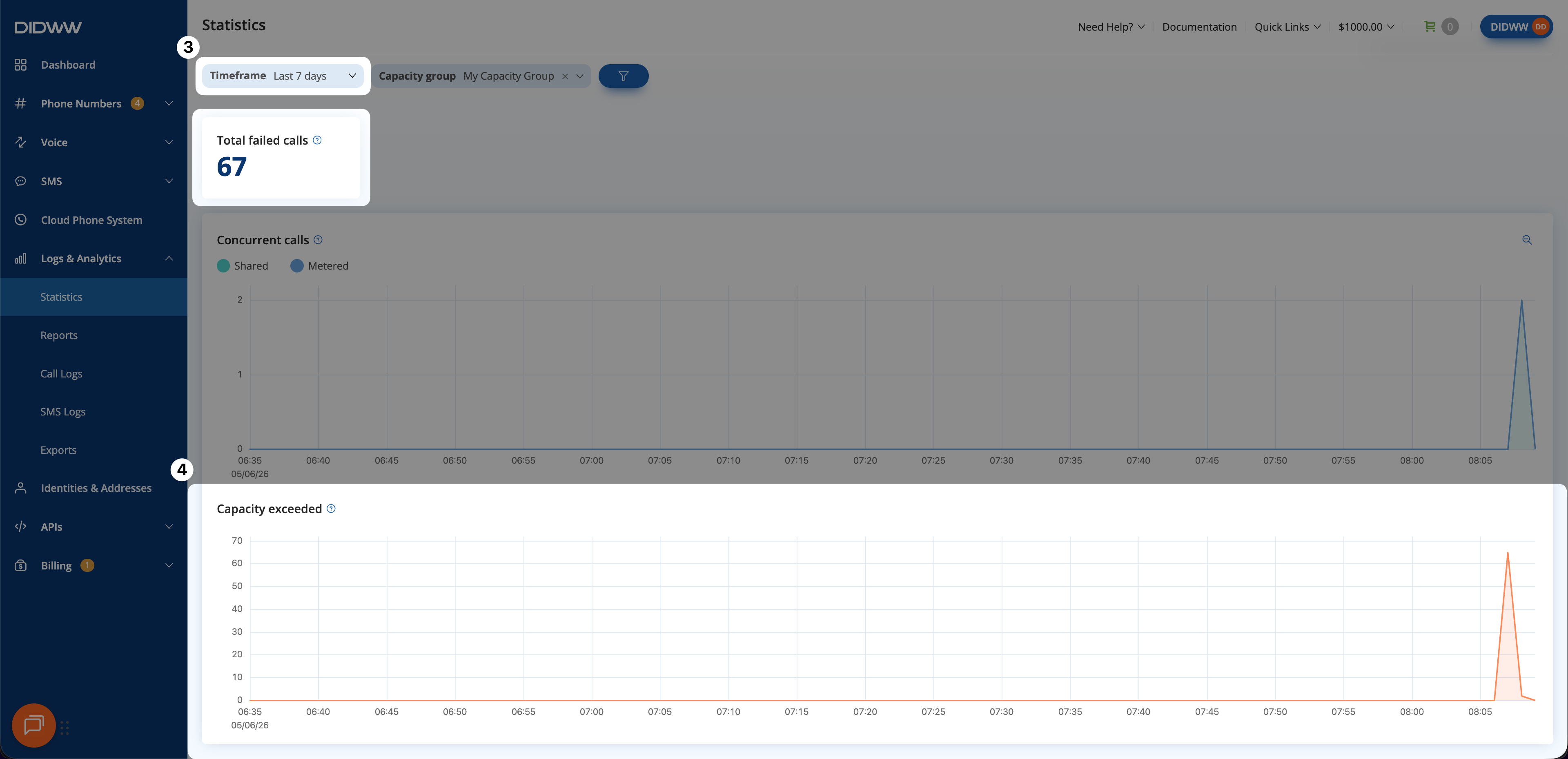
Fig. 3. Use filters to focus on the relevant Capacity group and timeframe.#
Use statistics and reports#
Use the Capacity page and DIDWW analytics views together to compare configured Capacity with actual inbound traffic:
Use the chart icon on the Capacity page to open the usage view for a specific Capacity group quickly.
Use Statistics to review group-level usage trends, failed calls, and Capacity exceeded events over time.
Use Reports to group inbound voice traffic by DID number, trunk, trunk group, or DID country and compare usage with related charges.
Usage data is especially useful before changing assigned dedicated channels, shared channels, or metered channels. For related tasks, see Manage dedicated channels, Manage shared channels, and Manage metered channels.
Troubleshoot capacity issues#
Use the following checks when inbound calls fail, when capacity usage is higher than expected, or when charges do not match the expected Capacity mix:
Charges do not match expected capacity mix
Common causes
Metered channels are being used more often than expected.
Shared channels are insufficient, causing overflow to metered.
The Capacity group contains DIDs with different capacity modes.
How to fix
Use Reports to group inbound traffic by DID number or trunk and compare usage with charges.
Use Statistics to check how often metered channels are consumed versus shared channels.
If metered usage is consistently high, consider adding shared channels with Manage shared channels.
For shared and metered behavior, see Capacity groups and Capacity reference.
DID is in a Capacity group but not using it
Common causes
The DID number has its own capacity limit that overrides the group.
The DID number capacity mode does not include enough channels for the expected traffic.
The DID number is assigned to the wrong Capacity group.
How to fix
Review the DID capacity limit with Set capacity limits.
Review group membership with Manage DID(s) in a group.
For capacity mode and priority behavior, see DID capacity modes and Capacity priority.
Short traffic spikes causing intermittent failures
Common causes
The Capacity group does not have metered channels enabled.
Metered channels are assigned below the level needed to absorb short spikes.
The spikes are too short for shared channels to be the practical fix.
How to fix
Enable or increase metered channels with Manage metered channels.
Review how metered channels work in Pay-per-minute channels and Capacity reference.
Review usage trends in Statistics if you want to confirm that the spikes are short and intermittent.
Capacity allocation appears higher than needed
Common causes
Traffic volume has decreased since channels were last configured.
Channels were added during a peak period and not reviewed afterward.
Multiple Capacity groups share traffic that was previously handled by one group.
How to fix
Use the chart icon on the Capacity page to review concurrent call usage over a representative timeframe.
If usage remains consistently low, reduce shared channels with Manage shared channels.
If metered channels are rarely used, consider removing them with Manage metered channels.
For Capacity group fields and limits, see Capacity groups and Capacity reference.
Capacity statistics not showing data
Common causes
The Capacity group was recently created and has not yet received traffic.
The selected timeframe does not contain any call activity.
The Capacity group has no DIDs assigned to it.
How to fix
Adjust the Timeframe filter to a period with known traffic.
Confirm the group has DIDs assigned with Manage DID(s) in a group.
If the group is new, wait for inbound calls to occur and then return to the usage view.
For the usage metrics shown here, see Statistics and Capacity reference.