

View registration history#
Use Registration History to review when an inbound SIP trunk was successfully registered and had an active Contact address for call routing. You can inspect the registration details for a selected interval and zoom in to review a specific period.
Before you begin#
An active DIDWW account is required. Sign in to DIDWW.
An existing SIP trunk using Dynamic Registration is required. Registration history is not available for Static Endpoint trunks.
Step 1: Open Registration History#
In the DIDWW User Panel, go to Voice > Inbound Trunks.
Locate the Dynamic Registration trunk and open its Actions menu.
Select View Registration history.
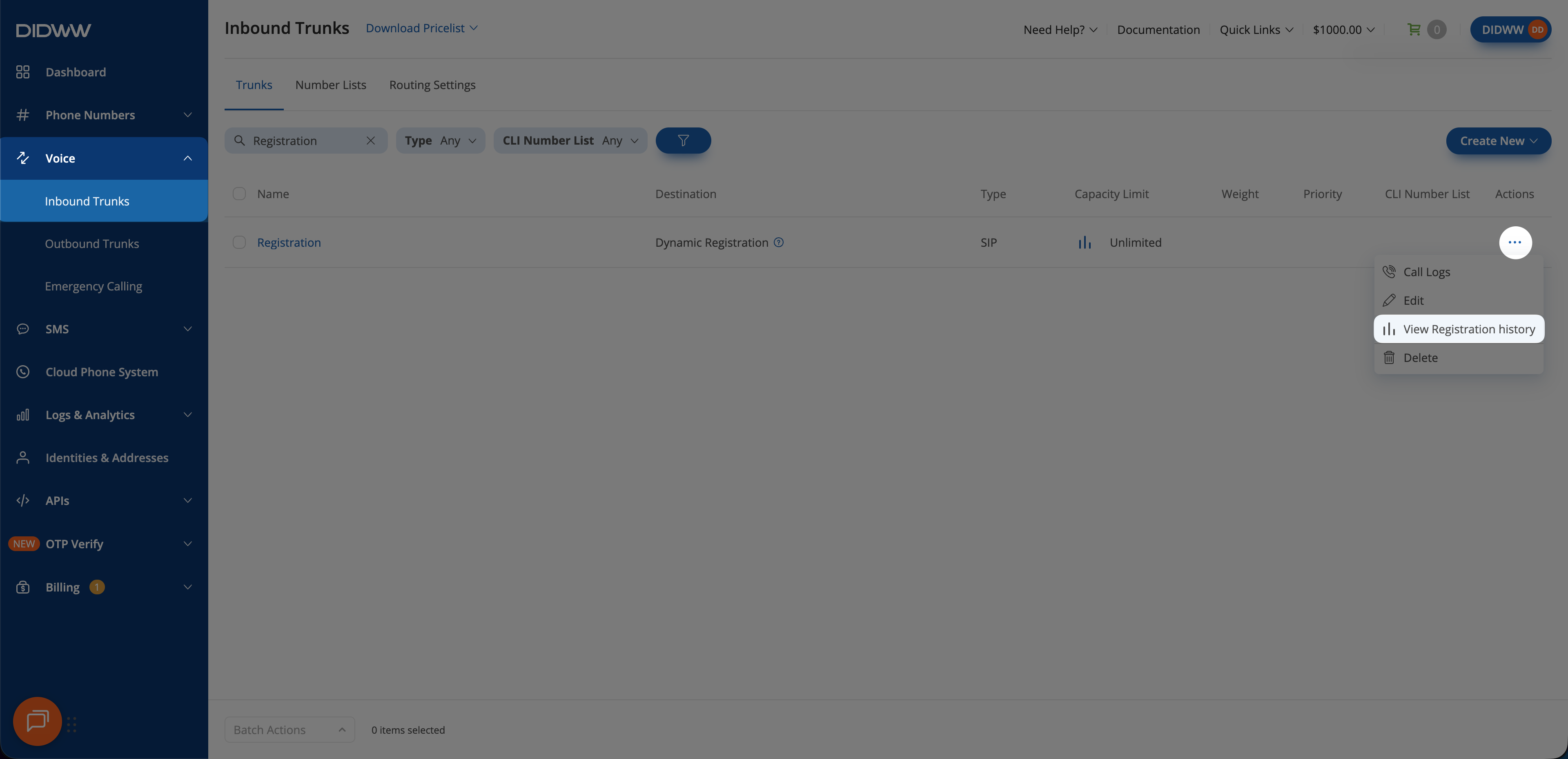
Fig. 1. Open Registration History#
Step 2: Inspect a registration interval#
The chart displays successful registration intervals for the last 7 days in one-minute intervals. If there were no successful registrations during this period, the chart has no registration data to display.
Note
The chart shows when a registration was active. It does not display
individual SIP REGISTER requests or failed registration attempts.
Hover over a point in the chart to view the registration details for that interval. Each registered endpoint appears as a separate series, for example Reg 1 and Reg 2. A trunk supports up to 10 simultaneous registrations.
Field |
Description |
|---|---|
Contact |
The Contact address used by your system during registration. |
User Agent |
The User-Agent string reported by the registering system. |
IP/Port |
The source IP address and port used for the registration. |
Protocol |
The transport protocol used for the registration (UDP, TCP, or TLS). |
Expires |
The registration lifetime (Expires value) provided by your endpoint. |
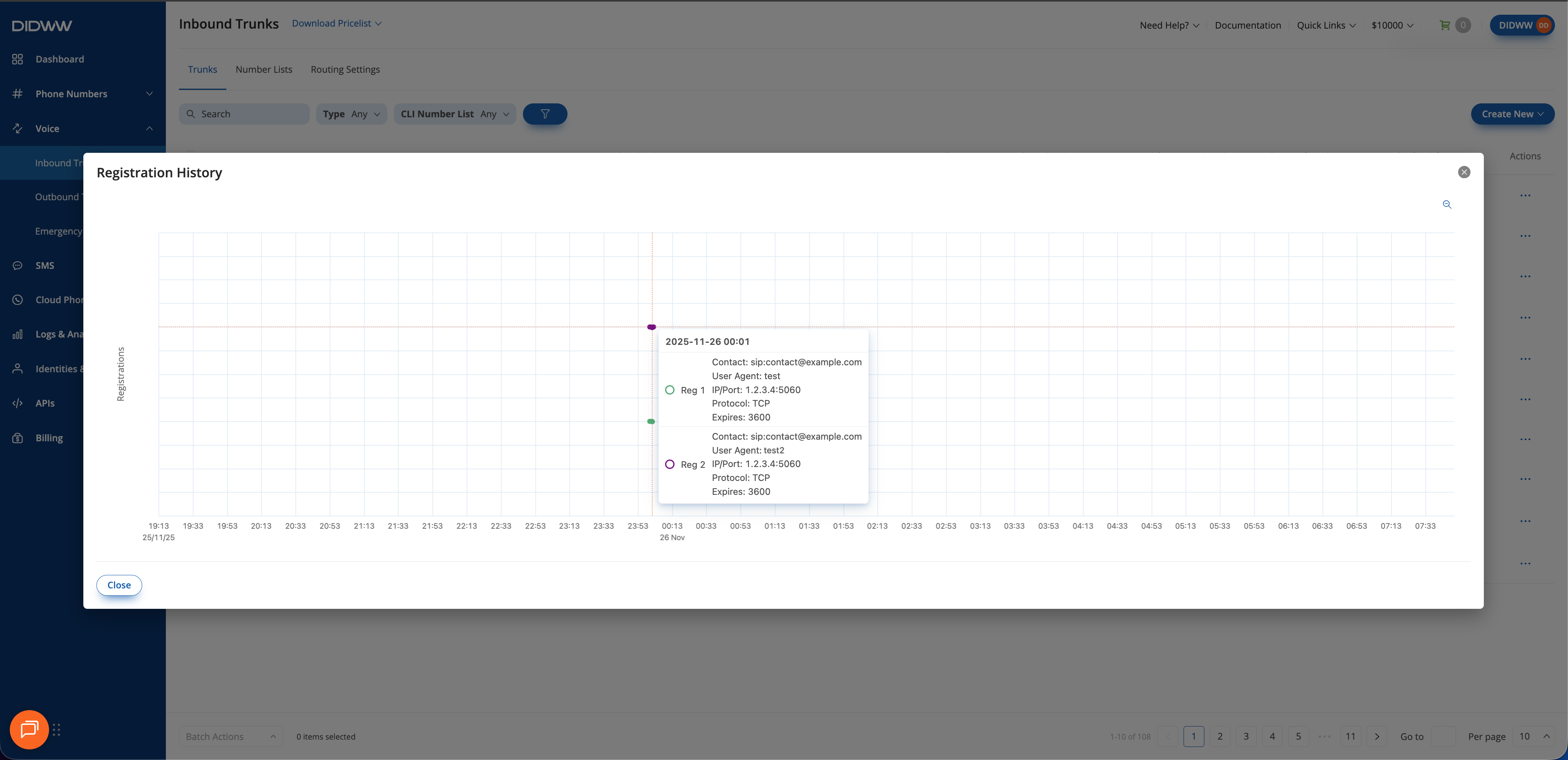
Fig. 2. Inspect registration details#
Step 3: Zoom in on a time range#
Click and drag across the chart to select the time range you want to review. The chart zooms in on the selected period. When you finish reviewing the history, click Close.
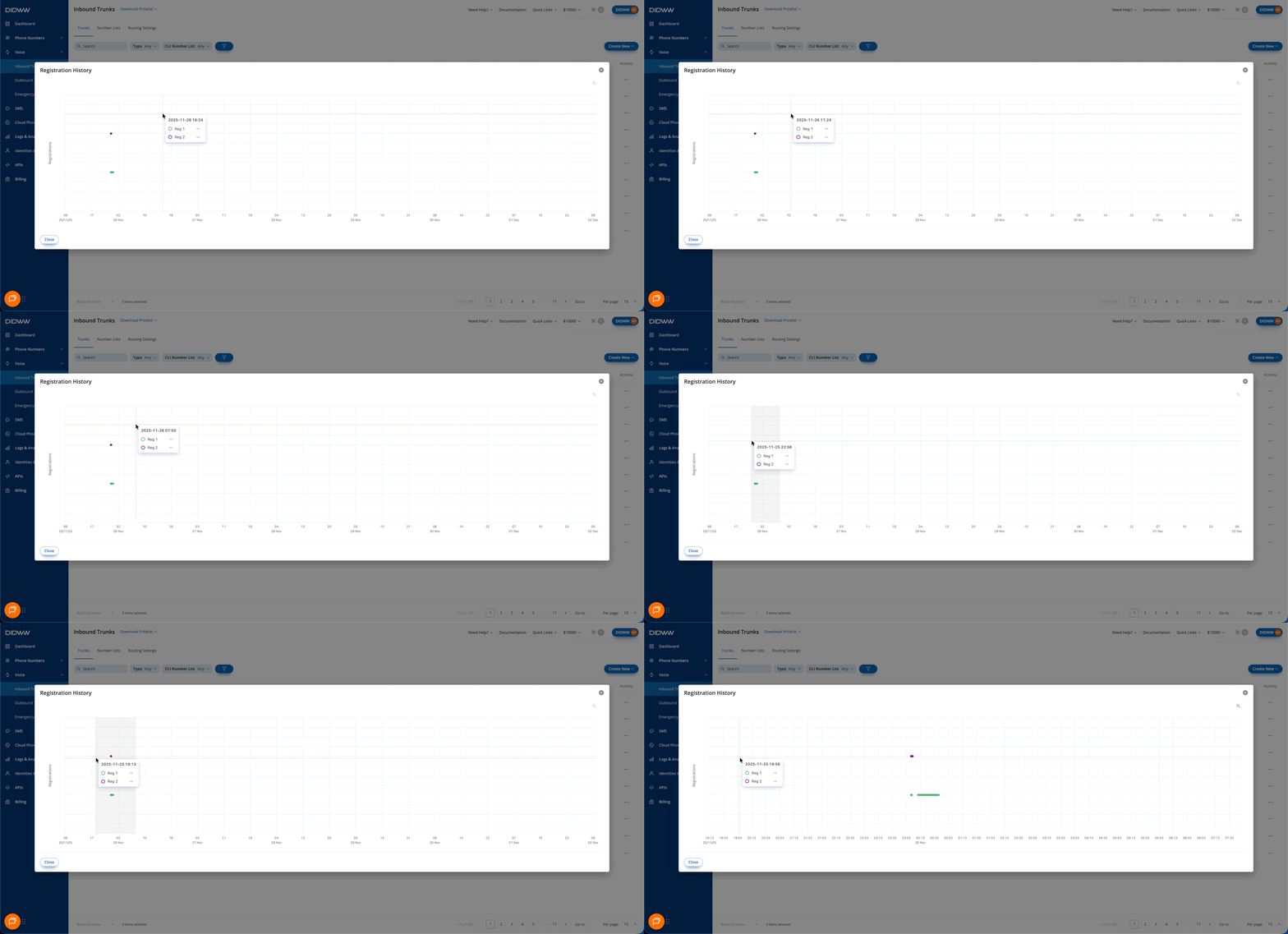
Fig. 3. Zoom in on a selected time range#