

Create a SIP trunk#
Create an inbound SIP trunk to deliver calls from DIDWW to a SIP endpoint, such as an IP PBX, session border controller, communications platform, or application server. Choose Static Endpoint when DIDWW should send calls to a destination configured on the trunk. Choose Dynamic Registration when your SIP system should register with DIDWW and supply the destination.
For a detailed comparison of both options, see SIP routing methods.
Before you begin#
An active DIDWW account is required. Sign in to DIDWW or Create DIDWW account.
Step 1: Open the creation form#
In the DIDWW User Panel, open Voice.
Select Inbound Trunks.
Click Create New.
Select SIP Trunk.
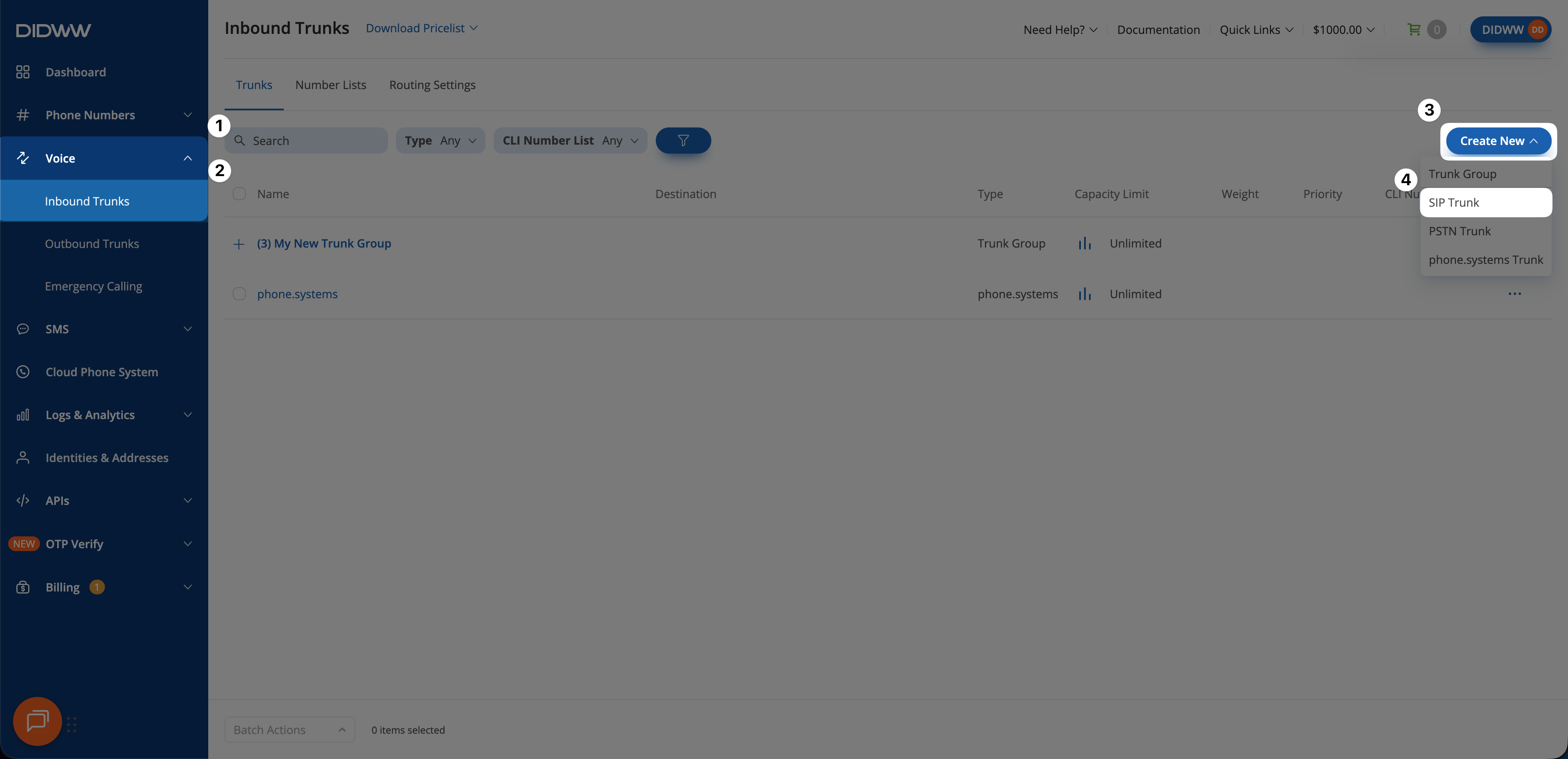
Fig. 1. Select SIP Trunk#
Step 2: Configure the General settings#
Enter a unique Name for the trunk.
Optionally set Capacity Limit to restrict the number of simultaneous calls delivered through this trunk. The default value is Unlimited. In a Trunk Group, DIDWW tries another trunk when the limit is reached.
Select the Type that matches how the SIP endpoint receives calls, then complete the corresponding settings below.
Use Static Endpoint when the receiving SIP system has a stable, publicly reachable IP address or DNS hostname.
Select Static Endpoint.
In Host, enter the public IP address or DNS hostname of the SIP endpoint.
Review User Part of R-URI, Port, Resolve R-URI, Network Protocol, Transport, and Preferred Server. Retain their default values unless the receiving system requires different SIP addressing or delivery behavior. Leave Port empty to use DNS SRV.
For how DIDWW builds the Request-URI and resolves the host, see Static Endpoint routing. Field definitions, defaults, and available values are listed under Static Endpoint fields, Network Protocol values, Transport values, and Preferred Server values.
Important
The default Preferred Server value is Auto. Allow all DIDWW SIP signaling and RTP addresses so DIDWW can deliver calls through an alternative Point of Presence when required. Disabling Points of Presence can introduce additional routing hops. See Configure Preferred Server routing.
Fig. 2. Configure Static Endpoint routing#
Use Dynamic Registration when the SIP system has a changing public address, operates behind NAT, or normally receives calls through SIP registration.
Select Dynamic Registration.
Enable Use DID in R-URI if DIDWW should replace the registered Contact user part with the called DID in the Request-URI. This helps the receiving system distinguish calls to different DID numbers that use the same trunk.
DIDWW generates the registration username, password, and registrar endpoints after the trunk is created. One trunk supports up to 10 simultaneous registrations. See Dynamic Registration fields. For how registration-based routing works, see Dynamic Registration routing.
The SIP system must refresh its registration before it expires. If no valid registration is available, DIDWW has no current Contact address to which it can deliver the call.
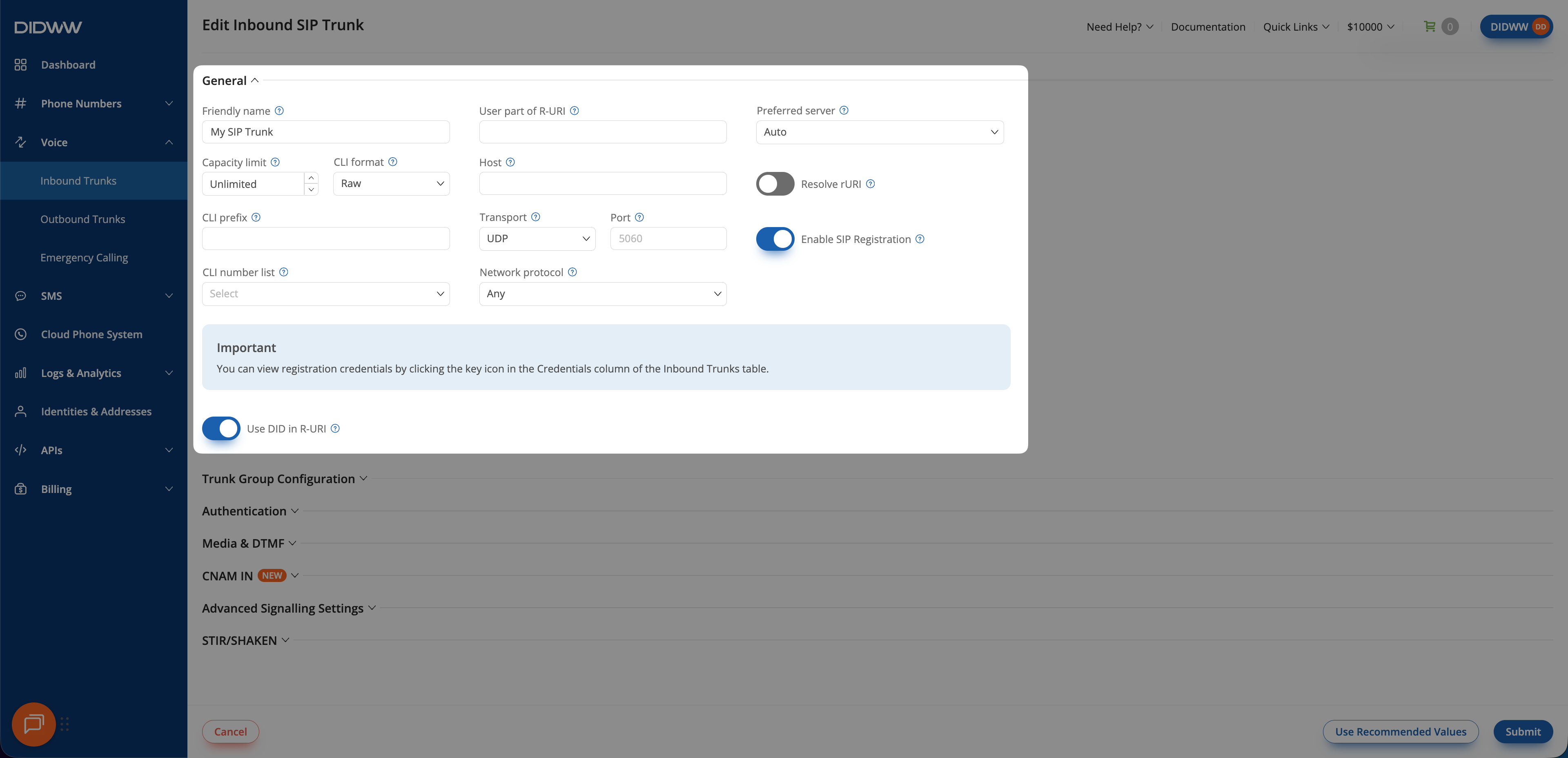
Fig. 3. Configure Dynamic Registration routing#
Step 3: Configure optional settings#
Configure only the tabs required by the receiving system and your inbound call-routing design. You can skip this step and create the trunk with the General settings only.
Number Translations#
Change how the caller ID is formatted, add a prefix to it, or filter calls by caller ID with a Number List.
Field definitions, available values, and constraints are listed in Number Translations and CLI Format values. For how Number Lists allow or reject calls, see Number Lists.
Warning
DIDWW transfers the caller ID accurately for local calls. International caller ID conversion depends on third-party providers and may not always produce the expected value. A CLI Number List matches the caller ID after CLI Format and CLI Prefix are applied. Update the Number List if either setting changes the value it must match.
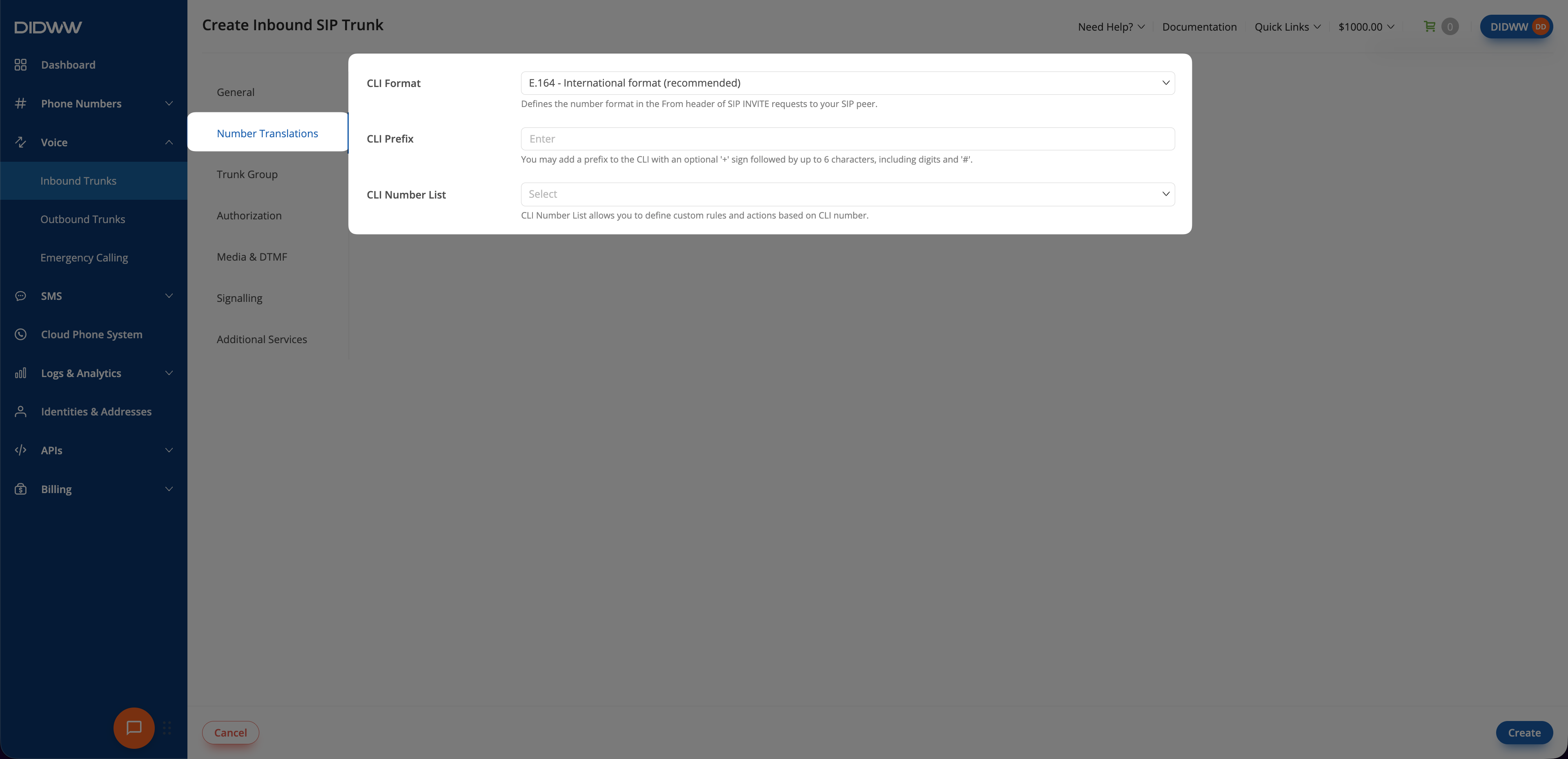
Fig. 4. Configure Number Translations#
Trunk Group#
Add the trunk to a Trunk Group and set how it is selected and re-routed within the group. Use this tab only when the trunk will participate in failover or load balancing.
Field definitions, available values, and constraints are listed in Trunk Group settings.
For how Trunk Groups work, see Trunk Groups. For how priority, weight, and re-routing work, see Service failover and load balancing.
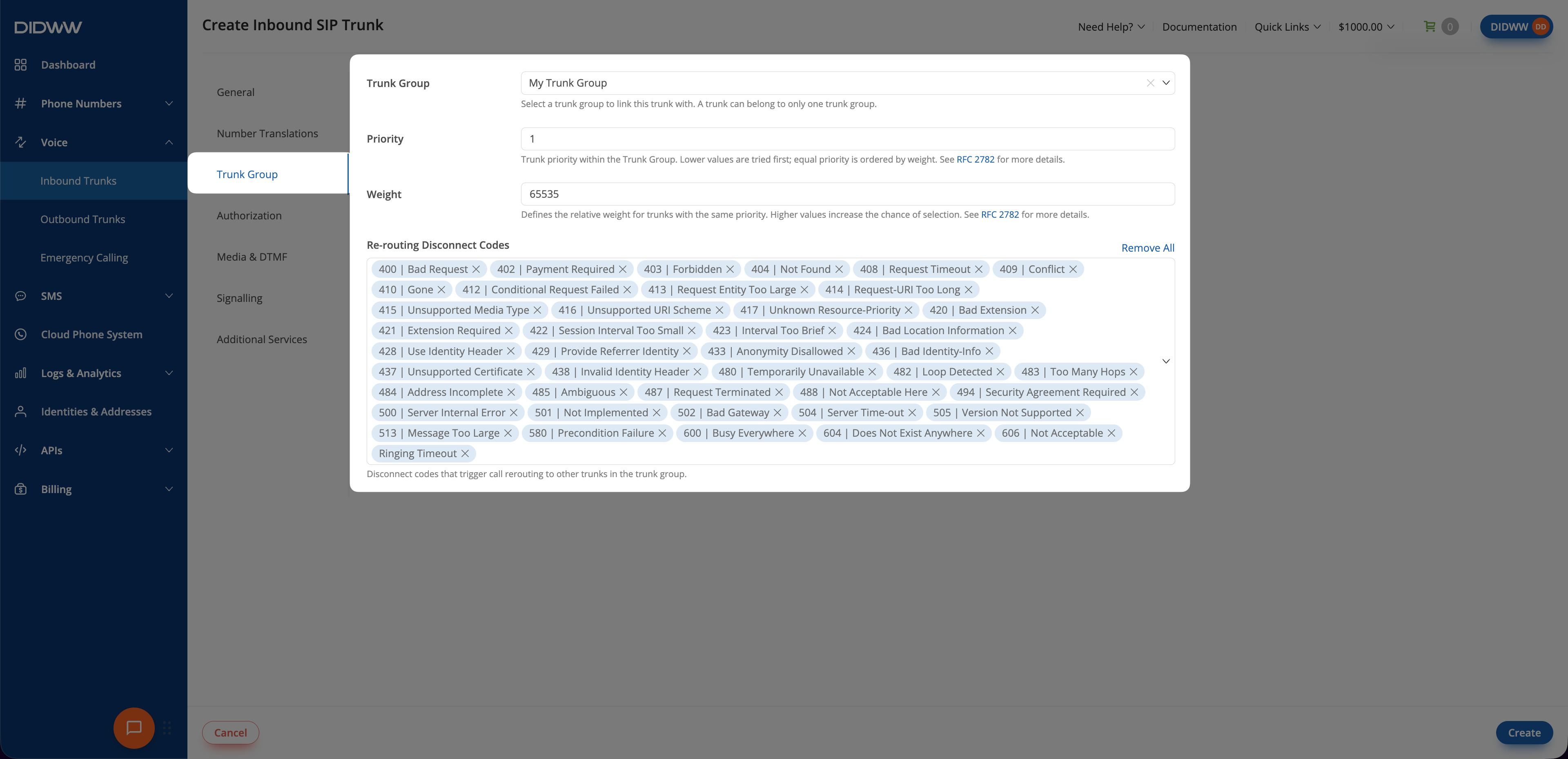
Fig. 5. Configure Trunk Group membership#
Authorization#
Enable SIP digest authentication when the receiving SIP server requires
DIDWW to authenticate its INVITE requests.
Field definitions, available values, and constraints are listed in Authorization settings. For how authentication applies in each direction, see Authentication direction. For the supported methods, see Authentication in the SIP connectivity reference.
Note
Authorization credentials are supplied by the receiving SIP system and used by DIDWW when sending calls. They are different from the system-generated credentials that a customer endpoint uses to register a Dynamic Registration trunk with DIDWW.
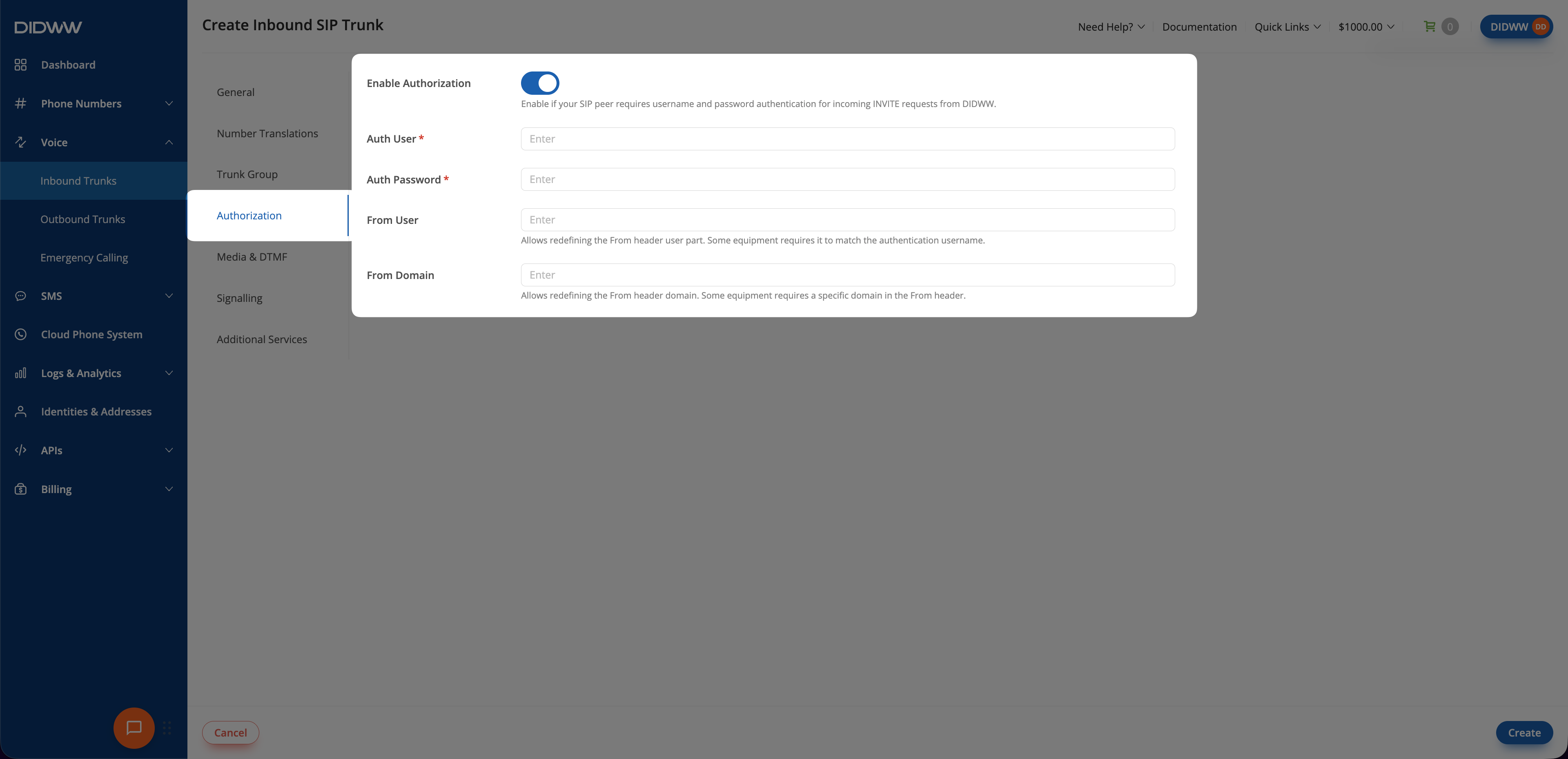
Fig. 6. Configure Authorization#
Media & DTMF#
Configure accepted RTP sources, codecs, media encryption, DTMF handling, and RTP behavior.
Field definitions, available values, and constraints are listed in Media and DTMF settings. For supported codecs, DTMF methods, media encryption, and RTP addresses, see the SIP connectivity reference. For how signaling and media paths, codec negotiation, and DTMF interoperability work, see Signaling and media paths and Codec and DTMF interoperability.
Retain the default codecs and DTMF modes unless the receiving system requires different values.
Enable Force Symmetric RTP when the receiving system requires symmetric RTP for NAT traversal. Enable RTP Ping when both systems use symmetric RTP and each waits for the other system to send media first.
Warning
Force Symmetric RTP can expose a call to an RTP Bleed attack. When enabling it, restrict accepted media sources with Allowed RTP IP Addresses. See Force Symmetric RTP.
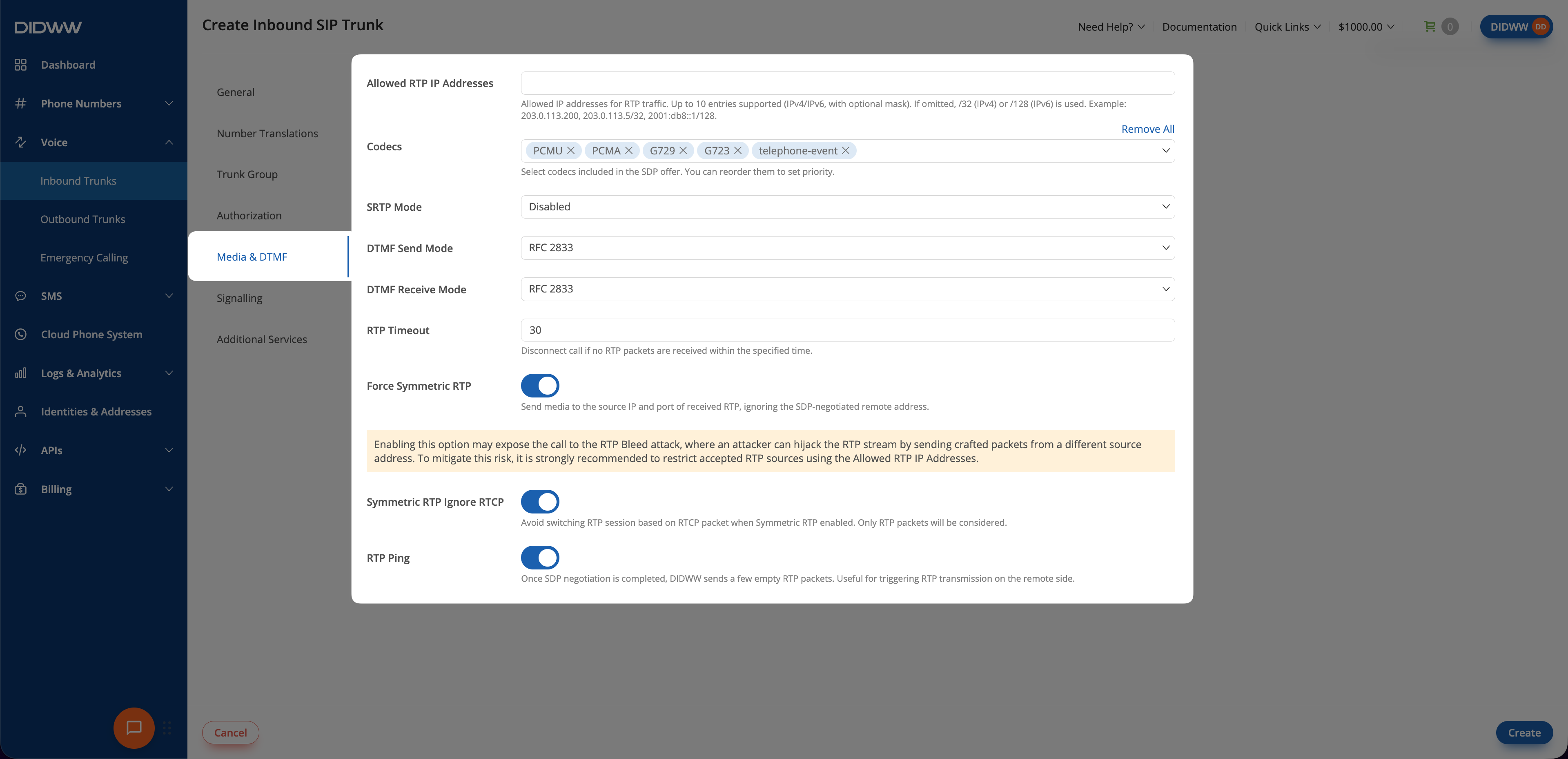
Fig. 7. Configure Media & DTMF#
Signalling#
Configure SIP session timers, call timeouts, failover timing, and limits for
SIP REFER transfers and SIP 301 and 302 redirects.
Field definitions, available values, and constraints are listed in Signalling settings.
Retain the default timer values unless the receiving system or routing design
requires different behavior. For how the DNS SRV failover timer and Ringing
Timeout affect failover, see Service failover and load balancing. For SIP REFER transfers and SIP
301 and 302 redirects, see Inbound call redirection.
Note
Max Transfers and Max 30x Redirects default to 0, which disables
the corresponding method. Increase the limit only when the receiving system
is expected to request that behavior.
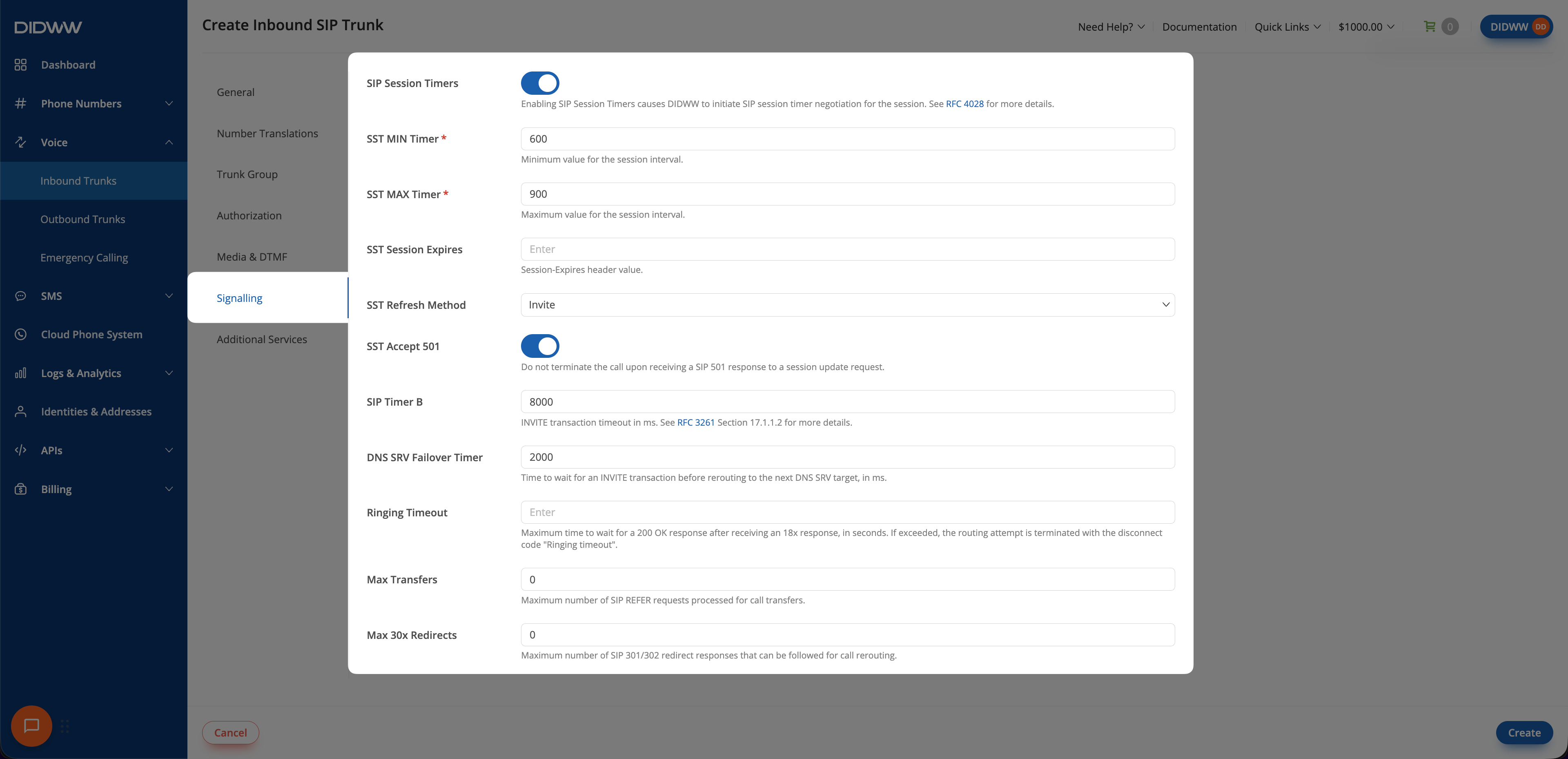
Fig. 8. Configure Signalling#
Additional Services#
Configure STIR/SHAKEN information, Diversion headers, and CNAM lookup.
Field definitions, available values, and constraints are listed in Additional Services settings.
Relaying the received Identity header requires account enablement, and the
customer is responsible for validating it. Contact DIDWW Sales for enablement.
Warning
Enabling both Diversion settings can produce two Diversion headers. Confirm that the receiving system supports this behavior.
CNAM lookup adds a charge for each call from a U.S. number. If the trunk belongs to a Trunk Group, see Trunk Group behavior.
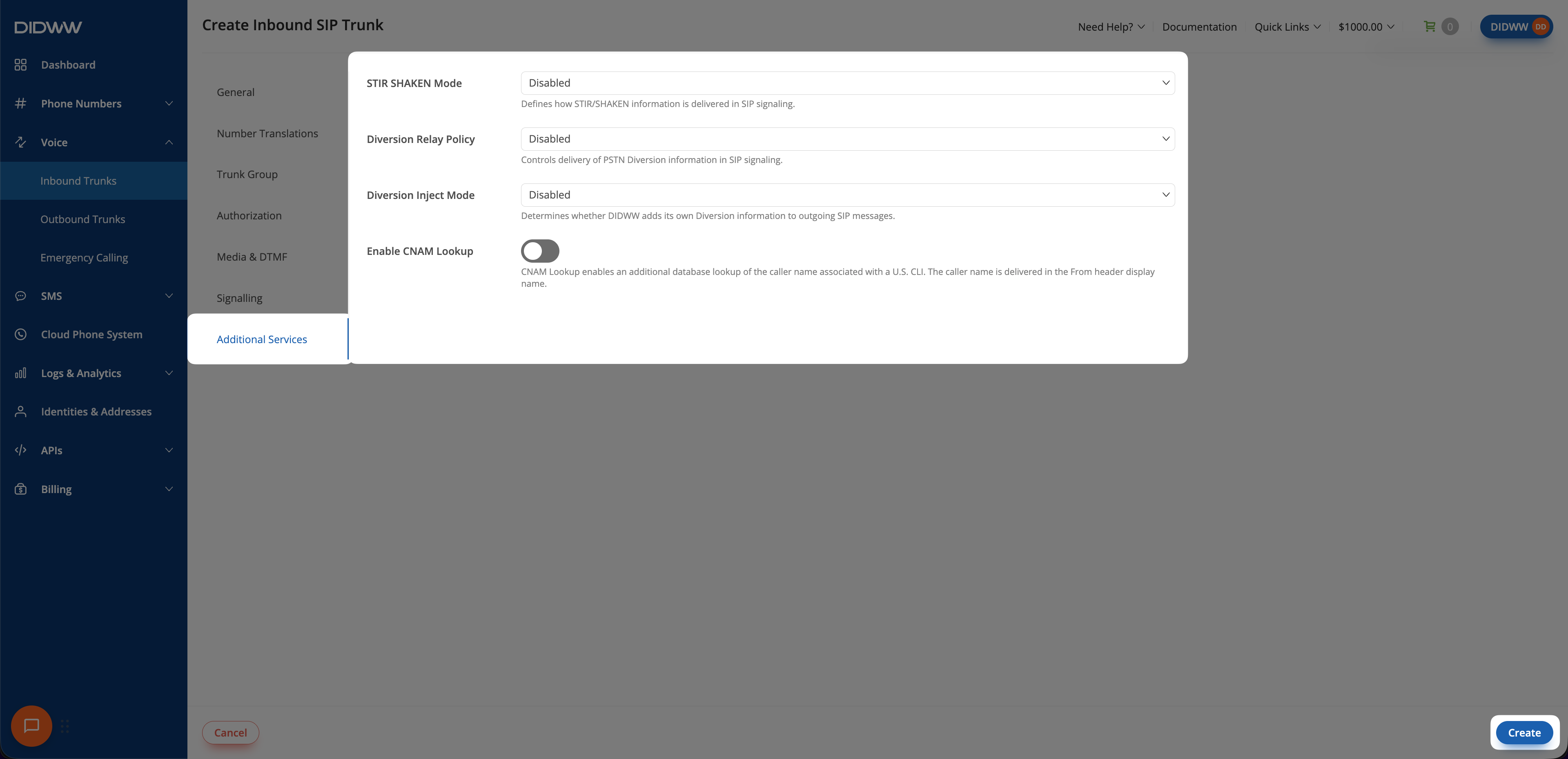
Fig. 9. Configure Additional Services#
Step 4: Create the trunk#
Review the trunk configuration.
Click Create.
The new trunk appears on the Inbound Trunks page. For Dynamic Registration, DIDWW displays the generated credentials and registrar endpoints immediately after the trunk is created.
Next steps#
Assign the trunk to one or more DID numbers before receiving calls. Each DID number must have sufficient Capacity.
For Dynamic Registration, view the registration credentials and configure them on the SIP endpoint. Use View registration history to confirm that registration is active.
Place a test call, then review Inbound Call Logs if the call does not reach the SIP endpoint.