

Renew a number#
Renew a DID number from the Actions column on the My Numbers page. You can also renew multiple DID numbers at once with Batch Actions.
Before you begin#
You can renew DID numbers at any time.
Expired numbers remain in the Service Aging Pool (SAP) for 34 days.
If a number was manually canceled, restore it before renewing it.
Renew a single number#
Use this flow when you need to renew one DID number from its row-level actions menu.
Step 1: Open the renew action#
Go to Phone Numbers > My Numbers.
Locate the DID number you want to renew.
In the Actions column, click the
 button and select Renew service.
Fig. 1. Renew service action.#
Step 2: Confirm the renewal#
In the Renew DID(s) pop-up window, select the billing period.
Click Confirm.
Fig. 2. Renew DID number confirmation window.#
Renew multiple numbers#
Use this flow when you need to renew more than one DID number in the same batch action.
Step 1: Select numbers#
Go to Phone Numbers > My Numbers.
Select the DID numbers you want to renew.
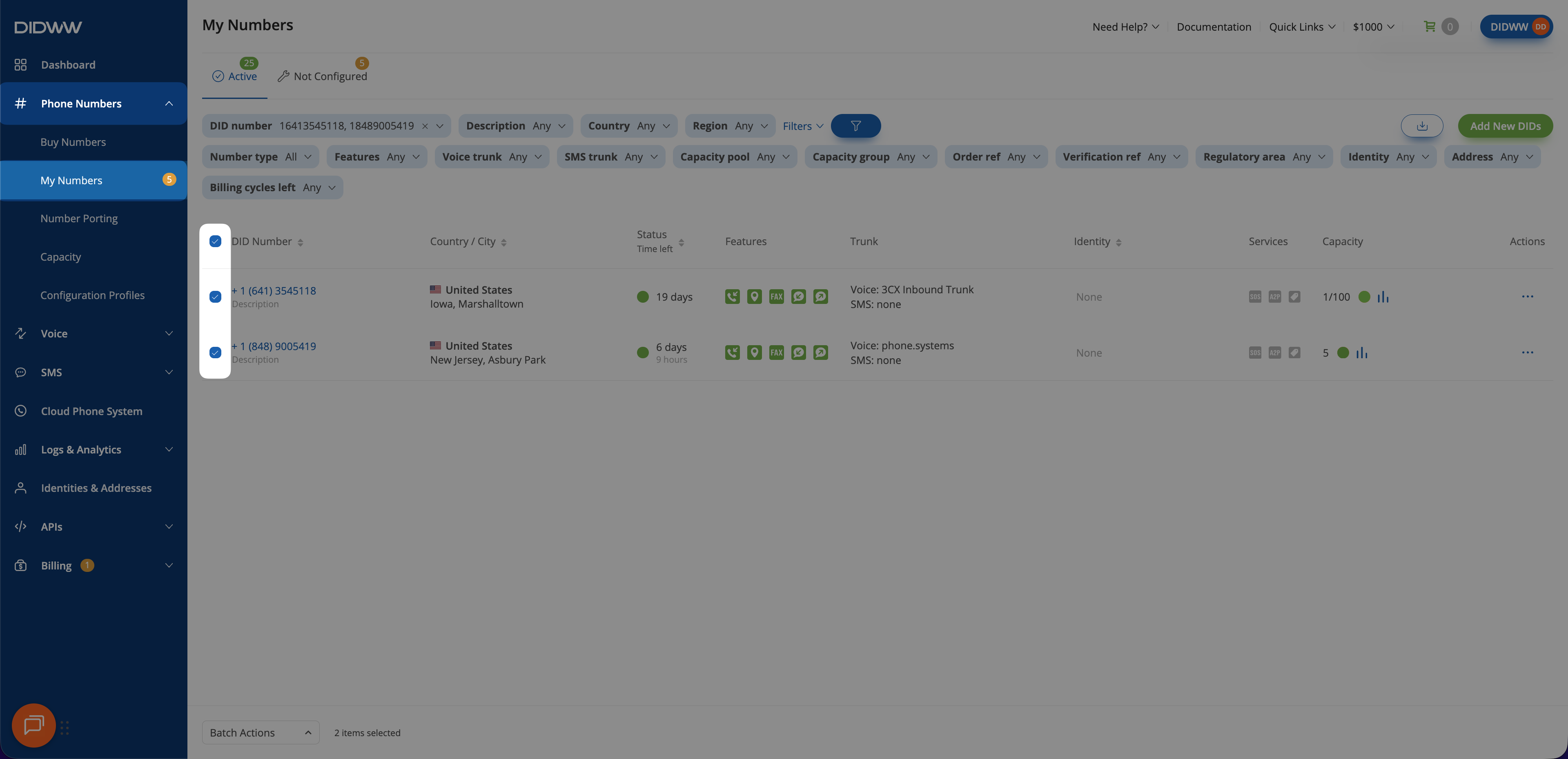
Fig. 3. Selecting multiple DID numbers.#
Step 2: Open the batch renew action#
At the bottom of the page, open Batch Actions.
Select Renew DIDs.
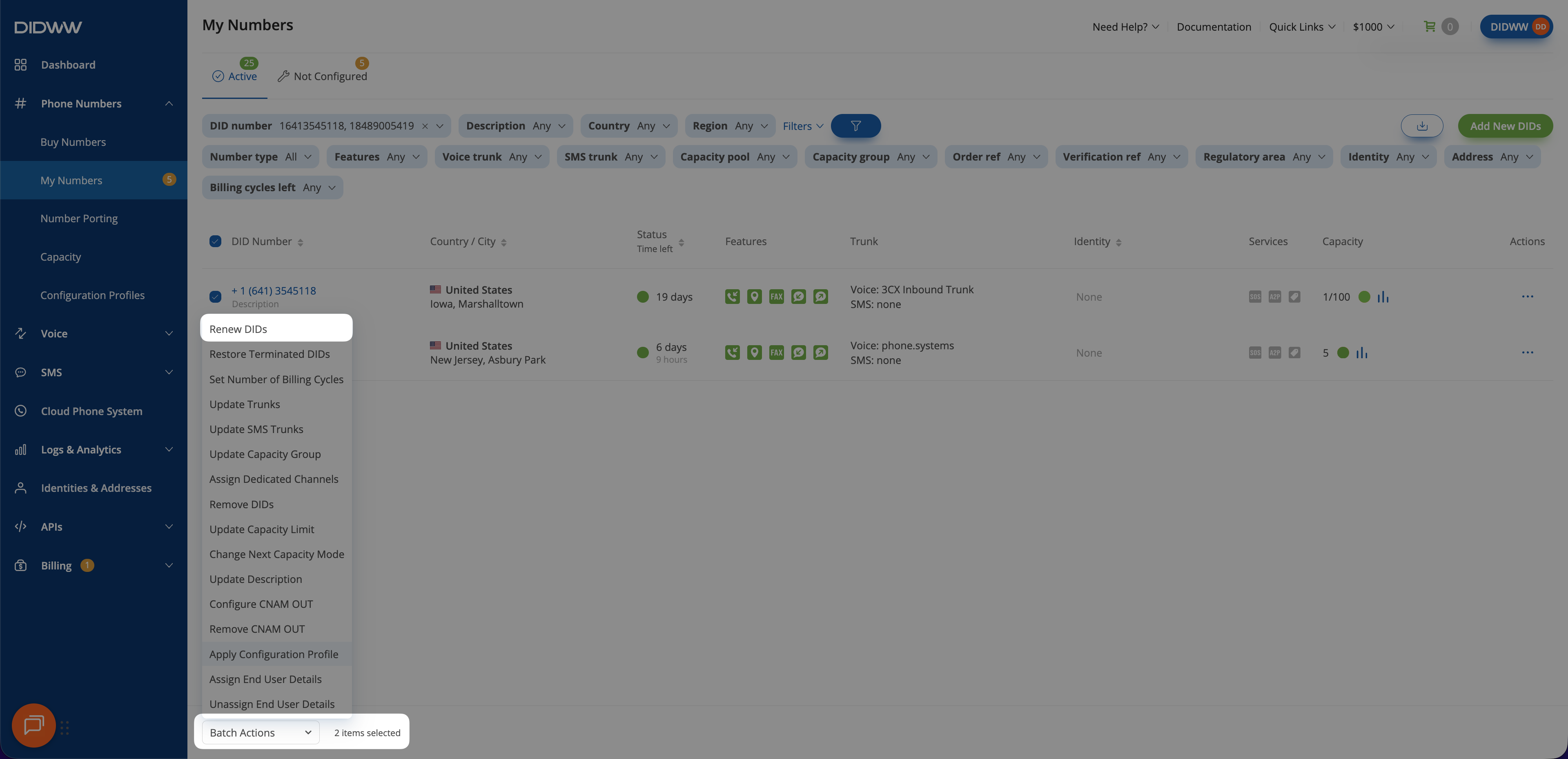
Fig. 4. Selecting the Renew DIDs batch action.#
Step 3: Confirm the renewal#
In the Renew DID(s) pop-up window, select the billing period.
Click Confirm.
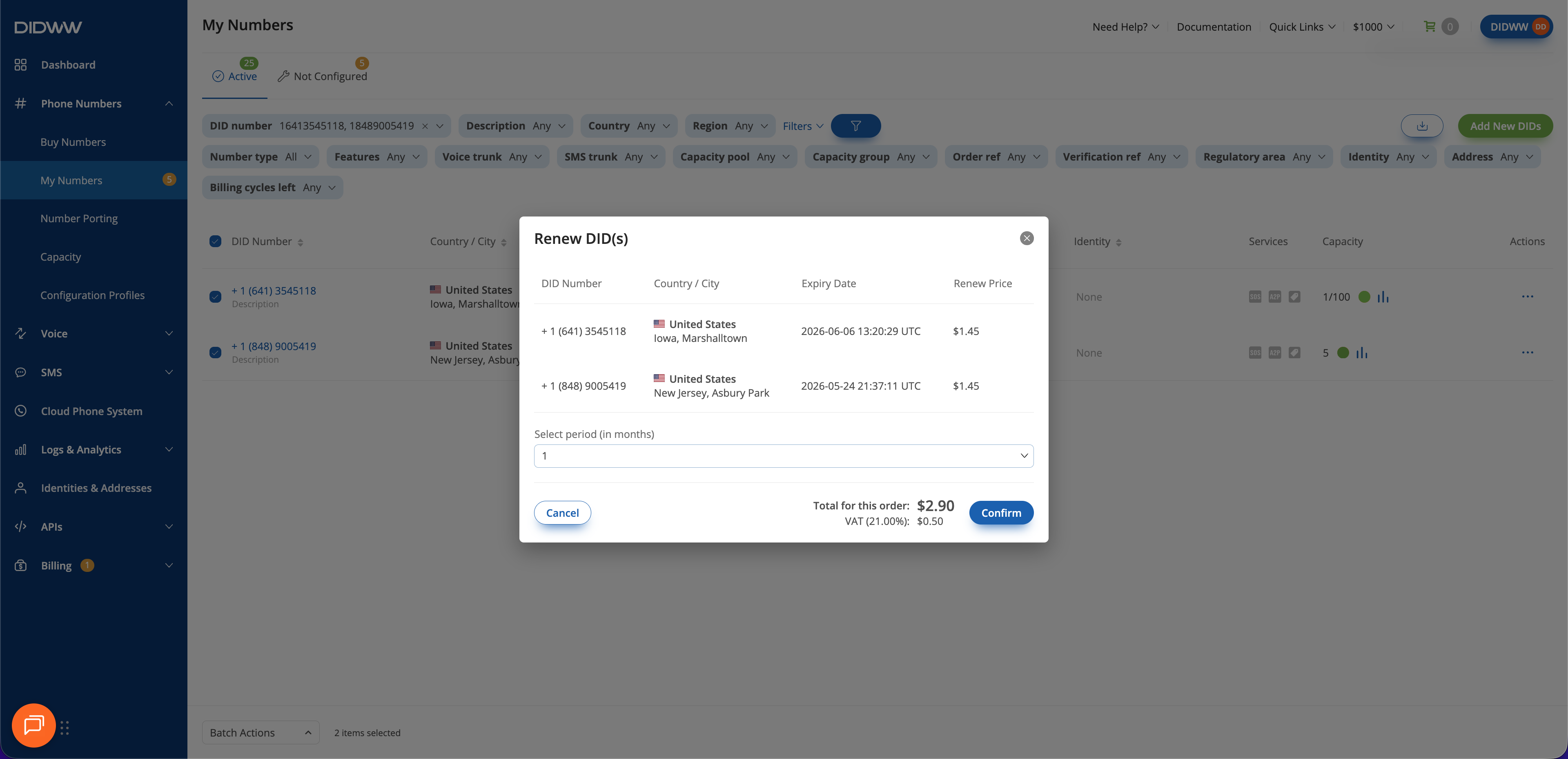
Fig. 5. Confirming renewal for multiple DID numbers.#