

Create an SMS to Email trunk#
Create an SMS to Email trunk to forward incoming SMS messages from your DID numbers to an email address. Set the recipient email address and the subject and body of the forwarded email, and optionally add the trunk to an SMS trunk group.
For how DIDWW delivers SMS by email, see SMS to Email trunk.
Before you begin#
An active DIDWW account is required. Sign in to DIDWW or Create DIDWW account.
Step 1: Open the creation form#
In the DIDWW User Panel, go to SMS > SMS Trunks.
Click Create New in the top-right corner.
Select Email from the dropdown menu.
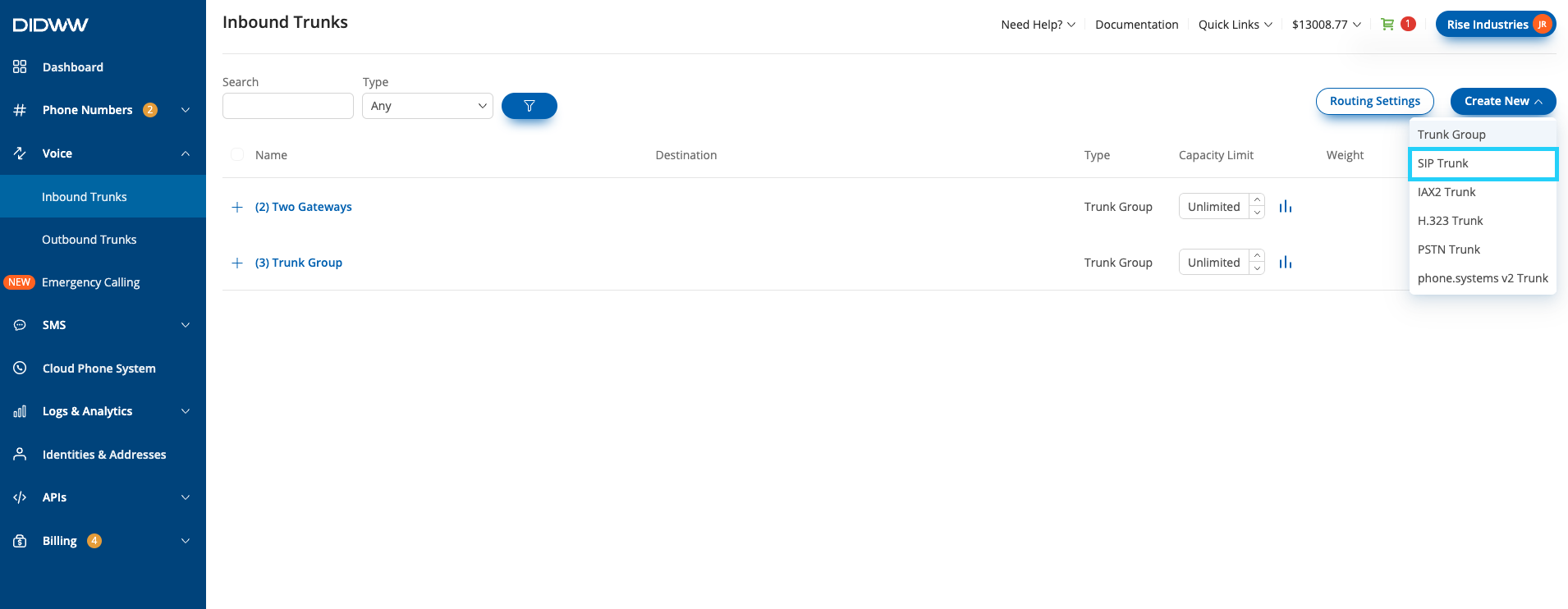
Fig. 1. Select Email#
Step 2: Configure the General settings#
In the General section, enter the information required to set up the trunk.
In Friendly name, enter a unique, descriptive name to identify the trunk.
In Recipient email, enter the email address where incoming SMS messages will be delivered. The field accepts one email address.
Optionally, change the Email subject and Email body templates of the forwarded email. Both fields contain default templates and cannot be empty.
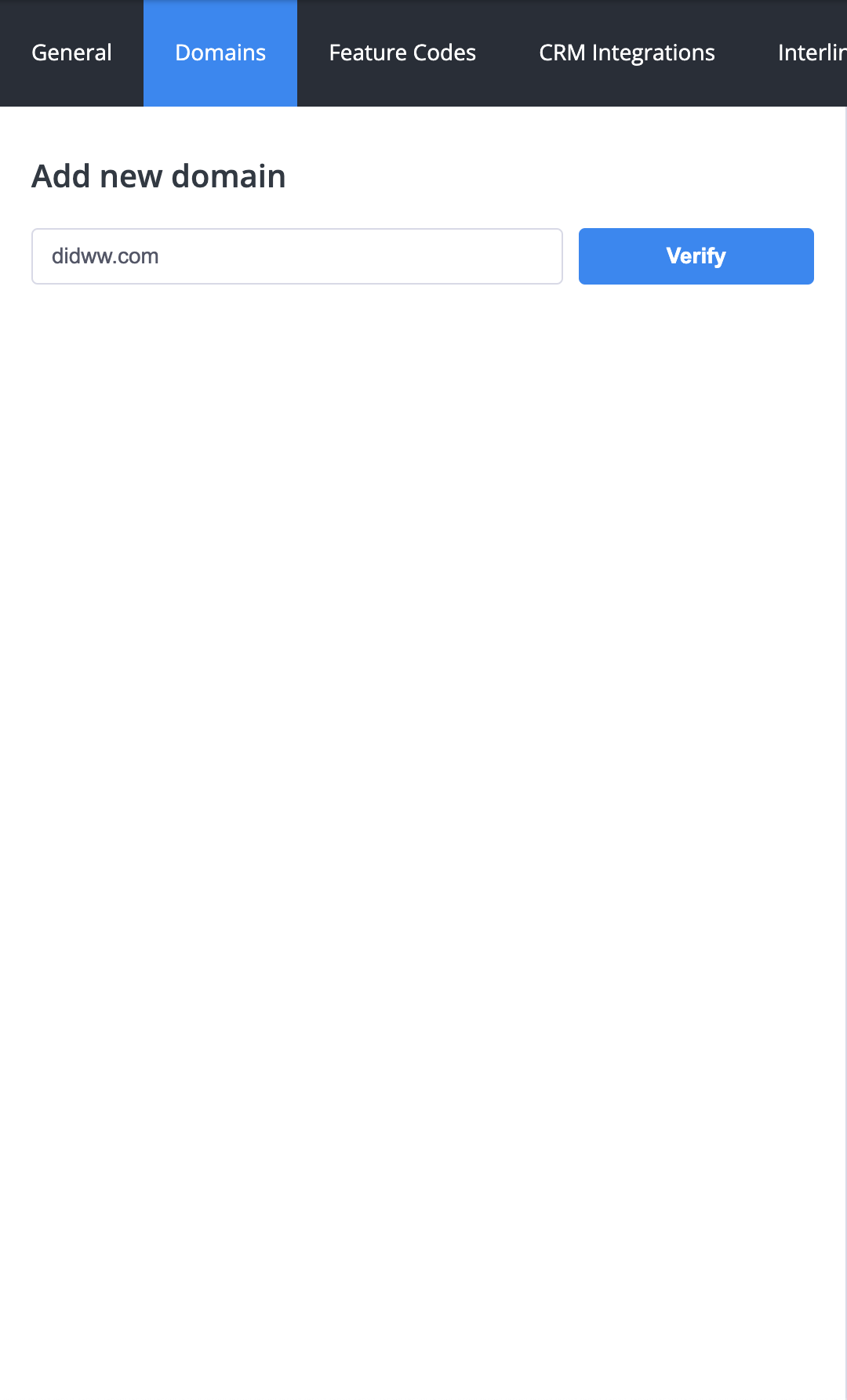
Fig. 2. Configure the SMS to Email trunk#
You can use variables in the Email subject and Email body fields, for
example {SMS_SRC_ADDR} for the sender address. The form lists the
available variables next to these fields. Field definitions, defaults, and
variable descriptions are listed in General settings.
Step 3: Add the trunk to a trunk group (optional)#
You may assign the trunk to an existing SMS trunk group in order to enable failover. Within the trunk group, the trunk’s priority determines the order in which trunks will be used. If the trunk will not be part of a trunk group, skip to Step 4.
Expand the Trunk Group Configuration section and select the group in Assign to trunk group.
In Priority, enter the trunk’s priority within the group, from
0to32767.
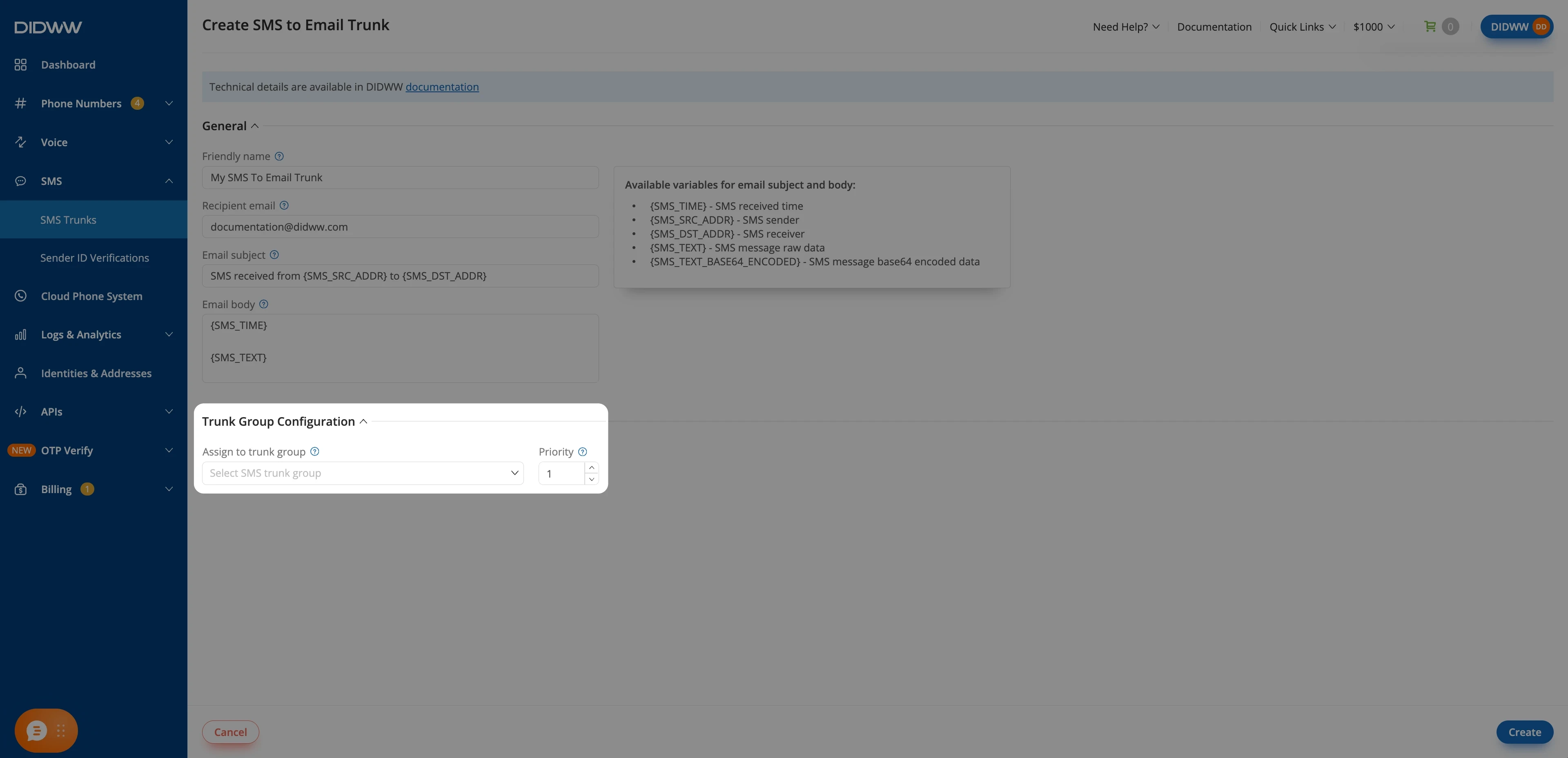
Fig. 3. Configure the trunk group settings#
Note
The system attempts to contact the target SMS trunk with the highest-numbered priority first.
Field definitions are listed in Trunk group settings. To create a group, see Create an SMS trunk group.
Step 4: Create the trunk#
Click Create at the bottom of the page to save the new trunk.
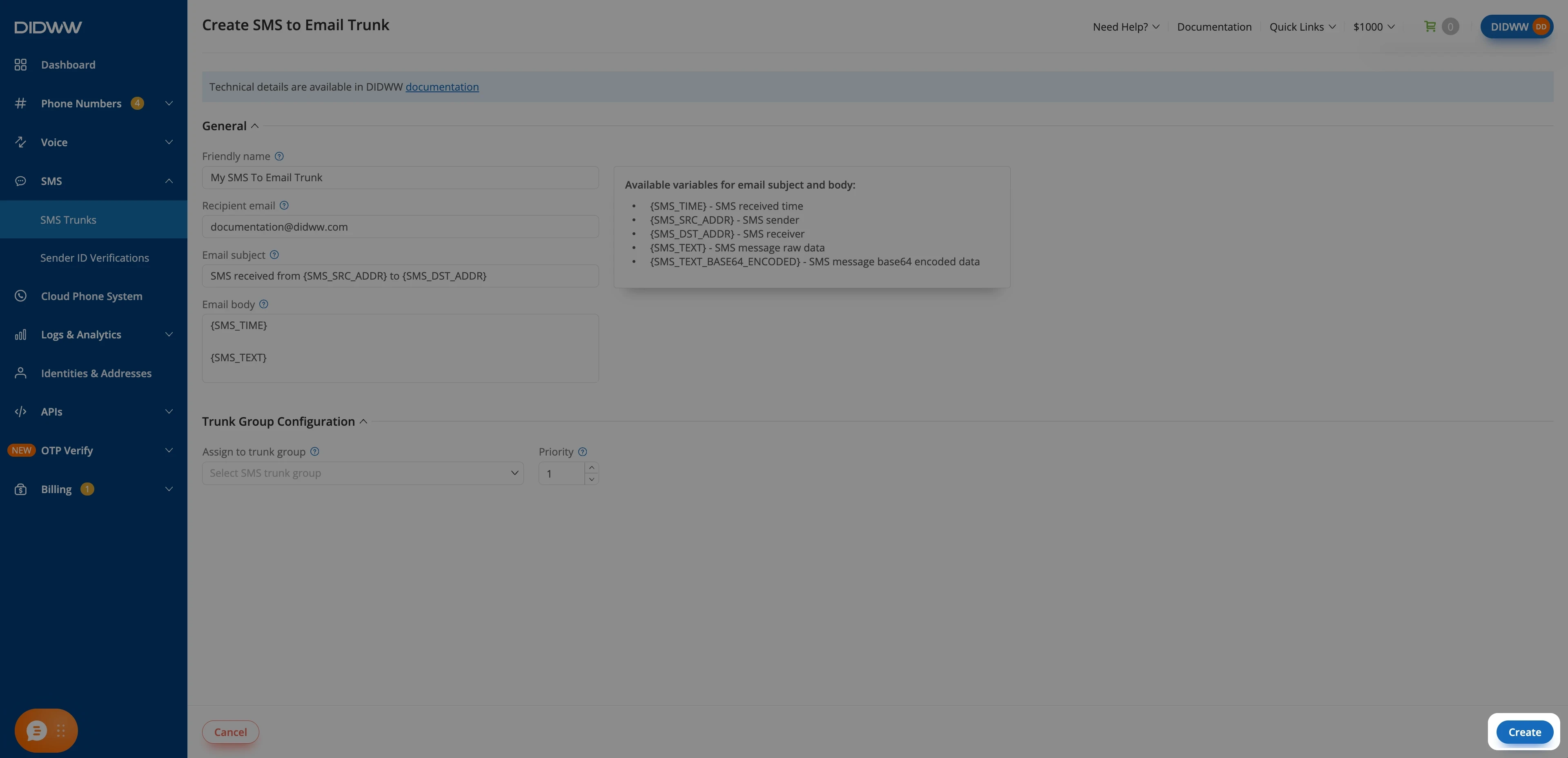
Fig. 4. Create the trunk#
The new trunk appears in the SMS Trunks list. Creating the trunk does not assign it to a DID number.
Next steps#
Assign the trunk or its SMS trunk group to one or more DID numbers that support inbound SMS. The trunk receives messages only after it is assigned.
Send a test SMS to an assigned DID number and check that the email arrives. If it does not, review Inbound SMS logs and SMS to Email delivery.