

Manage port-out requests#
Manage port-out requests in DIDWW by reviewing transfer requests and deciding whether they can be approved or must be rejected.
Approve port-out requests#
Approve a request when the numbers can be released to the gaining carrier. Once ported-out, the action cannot be undone.
Before you begin#
The port-out request must be in Action required status before it can be approved.
Step 1: Open the port-out request#
Go to the Phone Numbers > Number Porting > Port Out Requests tab.
Filter the Port Out Requests by Action required status. Click here to apply the filter.
Find the request you want to review and click on the Port Out Request reference ID or Actions > View details to open the View Port Out Request window.
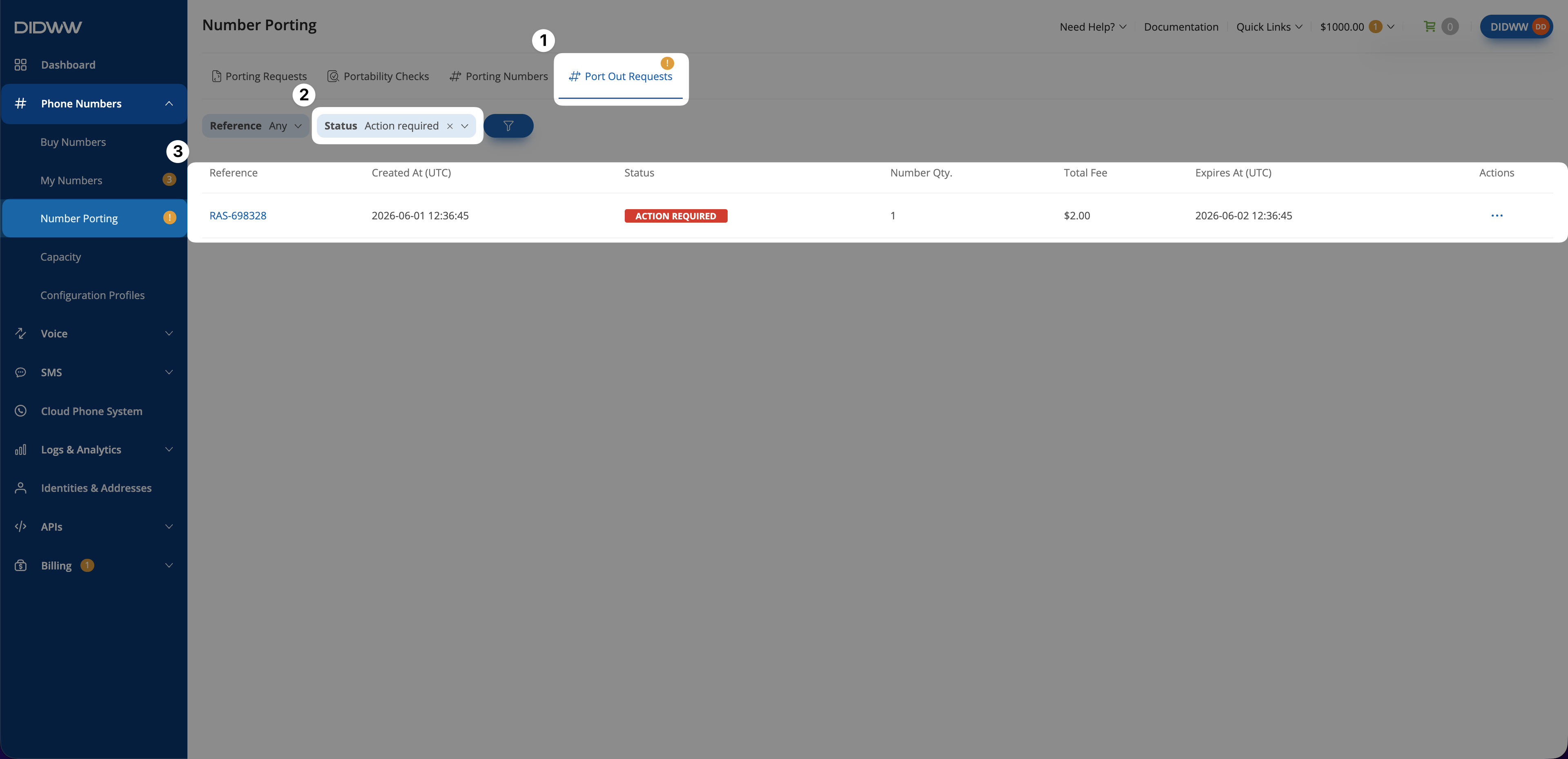
Fig. 1. Opening a port-out request from the Port Out Requests table.#
Step 2: Review the request details#
On the View Port Out Request page review the General details.
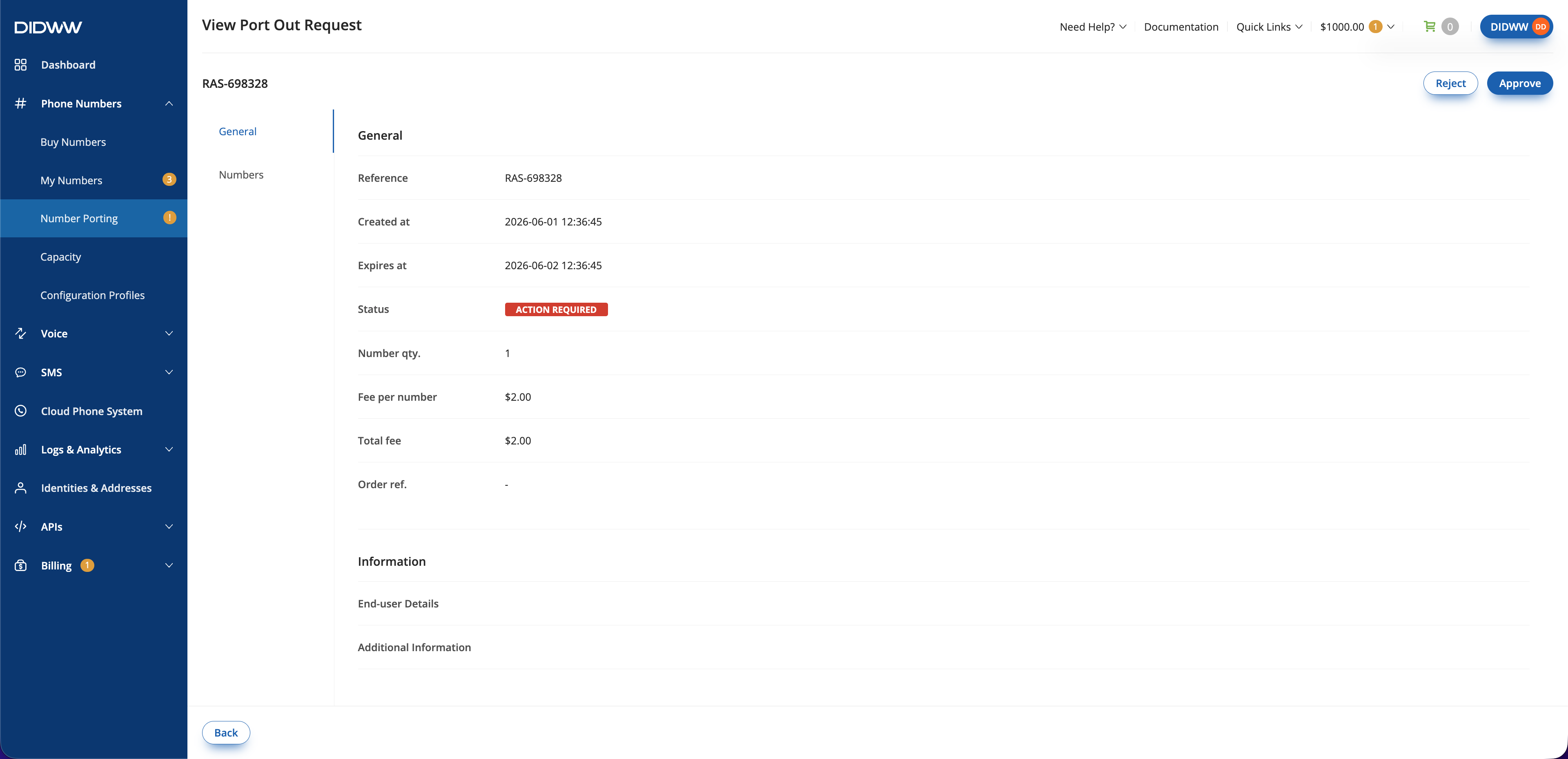
Fig. 2. View Port Out Request page.#
Open the Numbers section and confirm that the expected numbers appear in the Port Out Request.
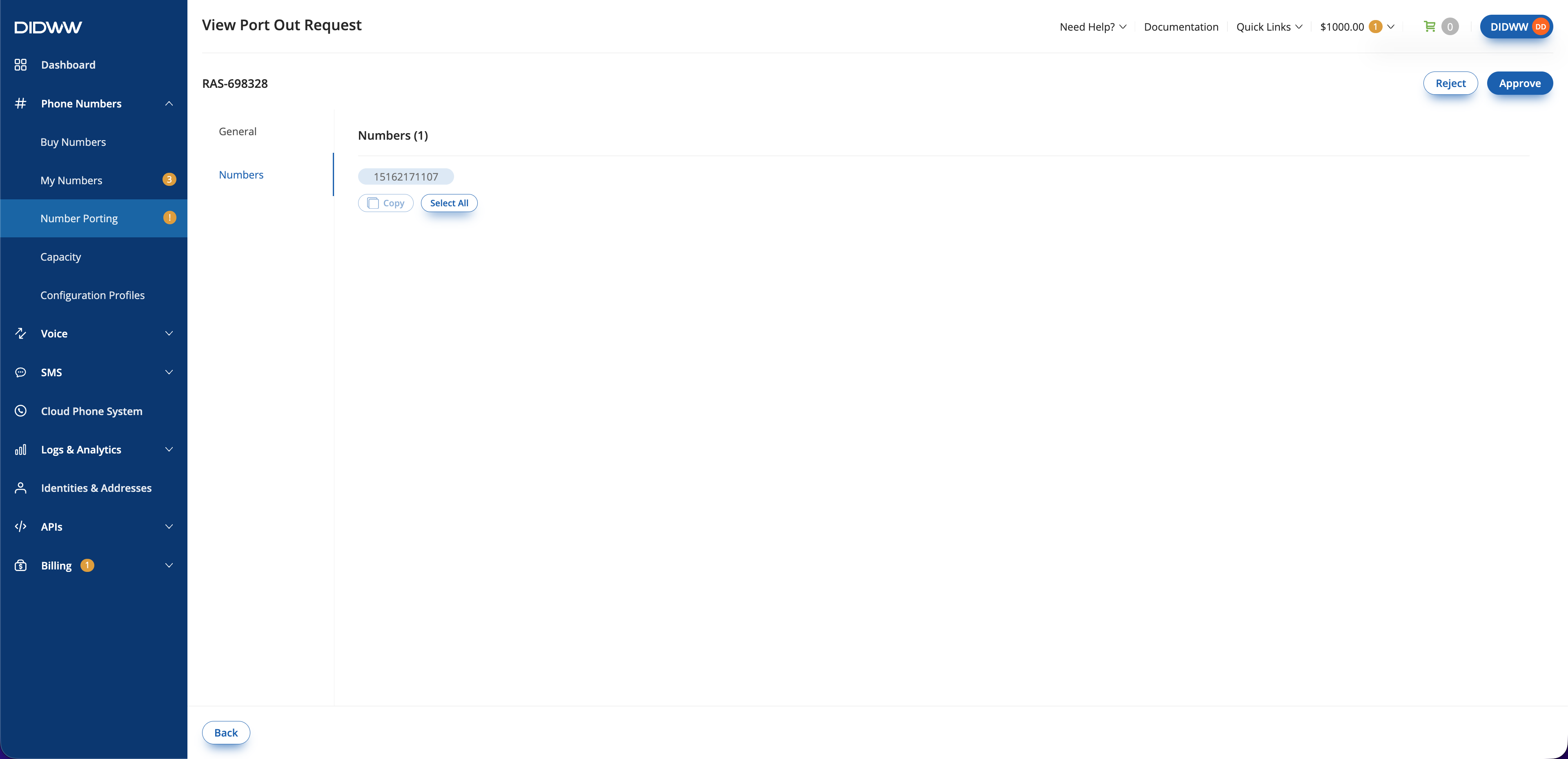
Fig. 3. View Port Out Request page.#
Step 3: Approve the request#
Click Approve in the upper-right corner.
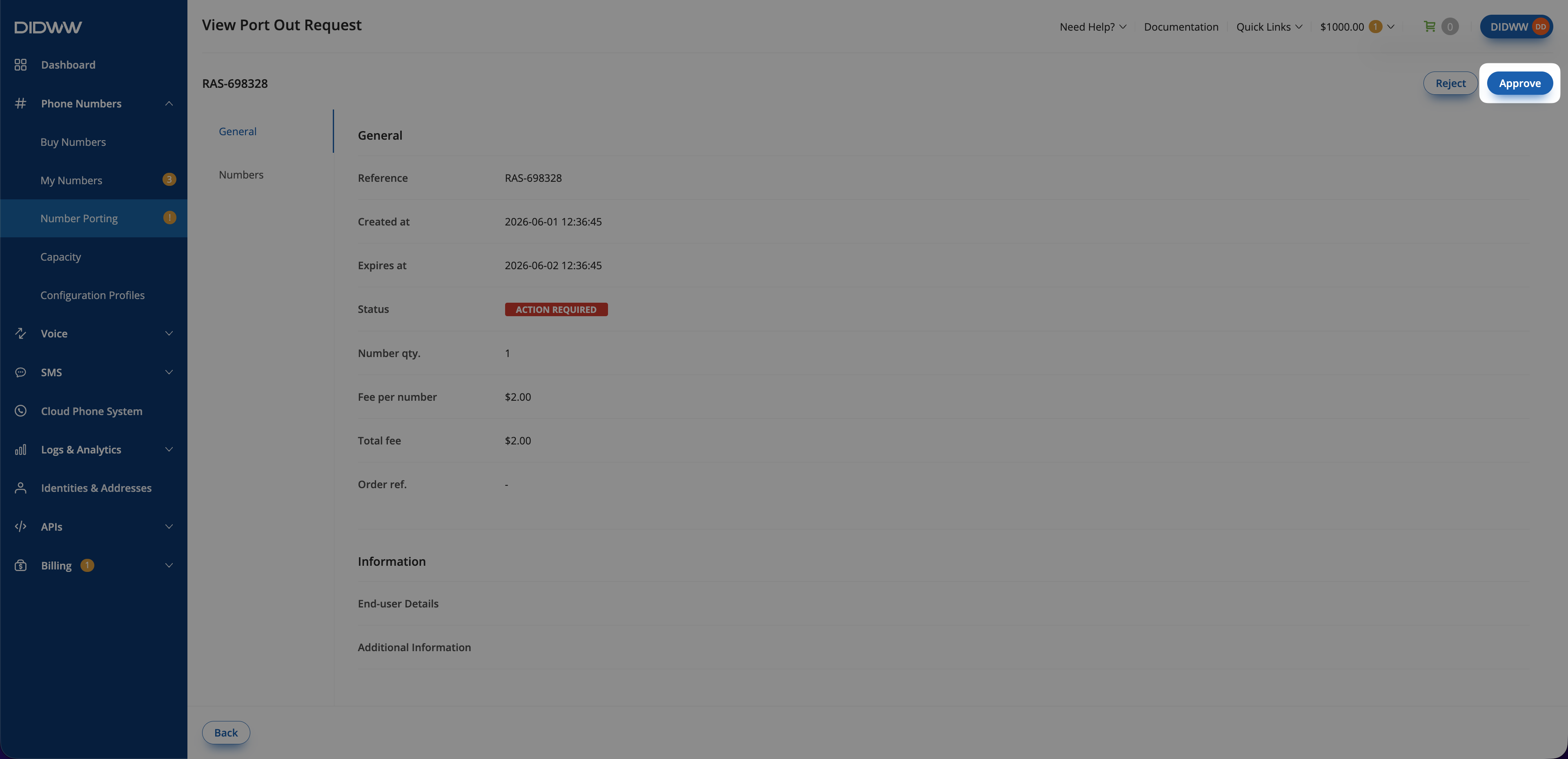
Fig. 2. View Port Out Request page.#
In the Approve Port Out Request pop-up, review the confirmation message that explains the numbers will be released to the gaining carrier and the action cannot be undone.
Click Submit.
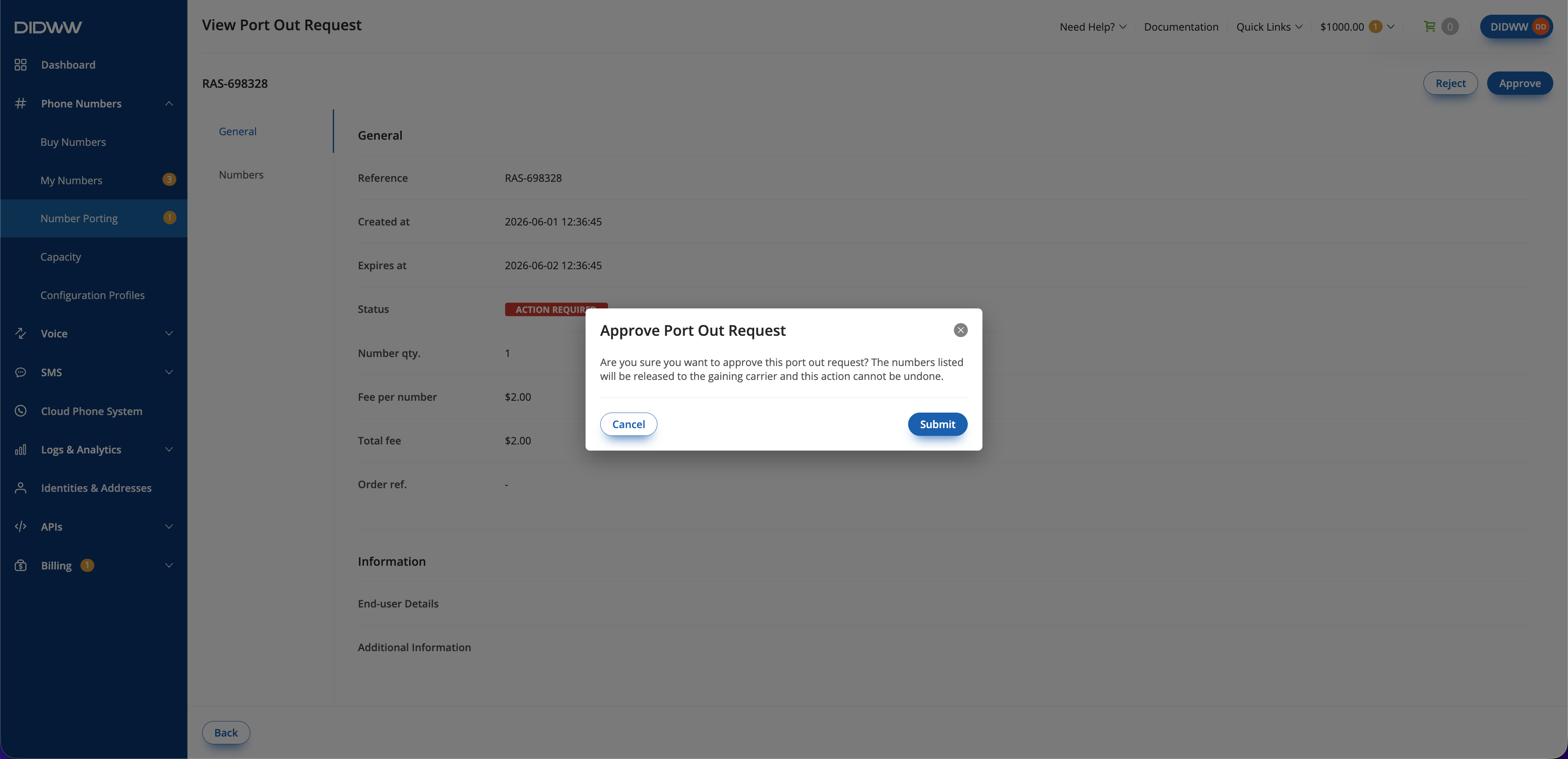
Fig. 2. View Port Out Request page.#
After the request is approved, DIDWW shows a success message and the request status changes to Approved.
Reject port-out requests#
Reject a request when the numbers should not be released to the gaining carrier.
Before you begin#
The port-out request must be in Action required status before it can be rejected.
Step 1: Open the port-out request#
Go to the Phone Numbers > Number Porting > Port Out Requests tab.
Filter the Port Out Requests by Action required status. Click here to apply the filter.
Find the request you want to review.
Click on the Port Out Request reference ID or Actions > View details to open the View Port Out Request window.
Fig. 1. Opening a port-out request from the Port Out Requests table.#
Step 2: Review the request details#
On the View Port Out Request page review the General details.
Fig. 2. View Port Out Request page.#
Open the Numbers section and see which numbers are pending to be ported out.
Fig. 2. View Port Out Request page.#
Step 3: Reject the request#
On the View Port Out Request page, click Reject in the upper-right corner.
Confirm that the reject action opens the Reject Port Out Request pop-up.
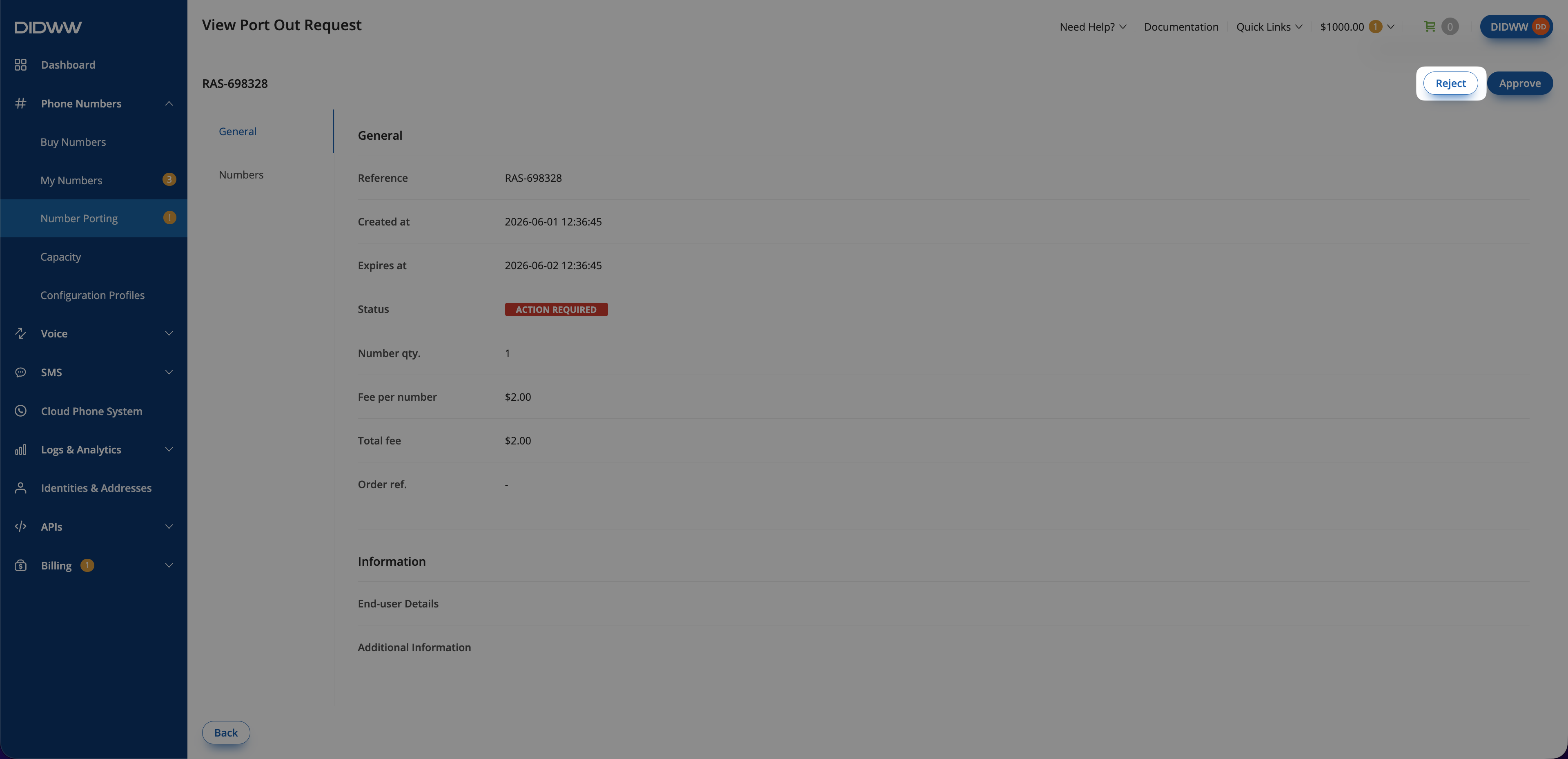
Fig. 4. View Port Out Request page with the reject action highlighted.#
Select the reason for rejection from the Reject reason dropdown.
Click Submit.
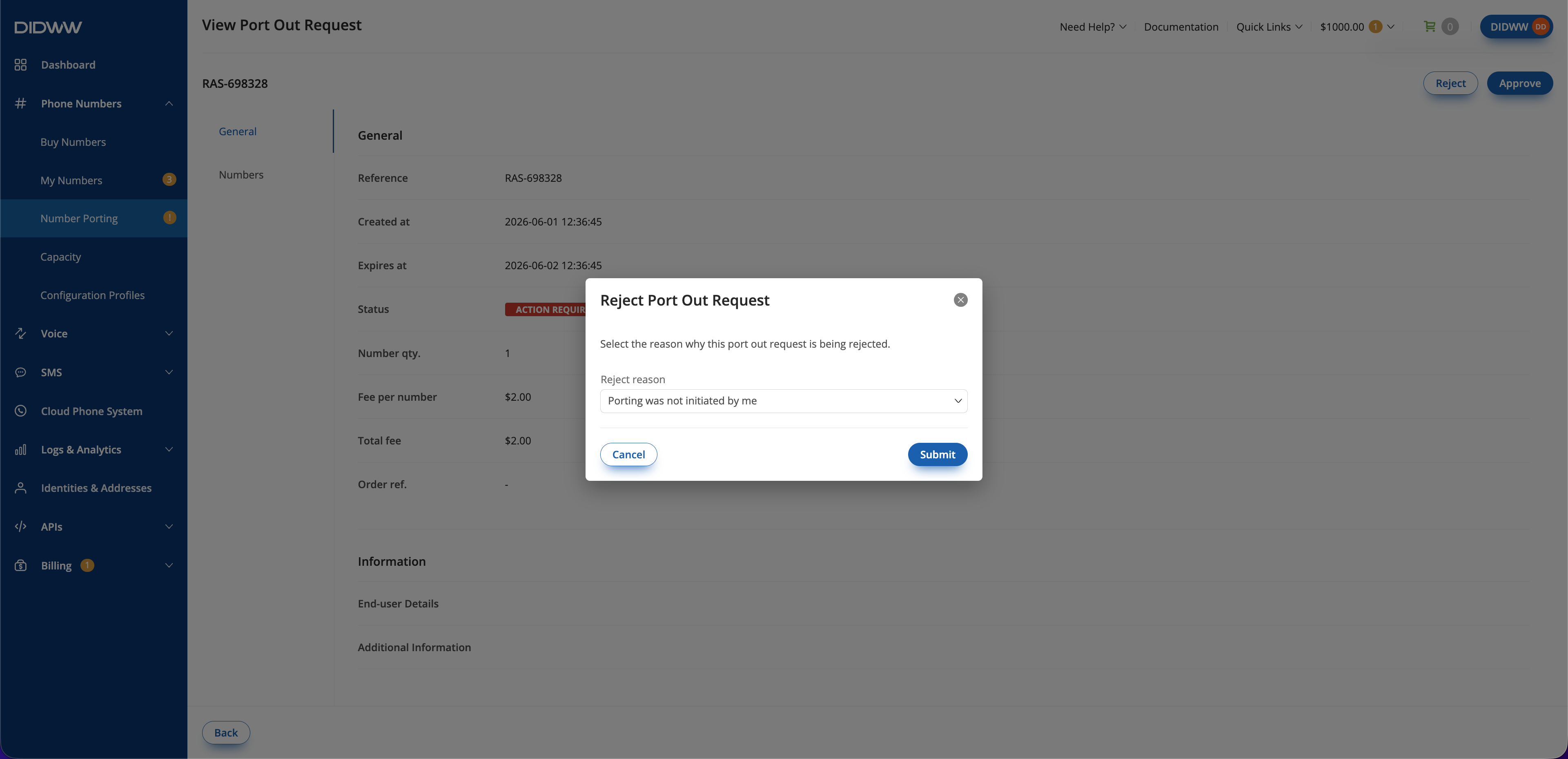
Fig. 5. Reject Port Out Request dialog.#
After the request is rejected, the port-out request status changes to Rejected.