

Resubmit emergency calling request#
Before an Emergency Calling Service request can be activated, it must pass a verification stage to ensure that all submitted details are correct and compliant. You can resubmit a request while it is in New or Changes required status, if some details are incorrect, incomplete, or did not pass verification. When the Emergency Calling Service request is in Changes required status, a reason and any additional comments will be displayed to help you update and resubmit the request.
Before you begin#
An Emergency Calling Service request in New or Changes required status is required.
Step 1: Filter emergency requests by Changes required status (optional)#
In the DIDWW User Panel, go to Voice > Emergency Calling.
Open the Status filter.
Select the Changes required status to display the relevant Emergency Calling requests.
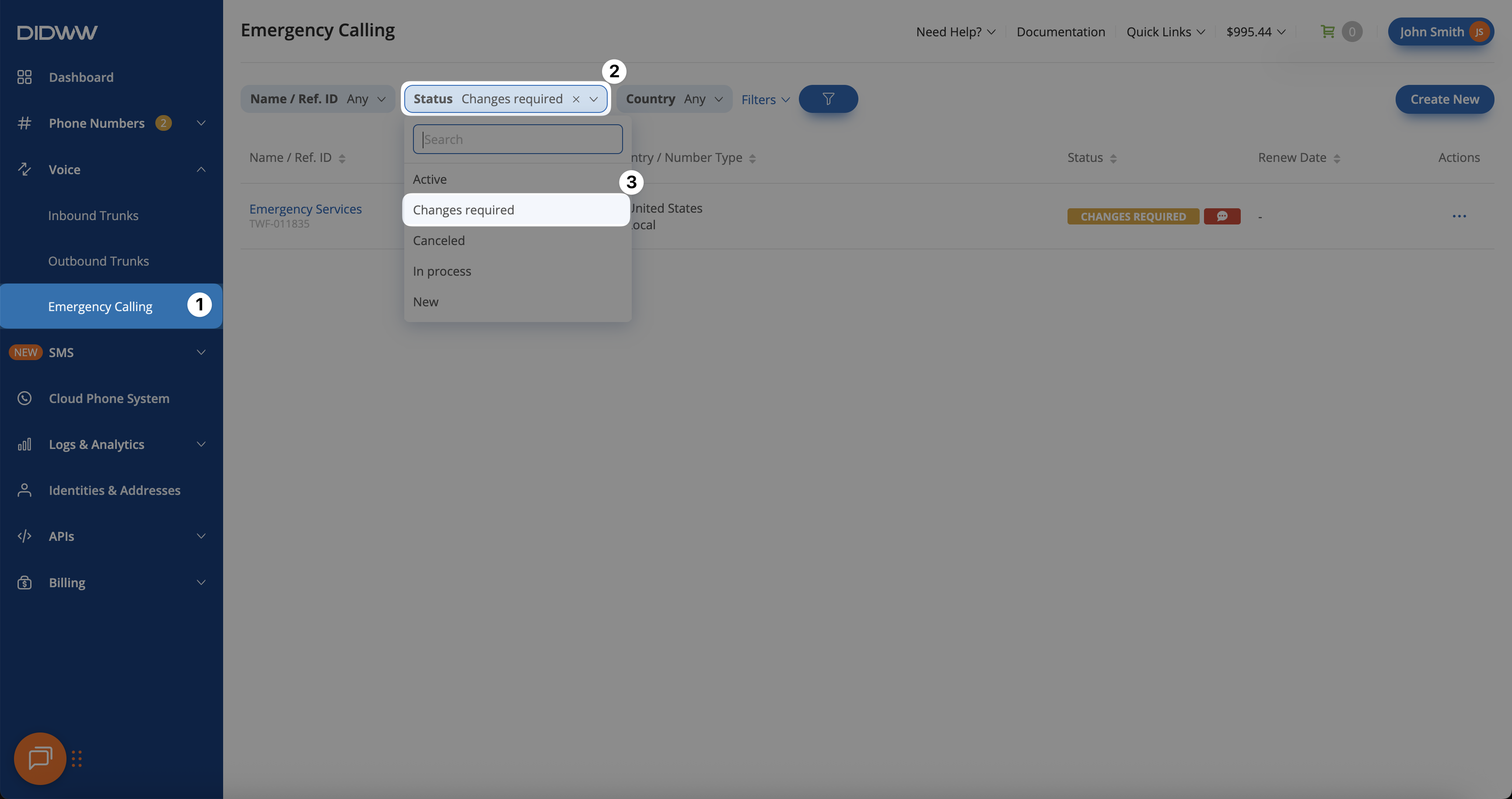
Fig. 1. Filtering Emergency Calling requests in Changes required status#
Step 2: Open the emergency calling edit page#
Locate the Emergency Calling request, then click its name in the Name / Ref. ID column or use the Actions menu and select Edit.
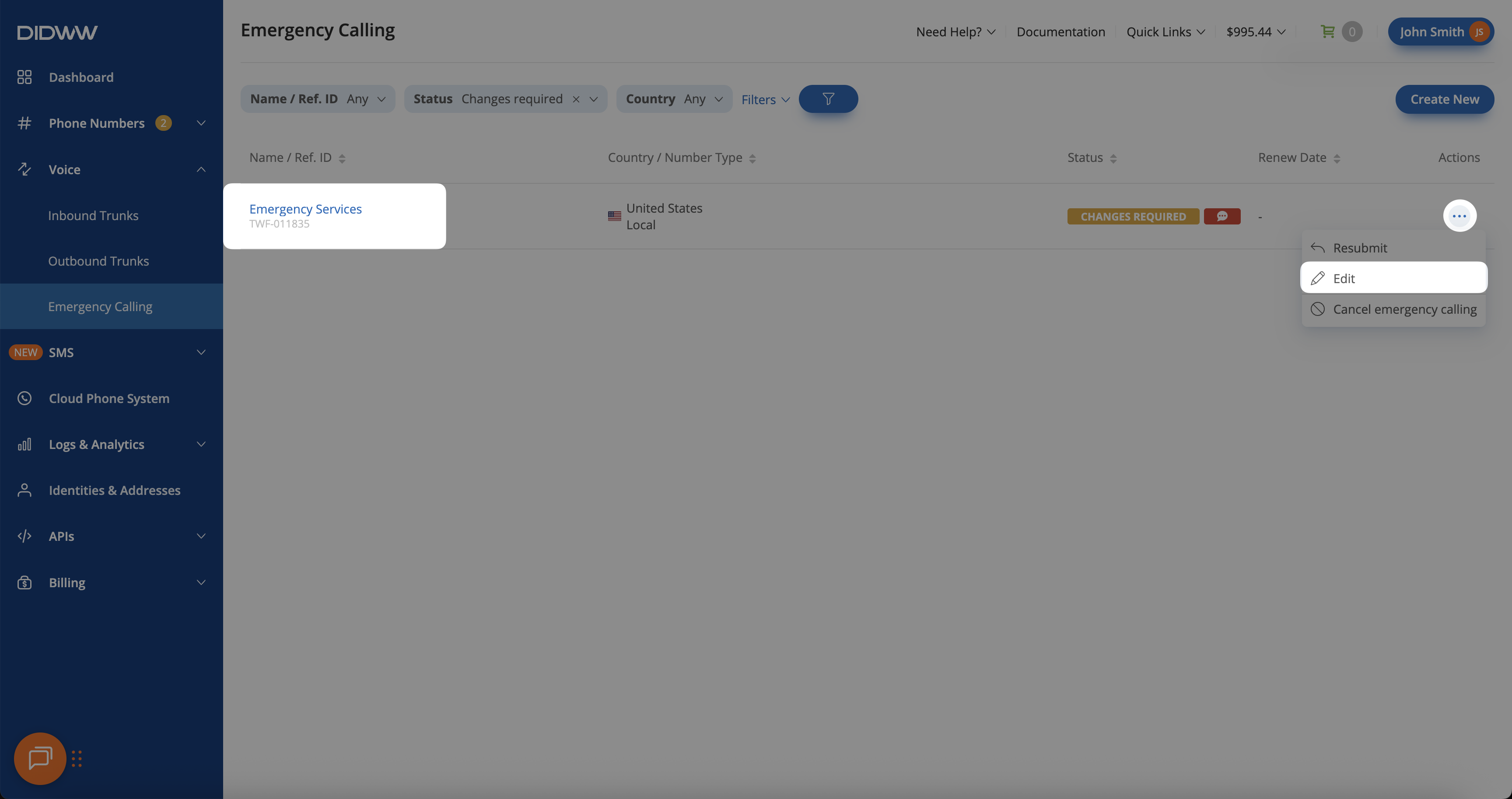
Fig. 2. Opening the emergency calling request to review details and rejection reasons#
Step 3: View verification details and reject reasons#
On the Edit Emergency Calling request page, review the Verification Details and Reject Reason(s) sections. This will show exactly why the request requires changes (for example, a missing proof of address).
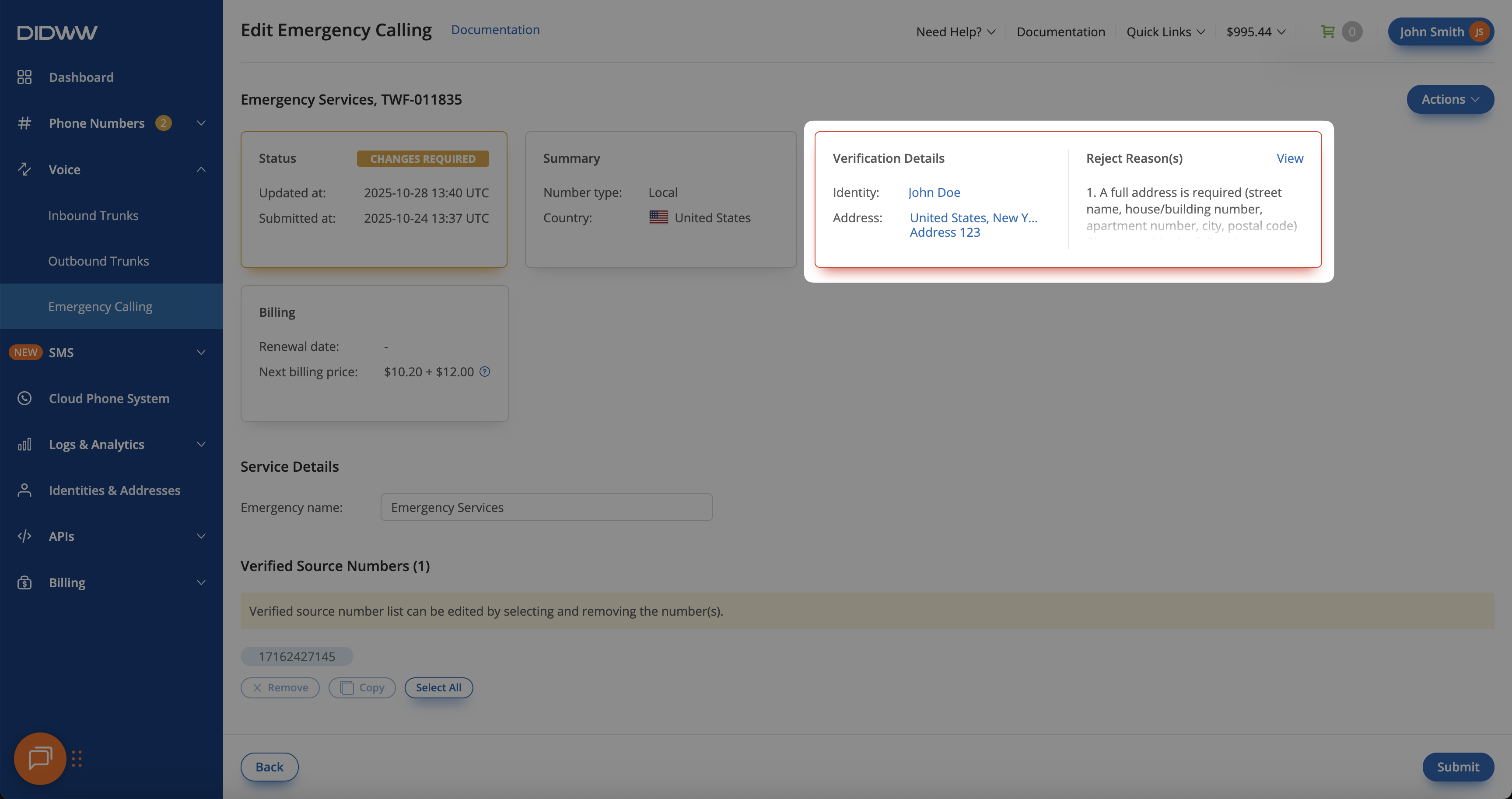
Fig. 3. Emergency calling verification details and rejection reasons for the emergency calling request#
Step 4: Update verification details#
Important
If the request needs a different Identity, cancel the request and create a new Emergency Calling Service request. The identity of an existing request cannot be changed.
If the Address information is missing, incorrect, or locked from editing, create a new address for the same identity and select it when resubmitting the request. The existing request can be kept.
If only documents need to be updated, update them on the assigned identity or address and resubmit the existing request.
Depending on the rejection reason(s), you may be required to update either the Identity details, the Address details, or both. For example, this may happen if the provided information is outdated, incomplete, or does not match the verification documents.
In the Verification Details block, click the Identity or Address names to open the corresponding edit page.
Update the required fields — for example, upload a new document or add missing information.
Step 5: Resubmit emergency service verification#
After reviewing the rejection reasons and updating the required Identity or Address information assigned to the Emergency Calling Service request, you can resubmit the same request for verification.
Note
If the request needs a different Identity, cancel the emergency request instead. If the assigned Address cannot be modified, create a new address for the same identity and select it in the resubmit window.
To resubmit emergency calling service request, click Actions > Resubmit.
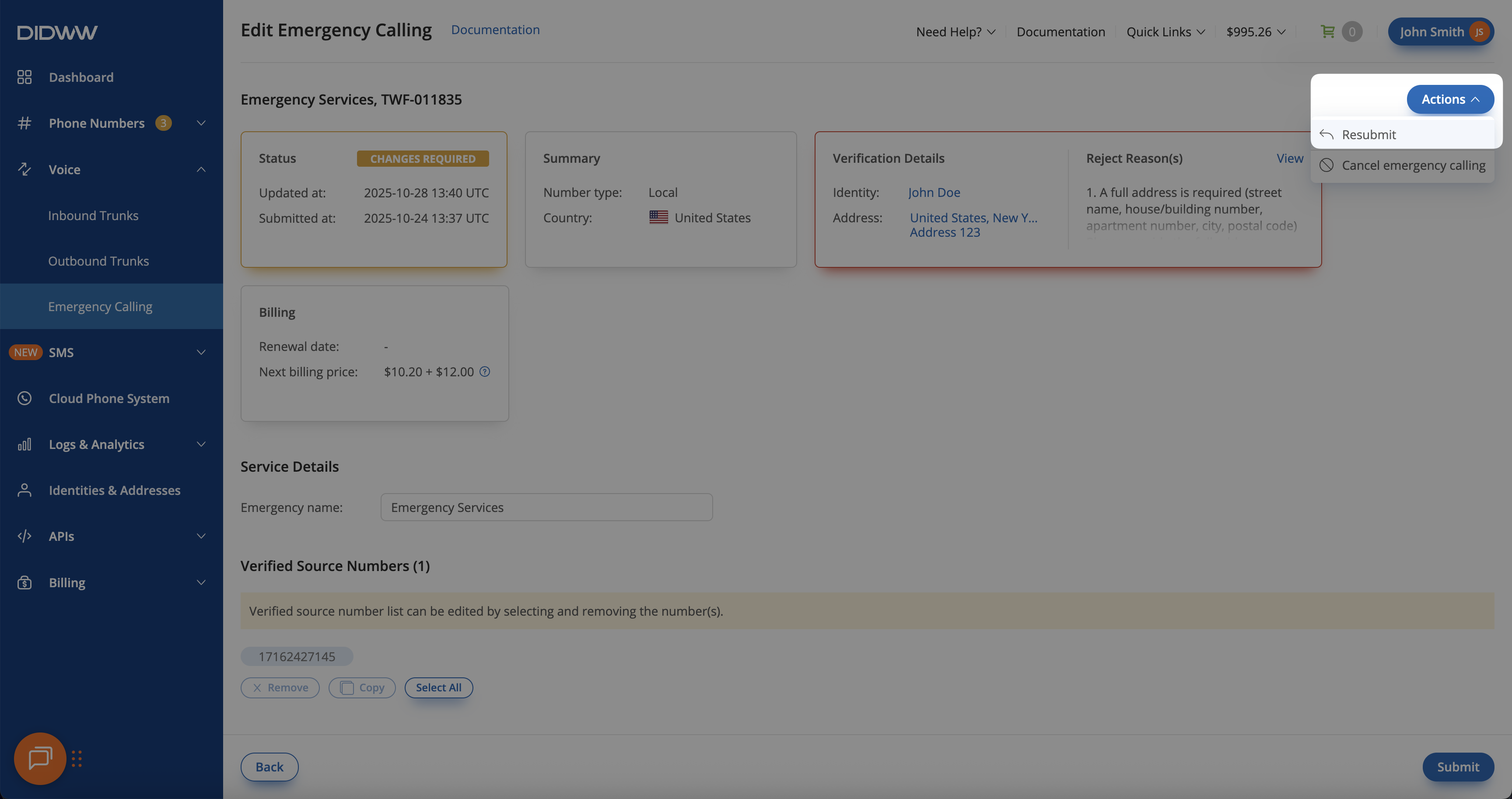
Fig. 4. Resubmitting the Emergency Calling Service request with updated verification details#
A Resubmit Emergency Service Verification pop-up window will appear, showing a banner with the rejection reason and any additional comments from staff (if provided).
Note
The Identity field in the Resubmit Emergency Service Verification window cannot be changed or reselected.
Select the updated or new Address from the dropdown menu (or click Create New Address if the existing fields are disabled when updating the required address information).
If an Upload emergency calling form field is shown, download the form template, fill it out, and upload it.
Click Submit to resubmit your Emergency Calling Service request for verification.
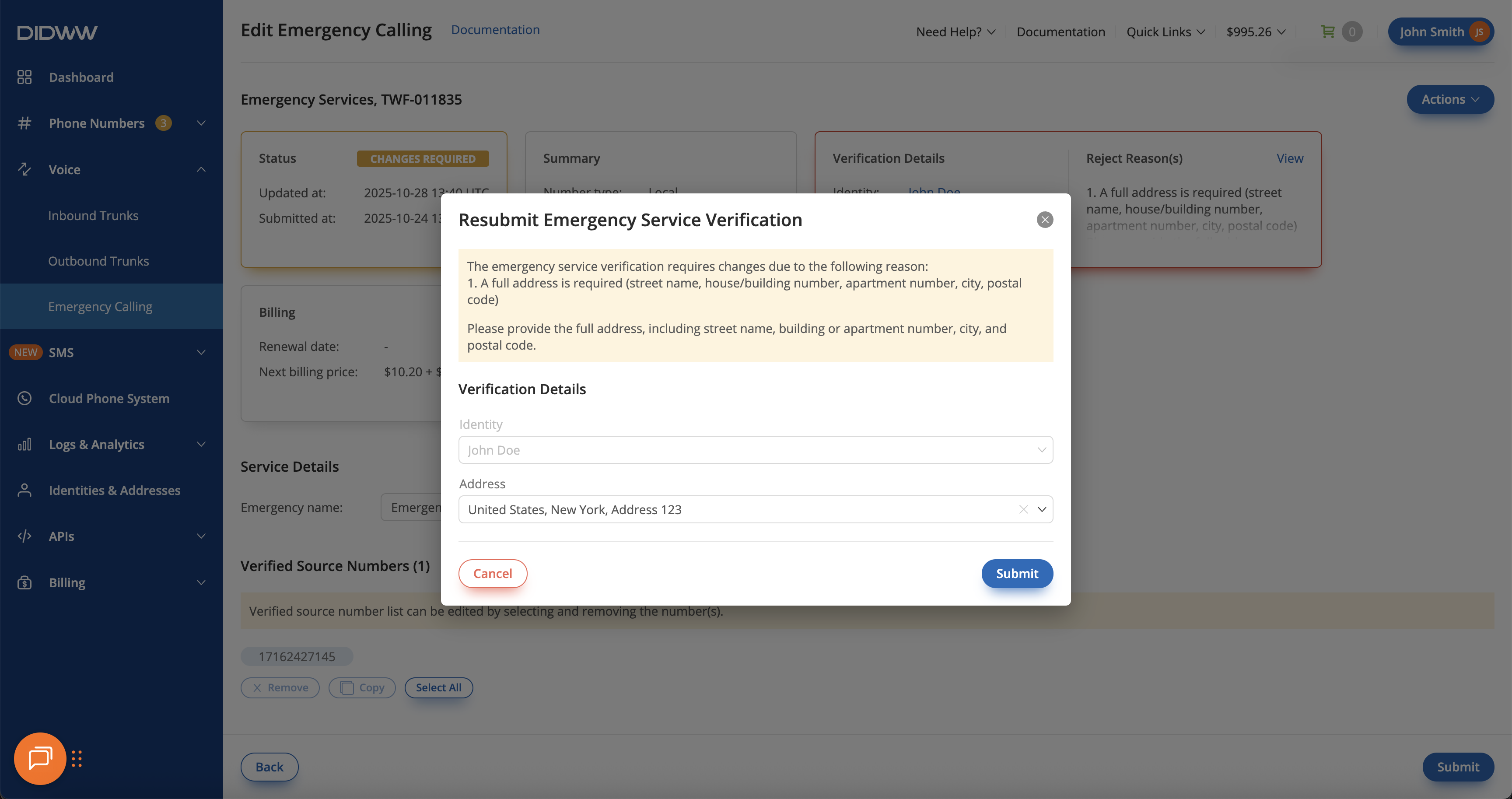
Fig. 5. Resubmitting the Emergency Calling Service request after updating verification details#
Step 6: Confirm the resubmission#
After successfully resubmitting the request, a Verification resubmitted successfully message is shown.
A request that was in Changes required status returns to In process, which indicates that the verification has been resubmitted.
A request resubmitted while in New status stays New until DIDWW staff start the verification.
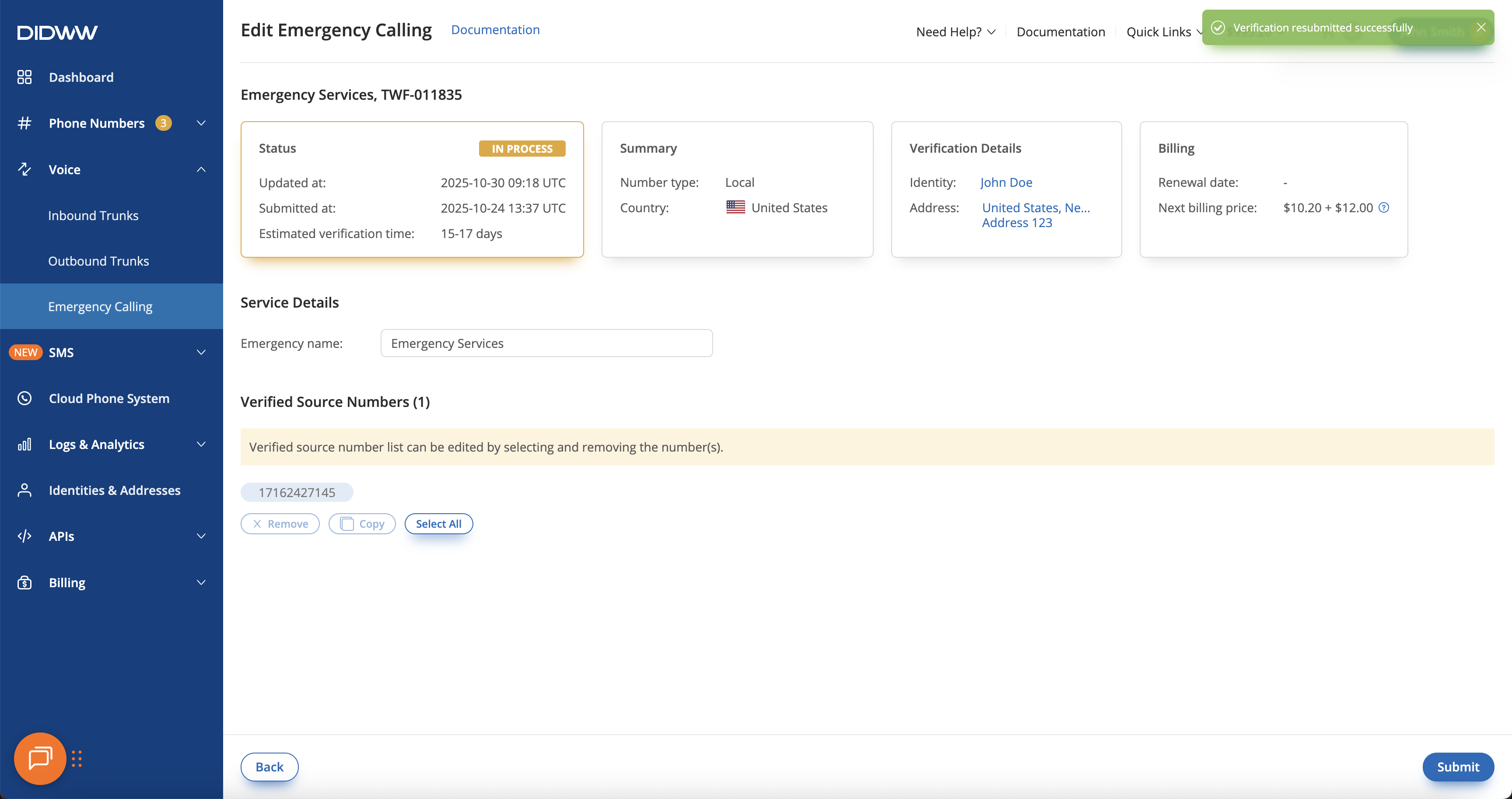
Fig. 6. Confirmation message indicating that the verification was resubmitted#