

Apply configuration profile#
Apply a configuration profile to multiple porting numbers so routing and capacity settings are assigned when the numbers are successfully ported.
In the DIDWW User Panel, go to Phone Numbers > Number Porting.
Open the Porting Numbers tab to view all numbers currently included in porting requests.
Select the checkboxes next to the numbers you want to update.
Open the Batch Actions menu.
Select Apply configuration profile.
Select the configuration profile.
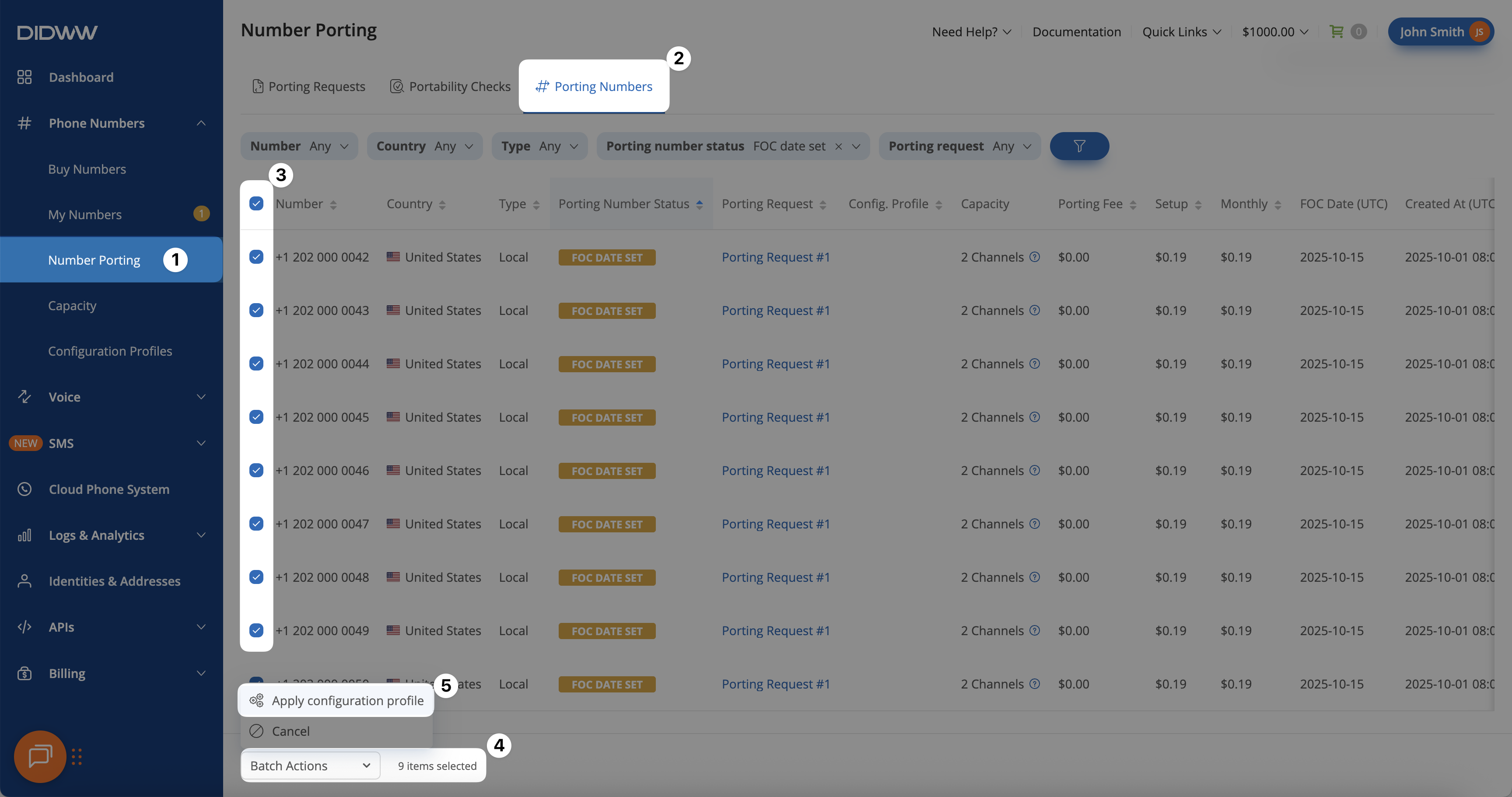
Fig. 1. Applying a configuration profile to multiple porting numbers.#