

Check SMPP SMSC trunk connection status#
Check whether DIDWW is bound to your SMSC with an SMPP SMSC trunk. In an SMPP SMSC trunk, DIDWW connects and binds to your SMSC as an ESME. The status shows each session that DIDWW opens to your SMSC. Checking it does not reconnect the trunk.
Before you begin#
An active DIDWW account is required. Sign in to DIDWW.
An SMPP SMSC trunk is required. If you do not have one, see Create an SMPP SMSC trunk.
Your SMSC must accept the bind requests from DIDWW. See Accept SMPP SMSC bind requests.
Step 1: Open the status window#
In the DIDWW User Panel, go to SMS > SMS Trunks.
Locate the SMPP SMSC trunk and click the Actions button next to it.
Select Check Status.
Fig. 1. Open the status window#
Step 2: Review the connection status#
The Status Information window shows one entry for each session that DIDWW
opens to your SMSC. When Transceiver mode is off, it shows a transmitter
session (Type TX) and a receiver session (Type RX). When
Transceiver mode is on, it shows one transceiver session (Type
TRX).
Field |
Description |
|---|---|
Status |
While DIDWW is bound, the bind type, for example |
Sent, Received, Pending |
Message counters for the session. |
Type |
Session type: |
System ID |
System ID that DIDWW binds with, as entered in the trunk. |
Connected |
Date and time when the current bind was established. Shown while DIDWW is bound. |
Online |
How long the current bind has been active. Shown while DIDWW is bound. |
Connection |
IP addresses and ports of the DIDWW SMPP server and your SMSC. |
Last Error |
Reason for the last failed connection attempt, for example |
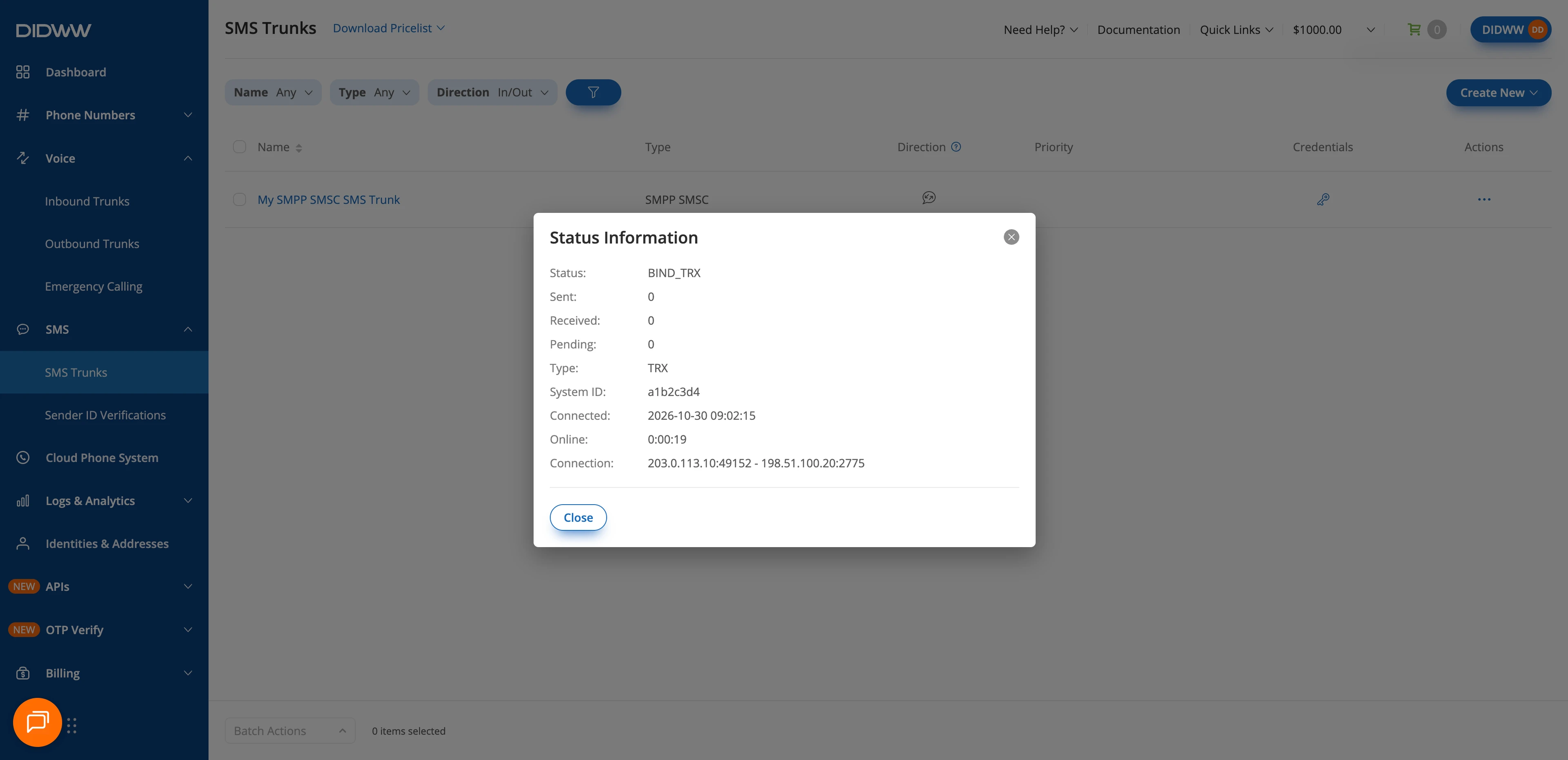
Fig. 2. Review the connection status#
Next steps#
If Status shows
CONNECTING, check the Last Error, the trunk’s connection details and credentials, and your firewall. See Accept SMPP SMSC bind requests.To receive SMS, assign the trunk to one or more DIDs that support inbound SMS.