

View SMPP ESME trunk credentials#
View the connection details of an SMPP ESME trunk. Your application uses the Host, Port, System ID, Password, and System Type to bind to the DIDWW SMSC.
Before you begin#
An active DIDWW account is required. Sign in to DIDWW.
An SMPP ESME trunk is required. If you do not have one, see Create an SMPP ESME trunk.
Step 1: Open the credentials window#
In the DIDWW User Panel, go to SMS > SMS Trunks.
Locate the SMPP ESME trunk and click the key icon in its Credentials column.
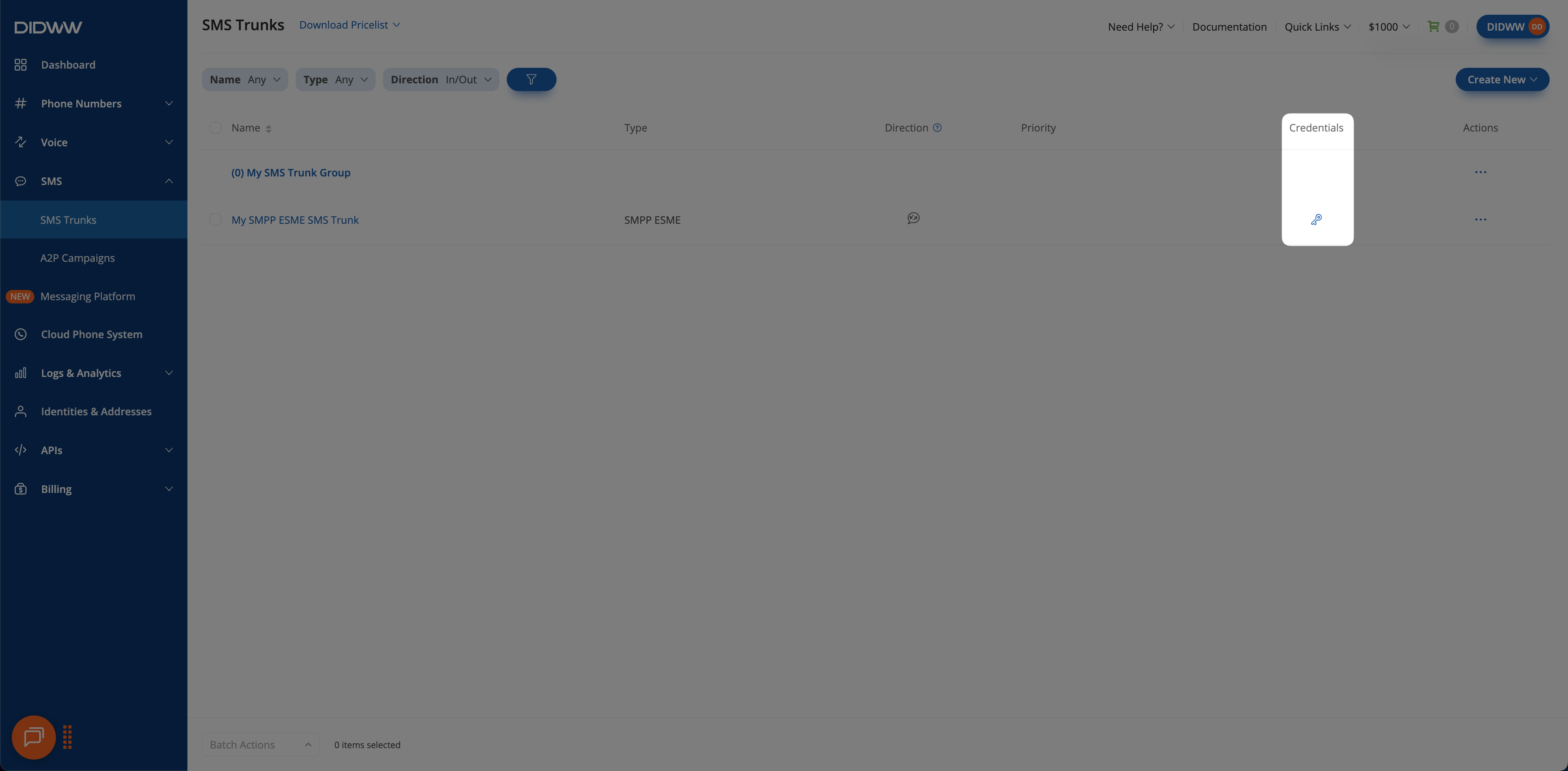
Fig. 1. Open the trunk credentials#
Step 2: View the connection details#
In the credentials window, review the trunk Host, Port, System ID, Password, and System Type.
Click the eye icon next to Password to show the password.
The Host depends on the trunk’s Server location:
Server location |
Host |
|---|---|
US, NY |
|
NL, AMS |
|
Note
The window shows port 2775 for SMPP over plain TCP. For SMPP over TLS,
use port 2776. Both ports use the same credentials. See SMPP
over TLS.
The window also shows the trunk’s Allowed IPs and Allowed Source Addresses. To change them, edit the trunk.
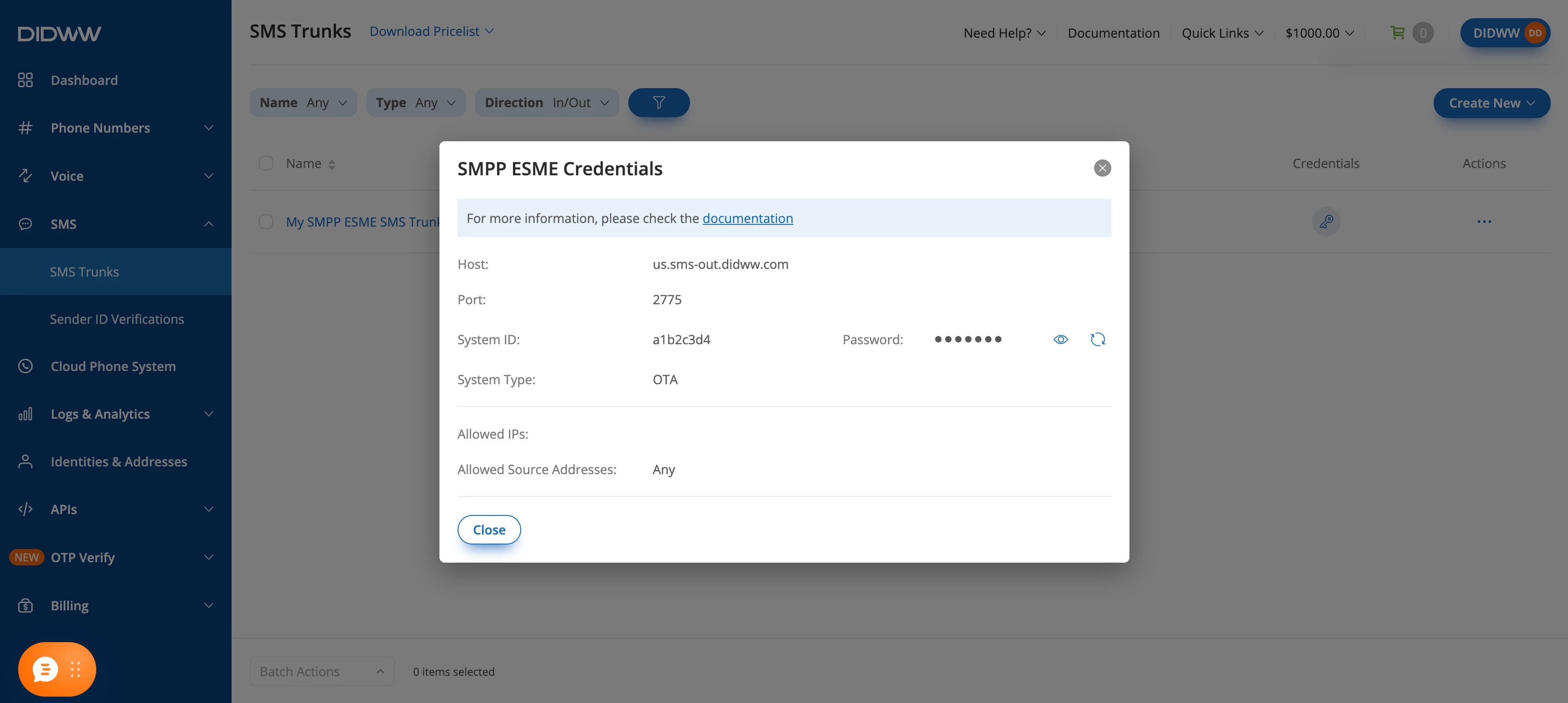
Fig. 2. View the credentials#
Next steps#
Bind your application to the DIDWW SMSC with these credentials.