

Manage number lists#
Edit or delete existing inbound Number Lists and the numbers or prefixes in them. To create a Number List, see Configure number lists.
Before you begin#
An active DIDWW account is required. Sign in to DIDWW.
An existing Number List is required. If you do not have one, see Configure number lists.
Edit a Number List#
To edit an existing Number List, such as changing its name, mode, or default action, follow these steps:
Go to Voice > Inbound Trunks and open the Number Lists tab.
Locate the list you want to edit.
Click the Actions button next to the list and choose Edit.
Modify the Friendly name, Mode, or Default action and click Update to save changes.
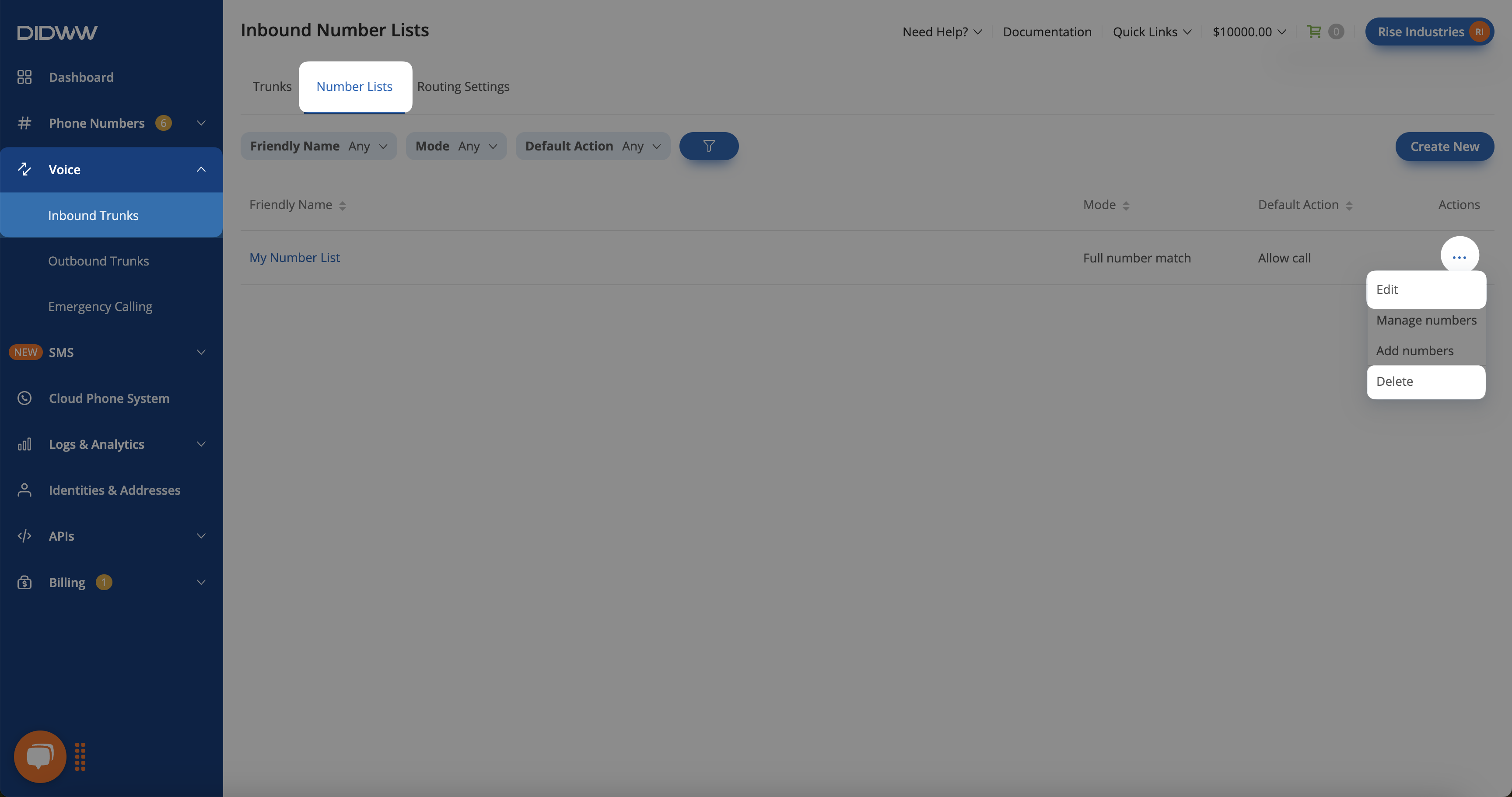
Fig. 1. Editing a Number List.#
Delete a Number List#
Important
If a Number List is assigned to a trunk, it cannot be deleted. To check where it is in use:
Go to Voice > Inbound Trunks.
Use the CLI Number List filter to find trunks using the list.
Remove the Number List from the trunk before attempting deletion.
To delete a Number List, follow these steps:
Go to Voice > Inbound Trunks and open the Number Lists tab.
Locate the list you want to delete.
Click the Actions button next to the list and choose Delete.
If the list is not assigned to a trunk, confirm deletion when prompted.
Fig. 2. Deleting a Number List.#
Edit Numbers in a Number List#
After adding numbers to a Number List, you can modify their settings as needed. Each number can be configured to allow or reject calls, ensuring precise call filtering.
To edit a number in a Number List, follow these steps:
In the DIDWW User Panel, go to Voice > Inbound Trunks, open the Number Lists tab, and open the Number List that contains the number. Click the list name, or click the Actions button and select Manage numbers.
Locate the number you want to modify.
Click the edit icon next to the number.
Update the number, prefix or its action (Allow/Reject), then click Submit.
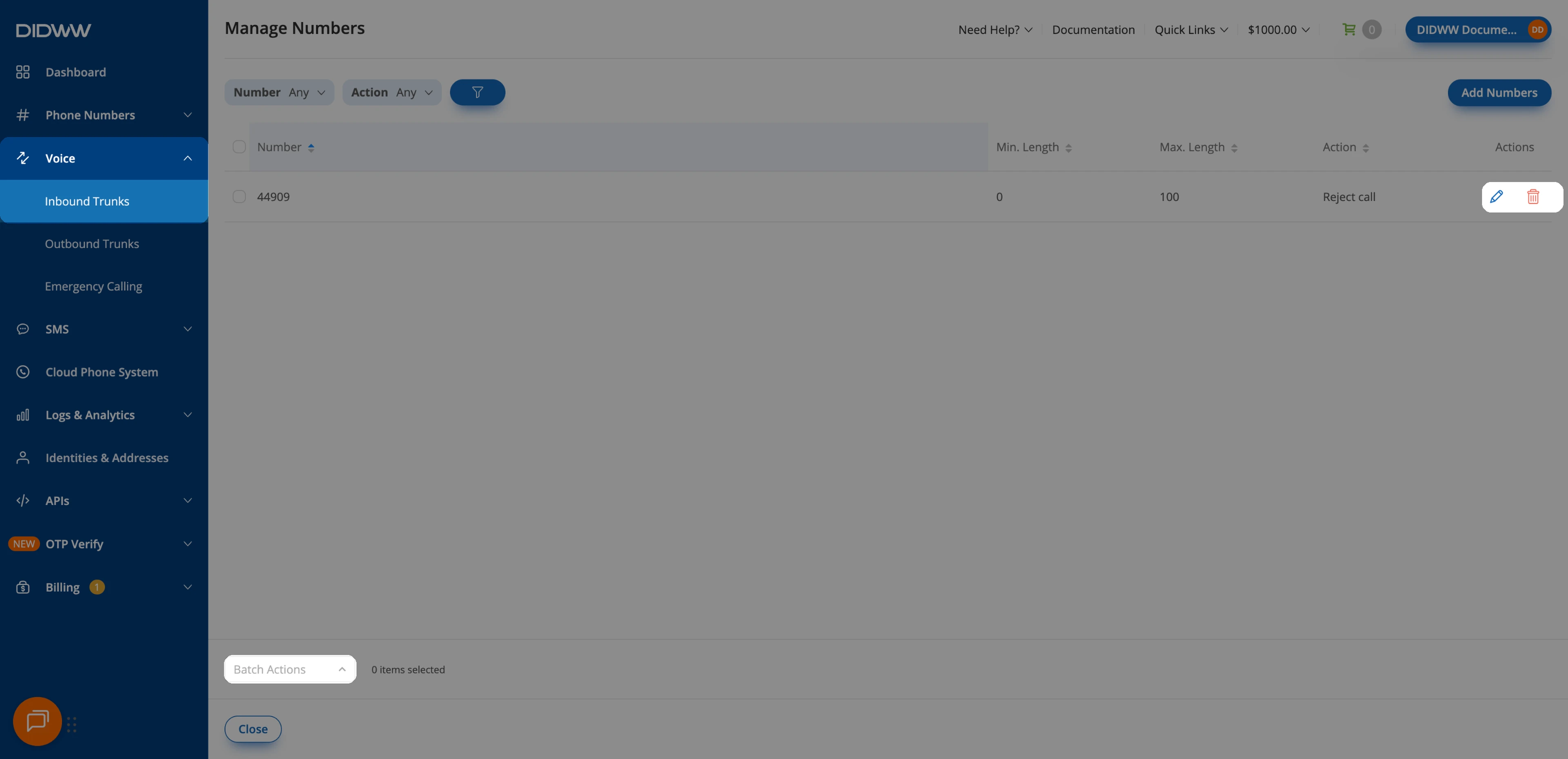
Fig. 3. Editing a number in a Number List.#
Delete Numbers from a Number List#
You can remove numbers from a Number List one at a time or several at once.
To delete a number from a Number List, follow these steps:
In the DIDWW User Panel, go to Voice > Inbound Trunks, open the Number Lists tab, and open the Number List that contains the number. Click the list name, or click the Actions button and select Manage numbers.
Locate the number you want to remove.
Click the delete icon next to the number and confirm the action.
To delete several numbers at once, select them, open Batch Actions, and choose Delete Number(s).
Fig. 4. Deleting numbers from a Number List.#