

Resubmit rejected end-user details#
Resubmit a rejected verification request with corrected end-user details. Resubmitting creates a new verification request for the same DID numbers, which the DIDWW Compliance Team reviews again.
Before you begin#
Resubmit is available only for a Rejected request whose DID numbers remain in Awaiting Registration status and are still linked to that verification reference.
Check the reject reasons in the request details. See Verification details.
Prepare an identity and address that meet the requirement. To fix the existing records, see Manage identity and address. To create new ones, see Create identity and address.
Resubmit end-user details#
In the DIDWW User Panel, go to Identities & Addresses > Verifications.
Click Actions next to the rejected request and select Resubmit. You can also open the request and click Resubmit on the Verification Details page.
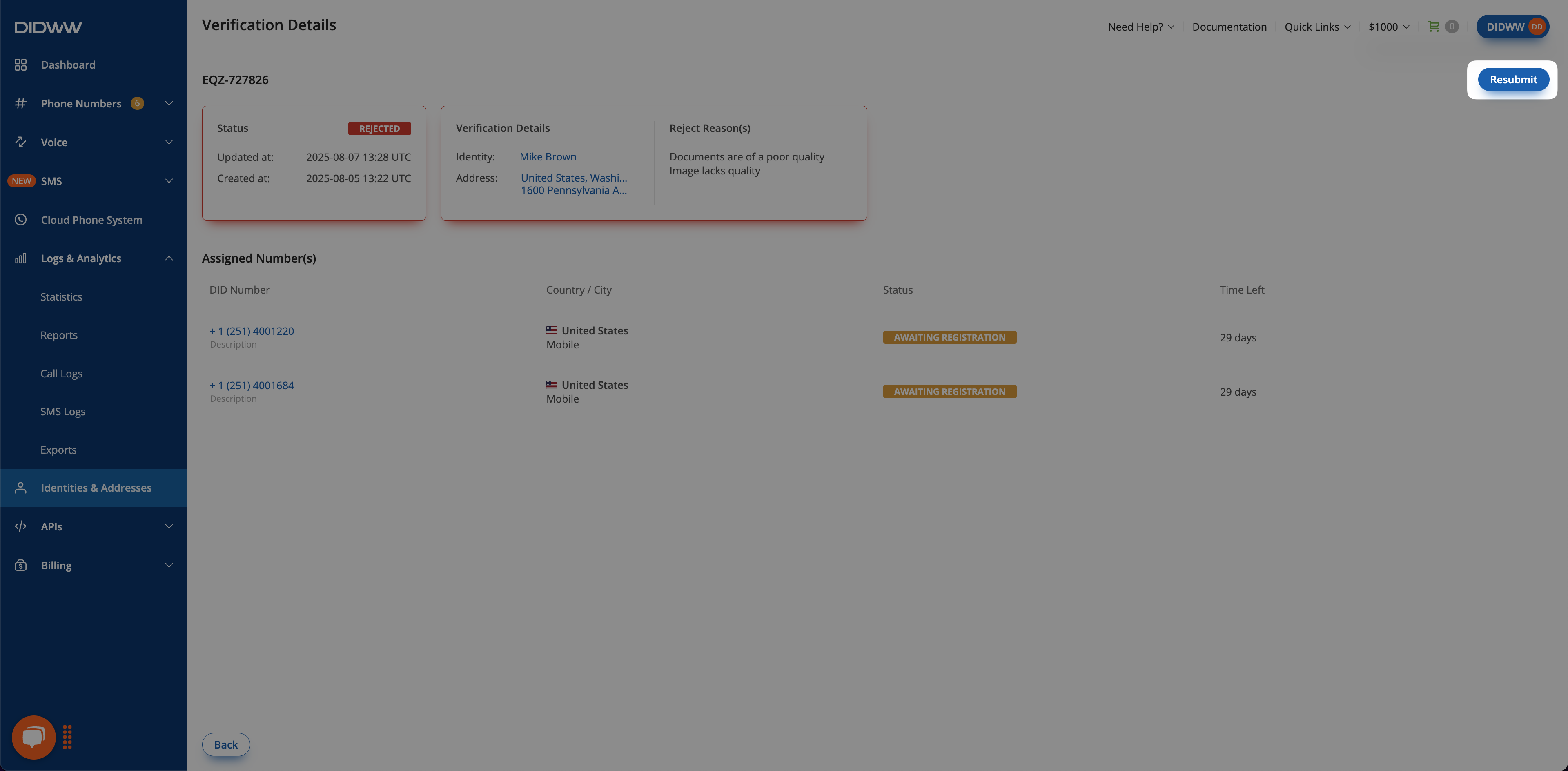
Fig. 1. Rejected verification request with the Resubmit button.#
In the Resubmit End User Details window, select the Identity and Address. The identity of the rejected request is selected by default. You can select another saved identity or create a new one.
If the requirement asks for more documents or a service description, add them in the window.
Check the Requirements panel. If the selected records do not meet the requirement, Attention required is shown with Edit Identity and Edit Address links.
Note
Some details of identities and addresses assigned to DID numbers are locked and cannot be edited. In that case, select or create other records in step 3.
Click Submit.
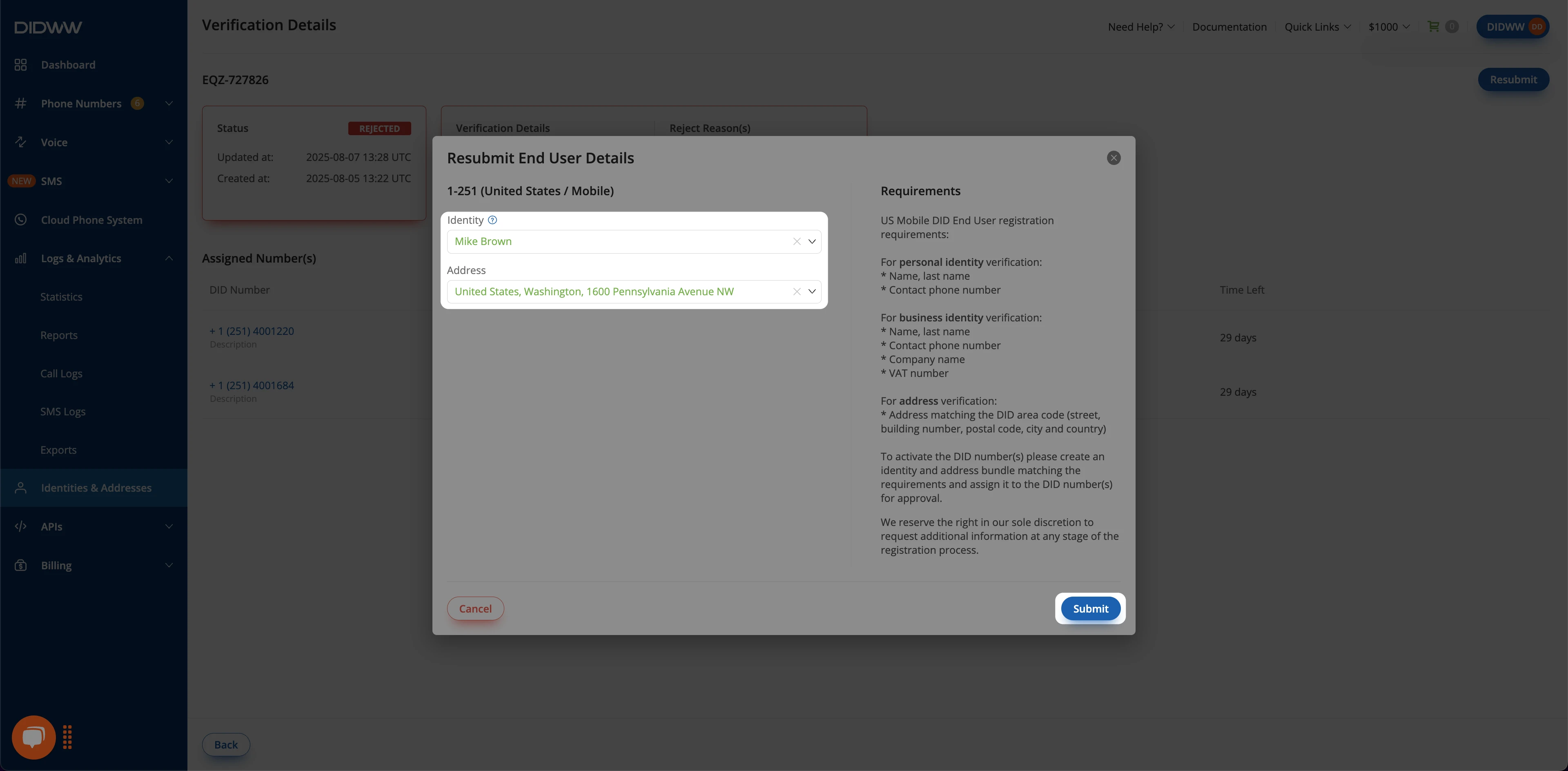
Fig. 2. Resubmit End User Details window.#
A new verification request is created with a new reference ID, in Pending status. All DID numbers of the rejected request are moved to the new request and stay in Awaiting Registration until the new request is approved. Track it in Identities & Addresses > Verifications.