

Set capacity limits#
Set capacity limits to control the maximum number of concurrent inbound calls for one or more DID numbers. Updating a capacity limit restricts call handling for the DID number, but it does not add more Capacity to the account.
Important
Updating this value only limits concurrent calls for the DID. It does not increase your overall account capacity.
Limit capacity for a single DID number#
Go to My Numbers in the DIDWW User Panel.
Locate the DID in the Capacity column.
Hover over the capacity value and click it to edit.
Enter the desired number of concurrent calls or clear the field to remove the limit.
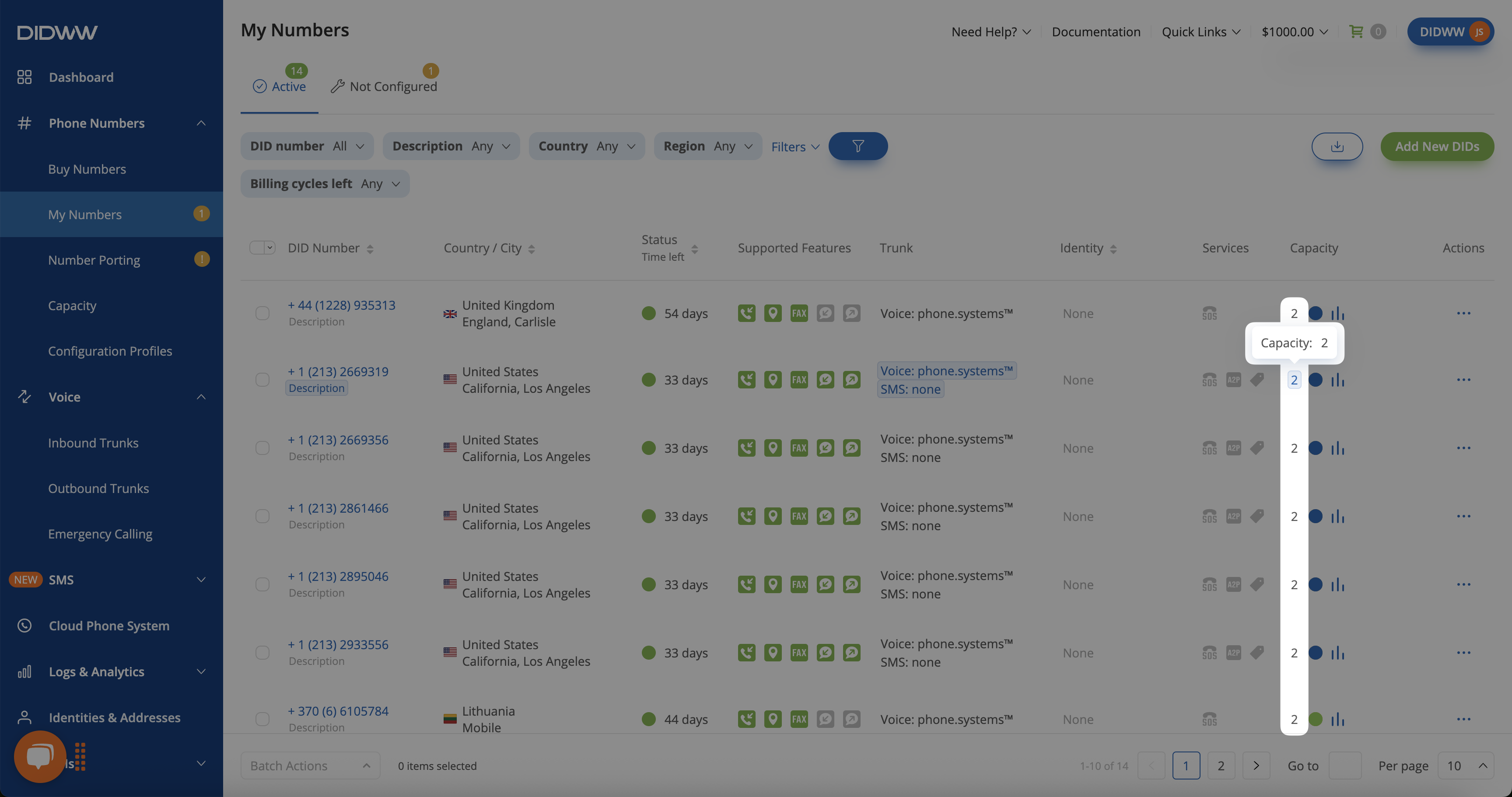
Fig. 1. Editing capacity directly in the My Numbers list.#
Limit capacity for multiple DID numbers#
Go to My Numbers in the DIDWW User Panel.
Select the checkboxes next to the DIDs you want to update.
At the bottom of the page, click Batch Actions.
From the dropdown menu, choose Update Capacity Limit.
Enter the desired capacity limit for concurrent calls in the pop-up window or clear the field to remove any existing limit.
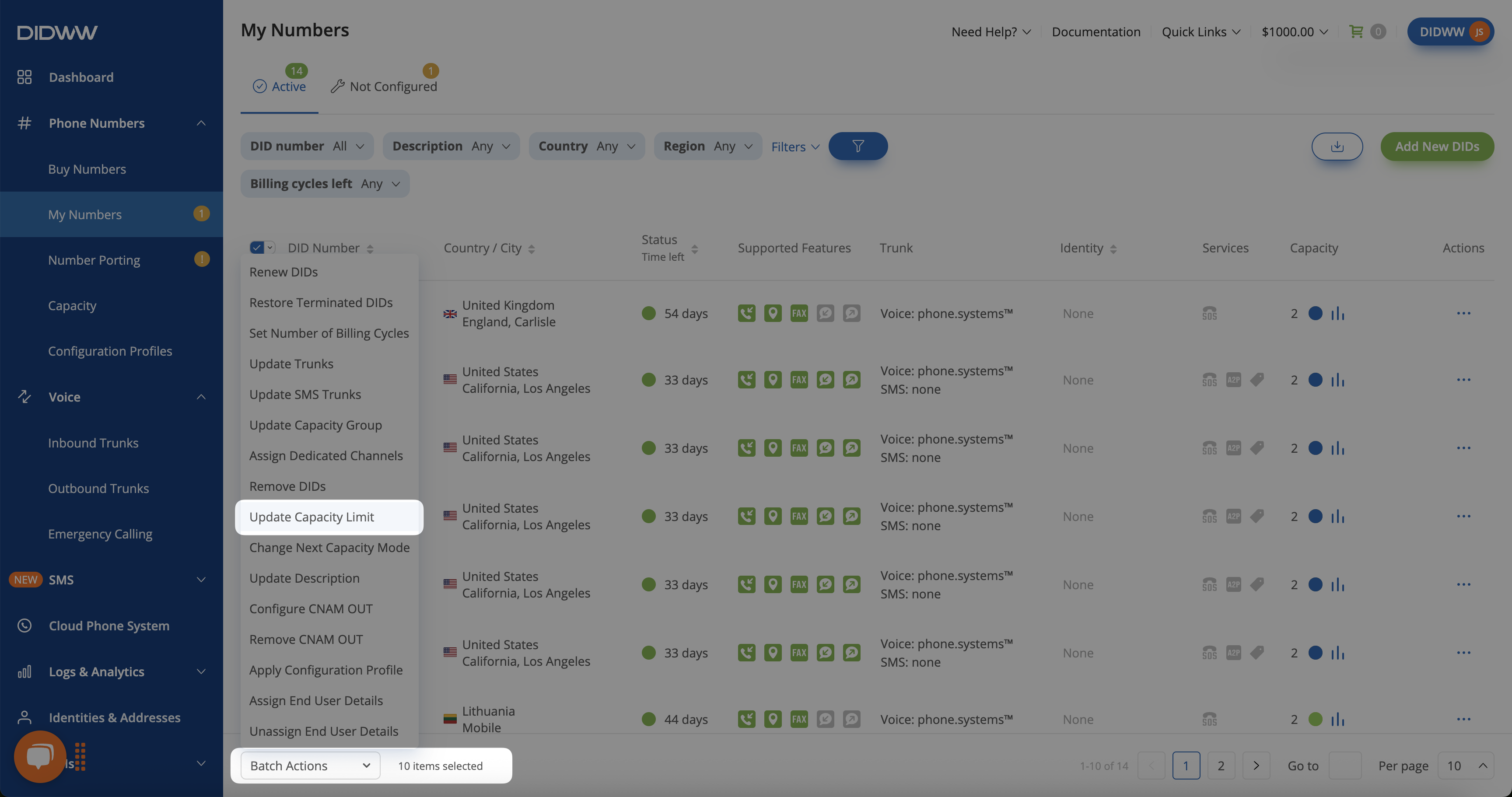
Fig. 2. Selecting multiple DIDs and opening batch actions#