

Custom templates#
By default, OTP Verification uses DIDWW’s system SMS message templates and standard call announcement. Custom templates let you use your own SMS text or voice greeting, for example with your brand name, in the languages you need.
Custom templates are organized in template groups. Each group belongs to your account and is used for either SMS messages or phone calls. It contains a separate entry for each language. A language entry can have an approved version available for use while an updated version is being reviewed.
How it works#
Create an SMS or voice template group in the User Panel.
Add a language version to the group and submit it for review.
Wait for the version to be verified. Voice greetings also need a generated audio recording.
Select the group as the OTP application’s default, or specify it in
sms.template_grouporcallout.template_groupfor an individual request.The API selects an approved version for the verification, using the requested languages and the group’s default language. For voice greetings, the audio must also be ready. If no version is ready for use, the system SMS message template or standard call announcement is used. The API response identifies the selection.
Before you begin#
An active DIDWW account with OTP Verification is required. Sign in to DIDWW.
To use a group, you need an OTP application. See Create an OTP application.
Create a template group#
In the DIDWW User Panel, go to OTP Verify > Templates.
Click Create New and select SMS template group or Voice template group.
Enter the Name of the group, using up to 64 characters: lowercase letters, digits, spaces,
.,_, or-. The name must be unique within your account across both SMS and voice groups.Click Create.
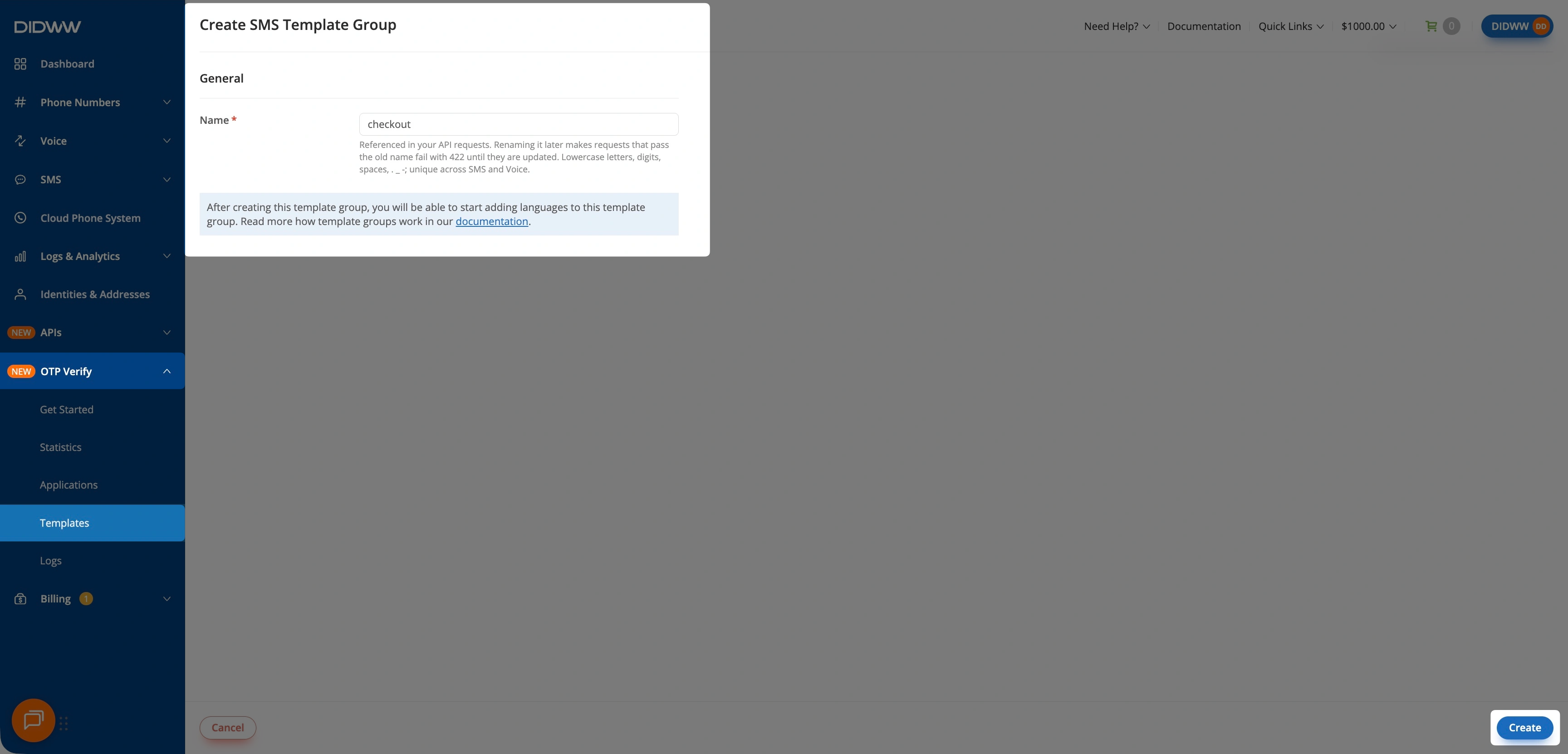
Fig. 1. Create an SMS template group#
Use this exact group name in sms.template_group for SMS messages or
callout.template_group for phone calls.
Warning
Requests that specify the old name after a group is renamed return 422 Unprocessable
Content with the template_group_not_found error code. Update those requests to use
the new name.
Add a language#
Your account can submit up to 20 versions per day across all groups. The limit resets at 00:00 UTC. The Add Language window shows the remaining submission allowance.
In the DIDWW User Panel, go to OTP Verify > Templates.
Click the name of the template group.
In the Languages section, click Add Language.
Complete the fields described under SMS text or Voice greeting for your group.
Review the preview and validation checks shown in the form. Resolve every Block before submitting. A Warning does not prevent submission.
Click Submit for review.
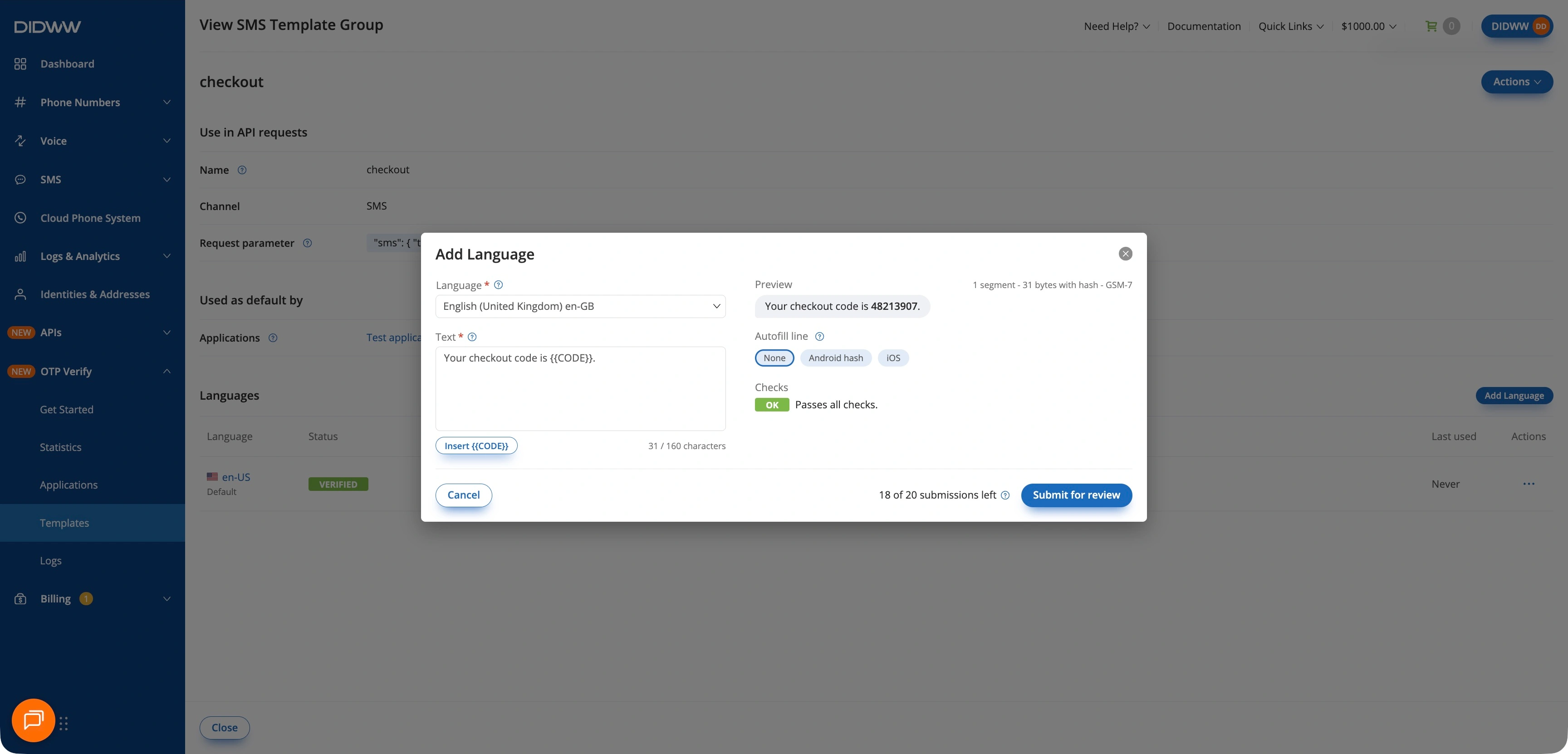
Fig. 2. Preview the language version before submitting it#
For SMS templates, {{CODE}} must appear exactly once in the text. If it is missing or
appears more than once, a Block check explains the problem and Submit for review is
unavailable. Voice greetings must not contain this placeholder.
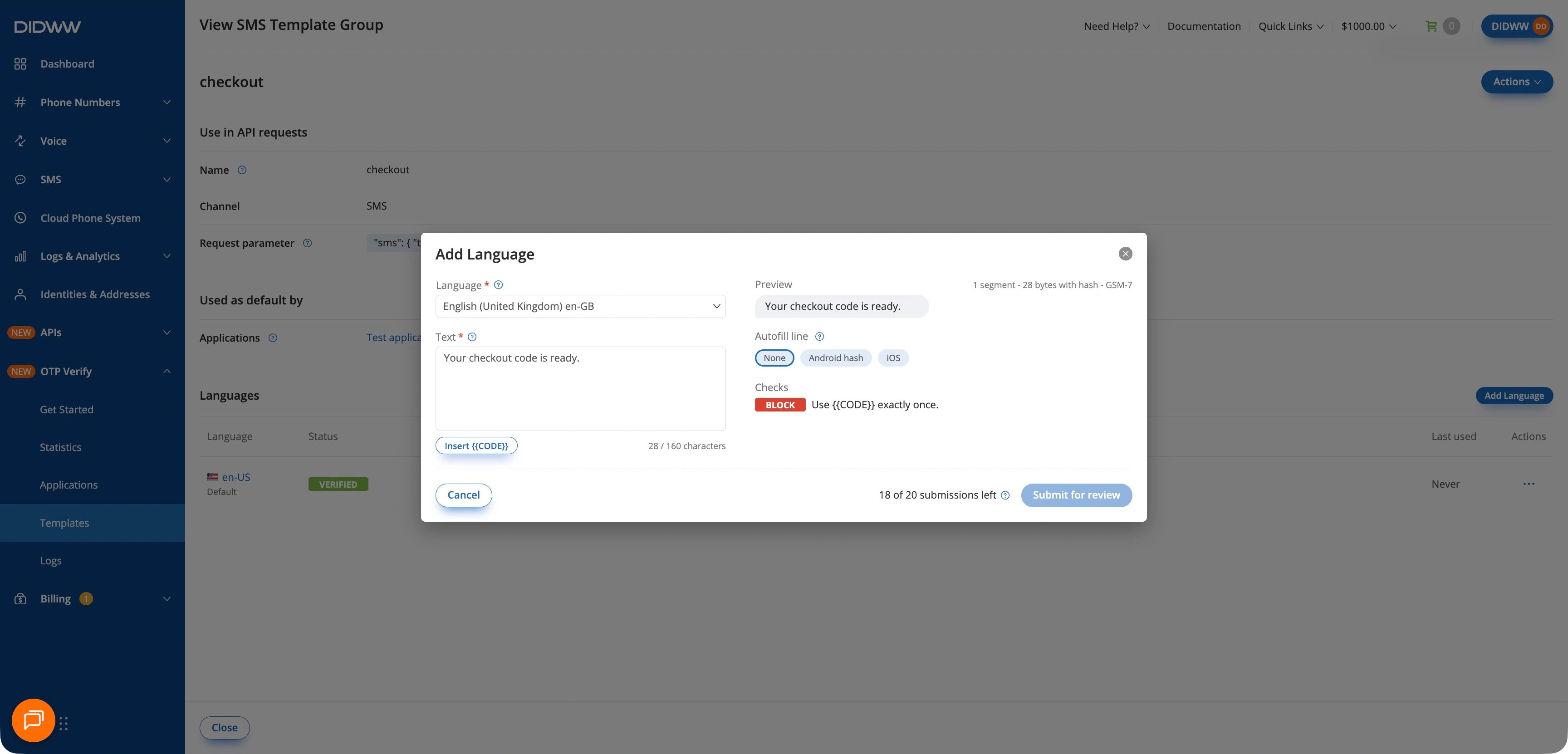
Fig. 3. Fix blocking checks before submitting#
The first language you submit becomes the group’s default language. To change it, open the Actions menu of a language and click Set as default. The API considers the default language when none of the requested languages has an approved version ready for use. See How the API selects a template.
SMS text#
For an SMS group, select the Language and enter the Text:
The text must contain the placeholder
{{CODE}}exactly once. Click Insert {{CODE}} to add it at the cursor.The message must fit one SMS segment with an 8-digit code: 160 characters in the GSM-7 character set, or 70 characters when the text needs Unicode.
Links, phone numbers, email addresses, HTML markup, invisible or decorative characters, and the DIDWW name are not allowed.
Example Text: Your checkout code is {{CODE}}. The Preview replaces {{CODE}}
with a sample code so you can check the resulting message.
Under Autofill line, preview the message with the line that autofill adds: None, Android hash, or iOS when one of your applications has an iOS SMS domain. The preview does not change the saved text. Keep room for the line: the Android hash and the domain line make the delivered message longer. See Code autofill.
Voice greeting#
For a voice group, select the Language and the Voice, and enter the Greeting:
The call reads the greeting exactly as written, then the code, digit by digit, twice.
The greeting can be up to 200 characters. It must not contain digits, placeholders, or emoji.
Use Preview voice to hear a sample of the selected voice.
Example Greeting: Your checkout verification code is. The service reads this greeting,
then reads the code twice. Do not include {{CODE}} in the greeting.
After the greeting is approved, DIDWW generates its audio. The greeting can be selected only when its audio is ready. Until then, the API tries another requested language or the group’s default language. If no version is ready, calls use the standard announcement. See How the API selects a template.
Review statuses#
Every version is reviewed automatically after you submit it. Some versions need a manual review and stay In review longer. Track the result in the Status column of the Languages section.
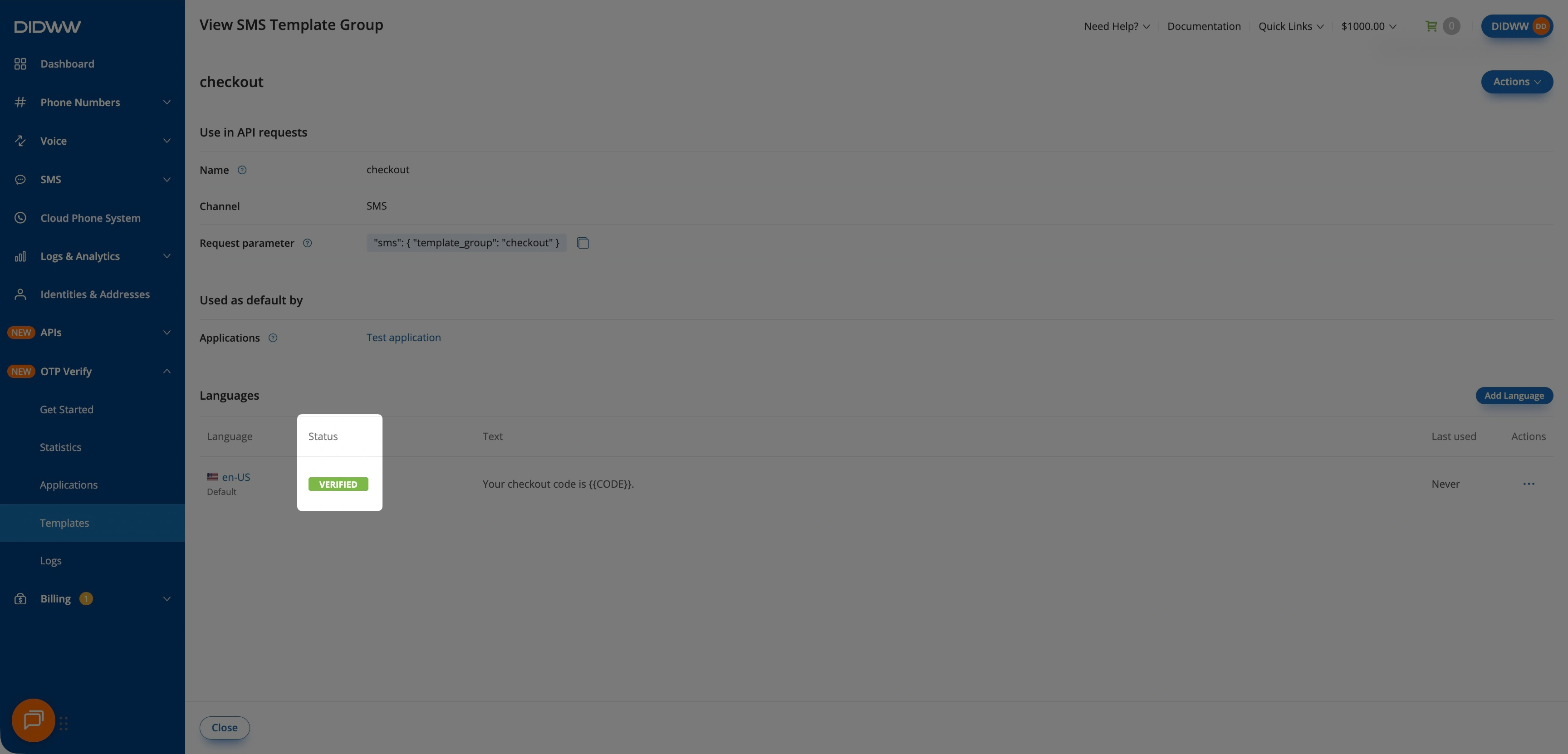
Fig. 4. Check the review status of a language version#
Status |
Description |
|---|---|
In review |
The first version is awaiting approval or, for a voice greeting, completion of audio generation. It is not yet available for selection. The API tries another requested language or the group default before using the system template. |
Verified |
The version is approved and eligible for selection. A voice greeting also needs its audio to be ready. The requested languages determine whether the version is selected. |
Rejected |
The version was not approved. The reason is shown with the status. Click Edit & resubmit to fix the text and submit it again, or Delete rejected version. |
Update in review |
An update to a verified language is being reviewed. The previously verified version remains available for selection until the update is verified. |
Update rejected |
An update to a verified language was not approved. The previously verified version remains available for selection. |
To change the text of a verified language, click Edit in its Actions menu and submit the new text. You cannot change or delete a language while one of its versions is in review.
For voice greetings, content approval and audio readiness are separate requirements:
A newly approved greeting stays In review until its audio is generated.
If a verified greeting shows Generating audio, its recording is not yet available.
A version can be selected only when it is approved and its audio is ready. If it is not ready, the API continues through the language selection order described in How the API selects a template.
Use a template group#
You can use a group in two ways:
To select a group for one request, specify its name in
sms.template_grouporcallout.template_group. The group page shows the request parameter under Use in API requests. A name that does not match a group for that channel in your account returns422 Unprocessable Contentwithtemplate_group_not_found.To set an application default, edit the OTP application and select the group in SMS template group or Voice template group in the Templates section. The application uses it when the request omits the corresponding
template_groupparameter. Select System templates to stop using a group as the default. See Templates.
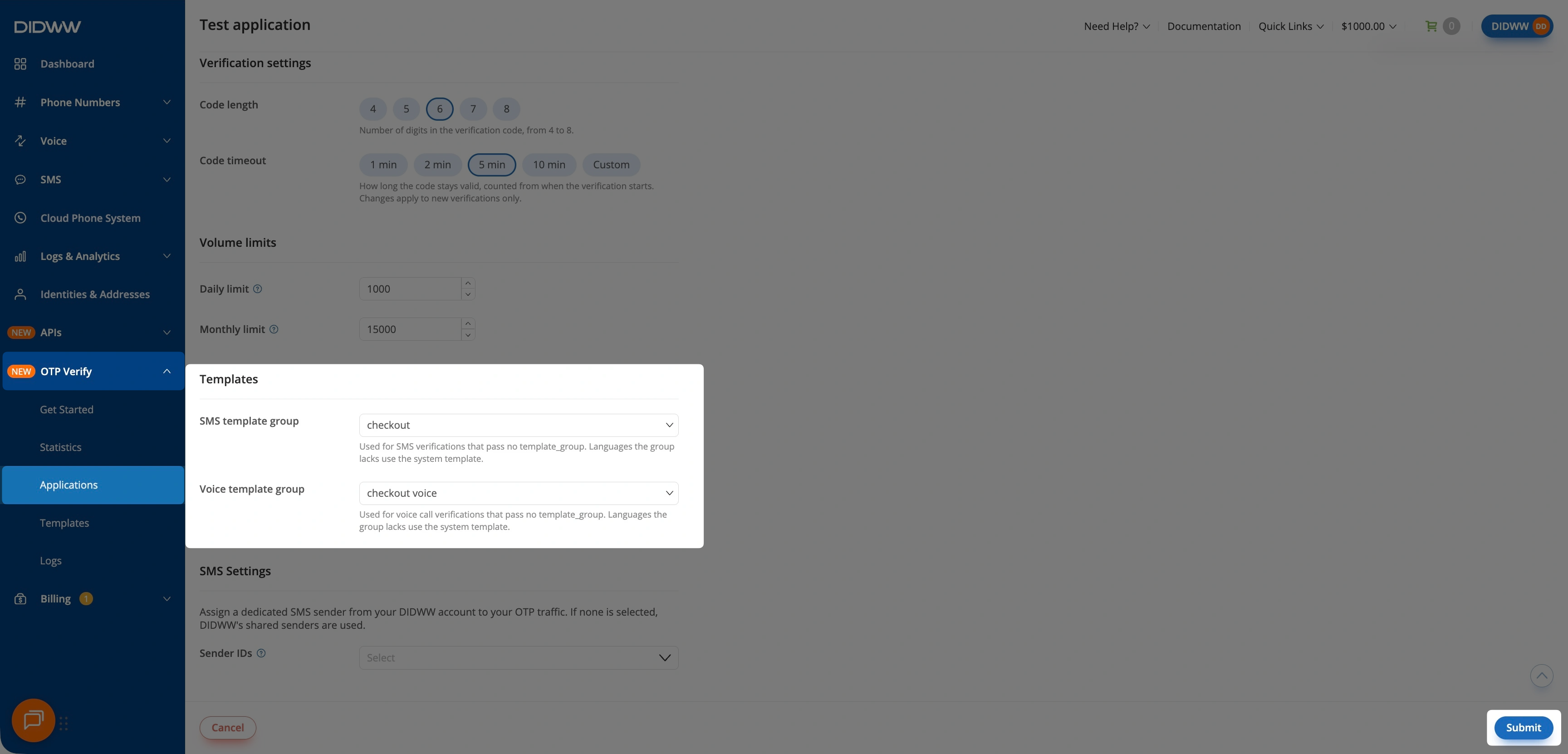
Fig. 5. Select the application’s default template groups#
A group specified in the request overrides the application default. The group page lists the applications that use it as their default under Used as default by.
For request and response examples, see Custom templates for SMS and Custom greetings for phone calls. To test a group, use Try it out in the Actions menu of a language.
How the API selects a template#
For a verification that uses a group, the API checks language versions in this order:
Each language in
sms.languagesorcallout.languages, in the order specified in the request.The group’s default language.
A version can be selected when it is verified and, for a voice greeting, its audio is ready.
If no version meets these requirements, the API uses a system SMS message template or the
standard call announcement in the first supported language of the request, or in en-US
when none is supported.
A pending or rejected version, or a greeting whose audio is not ready, does not cause the
verification request to fail. The API follows the selection order above. An unknown group
name supplied explicitly in the request still returns 422 Unprocessable Content with
template_group_not_found.
The sms or callout object in the response identifies the selection:
template_group: the group selected from the request or application settings, even if a system template was used instead, ornullwhen no group was available.template_group_used:truewhen a custom SMS message template or voice greeting from the group was used.template_fallback_reason: why a system template was used instead, ornullwhen a custom version was used or no group was specified in the request or application settings.
Check sms.language or callout.language to see which language was selected.
For example, an SMS group named checkout has an approved English version (en-US) as
its default language and no German version. A request that specifies sms.template_group
as checkout and sms.languages as ["de-DE"] uses the group’s English version.
The response contains:
Field |
Value |
|---|---|
|
|
|
|
|
|
|
|
The API selected another language within the custom group, so template_group_used is
true and no system fallback reason is returned.
Fallback reasons#
These reasons apply when template_group_used is false and the API reports why it
used a system template instead of a custom version. Language-specific reasons describe the
first language in sms.languages or callout.languages after no candidate version could
be selected. group_missing describes the application default group instead.
Template fallback reason |
Meaning |
|---|---|
|
The group has no version in the first requested language, or the request sends no languages, and no other candidate language has a usable version. |
|
The version in the first requested language is still in review. |
|
The version in the first requested language was rejected. |
|
The greeting in the first requested language is approved, but its audio is not ready. Phone calls only. |
|
The application’s default group is not available. |
Delete a template group or language#
To delete a group, open the Actions menu of the group on the Templates page or on the
group page, and click Delete. Applications that use the group as their default go back to
the system templates. Requests that specify the deleted group return 422 Unprocessable
Content with template_group_not_found.
To delete one language, open the Actions menu of the language and click Delete. Verifications in that language then use another candidate language or the system template.