

Configure outbound trunks for emergency calling#
Configure outbound trunks to route emergency calls through DIDWW using verified DID numbers with active Emergency Calling Services, even if Outbound Termination is not enabled on your account. You can allow all eligible DID numbers on a trunk, or only selected ones. By default, all existing outbound trunks are set to Allow all available DID(s) for emergency calling once the Emergency Calling Service has been activated.
Important
If Outbound Termination is not activated, outbound trunks can be used only for emergency calls from verified DID source numbers.
Voice termination to local and international destinations will remain restricted until Outbound Termination is enabled.
To activate outbound termination services, see Get Access to Local and International Voice Termination.
Before you begin#
At least one verified Emergency Calling Service, in Active or Pending update status, is required. See Create an emergency calling service.
An outbound trunk is required. See Create an outbound trunk. When you create a trunk, Allow all available DID(s) for emergency calling is enabled by default.
Step 1: Edit the outbound trunk#
In the DIDWW User Panel, go to Voice > Outbound Trunks.
Click Actions next to the trunk you want to update.
Select Edit from the dropdown menu.
You can also click the trunk name to open the edit page.
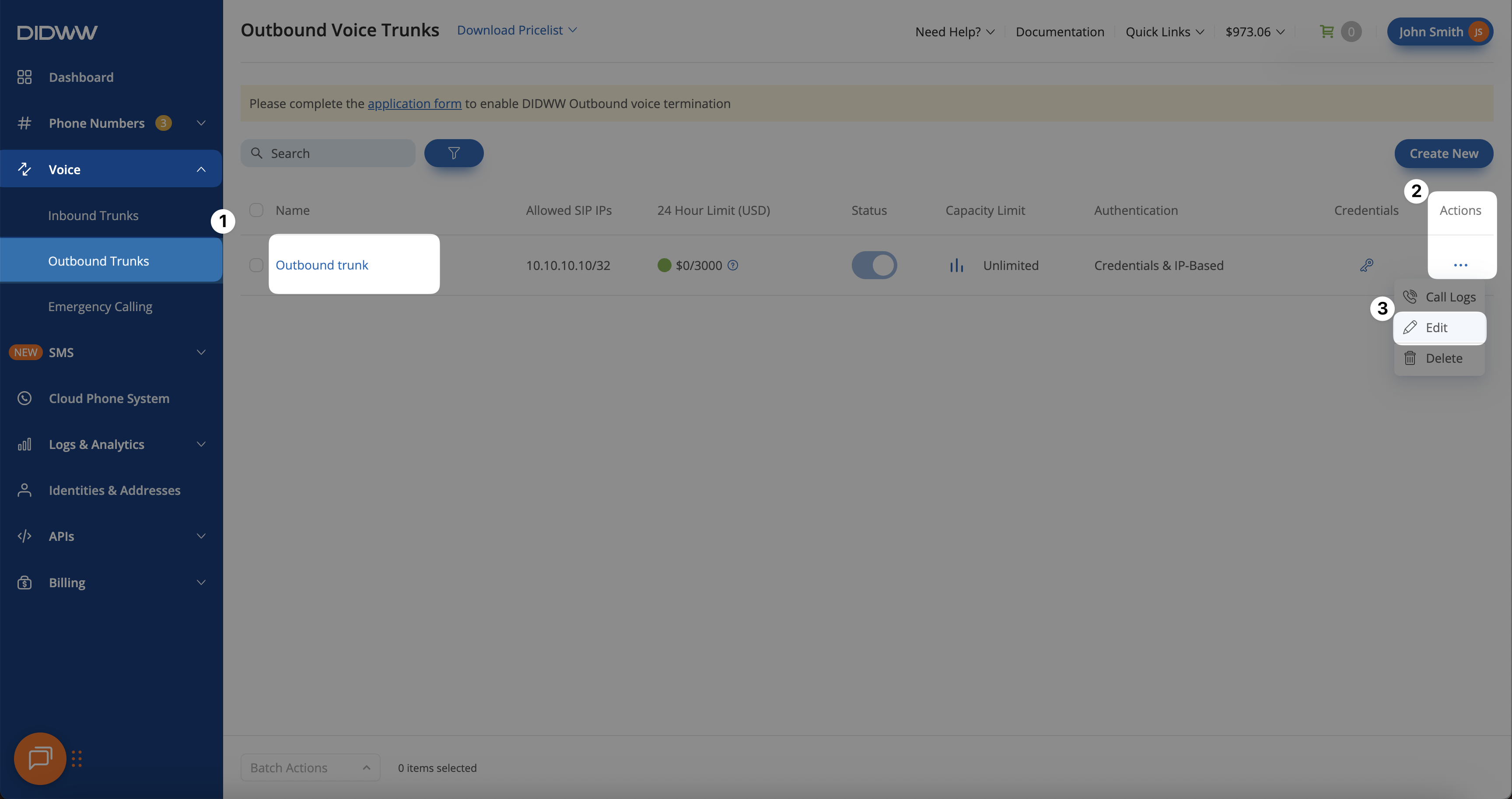
Fig. 1. Opening the Edit page for an existing outbound trunk#
Step 2: Choose the DIDs allowed for emergency calling#
Expand the Emergency Calling section, then use one of the following options. Field definitions are listed in Emergency Calling.
Allow all available DIDs#
Turn on Allow all available DID(s) for emergency calling. All verified source numbers with active Emergency Calling Services can then be used as the caller ID for emergency calls through this trunk.
Allow selected DIDs#
Disable the Allow all available DID(s) for emergency calling toggle to choose specific numbers manually.
Use the filters or search options in the Available CLI(s) section to find the desired DID number(s).
Select the DID(s) and click the right arrow ( > ) button to move them to the Allowed CLI(s) section.
Important
The Available CLI(s) list displays only DID numbers with an active Emergency Calling Service.
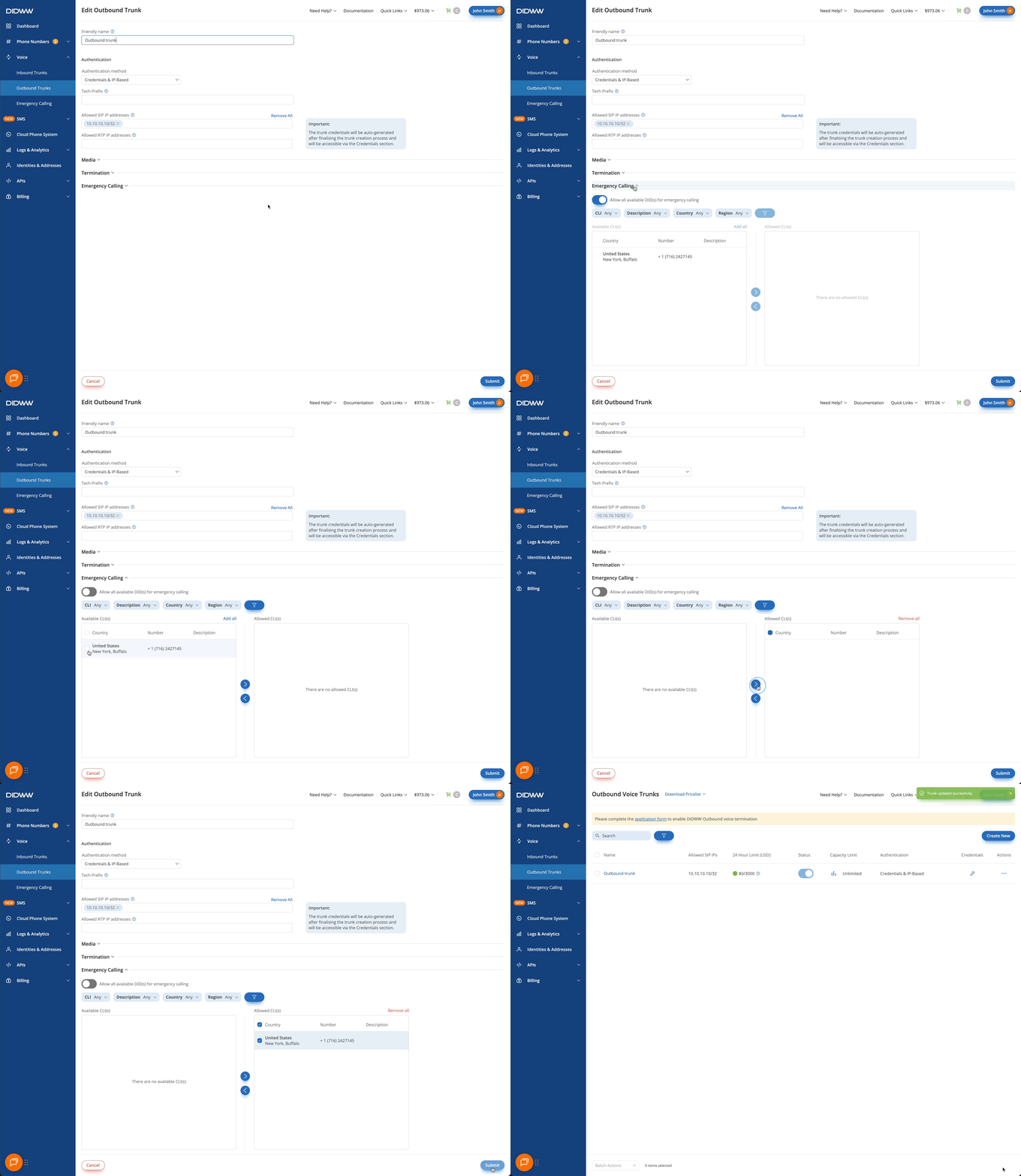
Fig. 2. Selecting and allowing specific DIDs for emergency calling#
After choosing an option, click Submit to save your configuration.
Step 3: Verify Emergency Calling CLI(s)#
If the trunk uses Credentials & IP-Based authentication, open its credentials window as described in View outbound trunk credentials. In the Emergency calling CLI(s) field, you will see either a list of allowed numbers or Any, which indicates that all DIDs with active Emergency Calling Services can be used for emergency calls.
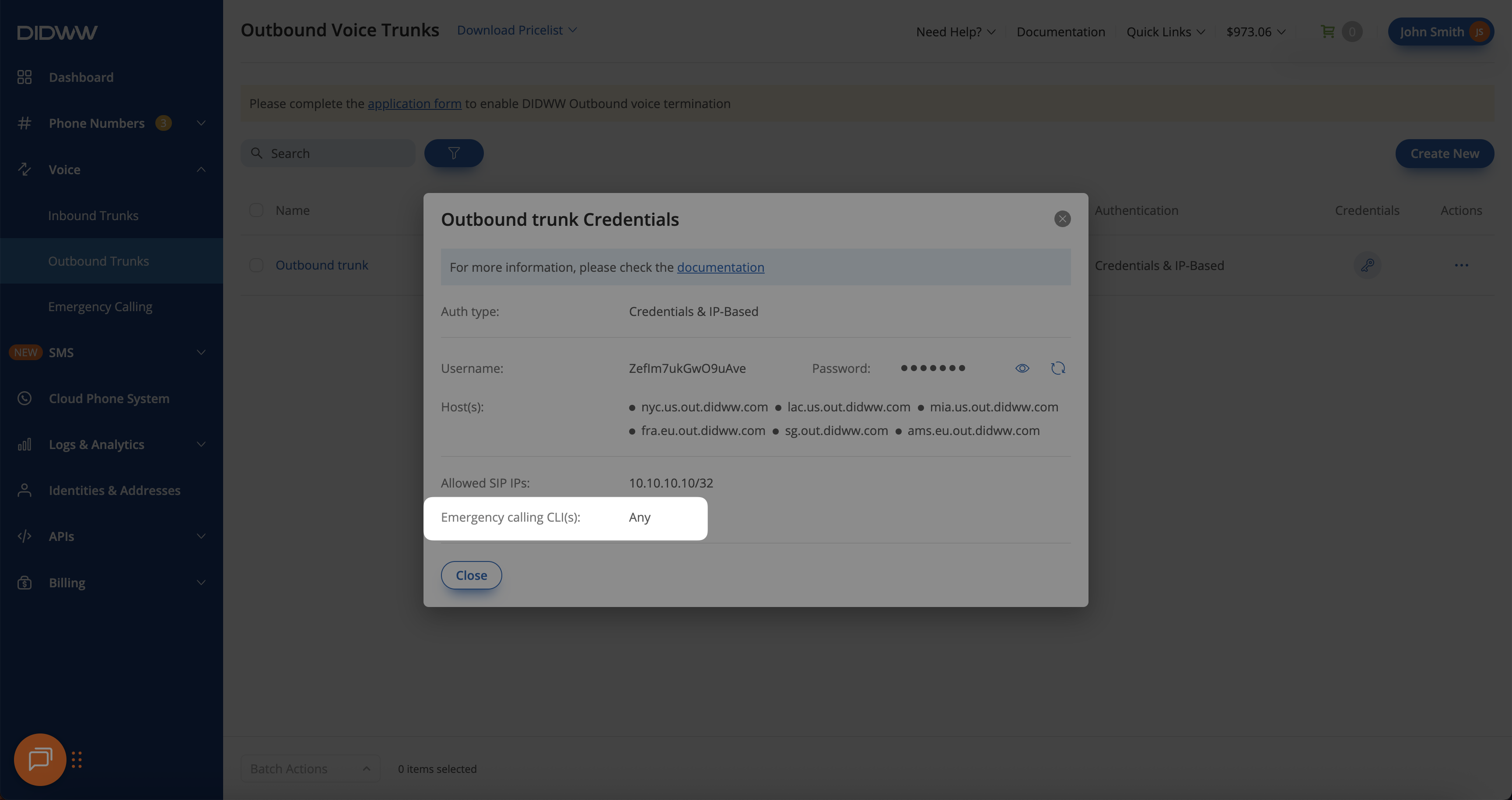
Fig. 3. Viewing and verifying Emergency Calling CLI(s) for the outbound trunk#
For trunks with other authentication methods, check the Emergency Calling section on the trunk’s edit page instead.