

Manage PSTN trunks#
Manage existing inbound PSTN trunks from the Inbound Trunks page. View a trunk’s configuration and destination rate, edit its settings, or delete trunks that are no longer required.
Before you begin#
An active DIDWW account is required. Sign in to DIDWW.
An existing inbound PSTN trunk is required. If you do not have one, see Create a PSTN trunk.
View a PSTN trunk#
In the DIDWW User Panel, go to Voice > Inbound Trunks.
Click the name of the PSTN trunk.
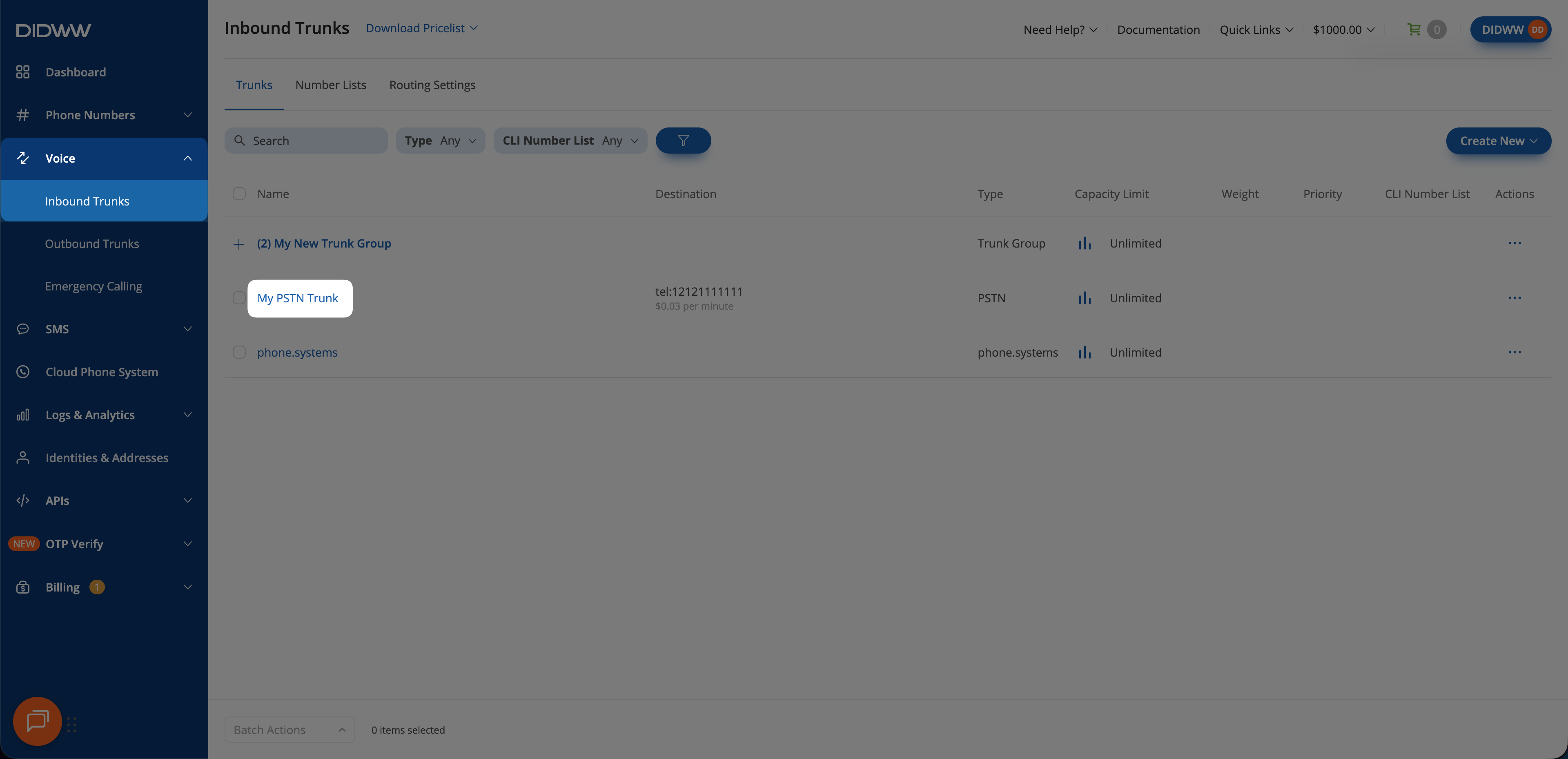
Fig. 1. Open the PSTN trunk details#
In View Inbound PSTN Trunk, select General, Number Translations, or Trunk Group to review the settings in read-only mode. The General tab also displays the destination’s Per Minute Rate. Click Close to return to the trunk list.
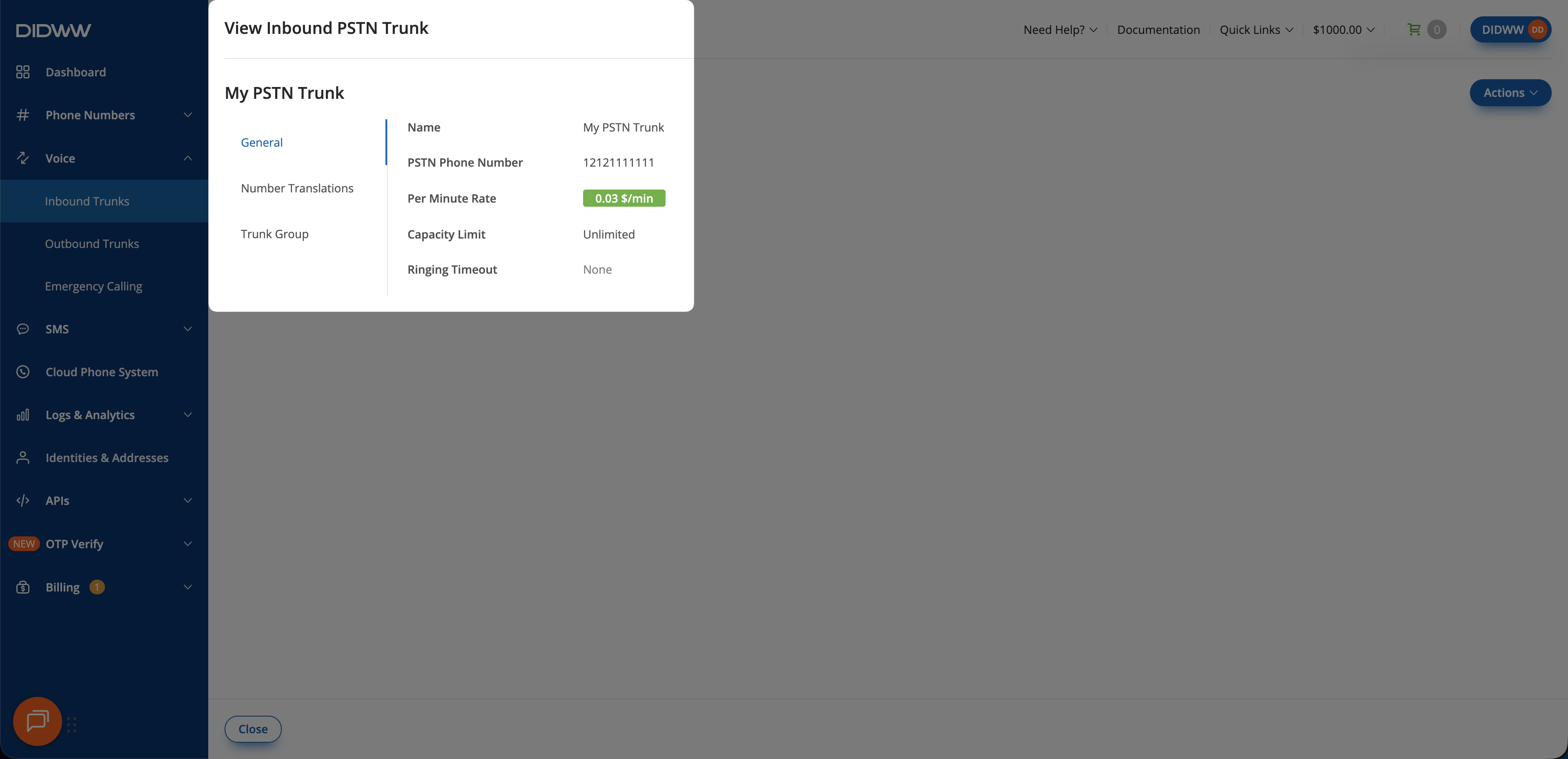
Fig. 2. Review the trunk settings#
Edit a PSTN trunk#
In the DIDWW User Panel, go to Voice > Inbound Trunks.
Locate the PSTN trunk and open its Actions menu.
Click Edit.
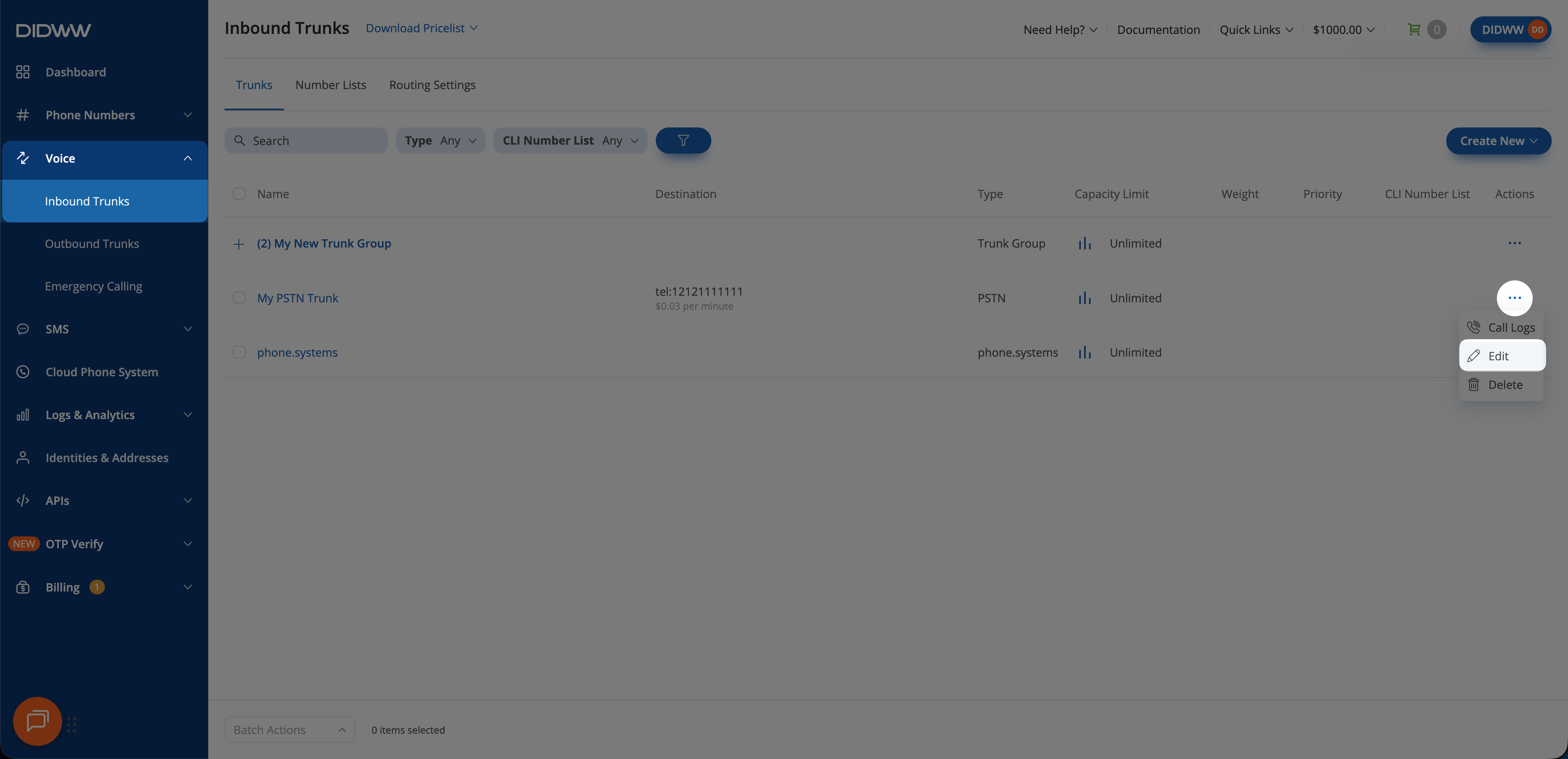
Fig. 3. Open the PSTN trunk edit form#
In Edit Inbound PSTN Trunk, update the settings on any tab. The tabs match those on the creation form. See General settings and Configure optional settings for configuration guidance.
If you change PSTN Phone Number, click Check Rate to confirm destination availability and review the new per-minute rate.
Review the changes and click Submit.
For definitions, defaults, dependencies, and limits for all settings, see PSTN trunk settings reference.
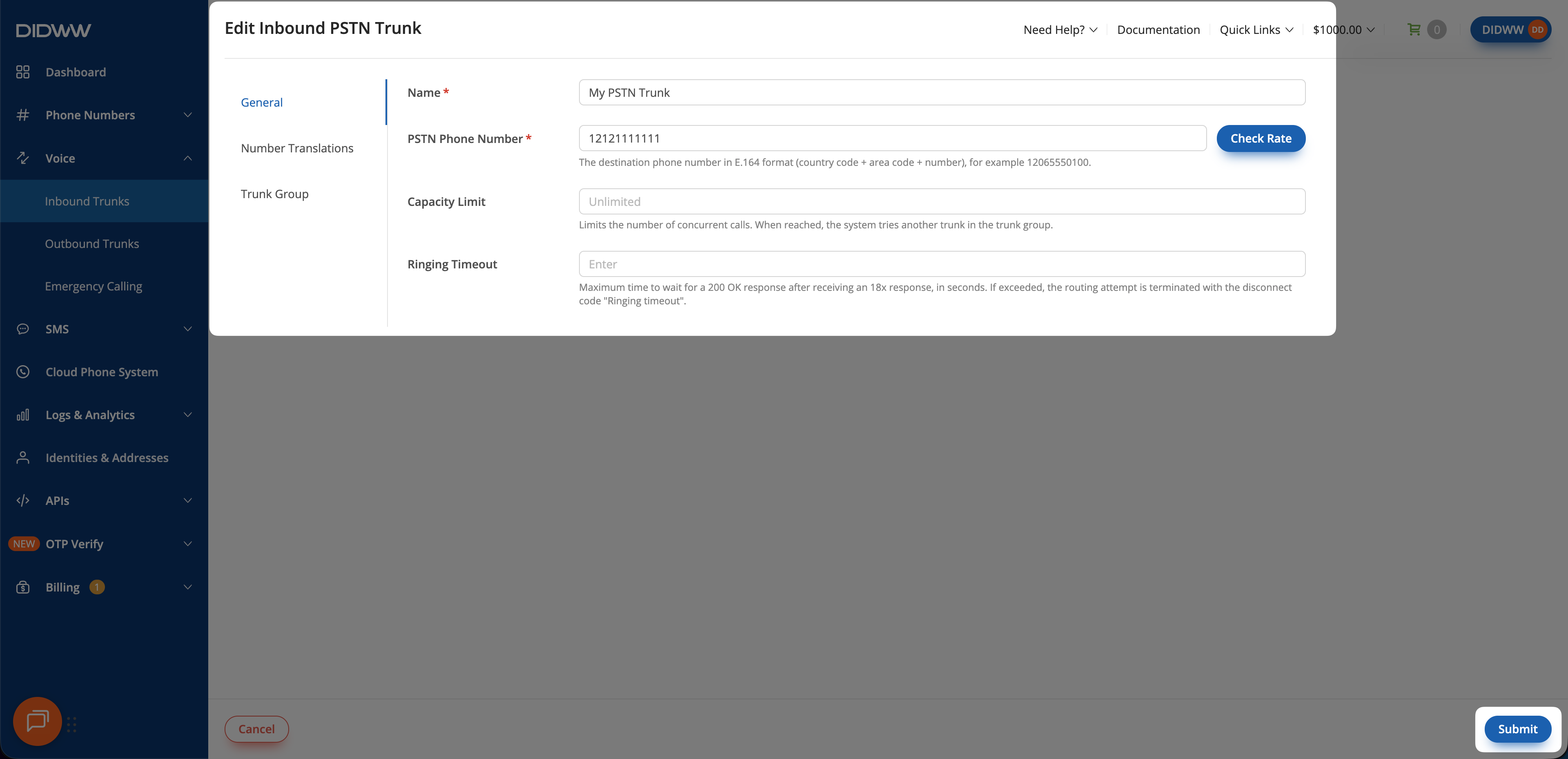
Fig. 4. Update and save the PSTN trunk settings#
Delete PSTN trunks#
Delete one PSTN trunk from its Actions menu or delete multiple PSTN trunks using Batch Actions.
Warning
Deleting a trunk is permanent and cannot be undone. Confirm that the trunk is no longer required before continuing.
A trunk that is assigned to a DID number or otherwise in use cannot be deleted. First unassign the trunk from every DID number and remove any other configuration that uses it.
Delete one PSTN trunk#
Go to Voice > Inbound Trunks.
Locate the PSTN trunk and open its Actions menu.
Click Delete.
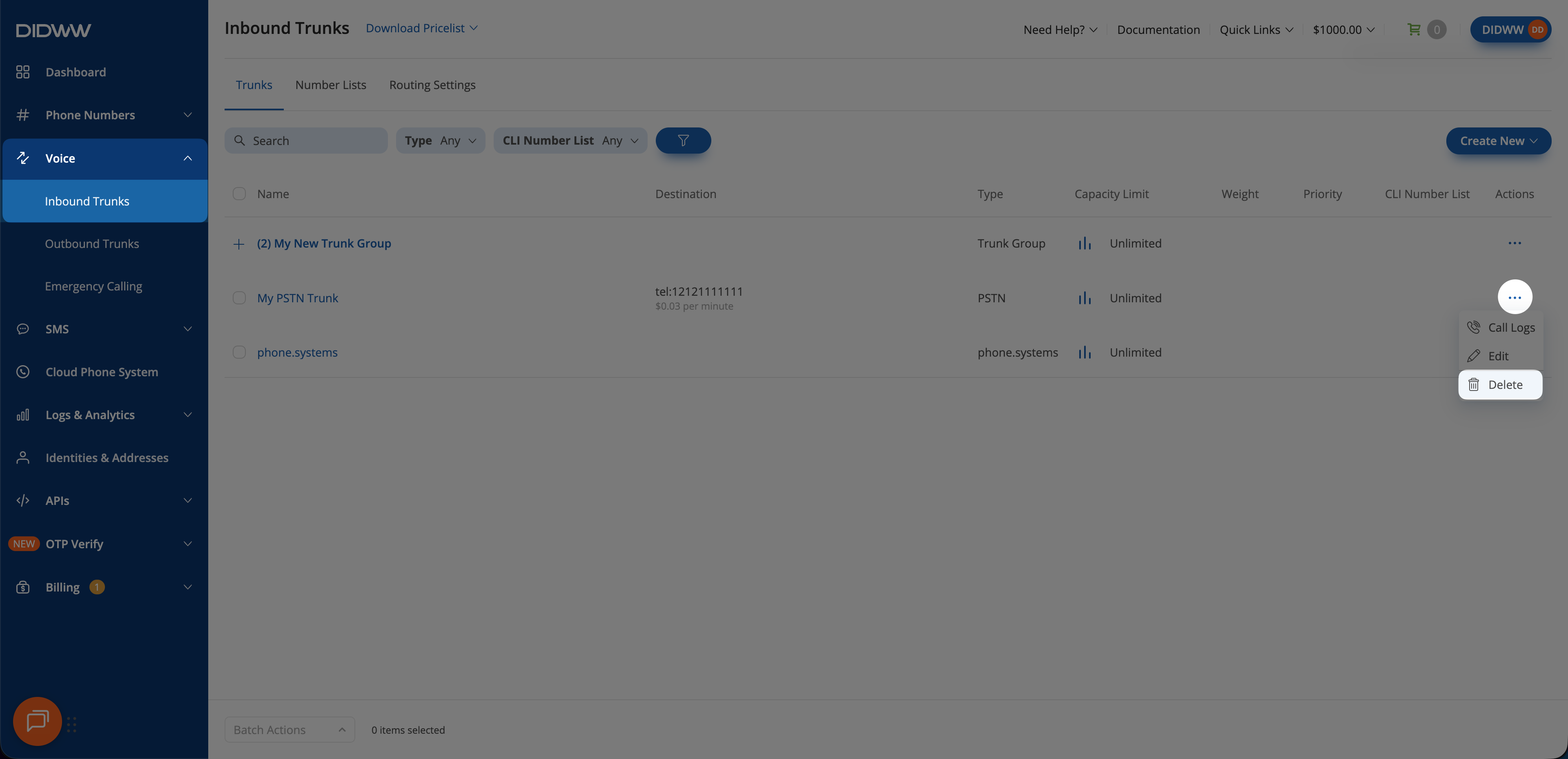
Fig. 5. Delete one PSTN trunk#
In the Delete Trunk(s) confirmation window, review the selected trunk and click Delete.
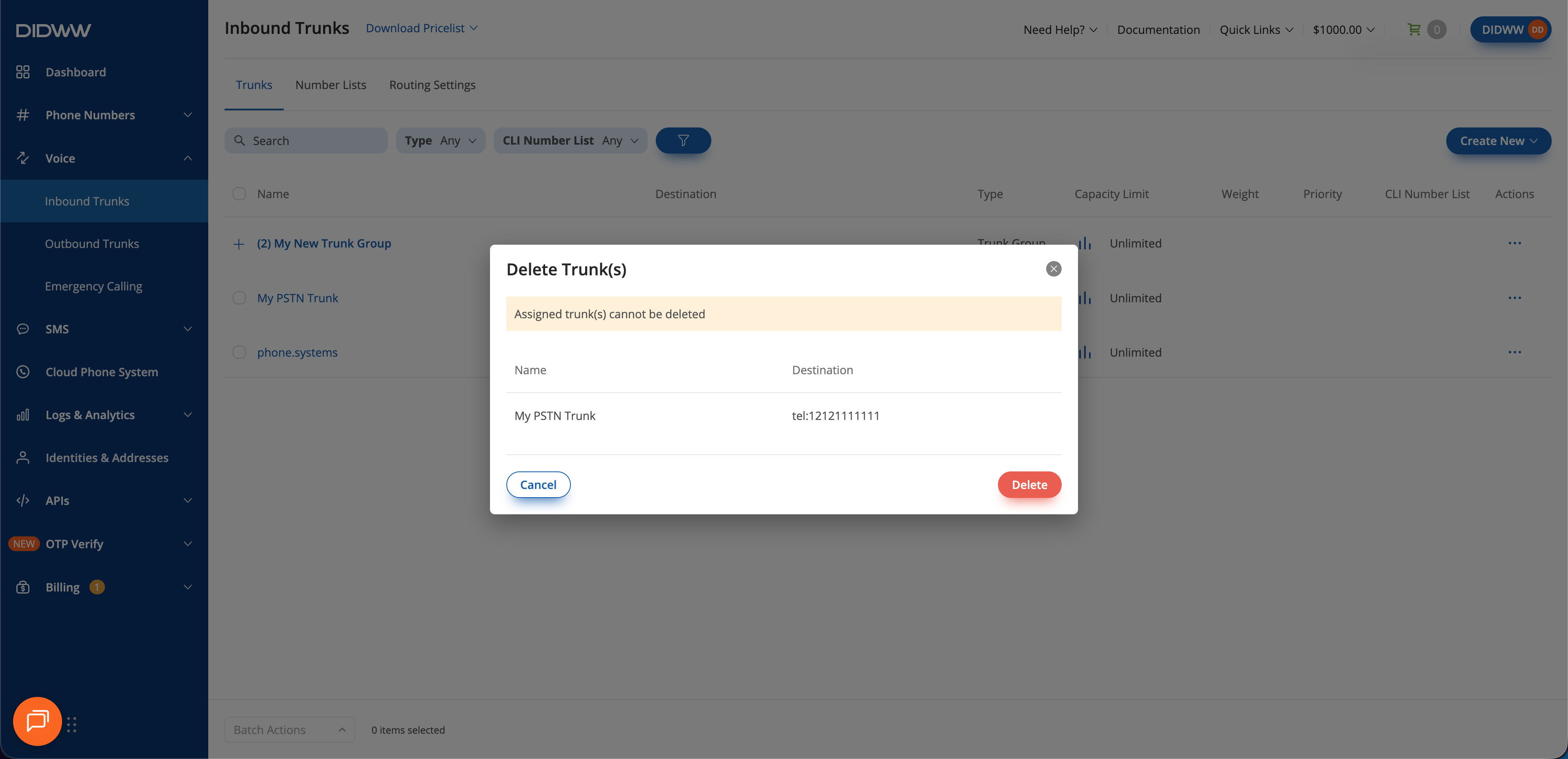
Fig. 6. Confirm the deletion#
Delete multiple PSTN trunks#
Go to Voice > Inbound Trunks.
Select the PSTN trunks to delete.
Click Batch Actions > Delete Trunk(s).
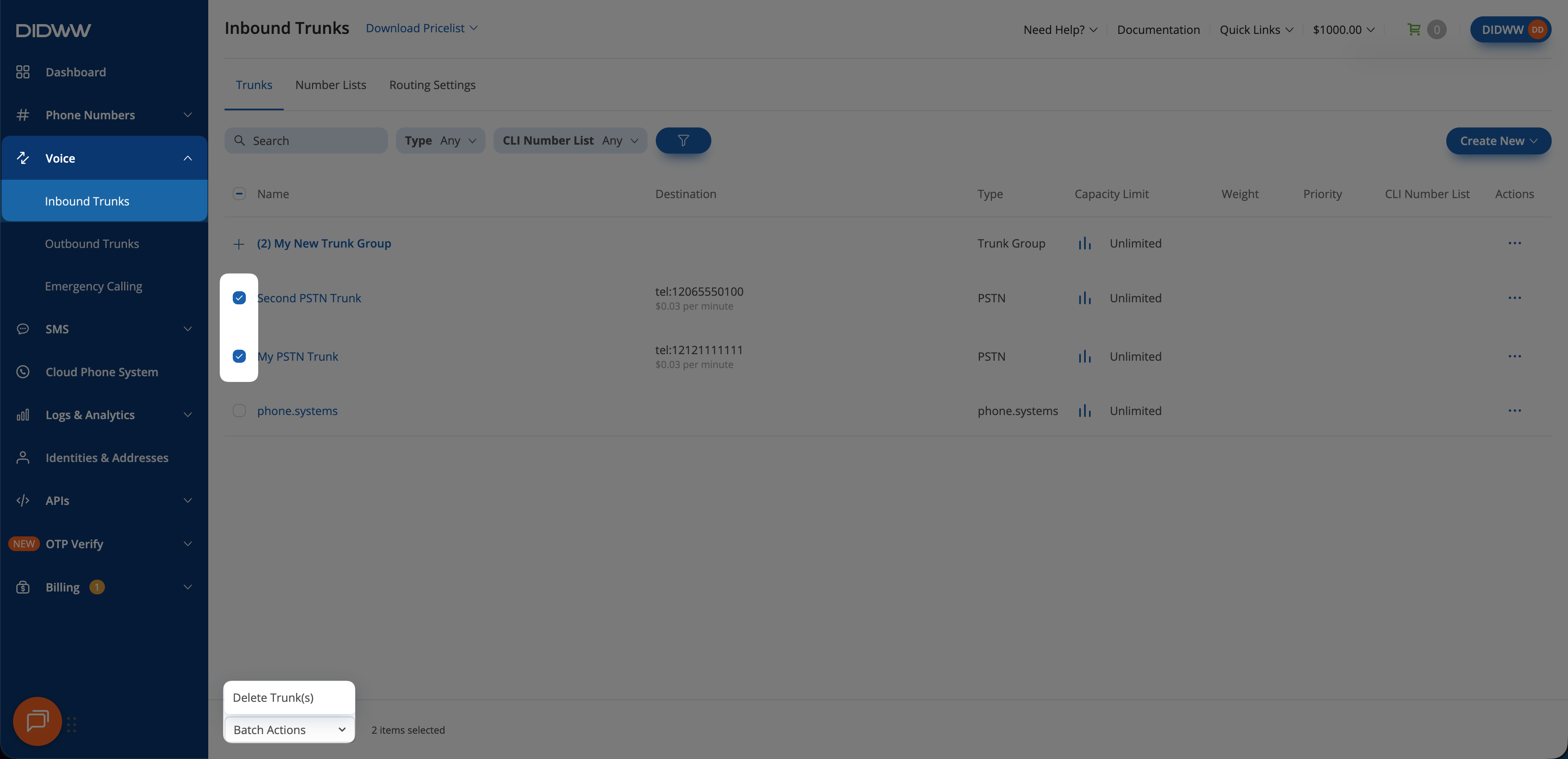
Fig. 7. Delete multiple PSTN trunks#
In the Delete Trunk(s) confirmation window, review the selected trunks and click Delete.
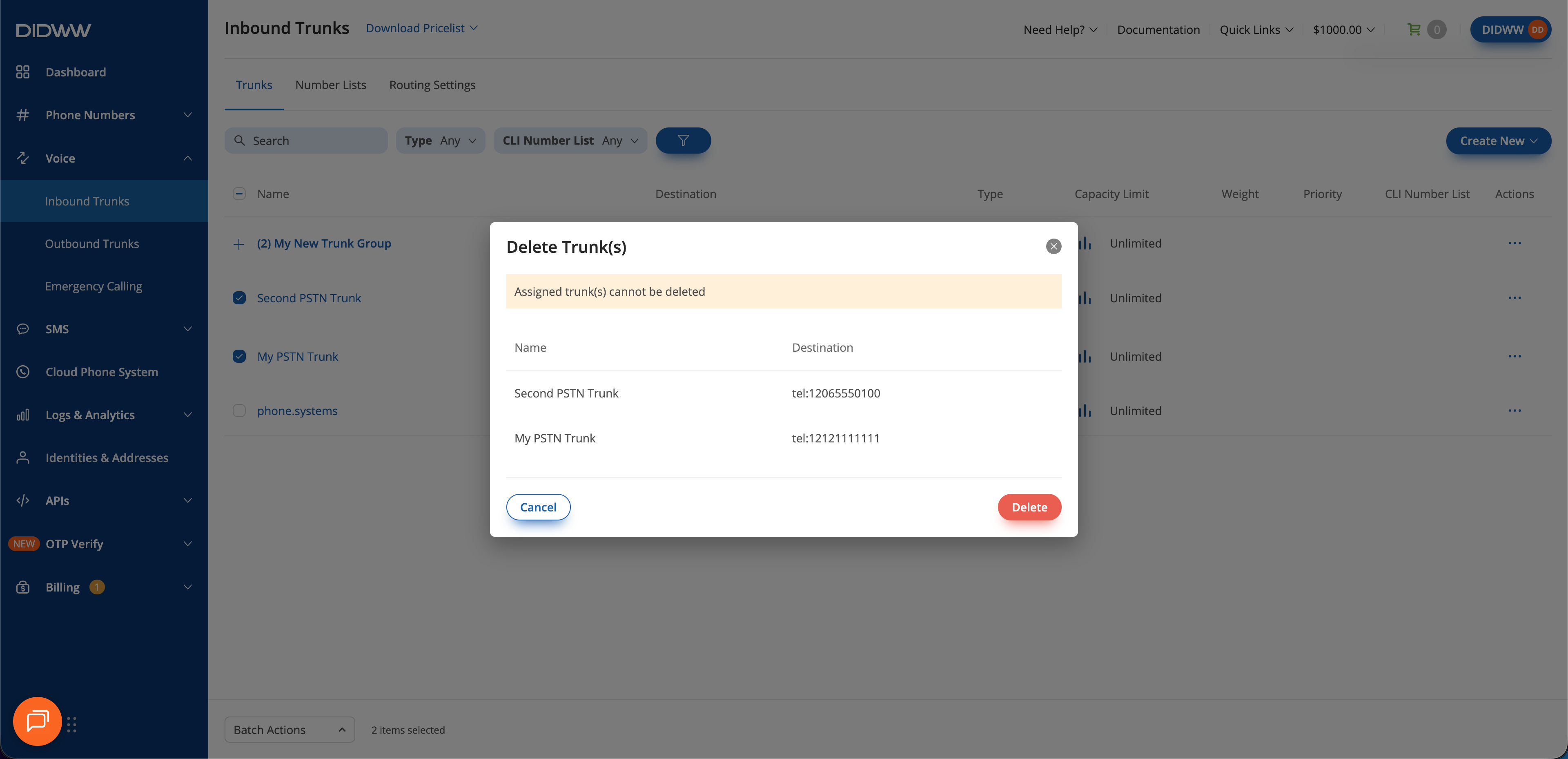
Fig. 8. Confirm the batch deletion#