

Manage metered channels#
Assign metered channels when a Capacity group needs pay-per-minute inbound call capacity. Unassign a DID number from the Capacity group when it should no longer use metered channels.
Before you begin#
At least one active DID number is required.
A positive prepaid balance is required to use metered channels. To add funds, go to Payment Methods.
Only DID numbers that support additional Capacity can be assigned to a Capacity group.
Assign metered channels#
Use this flow to create a Capacity group with metered channels and assign DID numbers to that group.
Step 1: Open Capacity and select a channel pool#
In the DIDWW User Panel, go to Phone Numbers > Capacity.
Select the channel pool, such as Standard or Extended, based on the country of your DID numbers.
Note
The pay-per-minute cost is shown in the pricing block under Metered capacity cost.
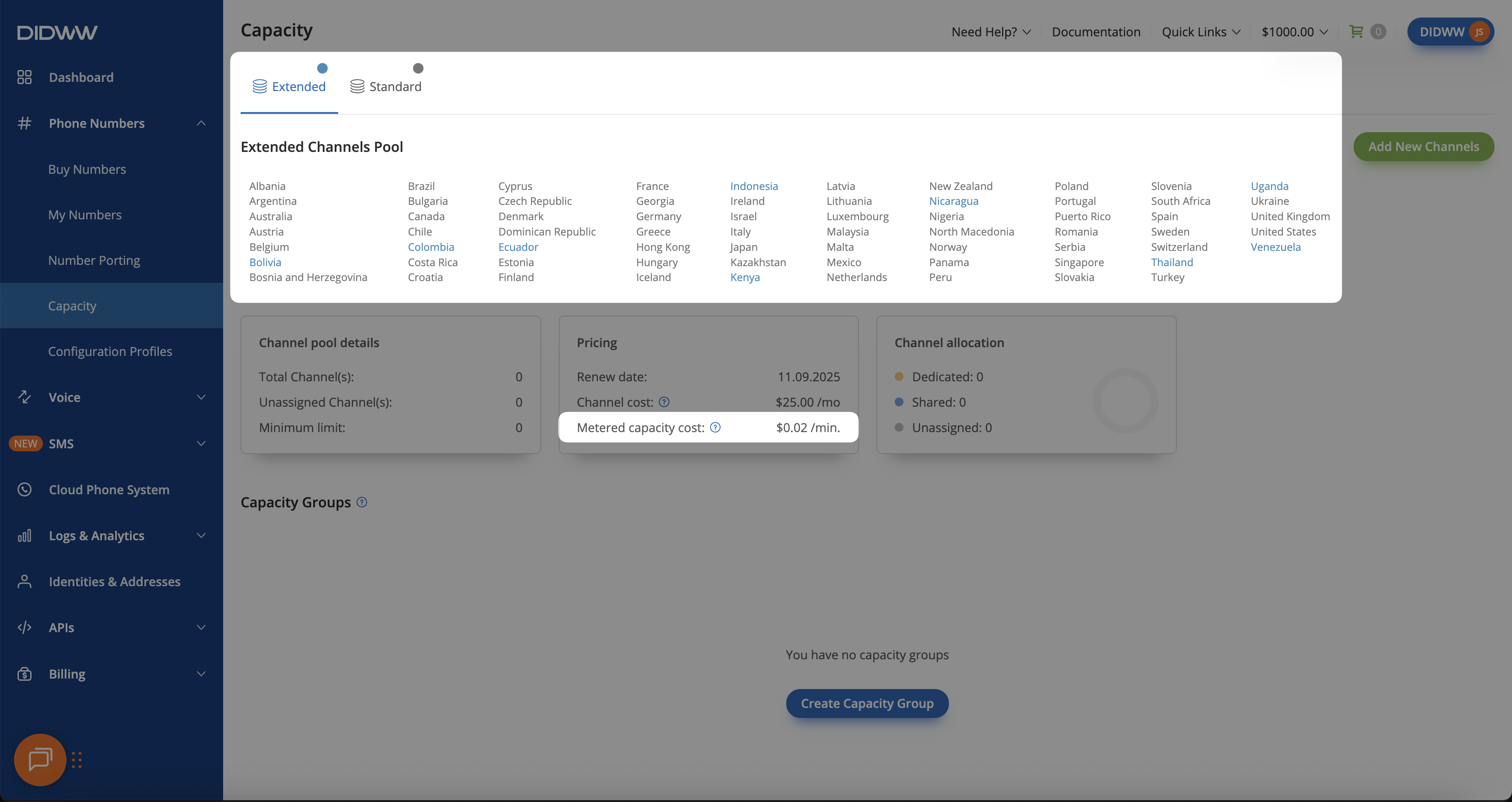
Fig. 1. Open Capacity and select a pool#
Step 2: Create a capacity group#
Click Create Capacity Group.
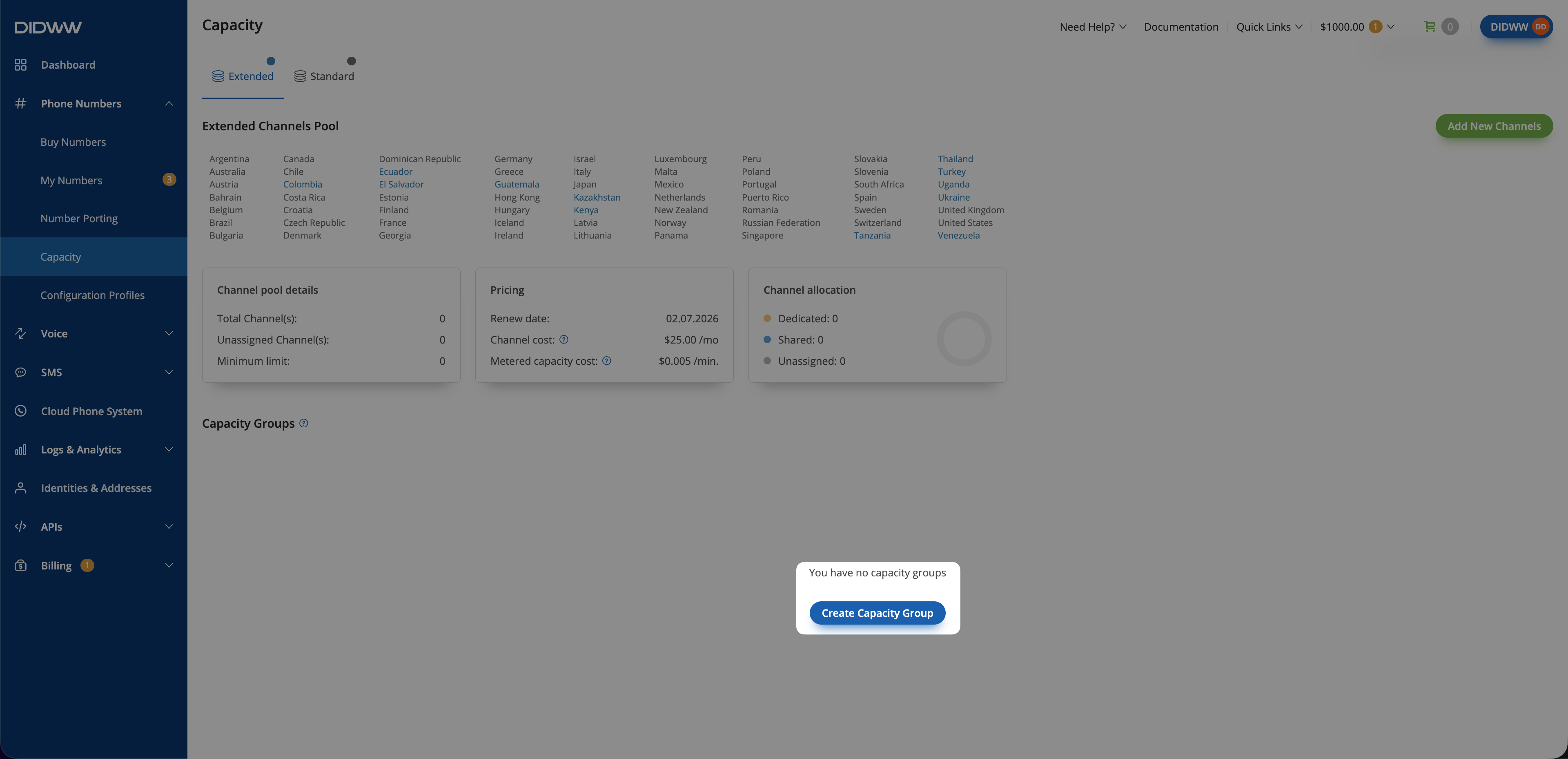
Fig. 2. Create a Capacity group#
Step 3: Assign metered channels to the group#
In the pop-up window, enter a Group name.
Under Assigned metered Channels, enter the number of channels, up to 1,000.
Click Create.

Fig. 3. Assign metered channels#
Step 4: Select DID numbers#
After creating a Capacity Group and assigning metered (pay-per-minute) channels to it, you need to Update Capacity Group and assign your DID numbers to that group.
In the DIDWW User Panel, go to Phone Numbers > My Numbers.
Select the DID numbers you want to assign to the Capacity group.
At the bottom of the page, click Batch Actions.
Select Update Capacity Group.
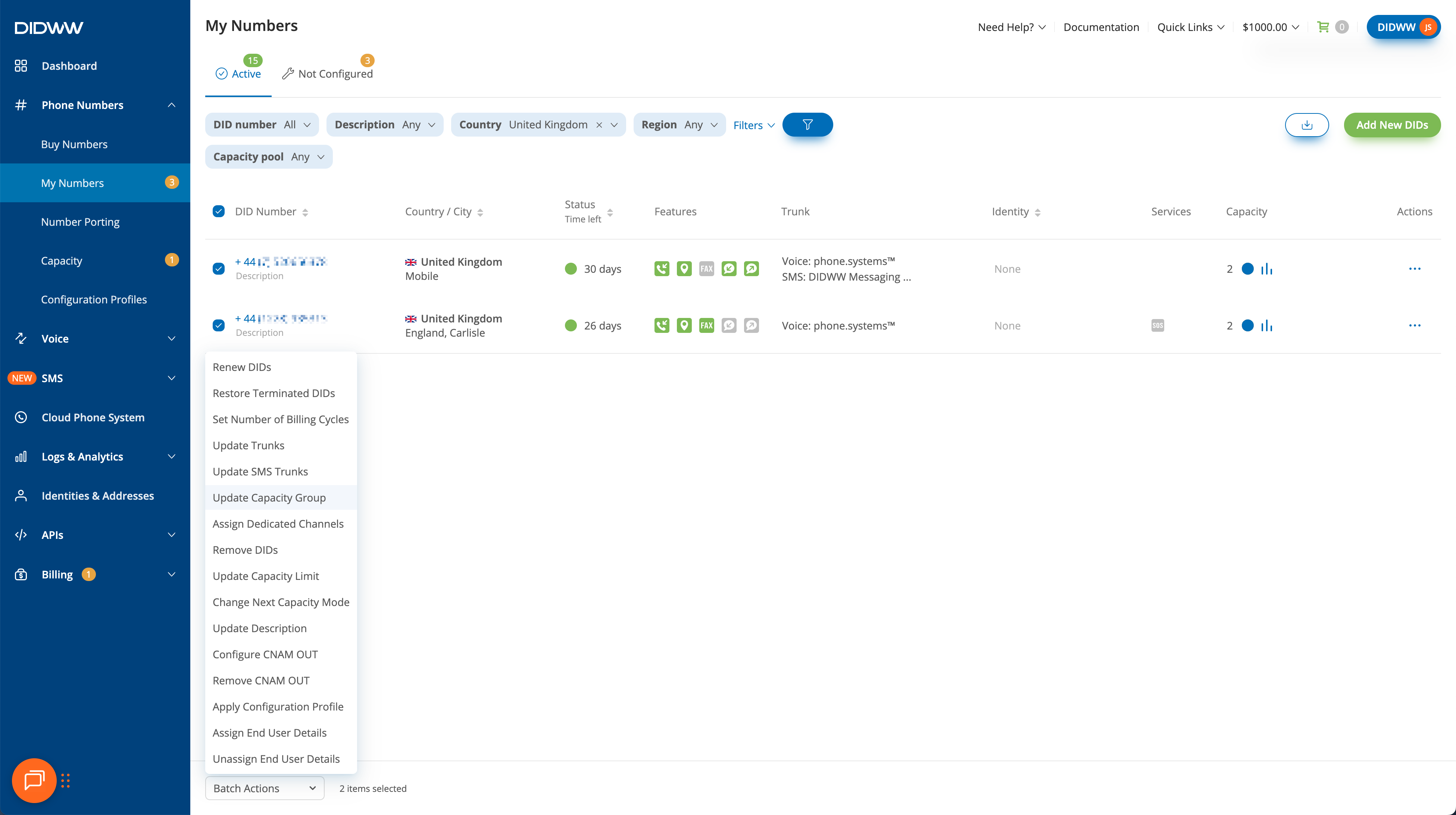
Fig. 4. Select DID numbers and open Batch Actions#
Important
Shared flat-rate channels always take priority over metered channels. Metered capacity is used only when no shared channels are assigned to the group, or when all included, dedicated, and shared channels are already in use.
DID numbers purchased with the Pay-per-minute Capacity option are automatically added to a Capacity group in the Standard pool, with 100 metered channels assigned by default.
Step 5: Update the capacity group#
In the Update Capacity Group window, select a Capacity Group.
Choose the Group Name.
Click Confirm.
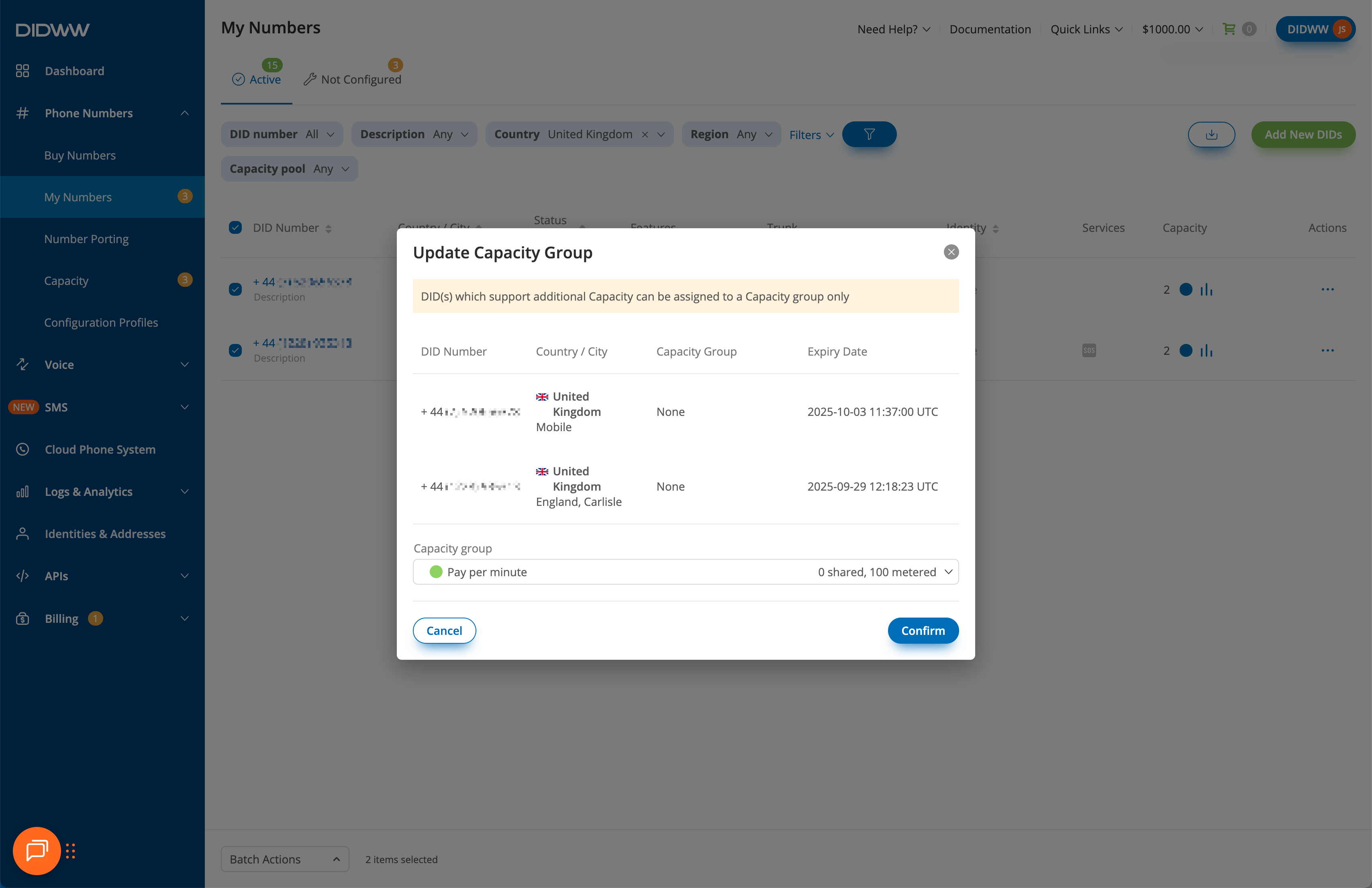
Fig. 5. Update Capacity Group#
Unassign metered channels#
If you no longer want a DID number to use additional pay-per-minute capacity, unassign it from its Capacity group.
Step 1: Filter DID numbers by capacity group#
In the DIDWW User Panel, go to Phone Numbers > My Numbers.
Select the Active or All Numbers tab.
To quickly locate numbers with dedicated channels, open Filters and enable the Capacity group filter.
When the filter is added, choose the capacity pool (Standard or Extended) and select the name of the Capacity Group (e.g., Pay per minute).
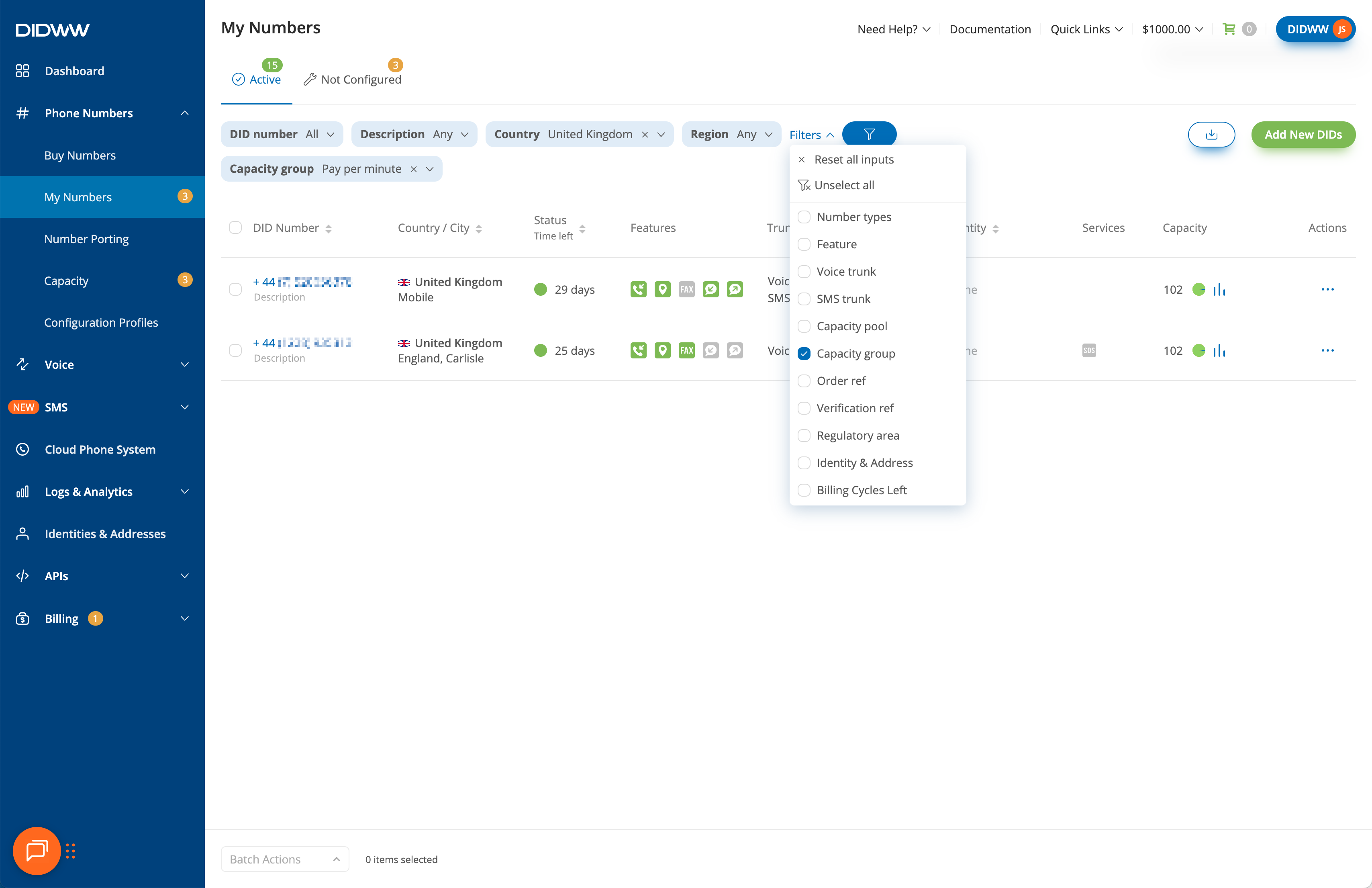
Fig. 6. Filter DID numbers by Capacity group#
Step 2: Review metered channel allocation#
To confirm you are unassigning the correct numbers, check the Capacity column for details about the assigned metered capacity.
Locate the DID number in the table.
Hover over the Capacity column to review capacity details.
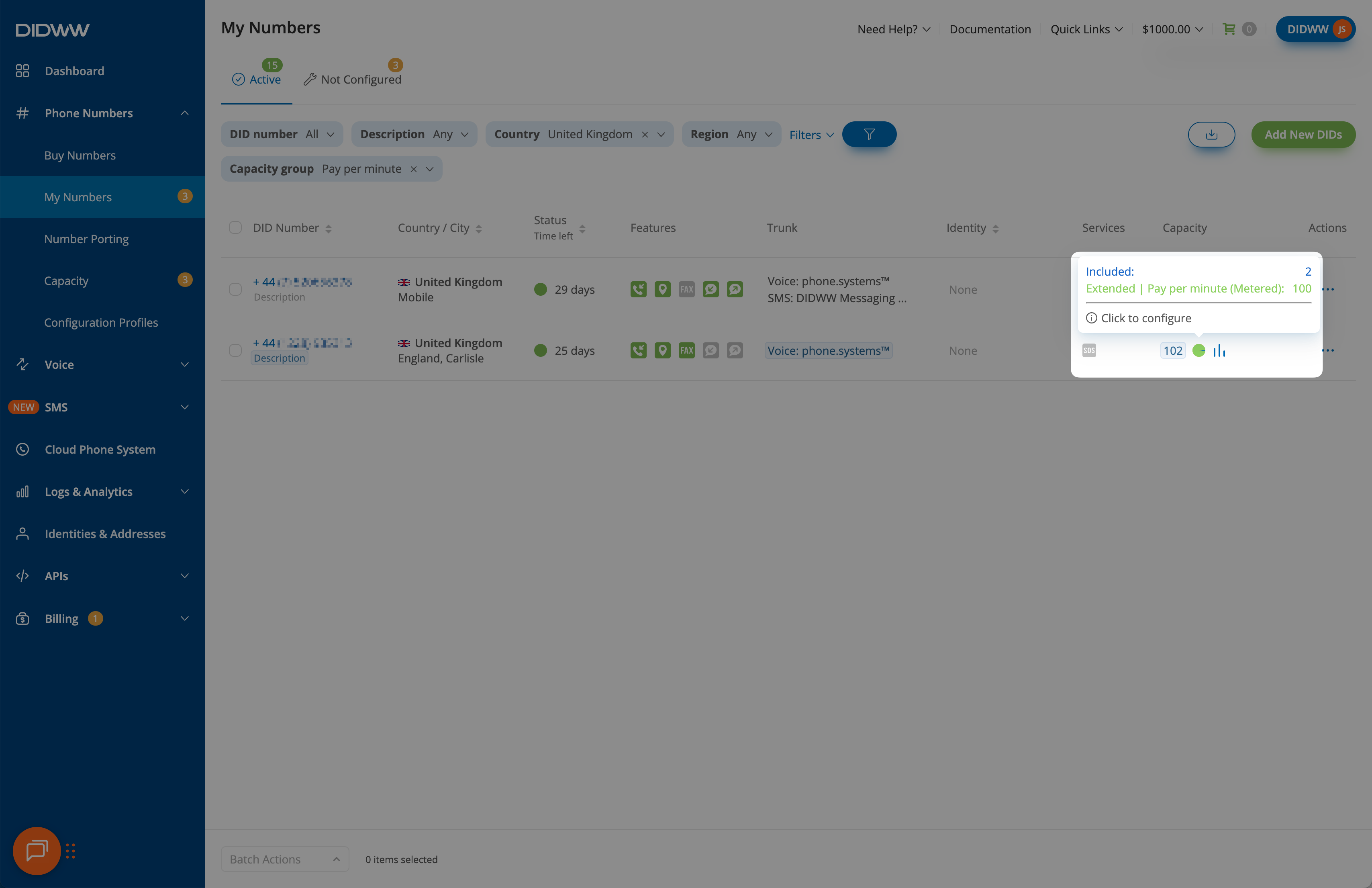
Fig. 7. Review metered channel allocation#
Step 3: Open the Update Capacity Group action#
Select the DID numbers.
At the bottom of the page, click Batch Actions.
Select Update Capacity Group.
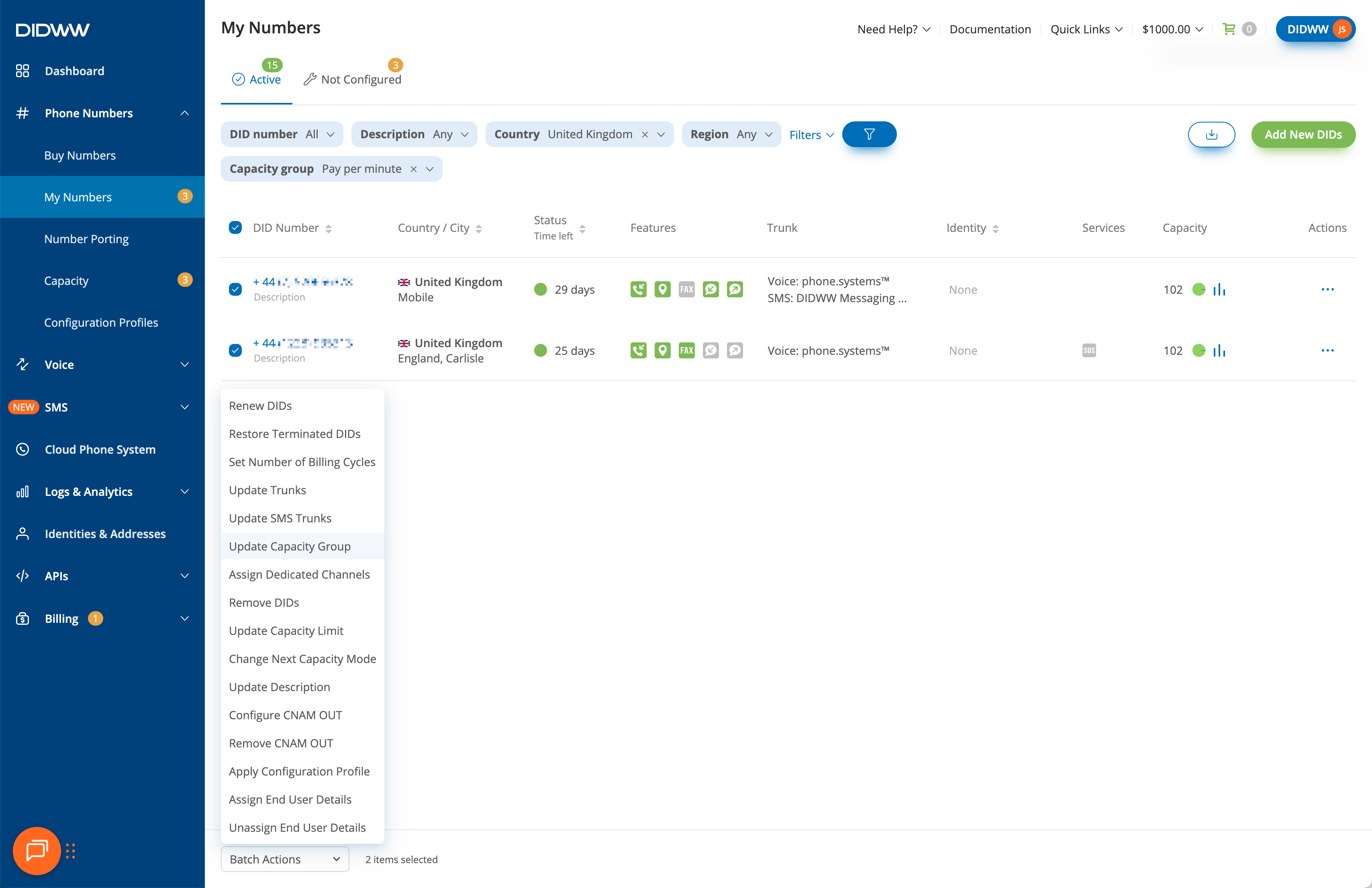
Fig. 8. Open Update Capacity Group#
Step 4: Unassign the capacity group#
In the Update Capacity Group window, open the Capacity group dropdown.
Select Unassign Capacity Group.
Click Confirm.
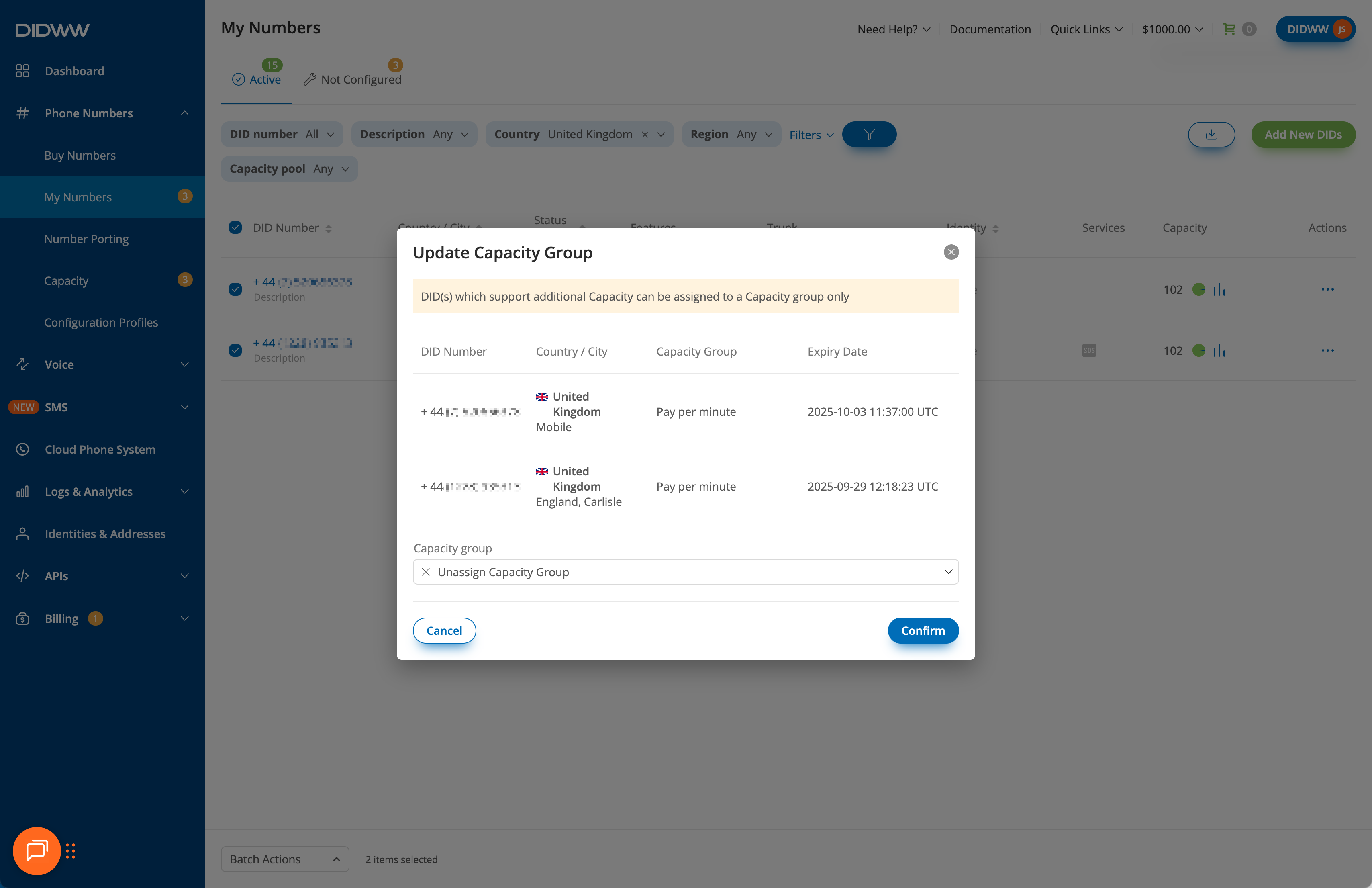
Fig. 9. Unassign Capacity Group#