

Send SMS from the User Panel using an HTTP OUT trunk#
From the SMS Trunks list, you can use the built-in tool to send a test message or a one-time message through any of your HTTP OUT trunks. To send messages from your application, use the Outbound SMS API.
Before you begin#
An active DIDWW account is required. Sign in to DIDWW.
An HTTP OUT trunk is required. If you do not have one, see Create an HTTP OUT trunk.
A sender ID that the trunk allows is required:
For P2P messages, a DID number with outbound P2P SMS enabled that is allowed in the trunk’s Source address settings. If you do not have one, see How to buy DID numbers and P2P Outbound SMS access.
For A2P messages, a verified Sender ID from an active Sender ID Verification associated with the trunk.
Step 1: Open the Send SMS window#
In the DIDWW User Panel, go to SMS > SMS Trunks.
Locate the HTTP OUT trunk and click the Actions button next to it.
Select Send SMS.
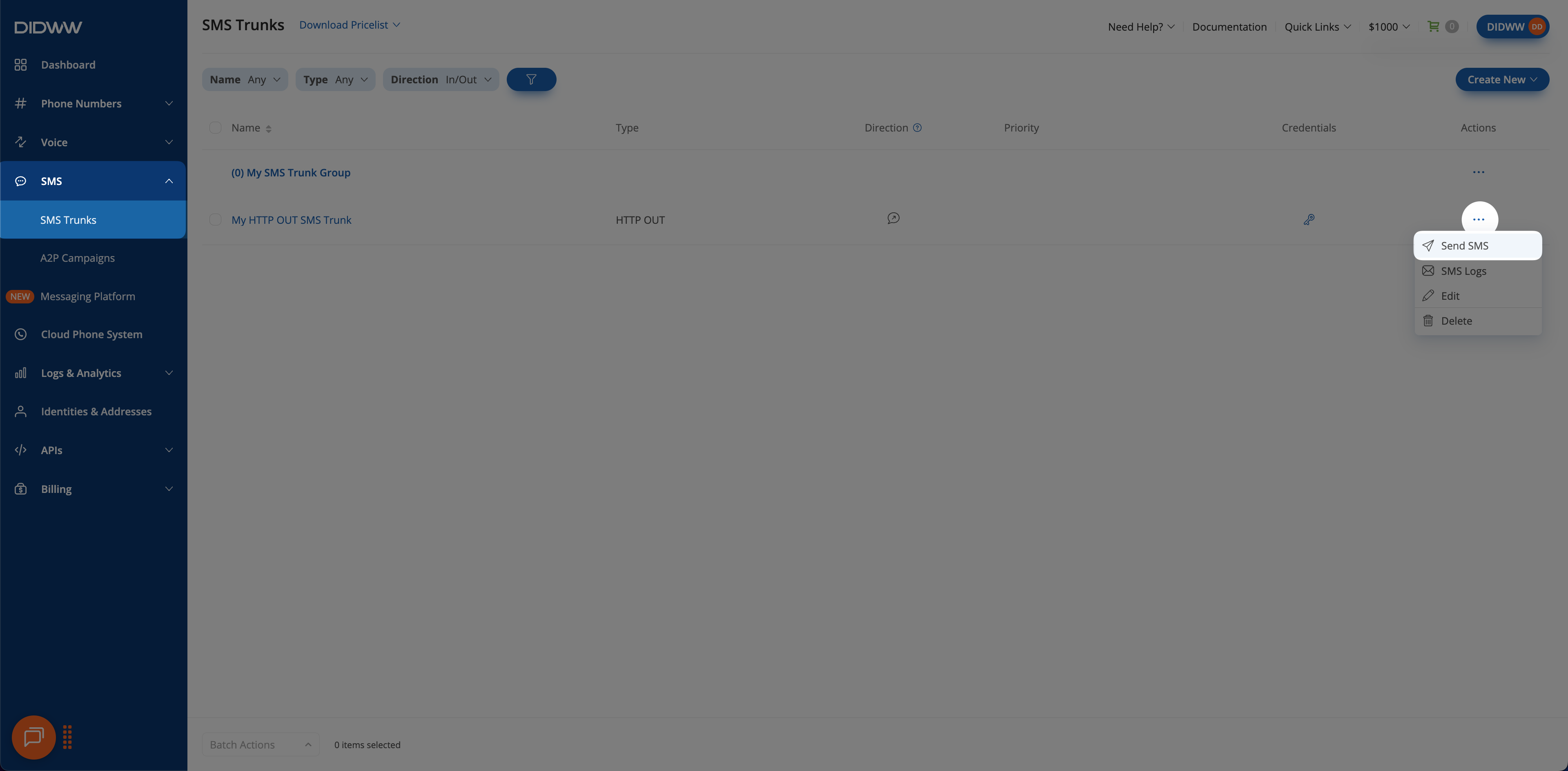
Fig. 1. Open the Send SMS window#
Step 2: Compose and send the message#
In Source address, select the sender ID. The list shows the DID numbers that the trunk allows and the verified Sender IDs associated with the trunk. The Allow any DID(s) for SMS OUT toggle controls which DID numbers are listed. When it is on, all DIDs with outbound P2P SMS enabled are listed. When it is off, only the DIDs in Allowed source addresses are listed. The toggle does not affect the verified Sender IDs.
In Destination, enter the recipient’s phone number in international format, for example
15551234567.In Text, enter the message content. The indicators below the field show the detected encoding, the number of characters, and the number of messages.
Click Send.
Note
The message encoding is selected automatically. A long message can be split into several fragments, and each fragment is billed separately. For character limits and concatenation, see SMS encoding reference.
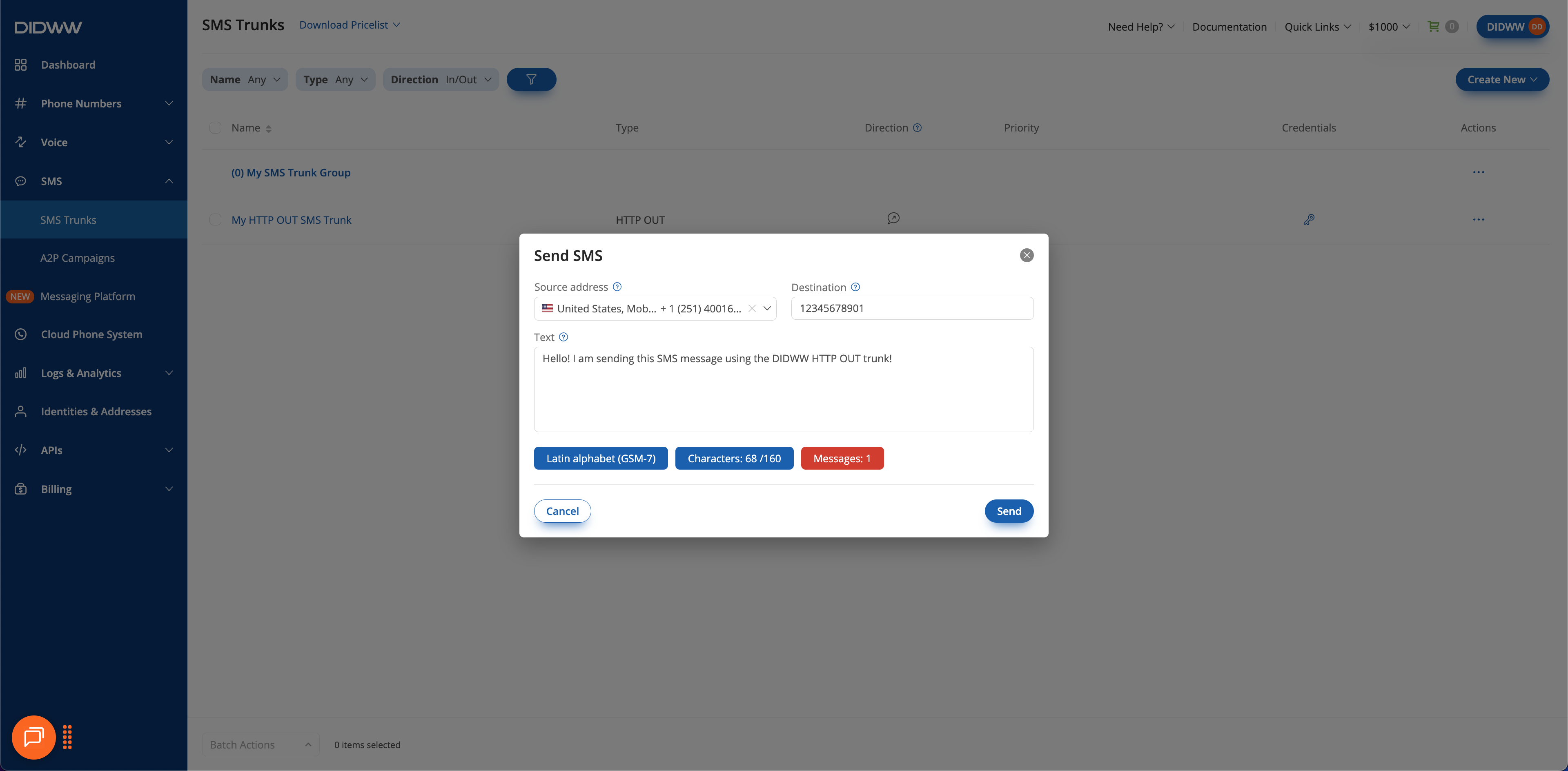
Fig. 2. Compose and send the message#
Step 3: Check the result#
Clicking Send submits the message to DIDWW. It does not confirm that the recipient received it. DIDWW processes the message, and the result appears in the Outbound SMS logs.
In the DIDWW User Panel, go to SMS > SMS Trunks.
Click the Actions button next to the HTTP OUT trunk and select SMS Logs. The Outbound tab of SMS Logs opens, filtered by the trunk and the last 24 hours.
Find the message and review its Status. If the message failed, Reason shows why.
For status values and log fields, see Outbound SMS logs.