

Assign an SMS trunk#
Assign an inbound SMS trunk to one or more SMS-enabled DID numbers. The assigned trunk can be an SMS to Email trunk, HTTP IN trunk, SMPP ESME trunk, SMPP SMSC trunk, or SMS trunk group, and its configuration determines where incoming messages are delivered.
You can assign an SMS trunk directly from the Trunk column for a single DID number or use Batch Actions to update multiple DID numbers.
Before you begin#
An SMS-capable DID number is required. See How to buy numbers.
An inbound SMS trunk is required. See SMS Trunks.
Assign the trunk for a single DID number#
To assign an inbound SMS trunk to a single DID number, follow these steps.
Step 1: Open My Numbers page#
In the DIDWW User Panel, go to Phone Numbers > My Numbers, or open the page directly.
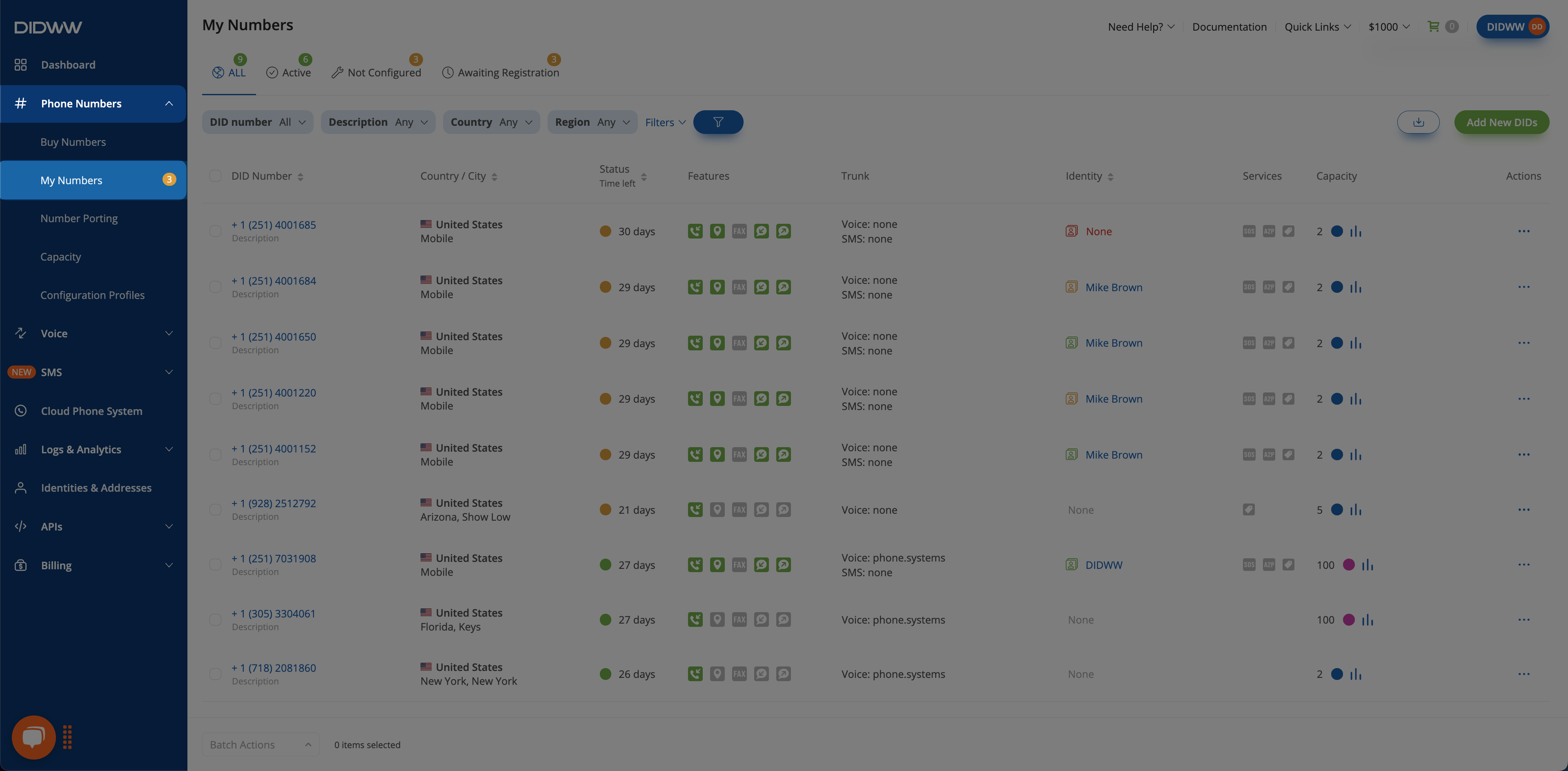
Fig. 1. My Numbers page.#
Step 2: Assign the trunk#
Locate the DID number you want to configure. You can use filters such as Feature: Inbound SMS to narrow the list.
In the Trunk column, click SMS: none.
Select the SMS trunk from the dropdown menu.
Click Confirm.
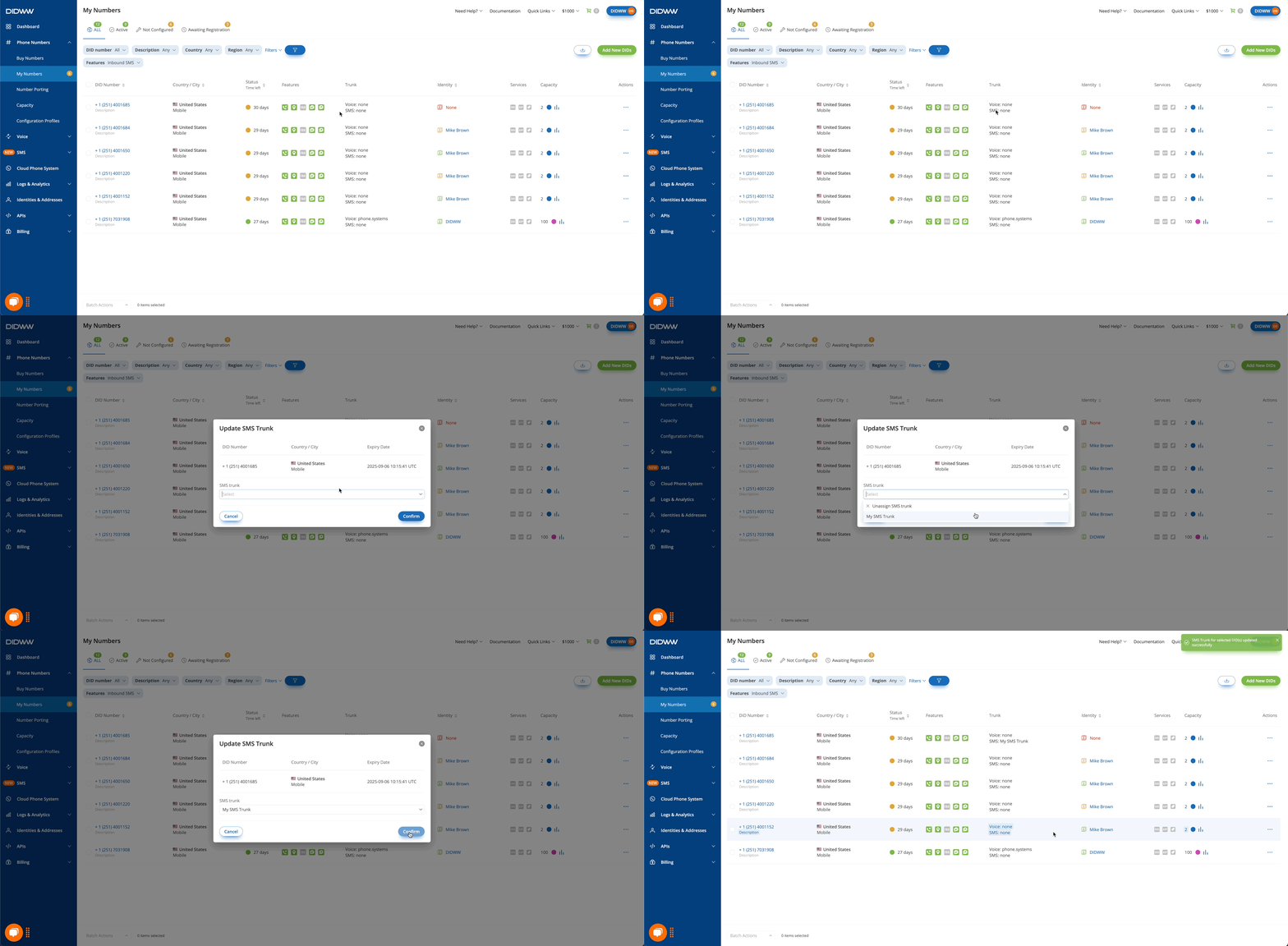
Fig. 2. Assigning an SMS trunk to a single DID number.#
Note
To unassign an SMS trunk, select Unassign SMS Trunk instead of choosing a trunk.
Assign the trunk for multiple DID numbers#
To assign an inbound SMS trunk to multiple DID numbers, follow these steps.
Step 1: Open My Numbers page#
In the DIDWW User Panel, go to Phone Numbers > My Numbers, or open the page directly.
Fig. 3. My Numbers page.#
Step 2: Select the numbers#
Select the DID numbers you want to update. You can use filters such as Feature: SMS In to narrow the list.
You can select numbers in two ways:
Check the boxes next to individual DID numbers.
Click the checkbox next to the Country/City column to open bulk options.
Select All selects all DID numbers that match the current filter criteria, even if they span multiple pages.
Select Visible selects only the DID numbers currently shown on the page.
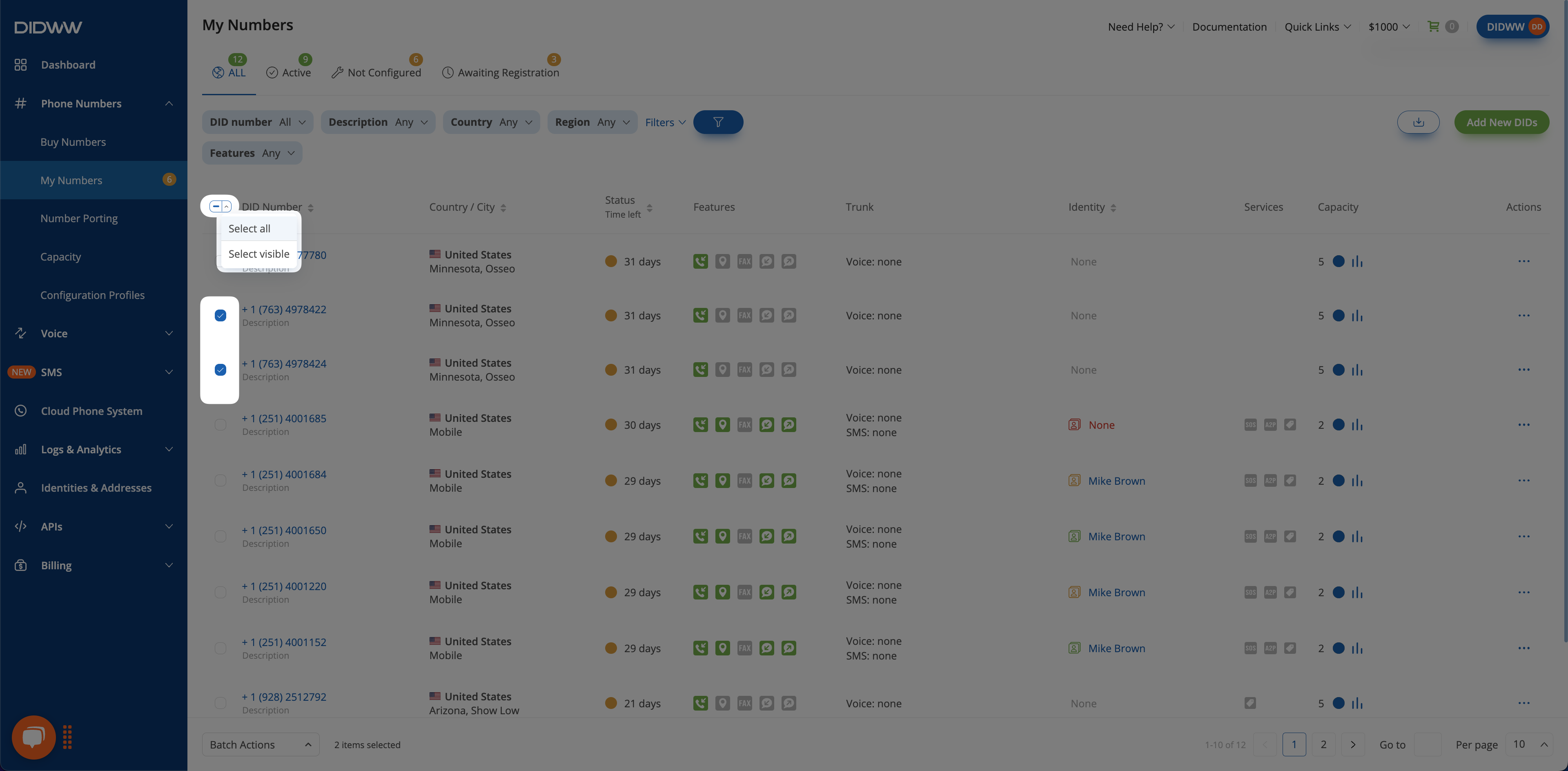
Fig. 4. Selecting multiple DID numbers.#
Step 3: Assign the trunk#
At the bottom of the page, click Batch Actions.
Select Update SMS Trunks.
Choose the SMS trunk you want to assign.
Click Confirm.
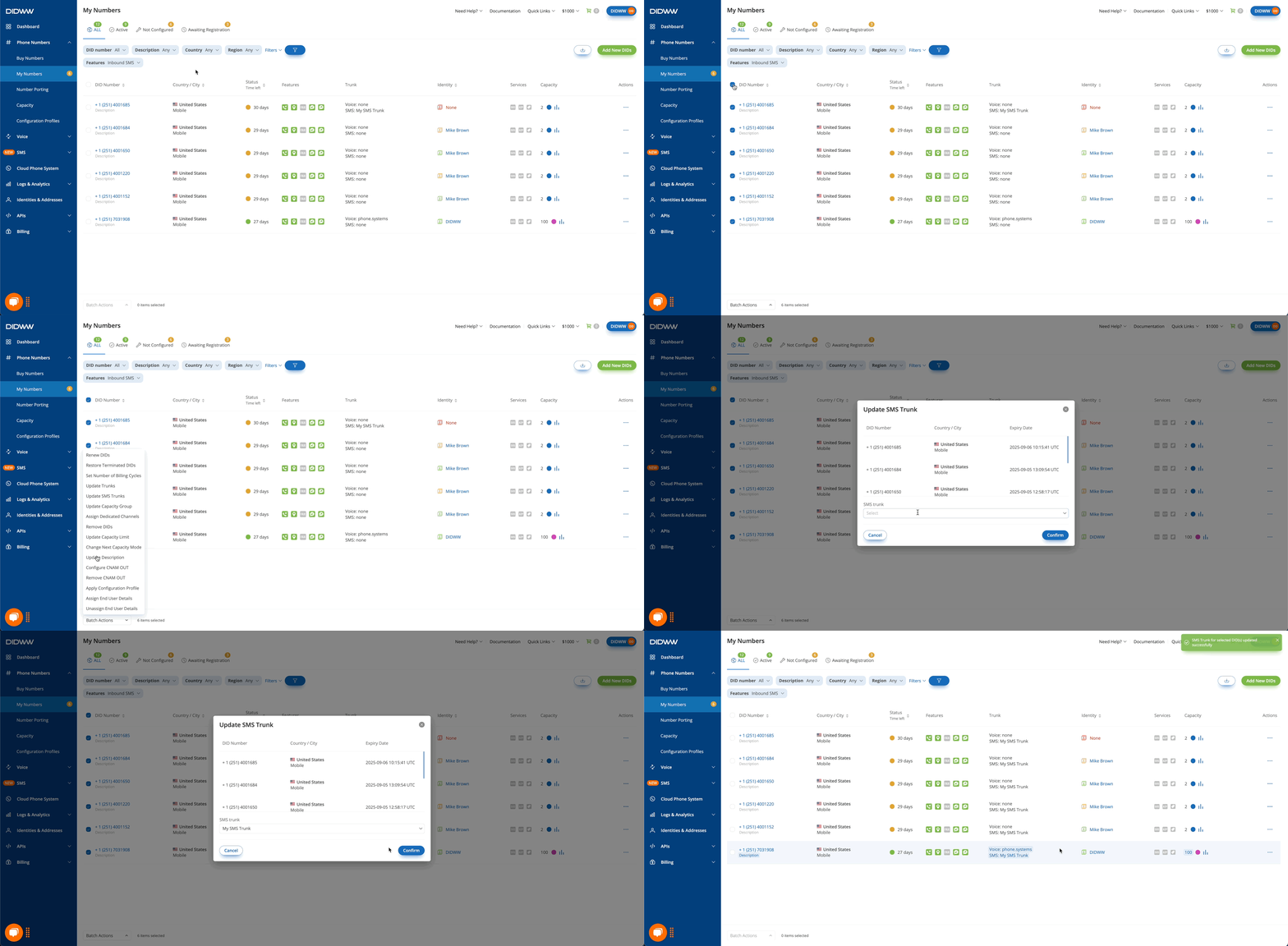
Fig. 5. Assigning an SMS trunk to multiple DID numbers.#
Note
To unassign an SMS trunk from selected DID numbers, select Unassign SMS Trunk instead of choosing a trunk.