

Manage configuration profiles#
Use the Profiles tab to edit or delete configuration profiles.
Before you begin#
At least one configuration profile is required. See Create configuration profile.
Deleting a configuration profile also deletes any rules assigned to it. For rule behavior, see Rules reference.
Edit a configuration profile#
Use this flow when the reusable DID number settings need to change.
Step 1: Open the profile actions menu#
In the DIDWW User Panel, go to Phone Numbers > Configuration Profiles.
Open the Profiles tab.
Find the profile you want to update and click the Actions > Edit.
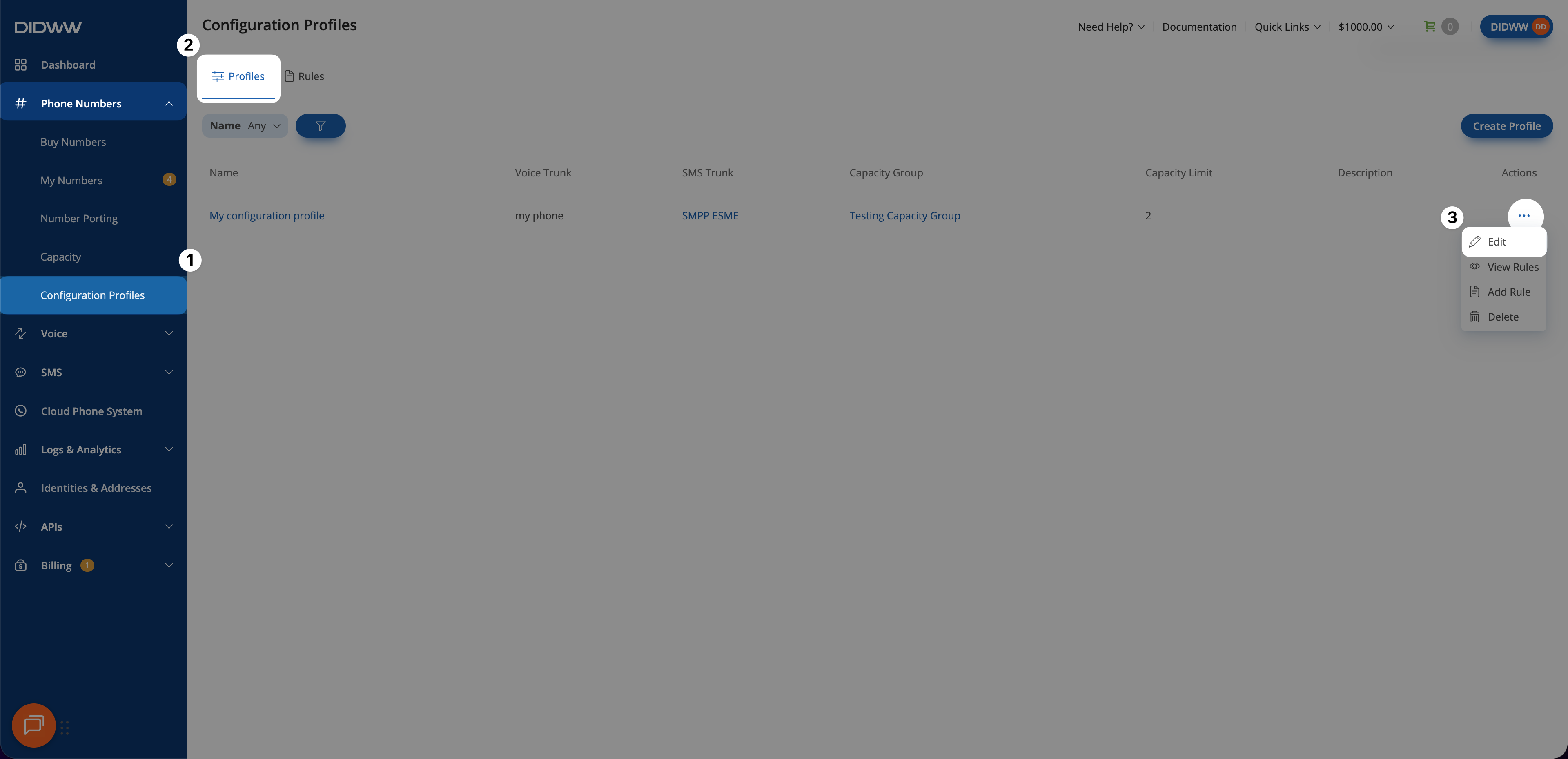
Fig. 1. Edit Configuration Profile actions button.#
Step 2: Update the profile#
In the Edit Profile window, update the profile settings.
Click Submit.
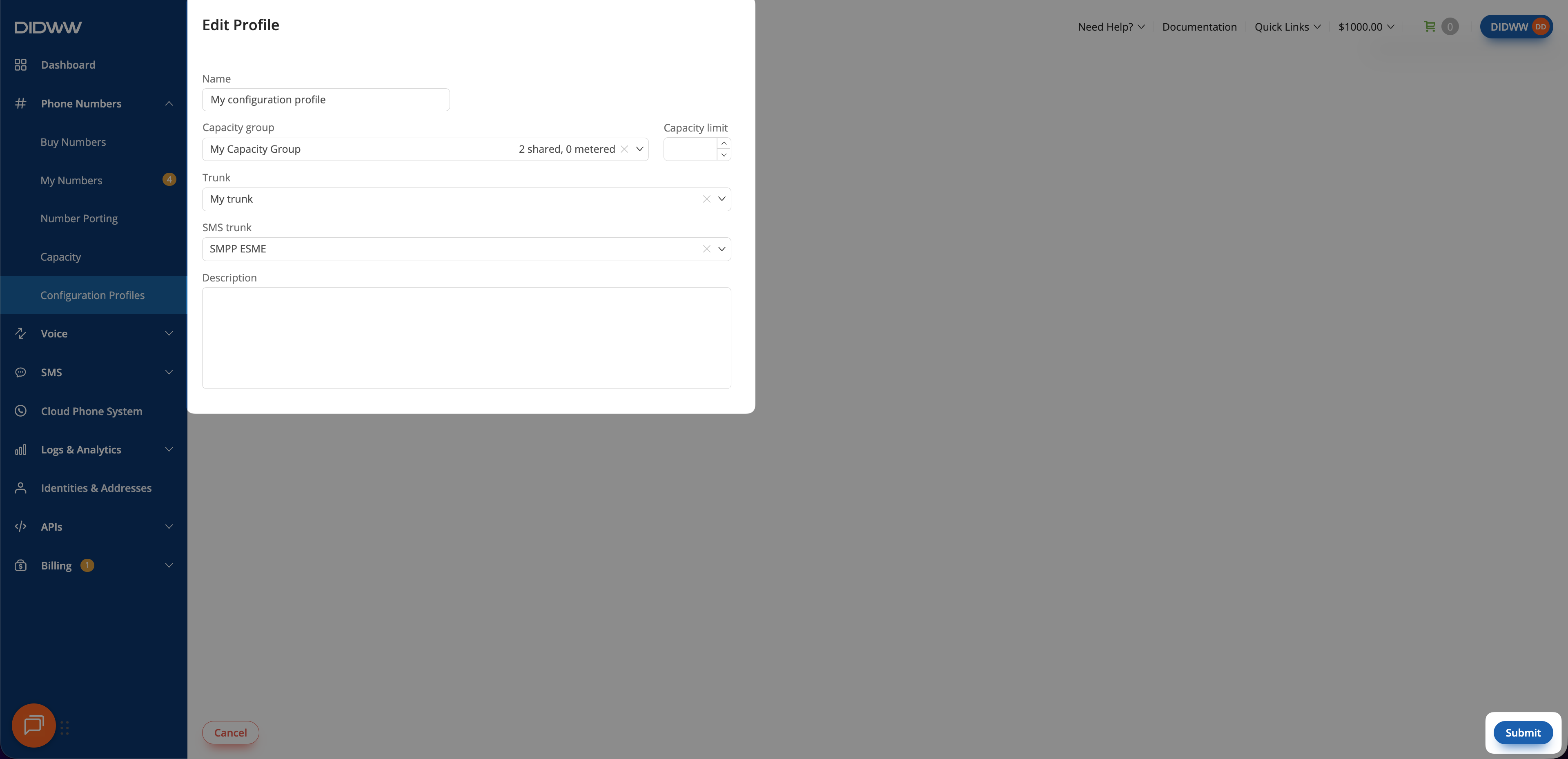
Fig. 2. Edit Configuration Profile form.#
Delete a configuration profile#
Use this flow when a configuration profile is no longer needed.
Step 1: Open the profile actions menu#
In the DIDWW User Panel, go to Phone Numbers > Configuration Profiles.
Open the Profiles tab.
Find the profile you want to delete and click the Actions > Delete.
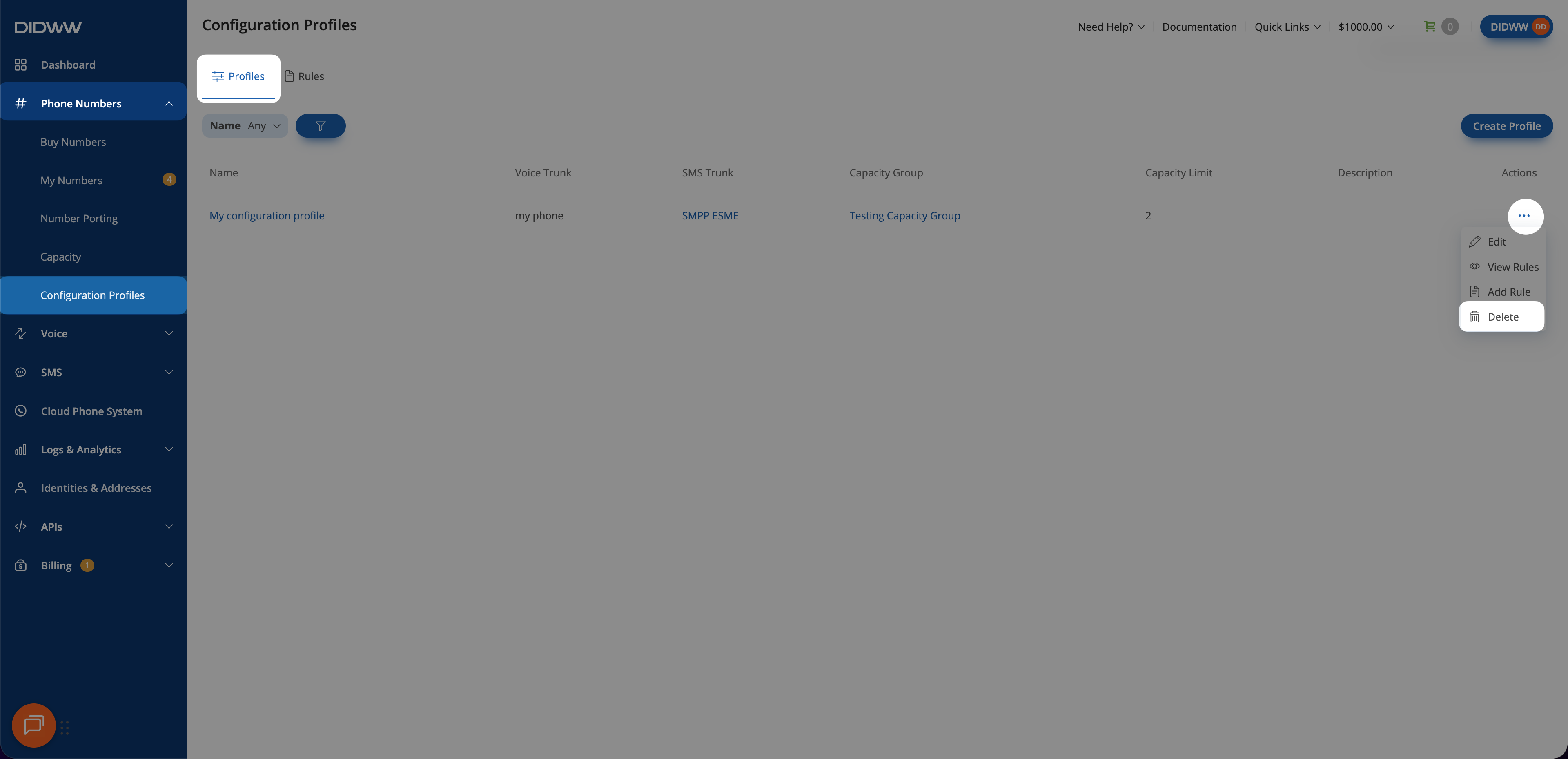
Fig. 3. Delete Configuration Profile actions button.#
Step 2: Confirm deletion#
In the confirmation pop-up, review the profile you are deleting.
Click Delete.
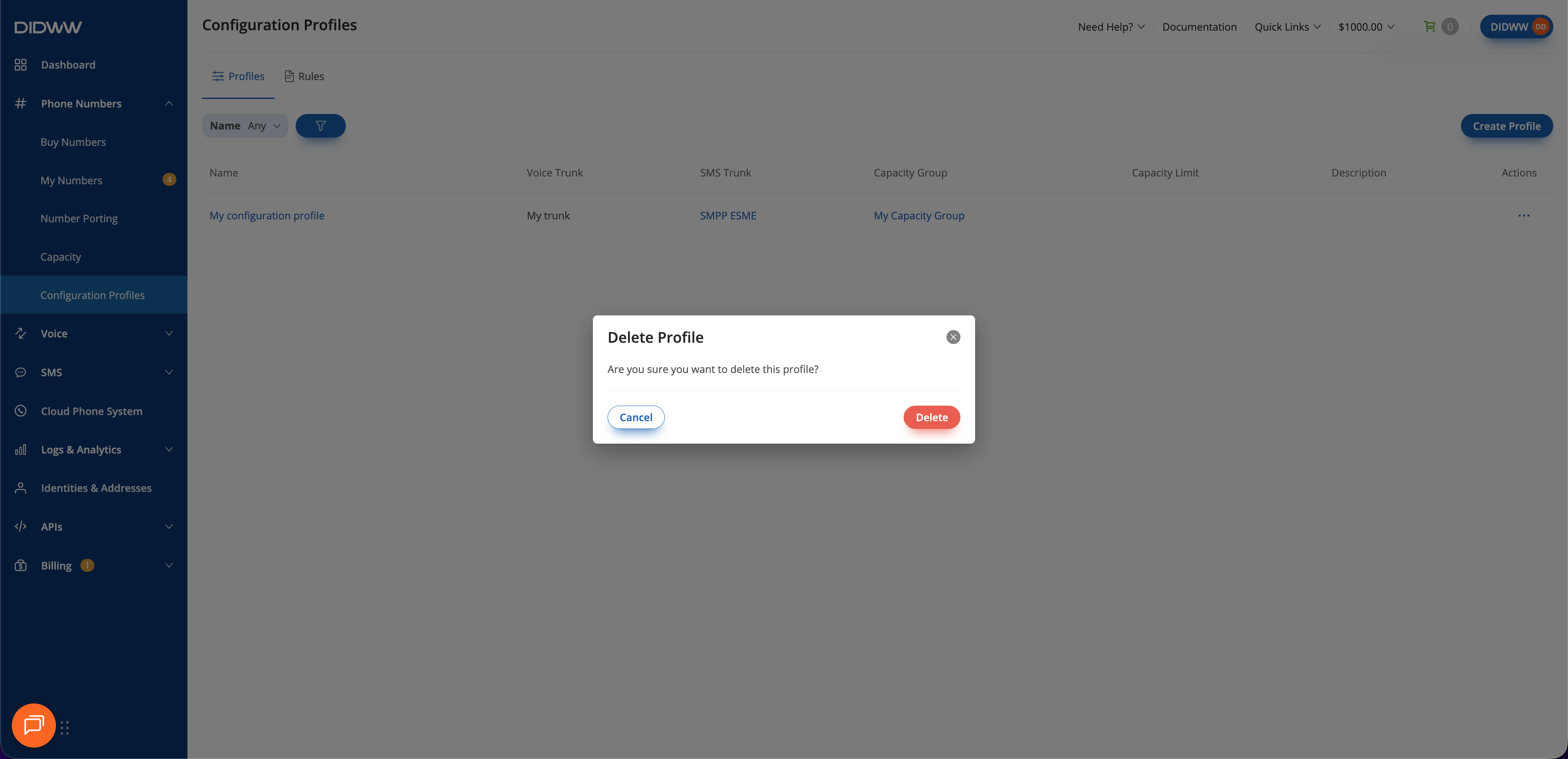
Fig. 4. Delete Configuration Profile pop-up.#