

Regenerate HTTP OUT trunk credentials#
Regenerate the credentials of an HTTP OUT trunk, for example if they were exposed or as part of regular credential rotation. DIDWW replaces both the Username and the Password. Then update every integration that uses the trunk.
Important
The Username and Password are replaced immediately when you regenerate the credentials. There is no confirmation prompt. Every integration that uses the old credentials must be updated right away to avoid authentication failures.
Before you begin#
An active DIDWW account is required. Sign in to DIDWW.
An HTTP OUT trunk is required. If you do not have one, see Create an HTTP OUT trunk.
Identify every application and integration that sends messages with the trunk’s current credentials, so that you can update them right after you regenerate them.
Step 1: Open the credentials window#
In the DIDWW User Panel, go to SMS > SMS Trunks.
Locate the HTTP OUT trunk and click the key icon in its Credentials column.
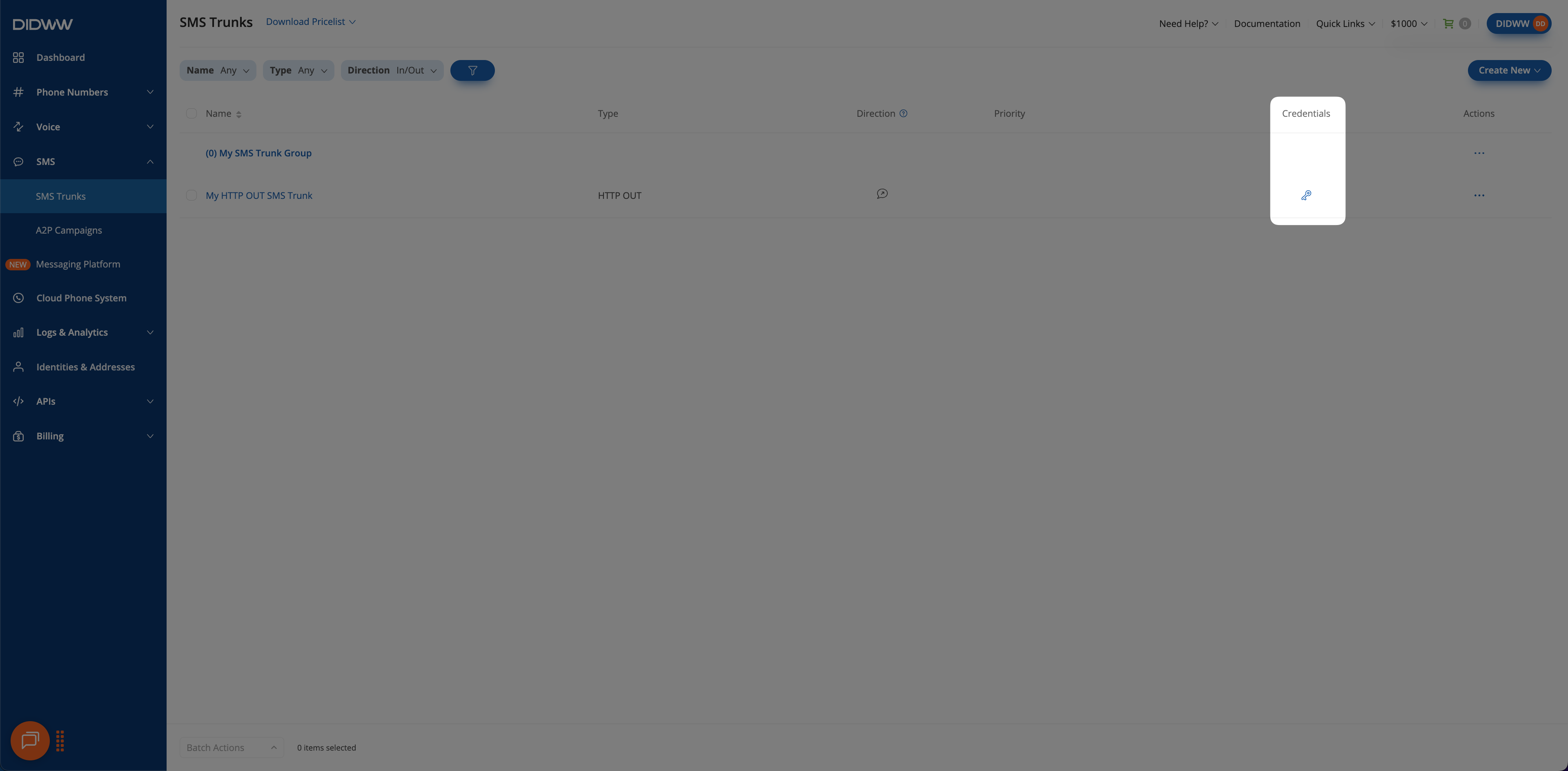
Fig. 1. Open the trunk credentials#
Step 2: Regenerate the credentials#
In the credentials window, click the regenerate icon (circular arrows) next to the Password field. The window shows the new Username and Password right away.
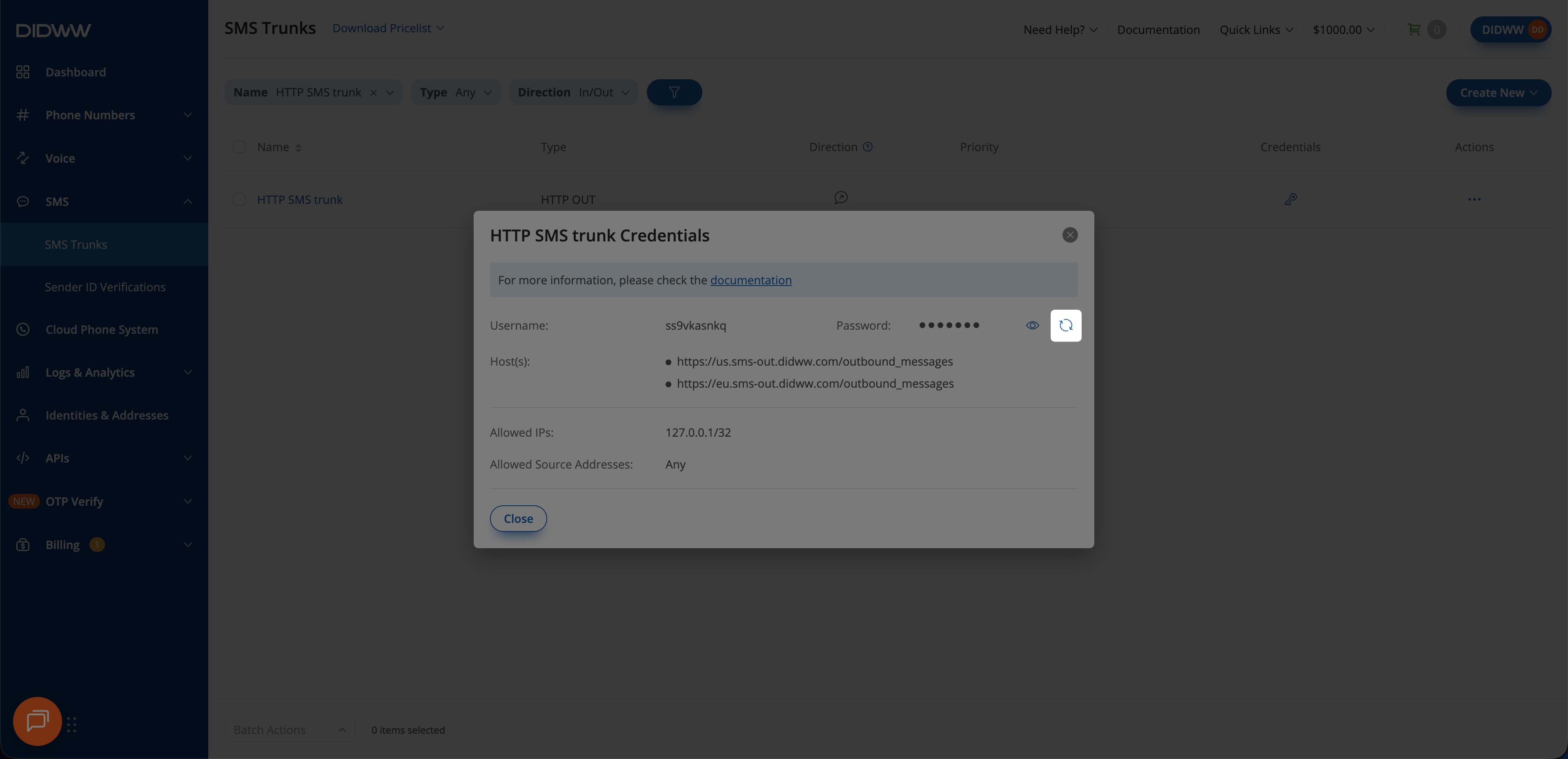
Fig. 2. Regenerate the credentials#
Step 3: Update your integrations#
Click the eye icon next to Password to show the new password.
Copy the new Username and Password, and update every application and integration that uses them.
Requests that still use the old credentials fail authentication and receive a
401 Unauthorized response. See Outbound SMS errors and status codes.