

Manage dedicated channels#
Assign dedicated flat-rate channels when one DID number needs reserved additional inbound call capacity. Unassign dedicated channels when the DID number no longer needs those channels.
Before you begin#
At least one active DID number is required.
At least one unassigned flat-rate channel is required to assign dedicated channels. See Purchase flat-rate channels.
Only DID numbers that support additional Capacity can use dedicated channels.
Assign dedicated channels#
Use this flow to assign dedicated flat-rate channels to one or more DID numbers.
Step 1: Select DID numbers#
In the DIDWW User Panel, go to Phone Numbers > My Numbers.
Select the DID number or DID numbers you want to assign dedicated channels to.
At the bottom of the page, click Batch Actions.
Select Assign Dedicated Channels.
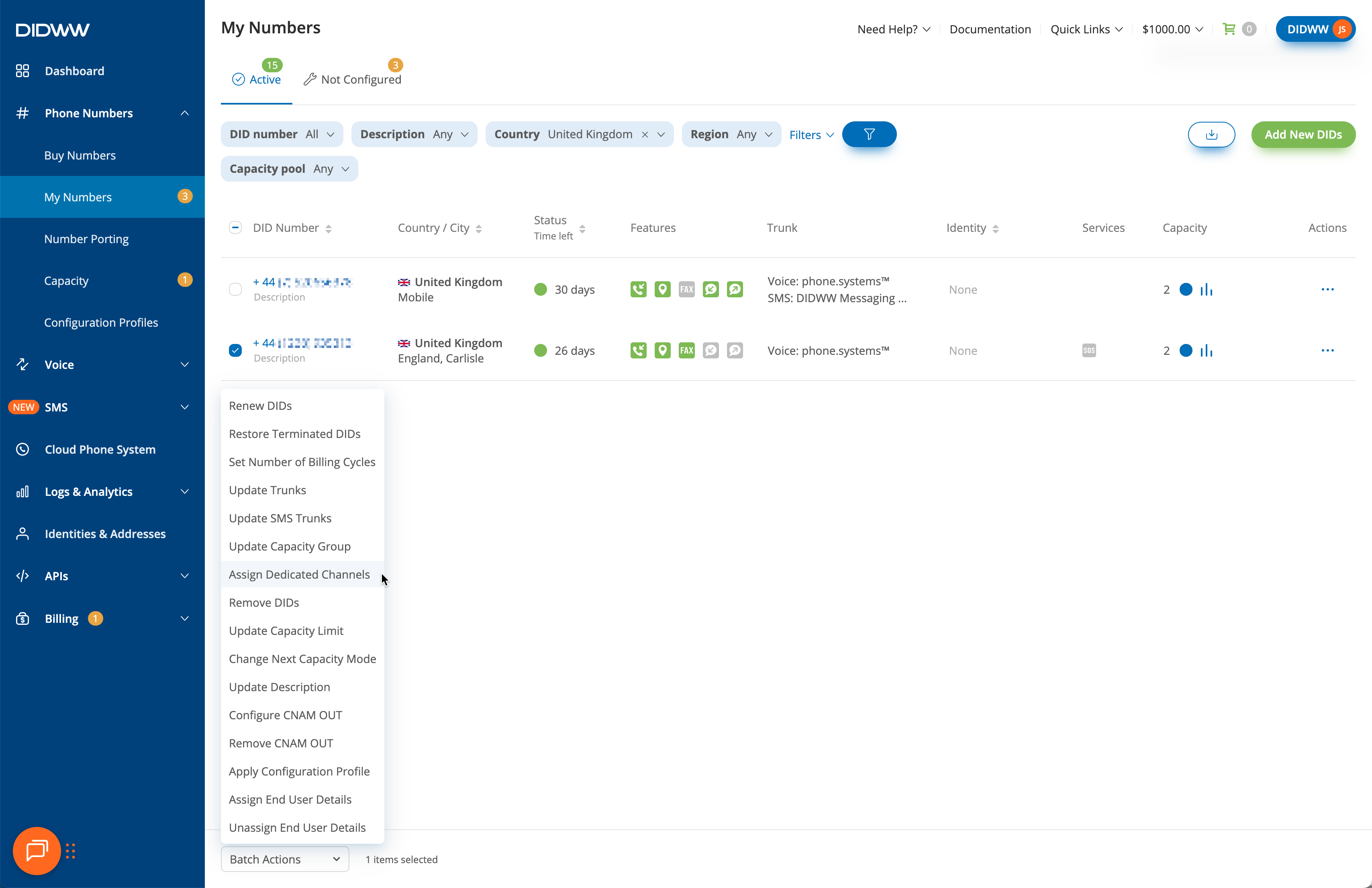
Fig. 1. Select DID numbers and open Batch Actions#
Step 2: Assign dedicated channels#
In the pop-up window, select the channel pool, such as Standard or Extended.
Enter the number of channels in Assigned Dedicated Channels.
Click Confirm.
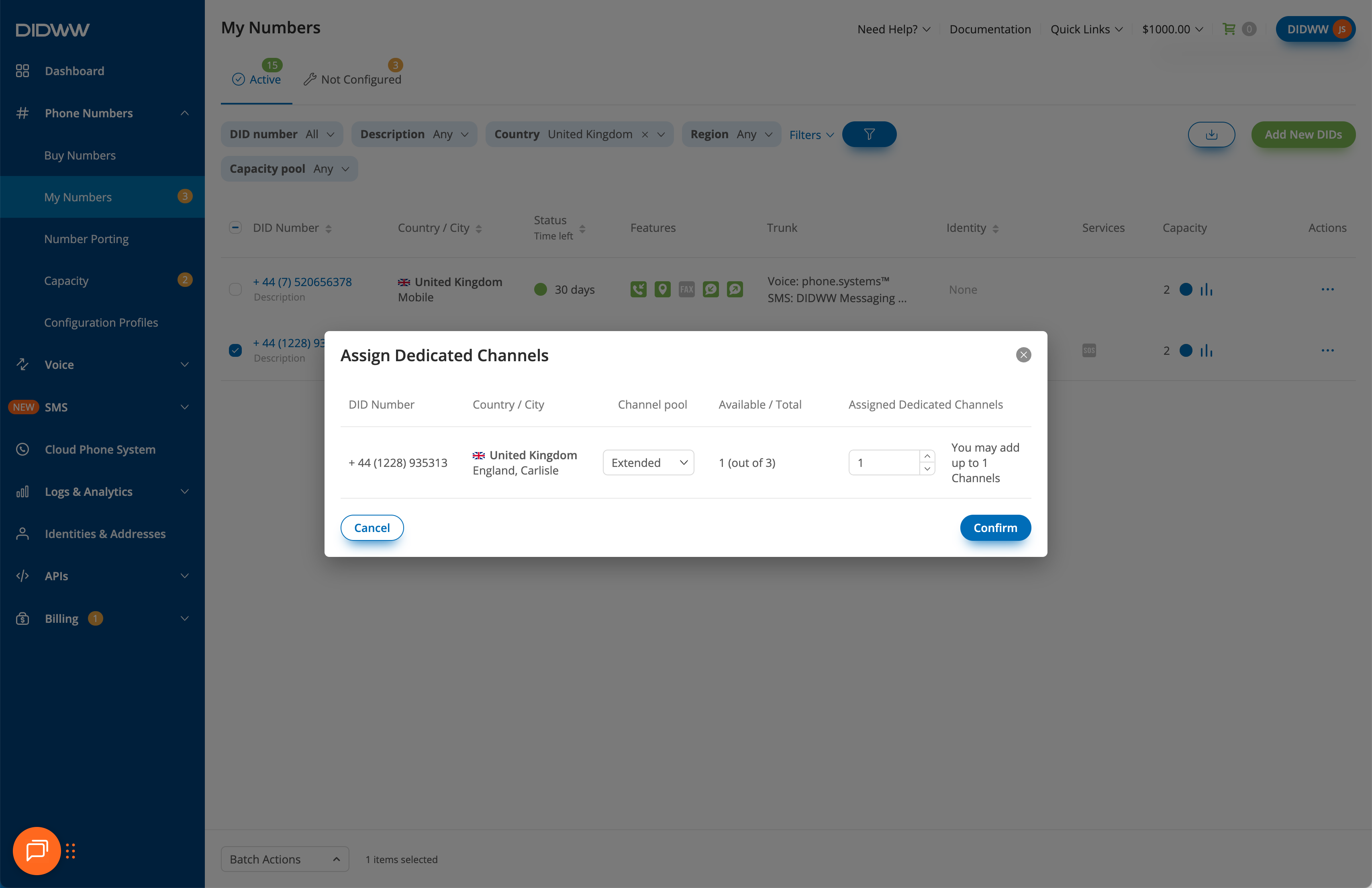
Fig. 2. Assign dedicated channels#
Unassign dedicated channels#
Use this flow to remove dedicated flat-rate channels from one or more DID numbers.
Step 1: Select DID numbers#
In the DIDWW User Panel, go to Phone Numbers > My Numbers.
Select the DID number or DID numbers you want to unassign dedicated channels from.
At the bottom of the page, click Batch Actions.
Select Assign Dedicated Channels.
Fig. 3. Select DID numbers and open Batch Actions#
Step 2: Set dedicated channels to 0#
In the pop-up window, select the channel pool, such as Standard or Extended.
Enter 0 in Assigned Dedicated Channels.
Click Confirm.
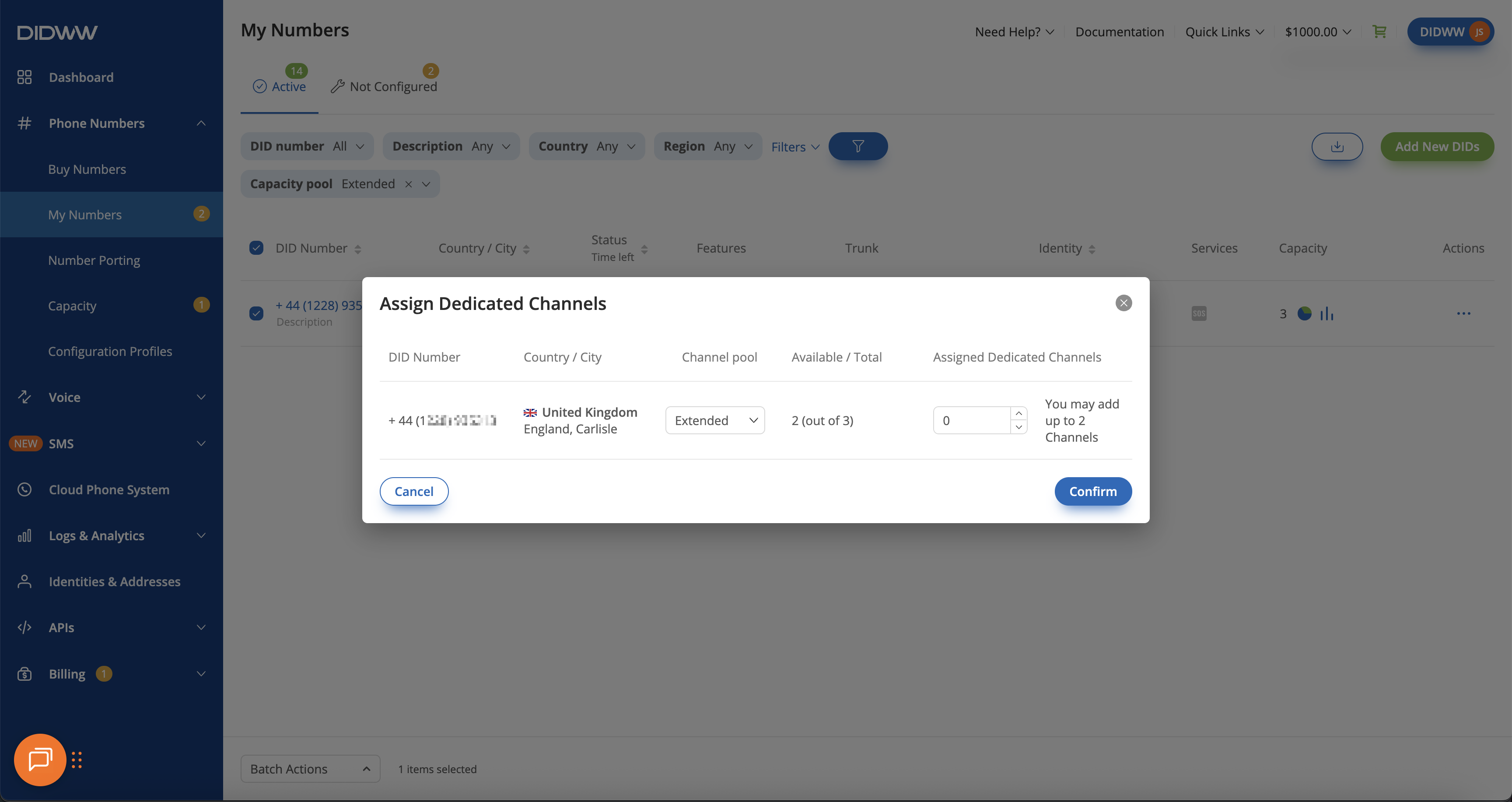
Fig. 4. Unassign dedicated channels#