

Create an SMS trunk group#
Create an SMS trunk group to combine existing SMS trunks and define a prioritized order for routing inbound messages. If the primary trunk is unavailable, DIDWW attempts to deliver the message through the next trunk in the sequence.
For how trunk groups deliver messages, see SMS trunk groups.
Before you begin#
An active DIDWW account is required. Sign in to DIDWW or Create DIDWW account.
To provide failover, at least two existing SMS trunks of a supported type are required: SMS to Email, HTTP IN, SMPP ESME, or SMPP SMSC. For example, see Create an SMS to Email trunk or Create an HTTP IN trunk.
Step 1: Open the creation form#
In the DIDWW User Panel, go to SMS > SMS Trunks.
Click Create New.
Select Trunk group.
Fig. 1. Select Trunk group#
Step 2: Configure and create the trunk group#
On the Create SMS Trunk Group page:
In Friendly name, enter a unique name to identify the group.
In SMS trunks, select the member trunks. To provide failover, select at least two. You can also save the group without member trunks and add them later by editing the group.
Click Create at the bottom of the page. The group then appears in the SMS Trunks list.
Note
The SMS trunks dropdown shows only trunks of a supported type that are not already part of another trunk group.
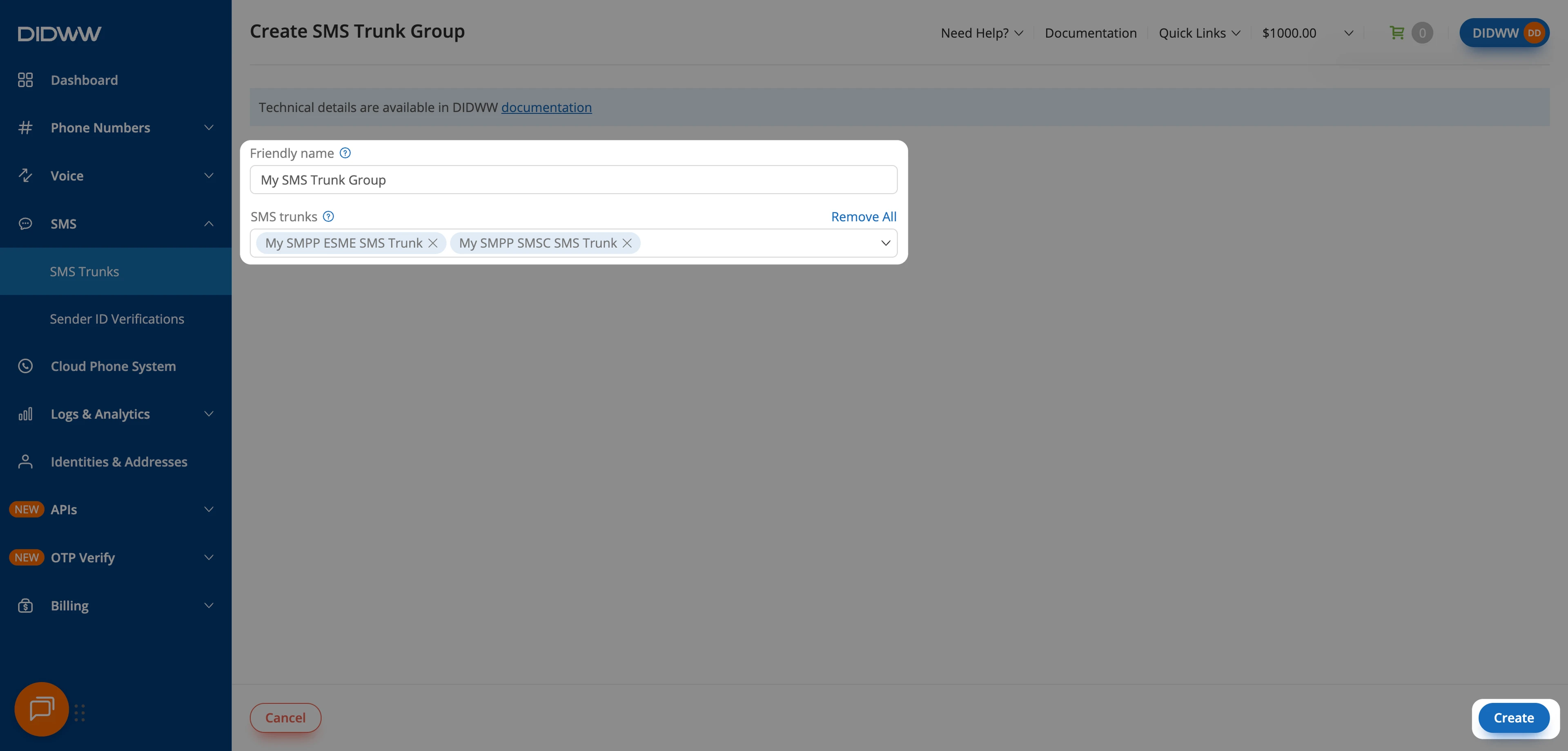
Fig. 2. Configure and create the trunk group#
Next steps#
Set priorities in an SMS trunk group to define the order in which member trunks are attempted.
To receive messages, assign the trunk group to one or more DID numbers that support inbound SMS.