

Remove a number#
Remove a DID number from the Actions column on the My Numbers page. You can also remove multiple DID numbers at once with Batch Actions.
Remove a single number#
Go to Phone Numbers > My Numbers.
Locate the DID number you want to cancel.
In the Actions column, click the
 button and select Cancel service.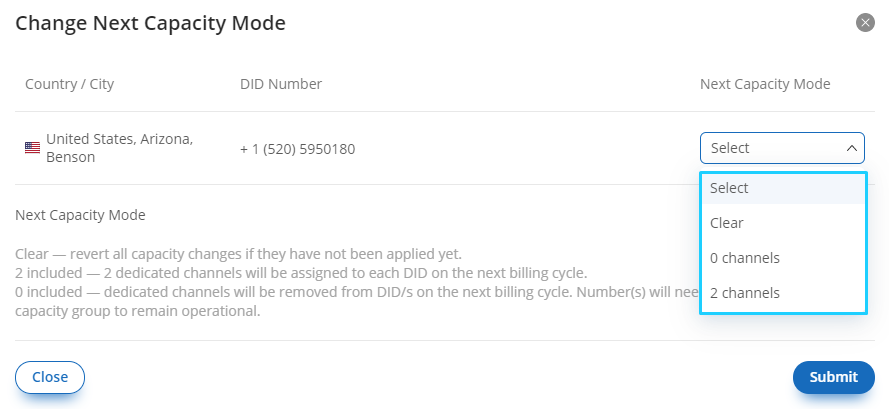
Fig. 1. Cancel service action.#
In the confirmation dialog, optionally provide a cancellation reason.
Click Confirm.
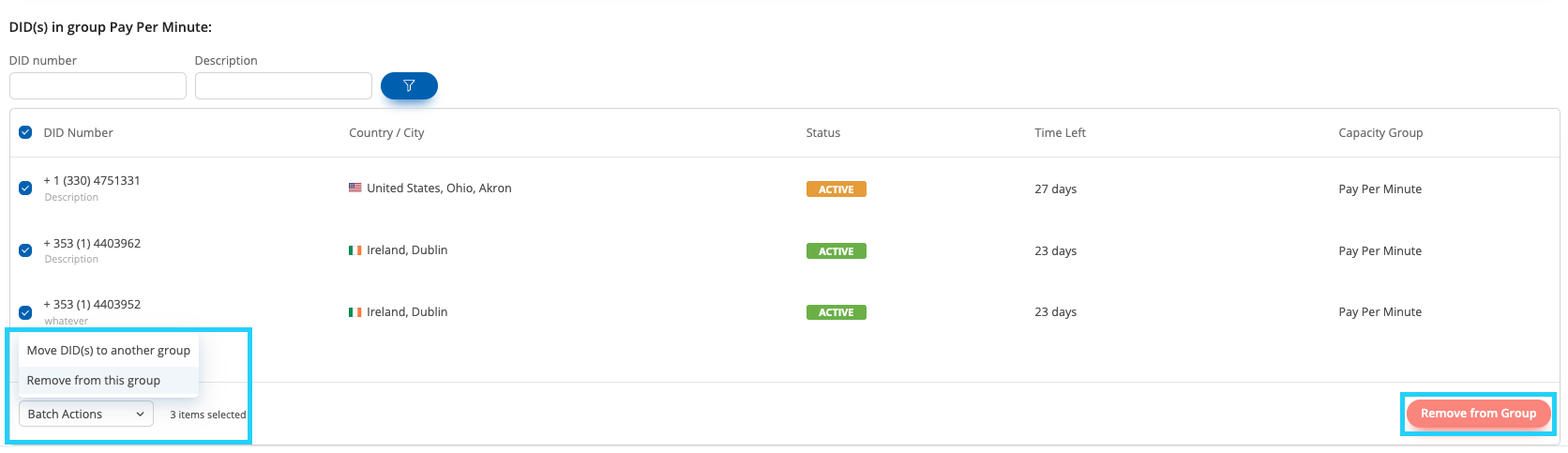
Fig. 2. Confirmation screen for removing a single DID number.#
Remove multiple numbers#
Go to Phone Numbers > My Numbers.
Select the DID numbers you want to cancel.
At the bottom of the page, open Batch Actions.
Select Remove DIDs.
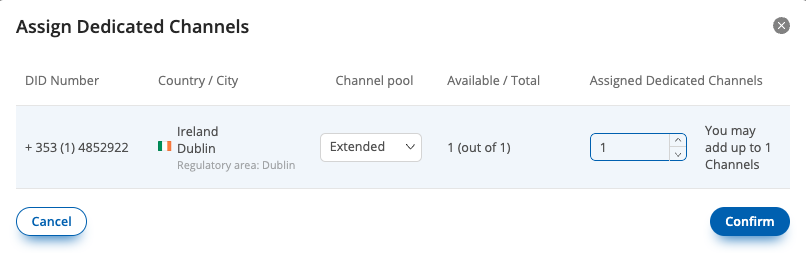
Fig. 3. Remove DIDs batch action.#
In the confirmation dialog, review the selected DID numbers and optionally provide a cancellation reason.
Click Confirm.
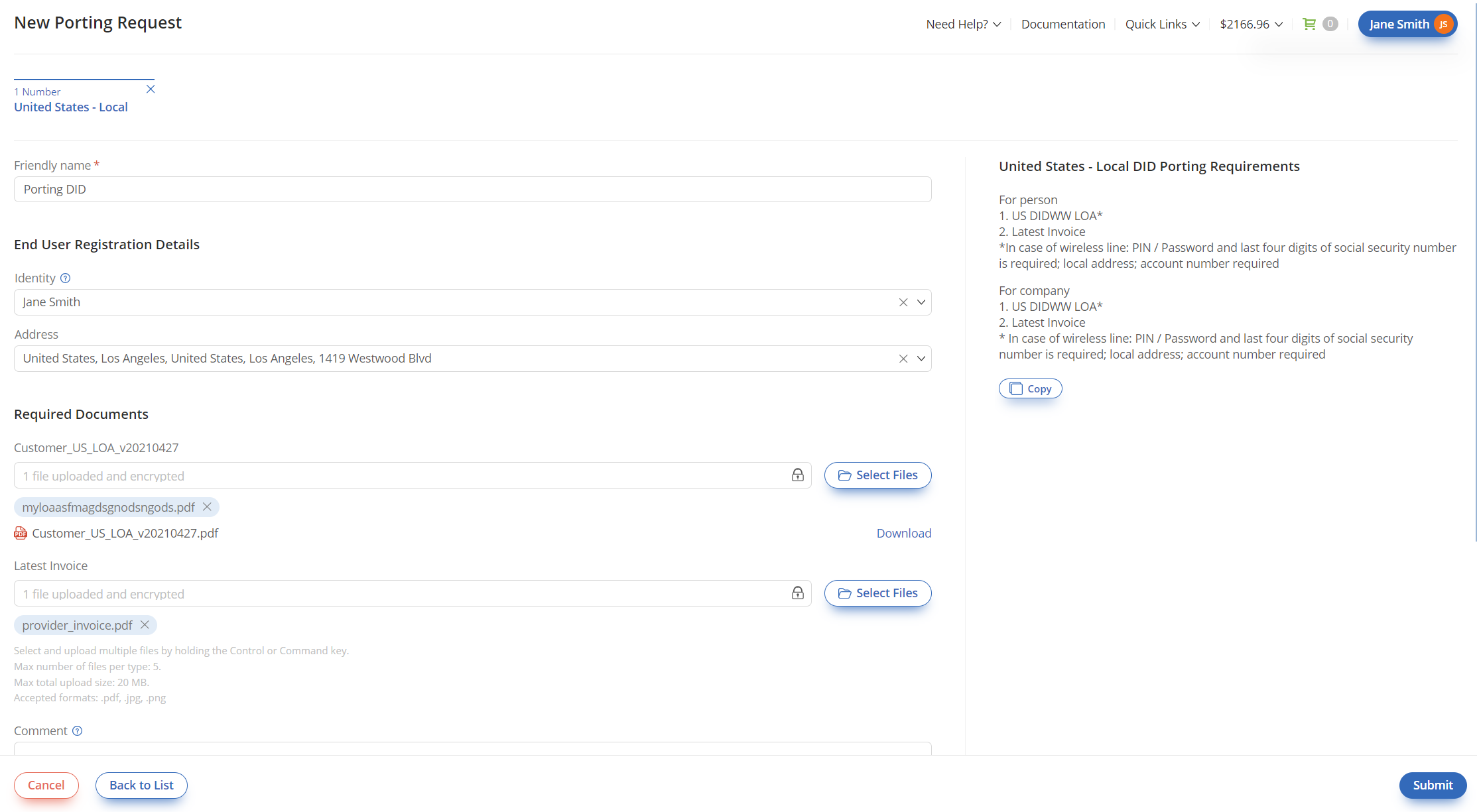
Fig. 4. Confirmation screen for removing multiple DID numbers.#