

Manage CNAM OUT#
Manage CNAM OUT for DID numbers that support the CNAM OUT feature. CNAM OUT assigns a caller name to the DID number, which may be displayed to the receiving party when the destination operator performs a CNAM lookup.
Enable CNAM OUT#
CNAM OUT can be enabled from the Phone Numbers > My Numbers page for DID numbers that support the CNAM OUT feature.
Note
This CNAM activation process is only available for DIDWW US DID numbers.
When a CNAM OUT configuration request is submitted, the global CNAM database is updated with the specified CNAM OUT value.
The display of CNAM OUT depends on the destination operator. If the destination operator performs a CNAM lookup and retrieves the value from the CNAM database, it will be displayed for the destination number.
Step 1: Select CNAM OUT-supported numbers#
Go to Phone Numbers > My Numbers.
Filter the DID numbers that support the CNAM OUT feature.
Select the DID numbers for which CNAM OUT should be configured.
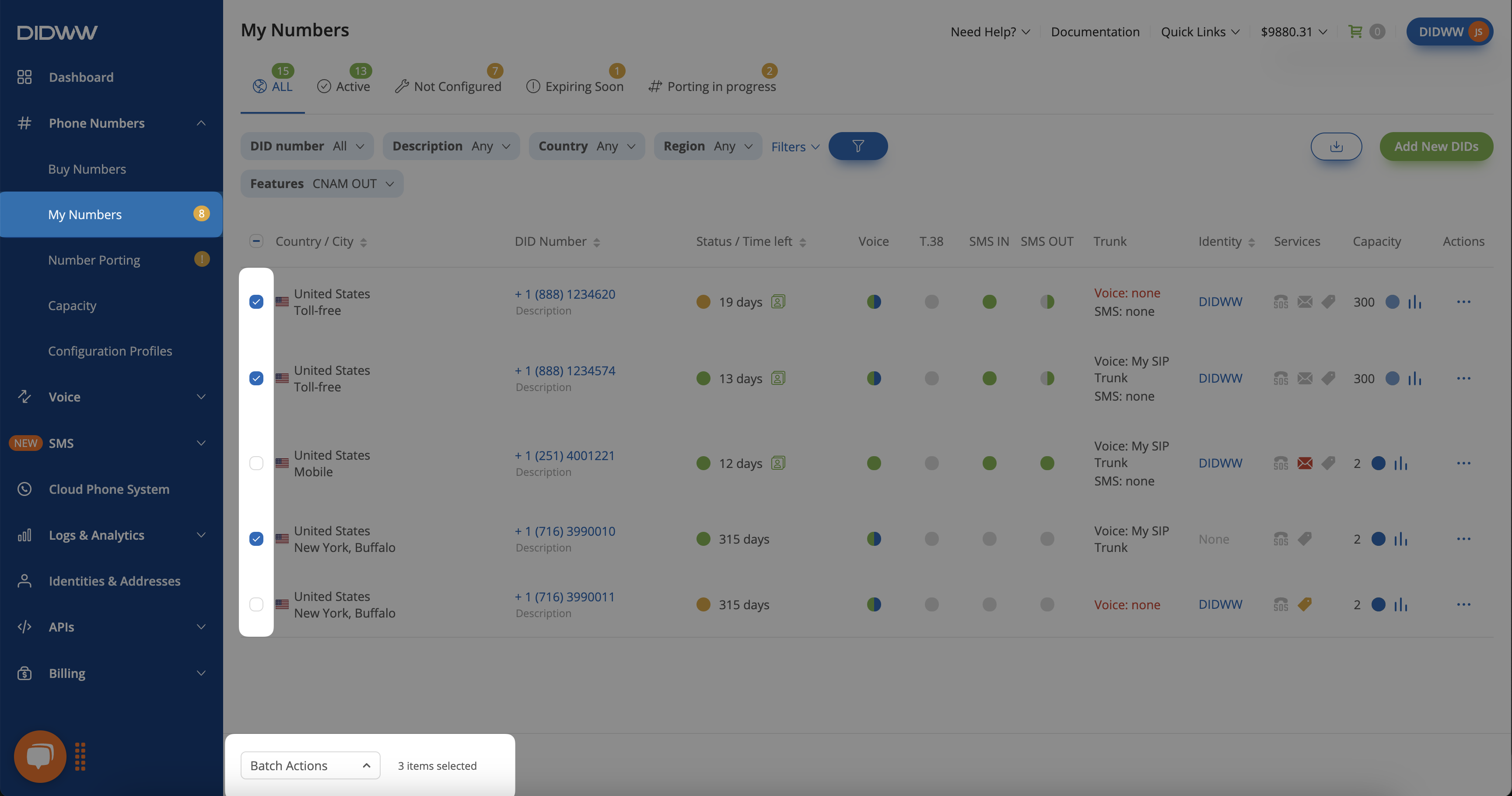
Fig. 1. Selecting CNAM OUT supported DID numbers.#
Step 2: Open the Configure CNAM OUT action#
Open Batch Actions and select Configure CNAM OUT.
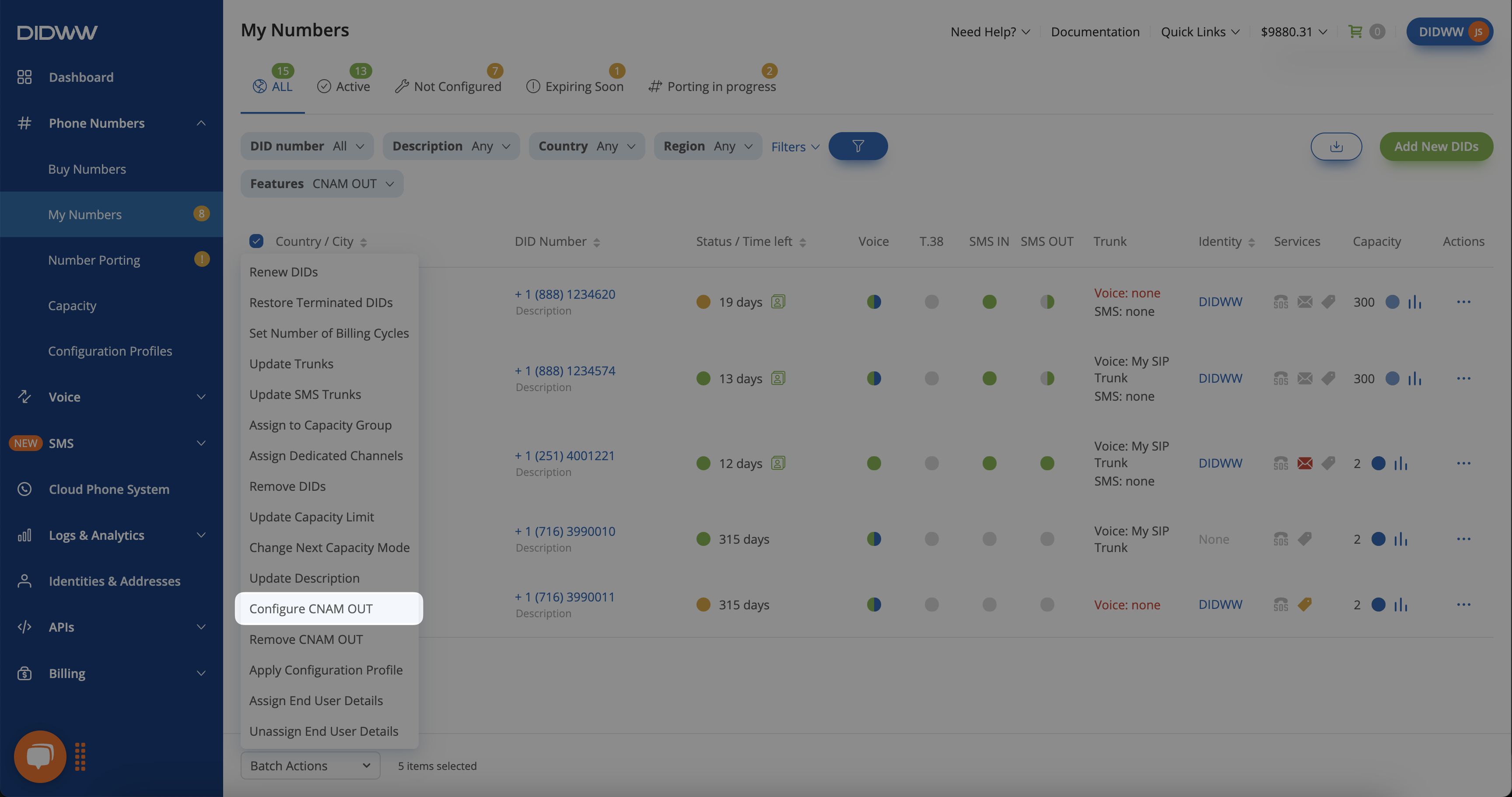
Fig. 2. Configure CNAM OUT batch action.#
Step 3: Submit the CNAM OUT request#
Provide the following information:
CNAM OUT — Enter the desired CNAM, up to 15 characters.
Identity — Select an existing identity or create a new one.
Click Confirm.
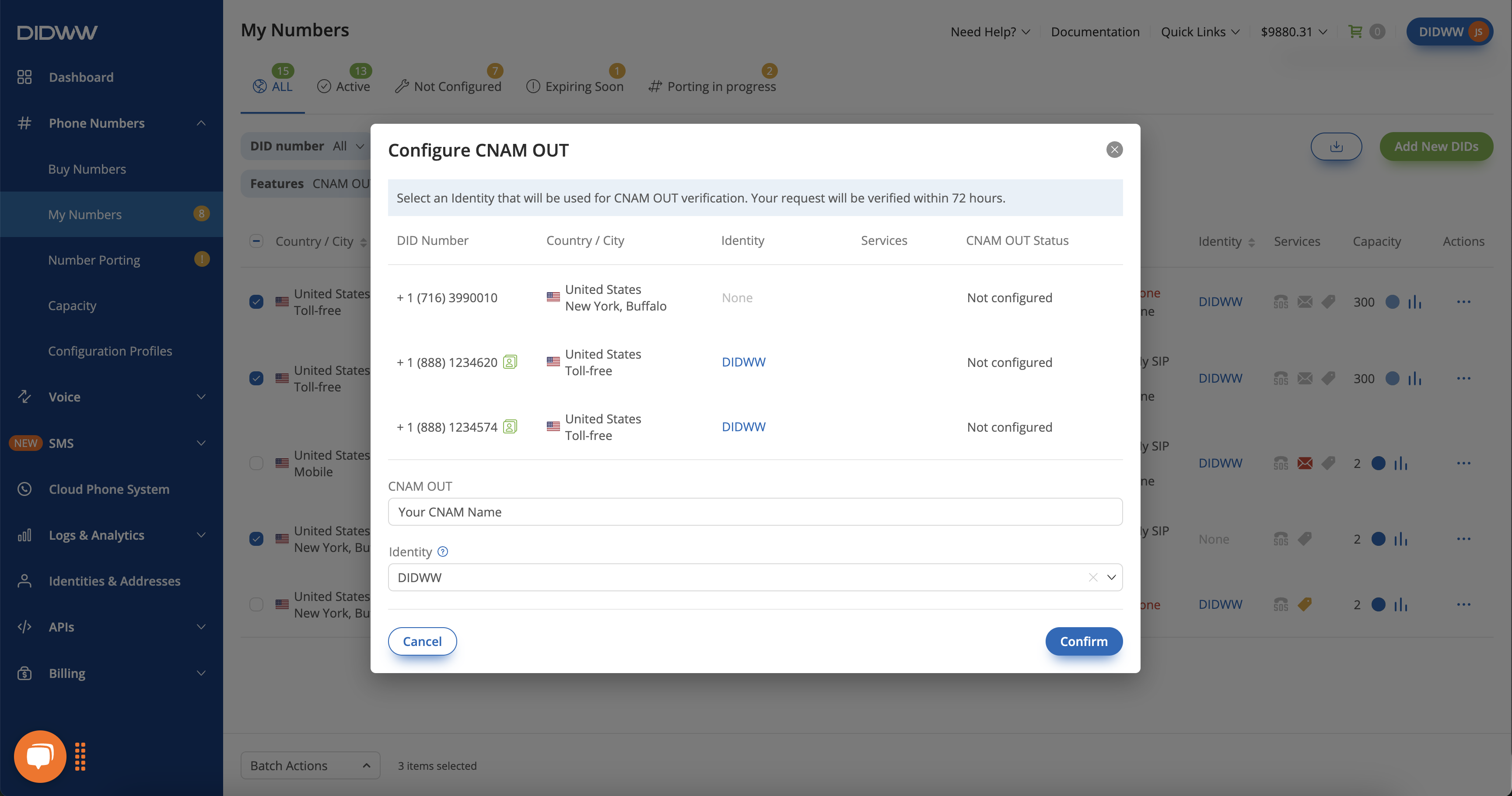
Fig. 3. Configure CNAM OUT details.#
Note
After the CNAM OUT request is submitted, it will be verified within 48-72 hours.
An email with the subject DIDWW: CNAM Request Submitted is sent when the request is submitted. After CNAM OUT is activated, another email with the subject DIDWW: CNAM Activated is sent.
Step 4: Review the CNAM OUT status#
Review the CNAM value and task status in the Manage DID section.
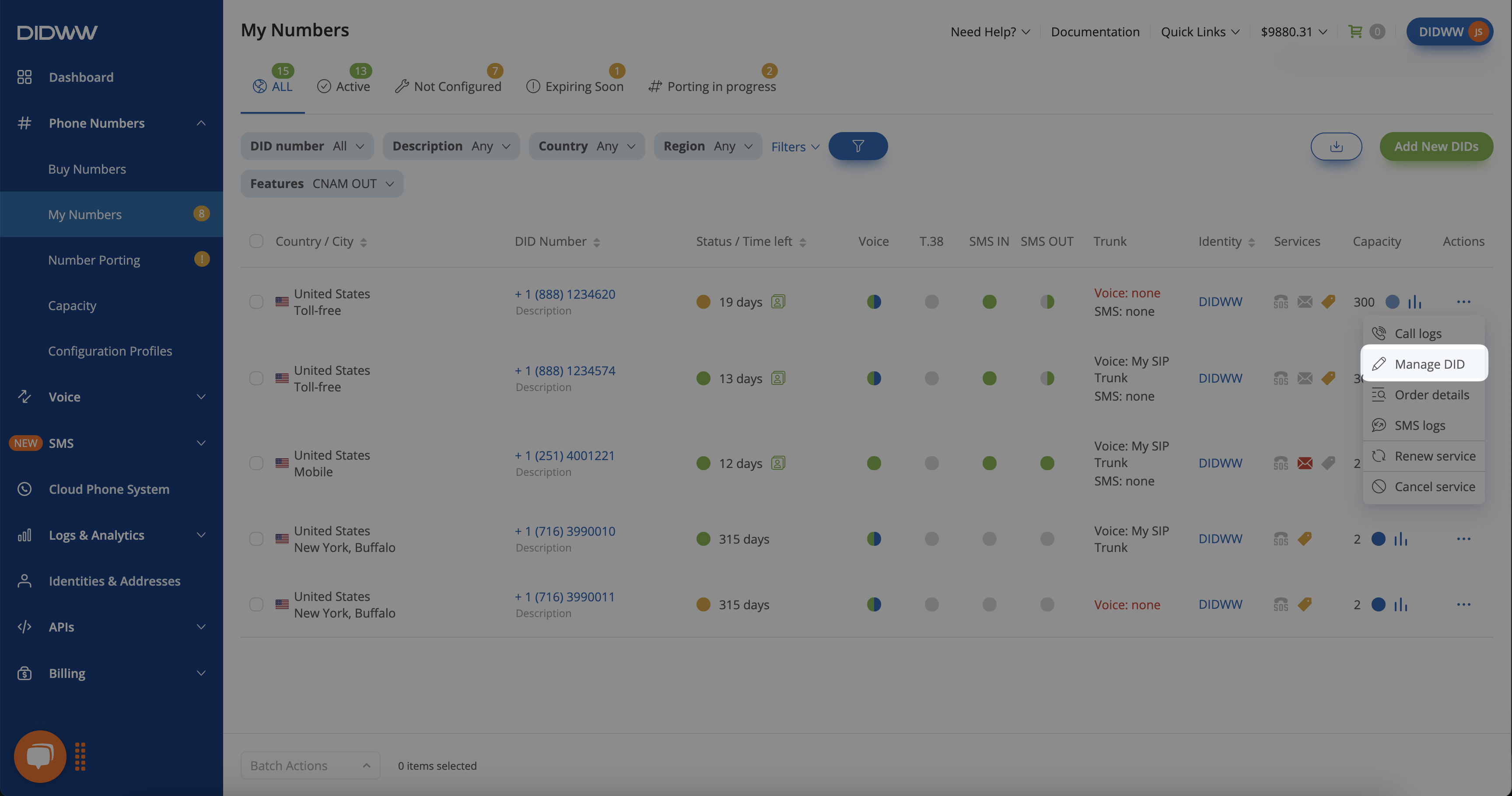
Fig. 4. Manage DID action.#
Open the DID number details page to view the CNAM OUT status and the CNAM assigned to the selected DID number.
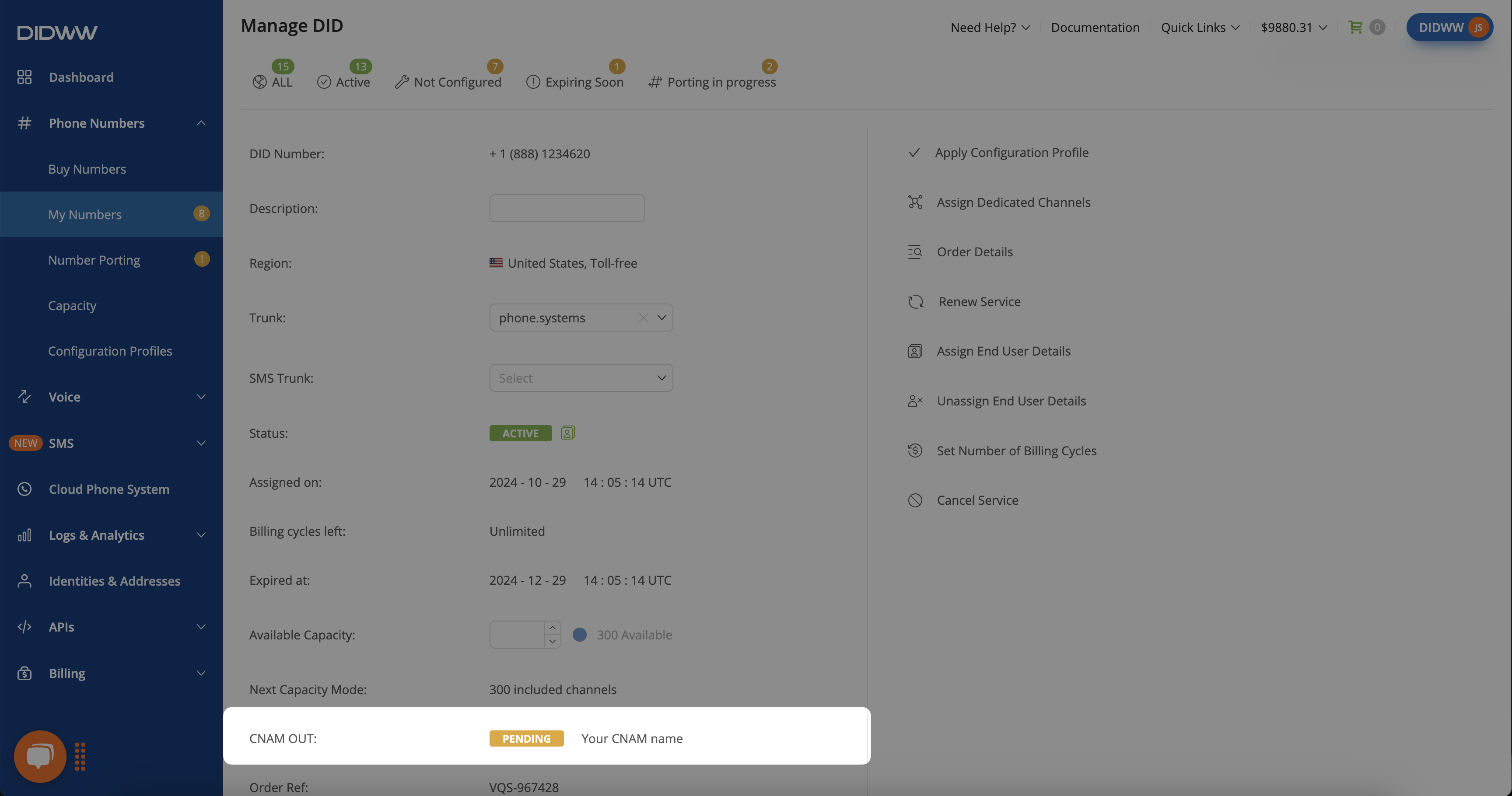
Fig. 5. CNAM OUT value and status.#
Note
CNAM cannot be modified or removed while the task is pending or if the DID number does not support CNAM OUT.
Remove CNAM OUT#
CNAM OUT can be removed for selected DID numbers that have an active CNAM service, indicated by the green CNAM service icon
 in the Services column.
Step 1: Select numbers with active CNAM OUT#
Go to Phone Numbers > My Numbers.
Select the DID numbers where CNAM OUT is active and should be removed.
Step 2: Open the Remove CNAM OUT action#
Open Batch Actions and select Remove CNAM OUT.
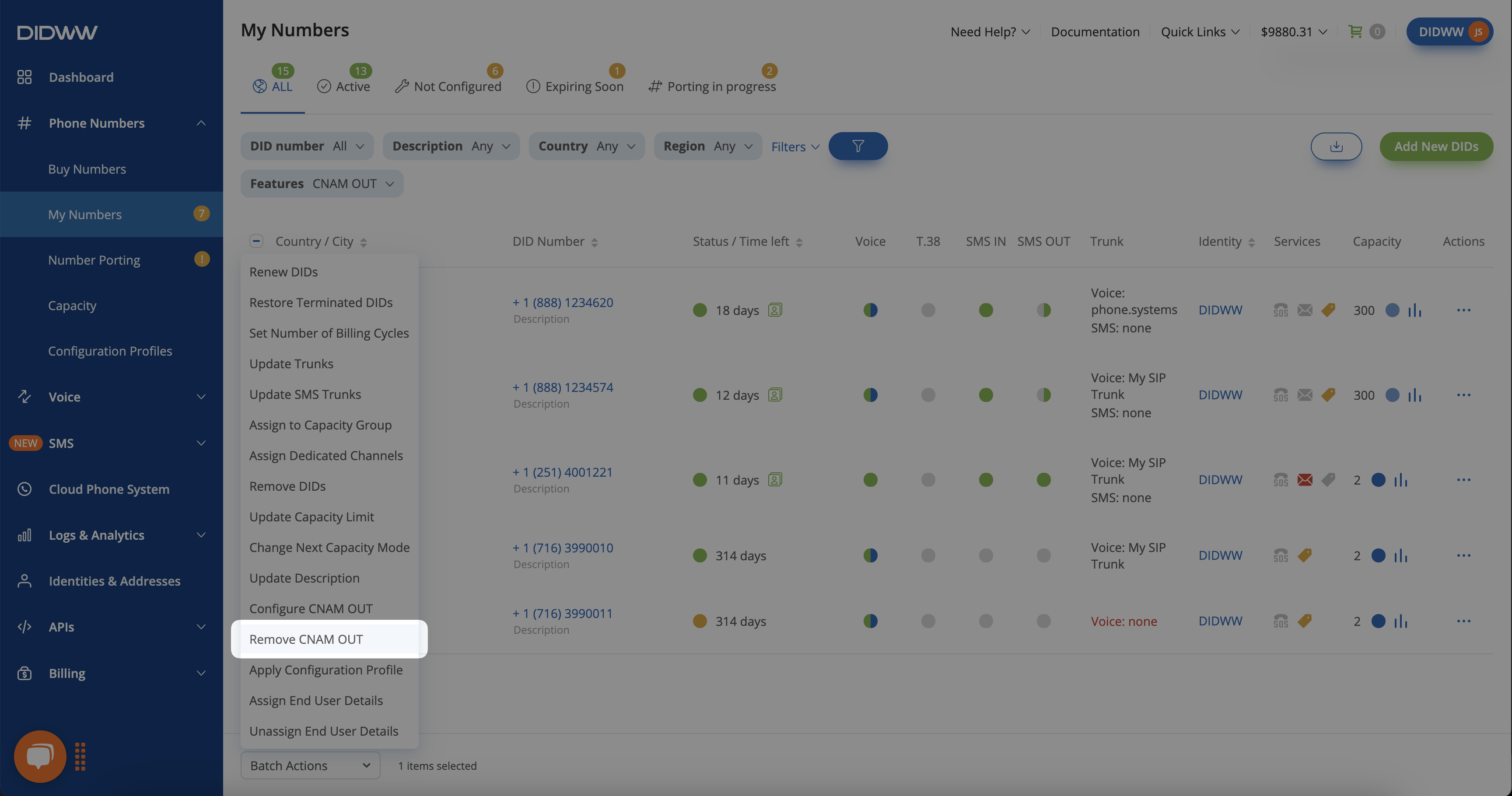
Fig. 6. Remove CNAM OUT batch action.#
Step 3: Confirm the removal#
Review the list of DID numbers for which CNAM OUT will be removed.
Click Confirm.
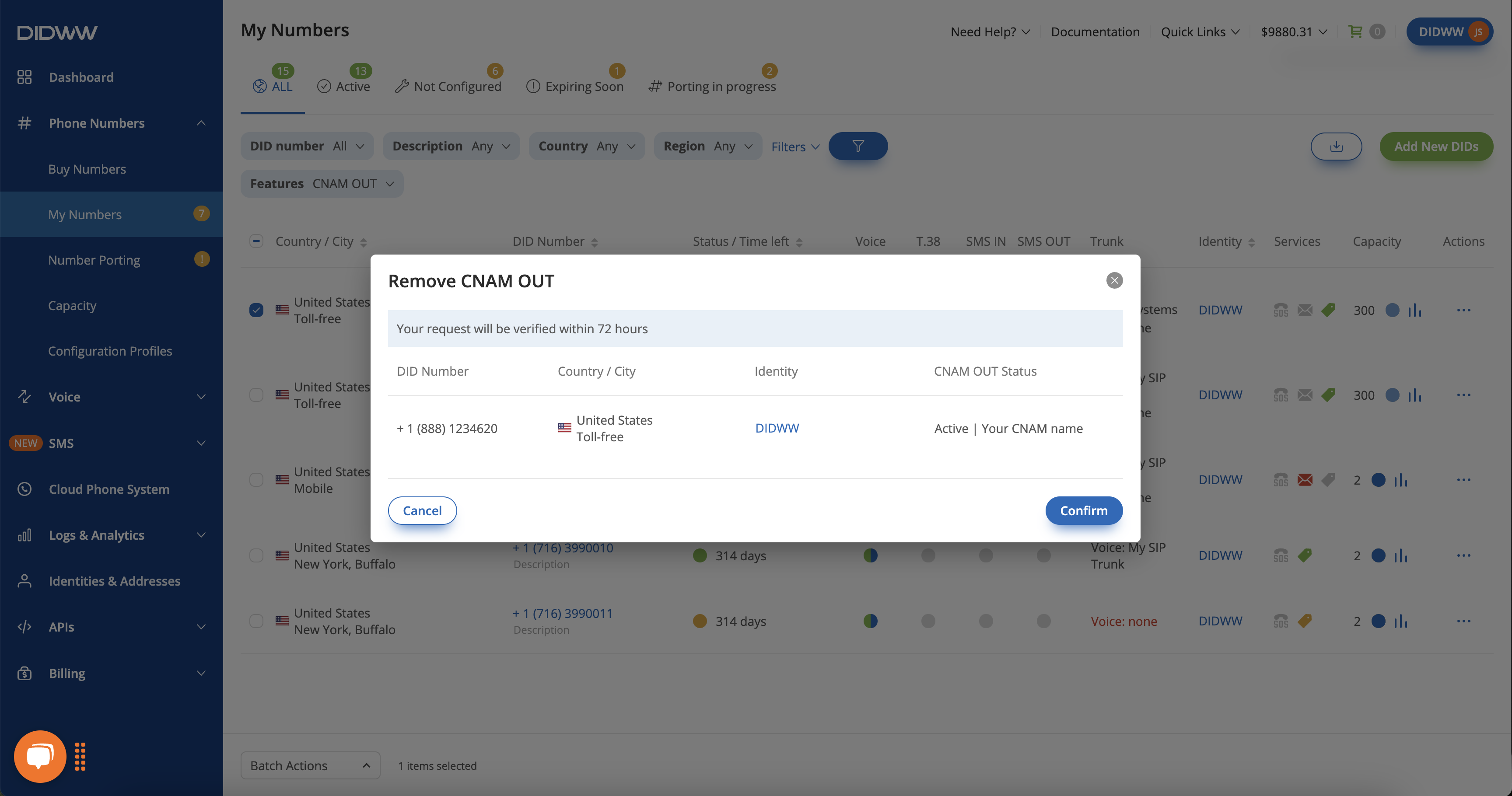
Fig. 7. Confirming CNAM OUT removal.#
Step 4: Review the removal status#
Open the DID number details page to check the status of the CNAM OUT removal task.
The status shows Cancellation Pending until the request is verified.
Note
After the Remove CNAM OUT request is submitted, it will be verified within 48-72 hours.
When a CNAM removal request is submitted, an email with the subject DIDWW: CNAM Cancelation Request is sent. After the CNAM removal is completed, another email with the subject CNAM Canceled is sent.
CNAM cannot be modified or reapplied while the removal task is pending.