

Send an SMS using verified Sender ID#
Use the DIDWW User Panel to send a single SMS message using a verified Sender ID.
Before you begin#
The Sender ID Verification must have the Active status.
An HTTP OUT SMS trunk must be associated with the verification. To associate or change the trunk, see Edit a Sender ID Verification.
Step 1: Open the Send SMS form#
In the DIDWW User Panel, go to SMS > Sender ID Verifications.
Open the Verifications tab.
Find the verification with the Active status and click the actions button.
Select Send SMS.
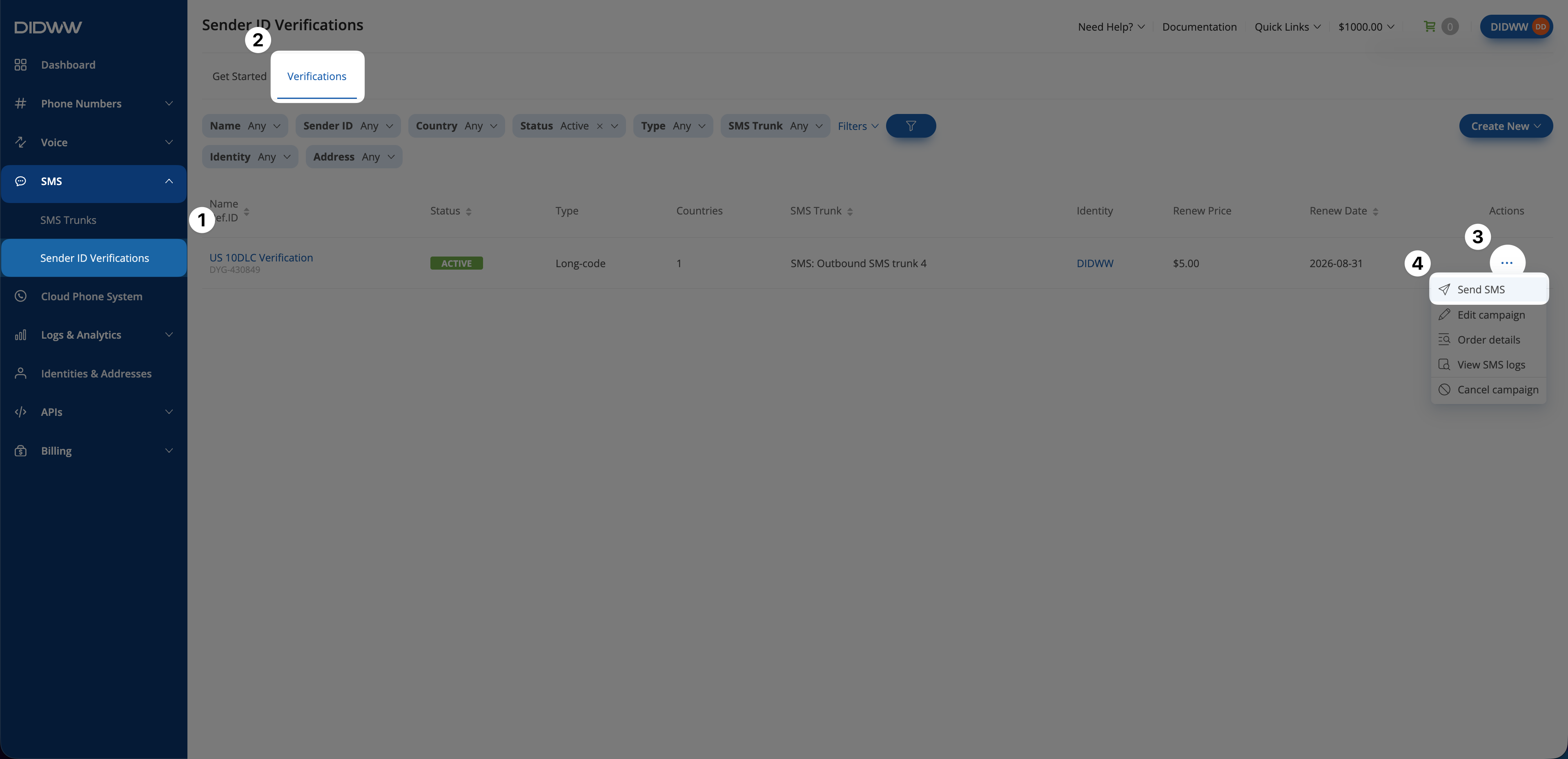
Fig. 1. Open the Send SMS action.#
Step 2: Compose and send the message#
Select the Source Address.
Enter the destination number in international format, including the country code.
Enter the message in the Text field.
Click Send.
Note
For Alphanumeric, Long-code, and Toll-Free verifications, only Sender IDs assigned to the verification are available under Source Address.
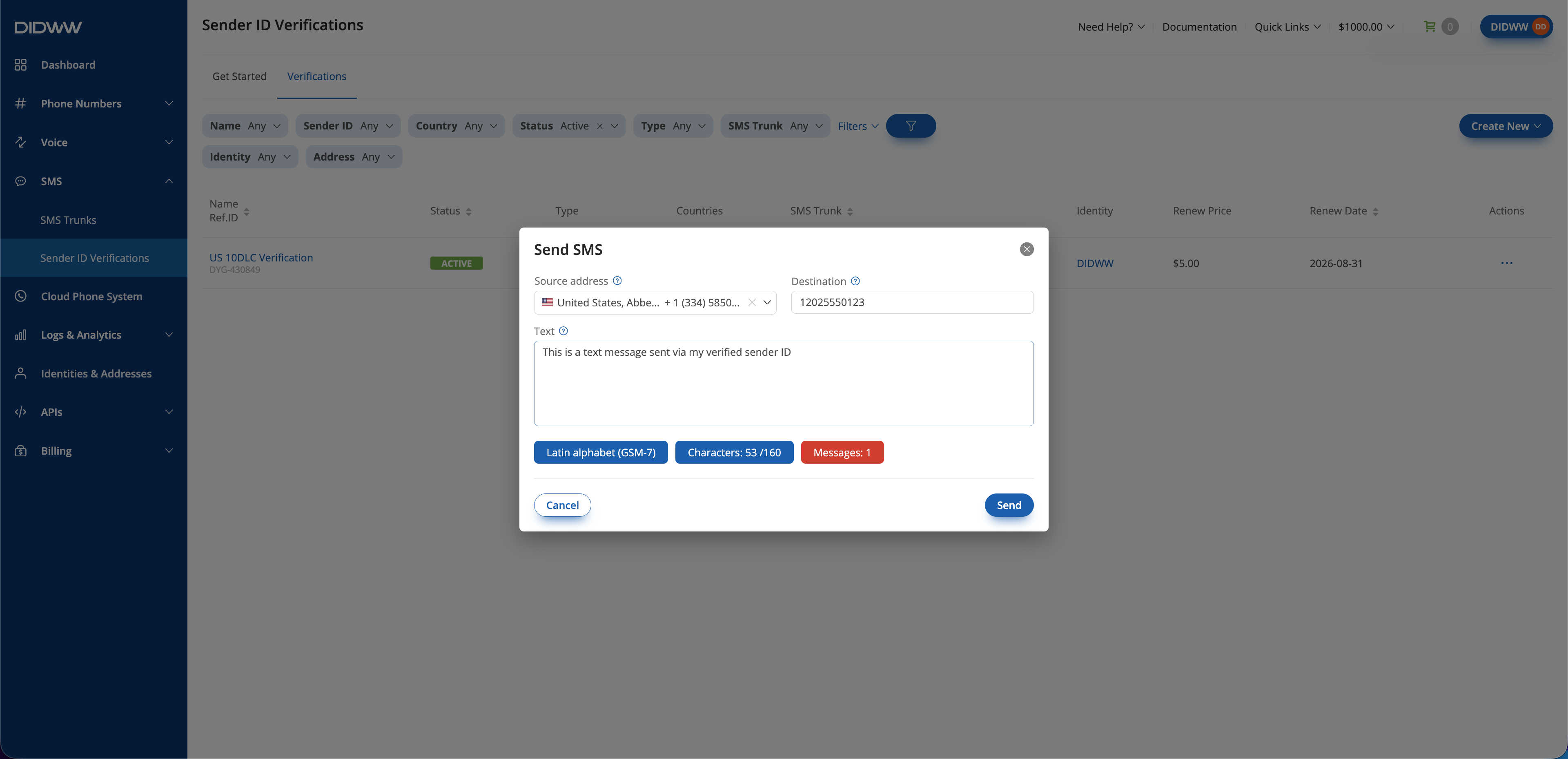
Fig. 2. Compose and send the SMS message.#
Enter the destination number in international format, including the country code.
Enter the message in the Text field.
Click Send.
Note
The Carrier form does not contain Source Address. The destination carrier determines the Sender ID that recipients see.
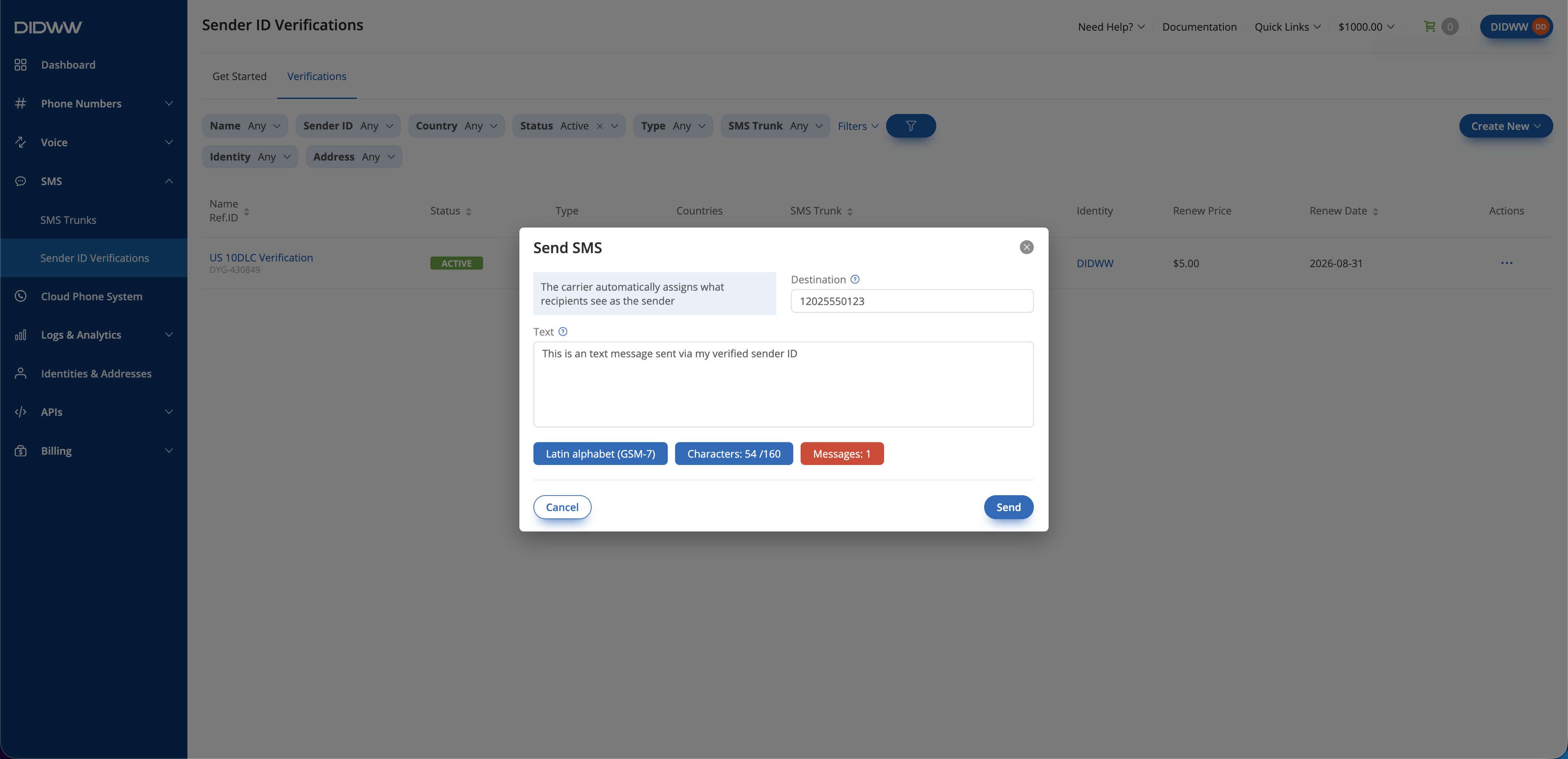
Fig. 3. Compose and send the SMS message for a Carrier verification.#
The message is submitted through the associated HTTP OUT SMS trunk. To review its status, see Outbound SMS logs.
To send messages through the API, see Outbound SMS examples.