

Resubmit a Sender ID Verification#
Use this guide to correct and resubmit a Sender ID Verification with the Changes Required status.
Warning
Resubmit the verification within 10 days after its status changes to Changes Required. If you do not resubmit it within this period, the verification is automatically terminated.
Step 1: Find verifications that require changes#
In the DIDWW User Panel, go to SMS > Sender ID Verifications.
Open the Verifications tab.
In the Status filter, select Changes required.
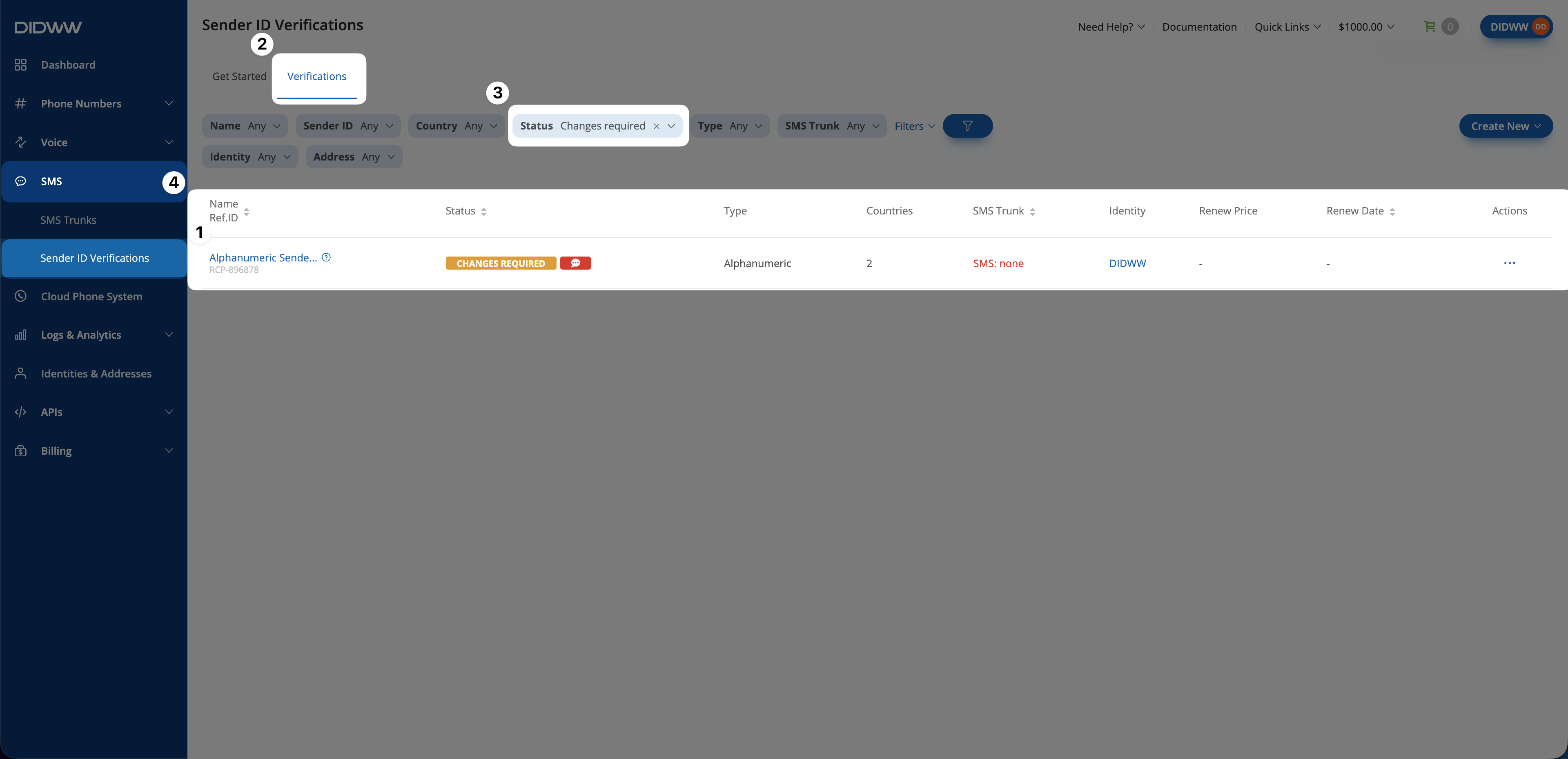
Fig. 1. Filter verifications by Changes required status.#
Step 2: Open the verification for resubmission#
Find the verification and click the actions button.
Select Resubmit.
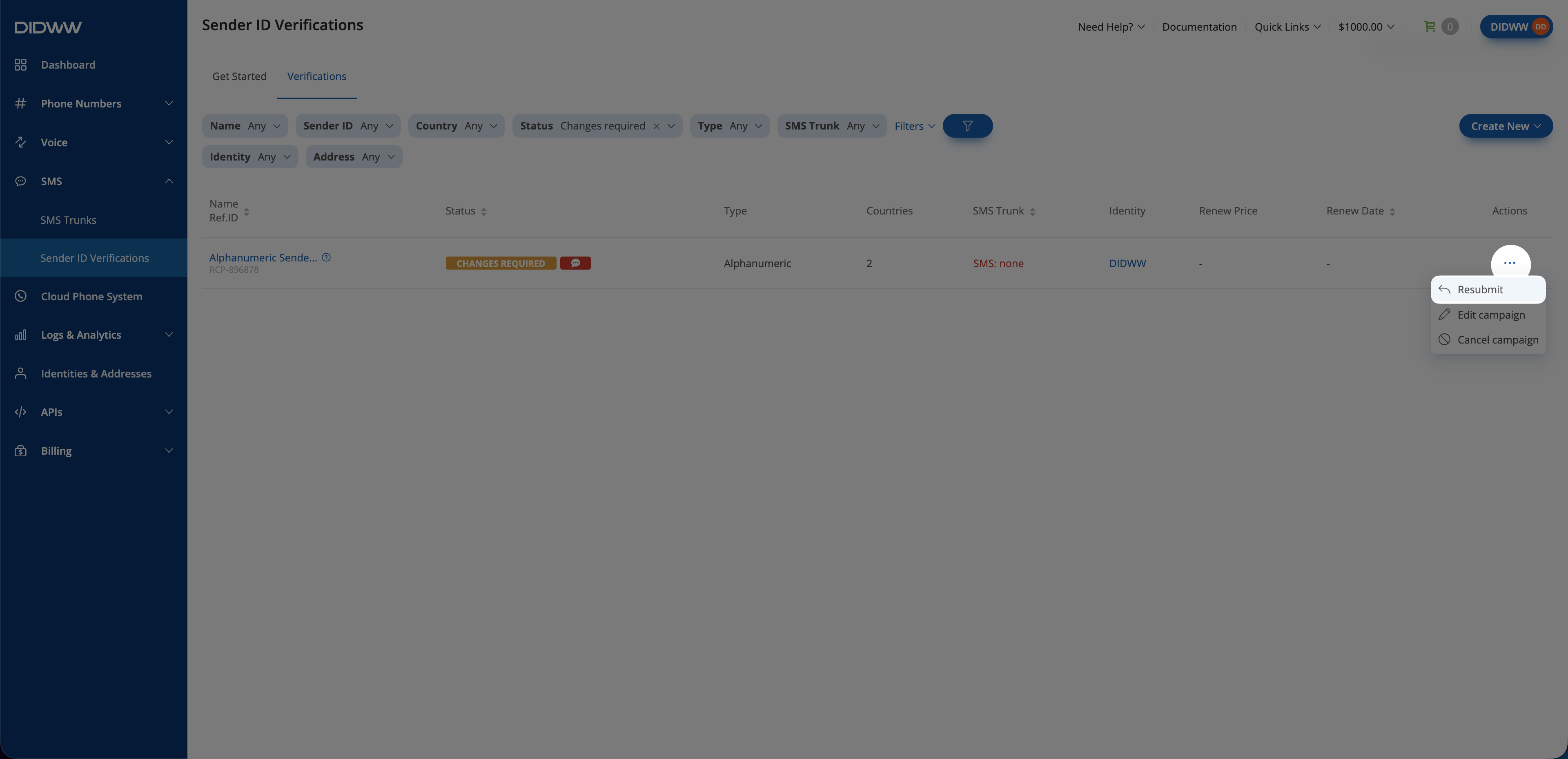
Fig. 2. Open the Resubmit action.#
Step 3: Make the required changes#
Review the reasons and comments under Required Changes.
Review the pre-filled information from the previous submission.
Update each field identified in the review comments.
Provide any additional requested information.
Upload attachments requested by the current form, when required.
The same fields and validation rules used during creation apply during resubmission. The former campaign PDF upload is not part of this flow.
For field descriptions, see Sender ID Verification reference. For message and consent requirements, see A2P SMS compliance requirements.
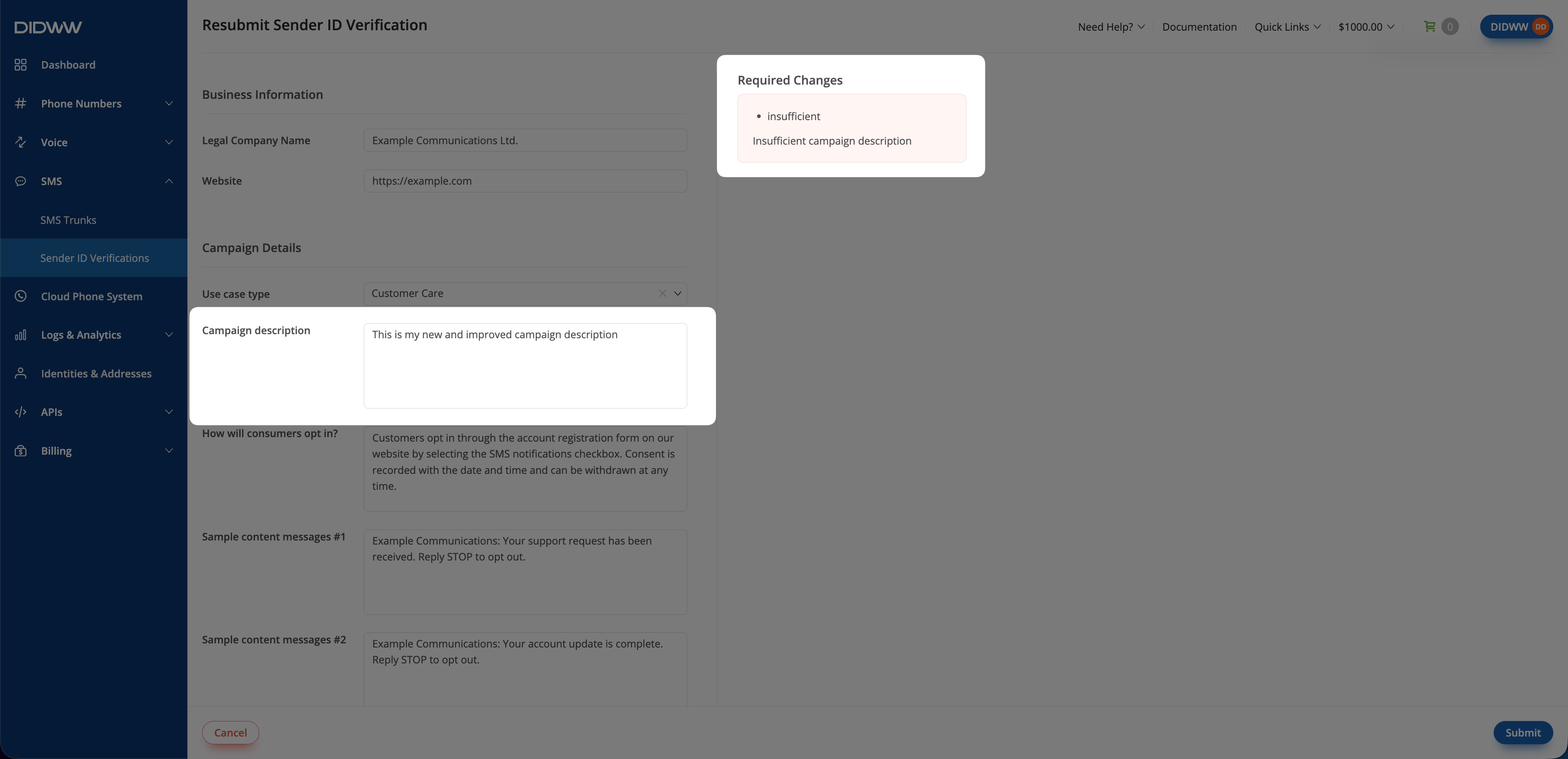
Fig. 3. Review and address the required changes.#
Step 4: Resubmit the verification#
Review the corrected information and click Submit.
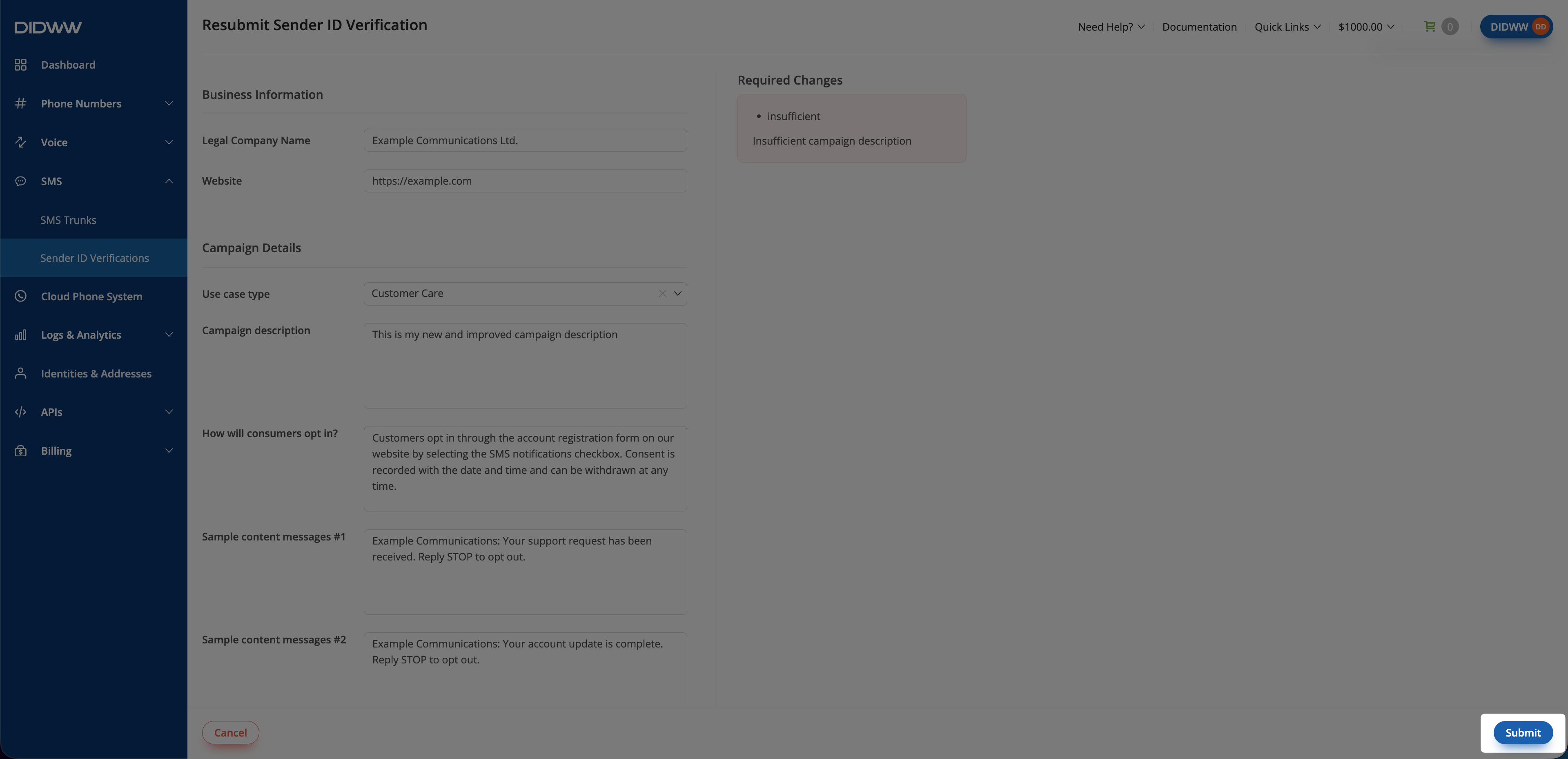
Fig. 4. Submit the corrected verification.#
After successful resubmission, the status changes to In Process and the review restarts. The review time may vary if additional information is required.