

Number selection tool#
Use the Number Selection Tool to search and reserve individual phone numbers before purchase. The tool supports both regular and Gold numbers for supported DID groups.
You can search by digits or letters. Letter searches use standard phone keypad mappings for vanity-style number combinations, while Gold numbers contain memorable digit patterns such as repeated or sequential numbers.
Before you begin#
Access to the Number Selection Tool is not enabled by default. Customers requiring this feature should contact their sales representative at sales@didww.com or their account manager. Number Selection Tool access is subject to review and may be enabled on a case-by-case basis.
Availability of Gold and vanity numbers varies by country and city.
Step 1: Select a country#
Go to the Phone Numbers > Buy Numbers menu.
In the Country dropdown, choose the country where you want to purchase phone numbers.
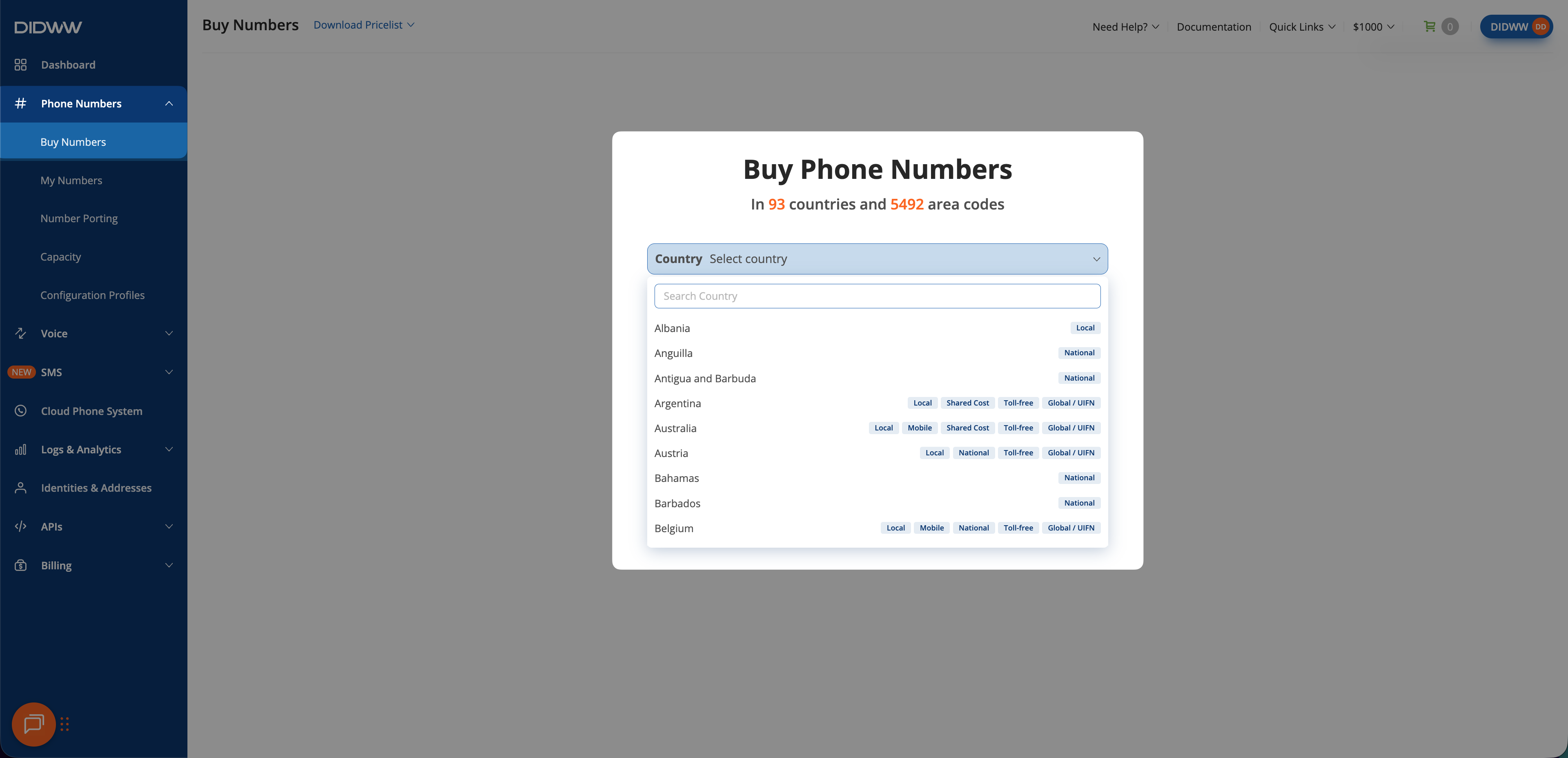
Fig. 9. Selecting a country.#
Step 2: Open the number selection tool#
Use the available filters to find the DID group you want to purchase numbers from.
In the numbers table, locate the Select numbers column and click the # button to launch the Number Selection Tool.
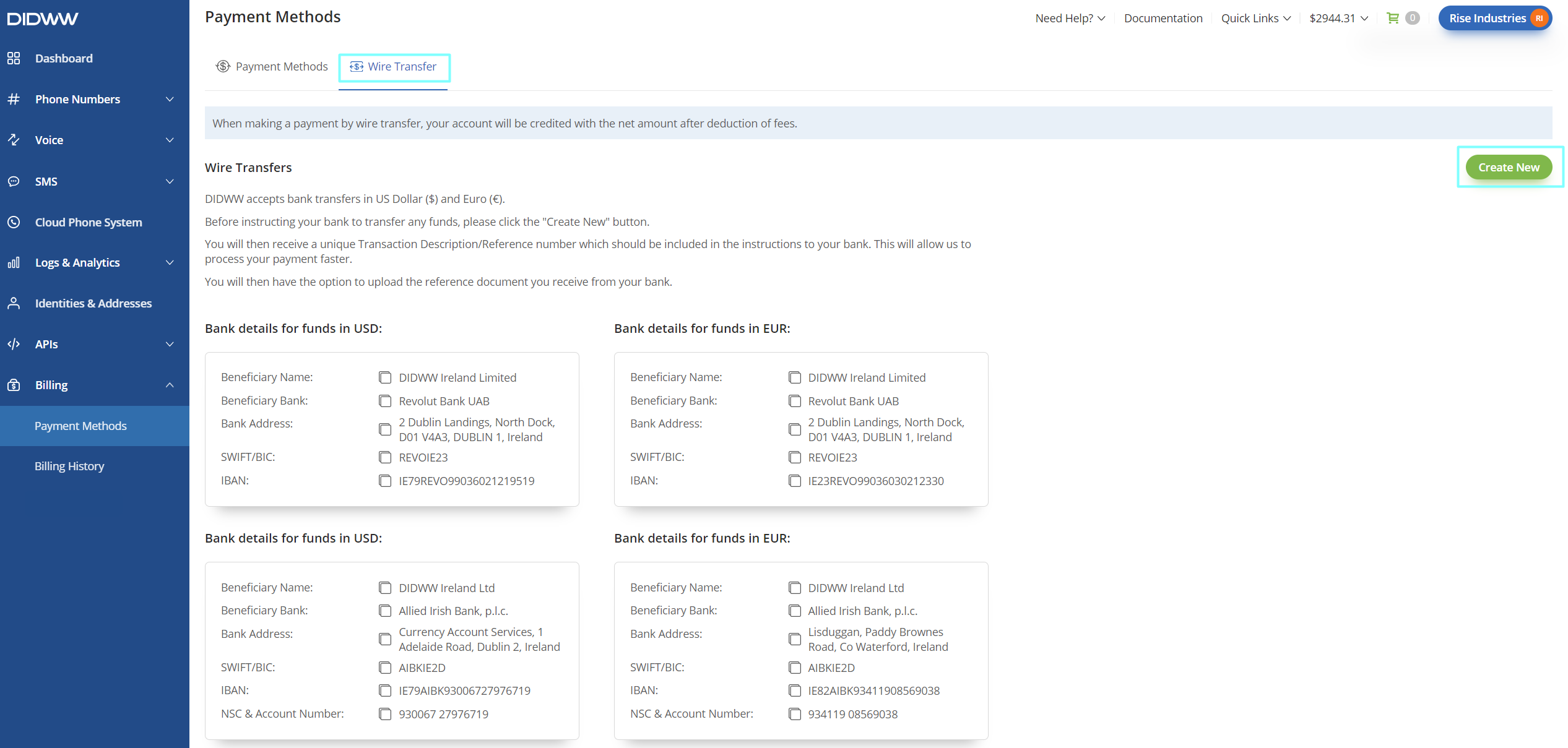
Fig. 10. Opening the Number Selection Tool.#
Step 3: Search for numbers#
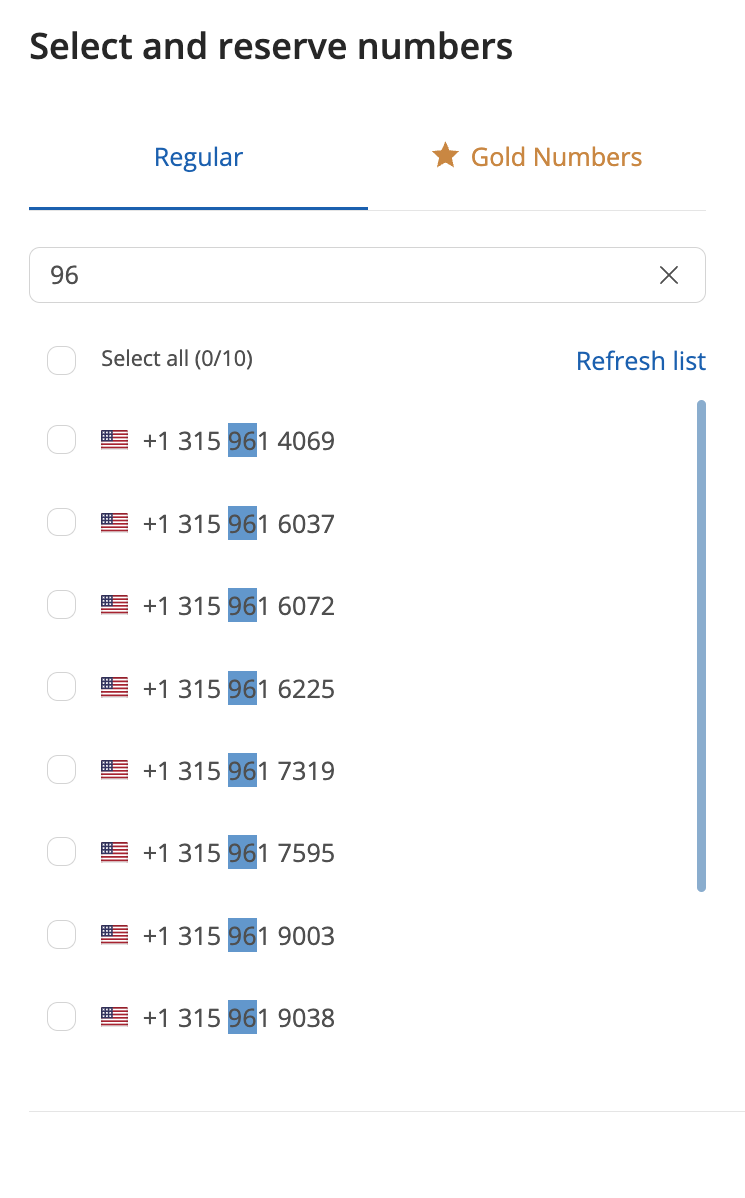
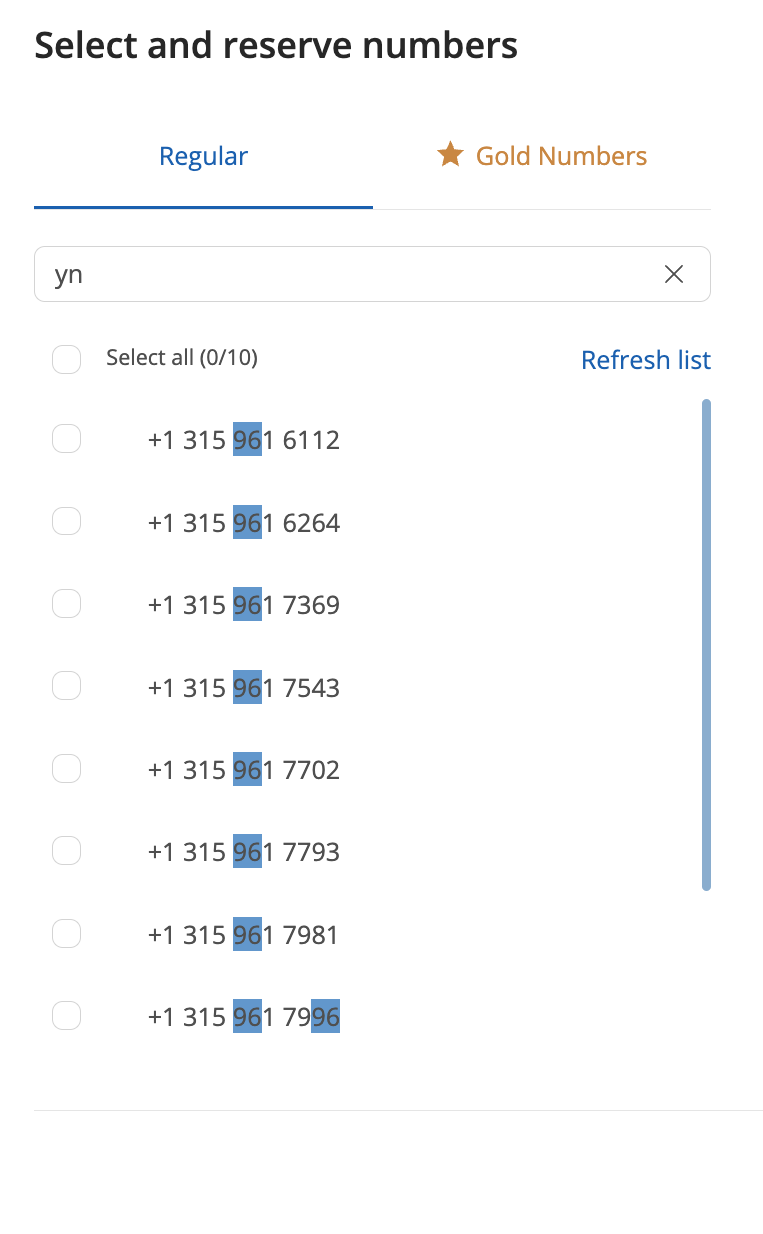
In the Select and reserve numbers window, you can search for Regular or Gold Numbers by selecting the appropriate tab and entering your search.
To find a specific number, use the Number contains (123 or abc) search field. Enter digits (e.g., “96” to find numbers that contain those digits) or letters (e.g., “yn” to locate vanity numbers based on keypad mappings).
Step 4: Reserve numbers#
Check the boxes next to the numbers you want in the Available list on the left.
Click the right arrow > to move them to the Reserved list.
Fig. 13. Selecting numbers and managing reservations.#
Reservations expire after a set time due to live inventory. To retain your selected numbers, select them in the Reserved list and click Refresh reservation.
Note
You can reserve up to 10 numbers at a time.
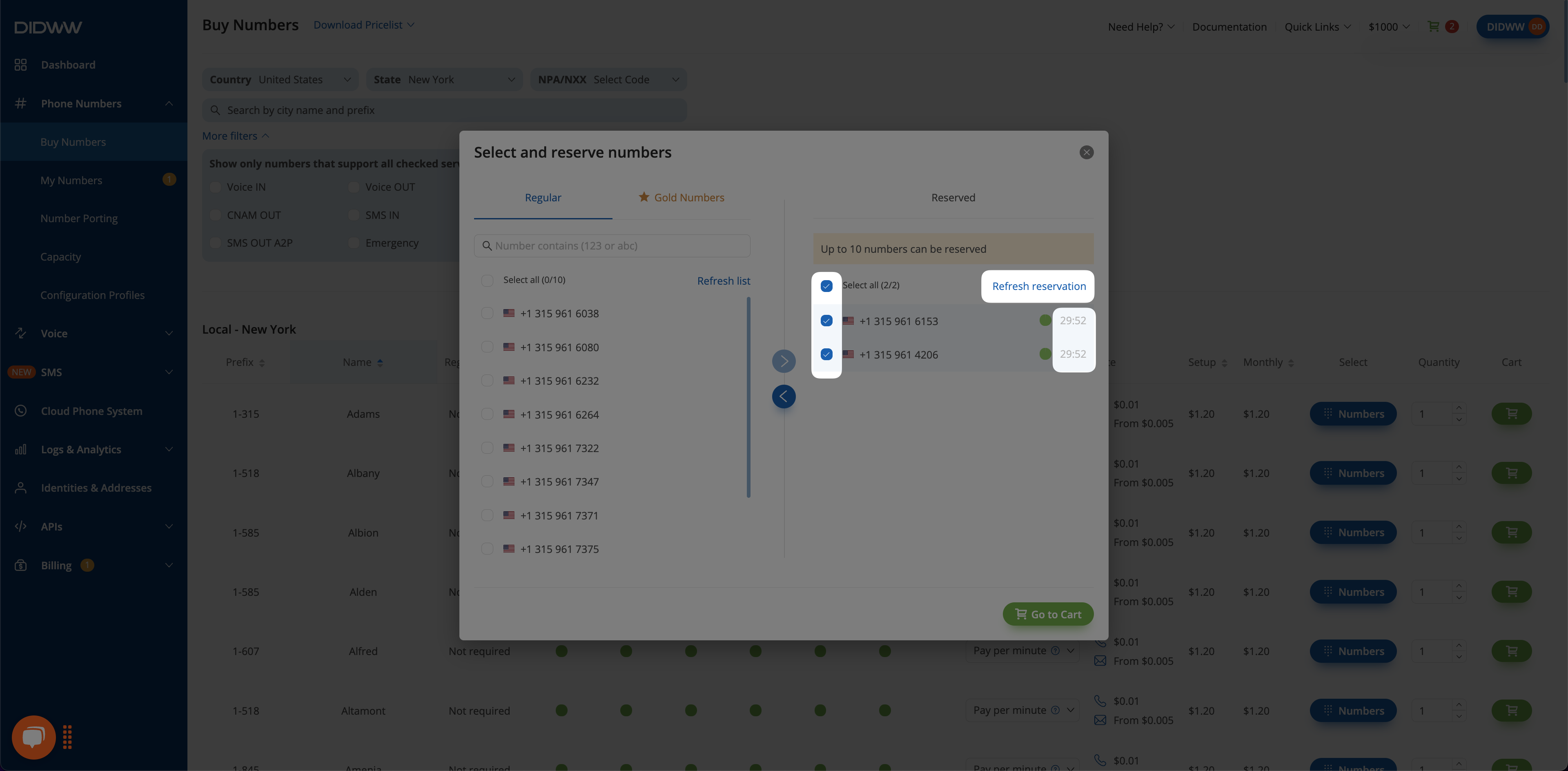
Fig. 14. Refreshing the reservation timer.#
Step 5: Review your cart and proceed to checkout#
After selecting your numbers, click Go to Cart. The selected numbers appear in the shopping cart, where you can review them and complete checkout.
Fig. 15. Proceeding to checkout.#
Next steps#
How to buy numbers — Complete the DID number purchase process.
End-user verification — Learn when registration is required and how End-user verification affects activation.