

Set up and manage a webhook#
Add the URL of your server to start receiving call events. After the webhook is added, copy its secret to verify requests, and check the delivery status on the Webhooks page.
For how call webhooks work, see Call Webhooks.
Before you begin#
Your server must accept HTTPS
POSTrequests with a JSON body at a public URL and respond quickly with a2xxstatus code. See Verify webhook requests.For file events, cloud storage must be set up. Recordings that are sent only to a CRM do not produce file events.
For transcript, summary, and AI processing failure events, AI Call Insights must be enabled.
For scoring events, AI Call Insights must be enabled and at least one AI Call Scoring scorecard must be active.
Add a webhook#
In phone.systems™, go to Settings > Webhooks.
In URL, enter the HTTPS URL of your server, for example
https://example.com/webhook.Turn on Skip certificate verification only if your server uses a self-signed, expired, or mismatched certificate. Requests stay encrypted and signed, but phone.systems™ can no longer confirm that it is connecting to your server. Use it only until you fix the certificate.
Click Add webhook. The page shows the webhook with its Secret. Copy the secret and store it on your server. You need it to verify every request.
Make a test call, and click Refresh. The status changes from Waiting for first delivery to OK after your server accepts the first event.
The How to verify requests link on the page opens Verify webhook requests.
Calls that ended before the webhook was added produce no events and are never
replayed. A call that is already in progress is reported with live events
marked "catch_up": true.
The webhook cannot be edited. To change the URL or Skip certificate verification, delete the webhook and add it again.
Note
The URL must meet these rules:
It starts with
https://.http://URLs are rejected.It does not contain a user name, a password, or a
#fragment. If you need a token, put it in the path or the query instead.It is no longer than 2,048 characters, and its port is between
1and65535.Its host is a public address.
localhostand addresses in loopback, private, link-local, and other internal networks, such as10.0.0.0/8or192.168.0.0/16, are rejected when you save. They are also blocked on every delivery.Redirects are not followed. A
3xxresponse counts as a failed delivery, so use the final URL.
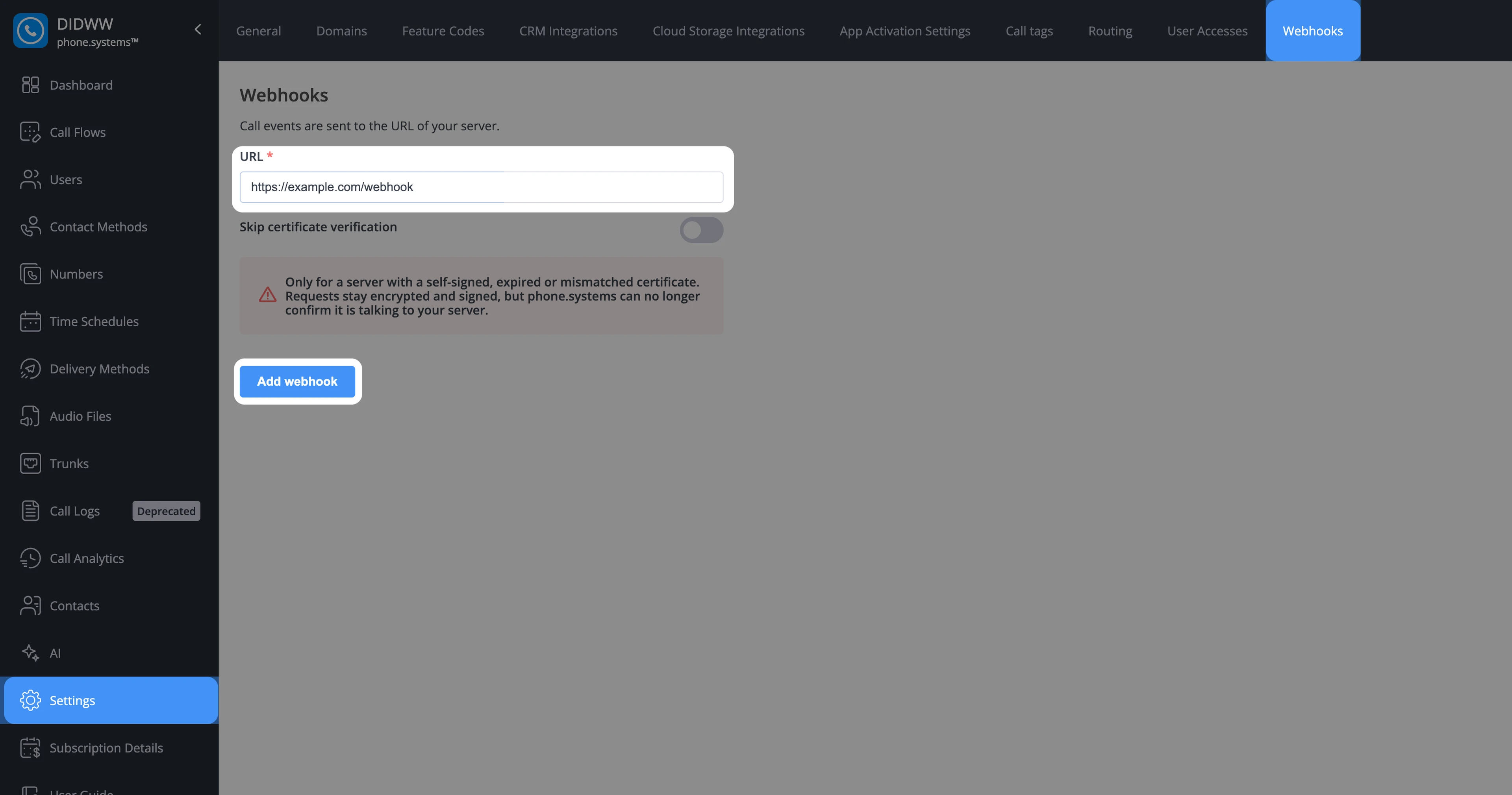
Fig. 1. Add a webhook#
View the webhook status and secret#
In phone.systems™, go to Settings > Webhooks. The page shows the current state of the webhook. Click Refresh to update it. The status is updated within about 10 seconds of a delivery.
Field |
Description |
|---|---|
Status |
The delivery state of the webhook:
|
Updated |
When the page was last refreshed. |
URL |
The URL that events are sent to. |
Secret |
The key used to sign every request. It is hidden by default. Click Show to reveal it, or Copy to copy it. |
Date created |
When the webhook was added. |
Delivered |
The number of events your server accepted. |
Failed attempts |
The number of delivery attempts that failed. One event can have several failed attempts. |
Dropped |
The number of events that were given up on: every retry failed, or too many events were waiting for your server. See Dropped events. |
Last delivered |
When an event was last delivered. |
Last report |
When the counters were last updated. |
When the status is Last attempt failed, the page also shows the last
failure: its time, HTTP status (No response when your server did not
answer), error, request ID, attempt, event ID, event
type, and global tag. Match the request ID with the X-Request-Id header in
your server logs. For the error texts, see Troubleshooting.
If the page shows Event bus restarted at and a time, the delivery service
was restarted, usually during maintenance. Events that were waiting for your
server at that moment may have been lost, and they are not counted in
Dropped. Calls that were still in progress
are reported again with "catch_up": true.
The page shows only the current state. It does not keep a history of individual deliveries. Use the request IDs and event IDs in your server logs to trace individual events. See Request headers.
Important
Treat the secret as a password. Store it in a secret manager or an environment variable, never in source code or logs. The secret stays the same until you delete the webhook.
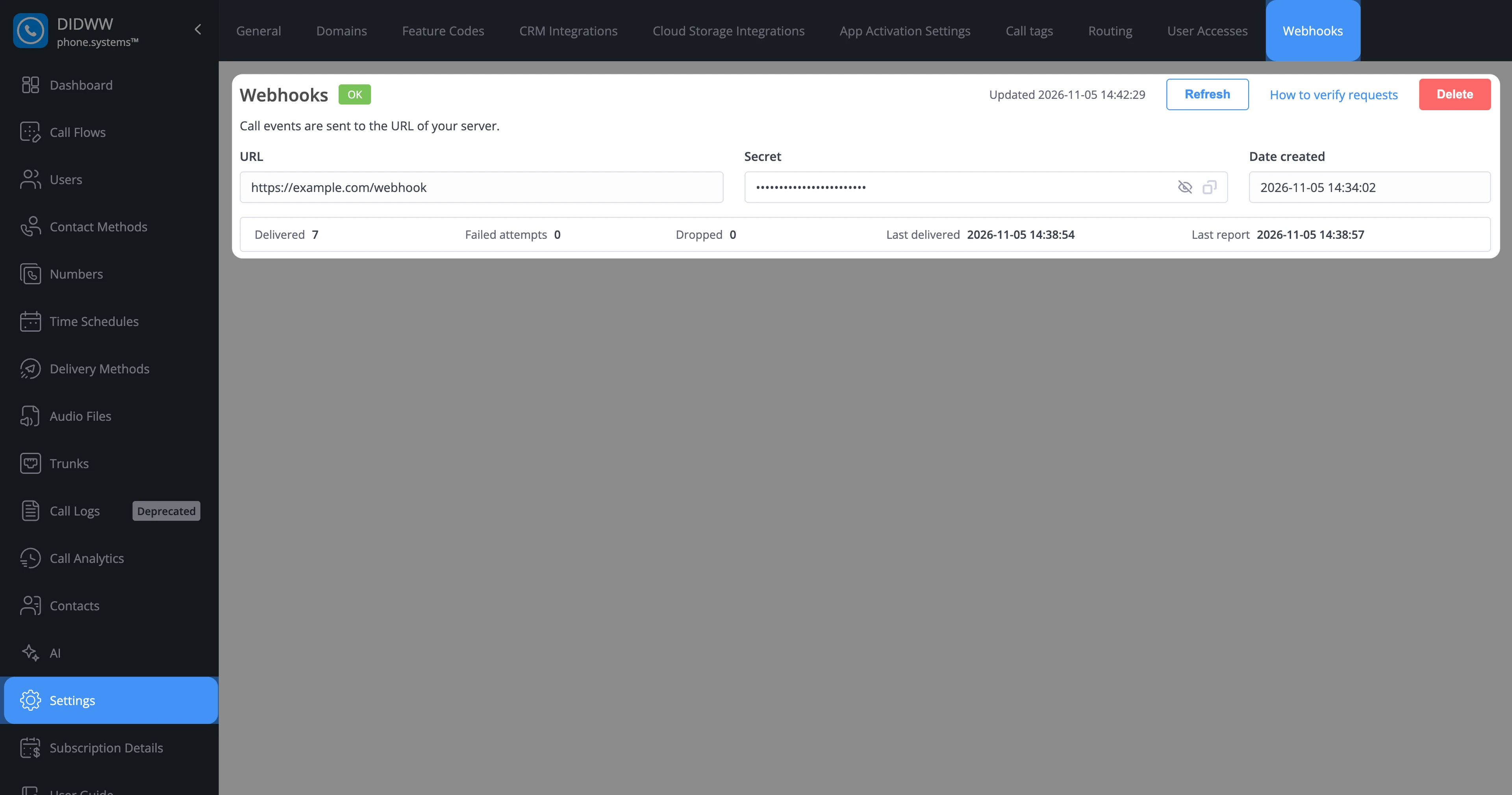
Fig. 2. View the webhook status and secret#
Delete a webhook#
Delete the webhook to stop receiving events, to change the URL, or to replace the secret.
In phone.systems™, go to Settings > Webhooks.
Click Delete.
In the Delete webhook window, click Delete.
Events stop being sent within 30 seconds, and events that are waiting to be delivered are discarded. Calls made while there is no webhook produce no events, now or later. Adding the webhook again does not send events for the calls in between. To receive events again, add the webhook again. The new webhook has a new secret, so update the secret on your server.
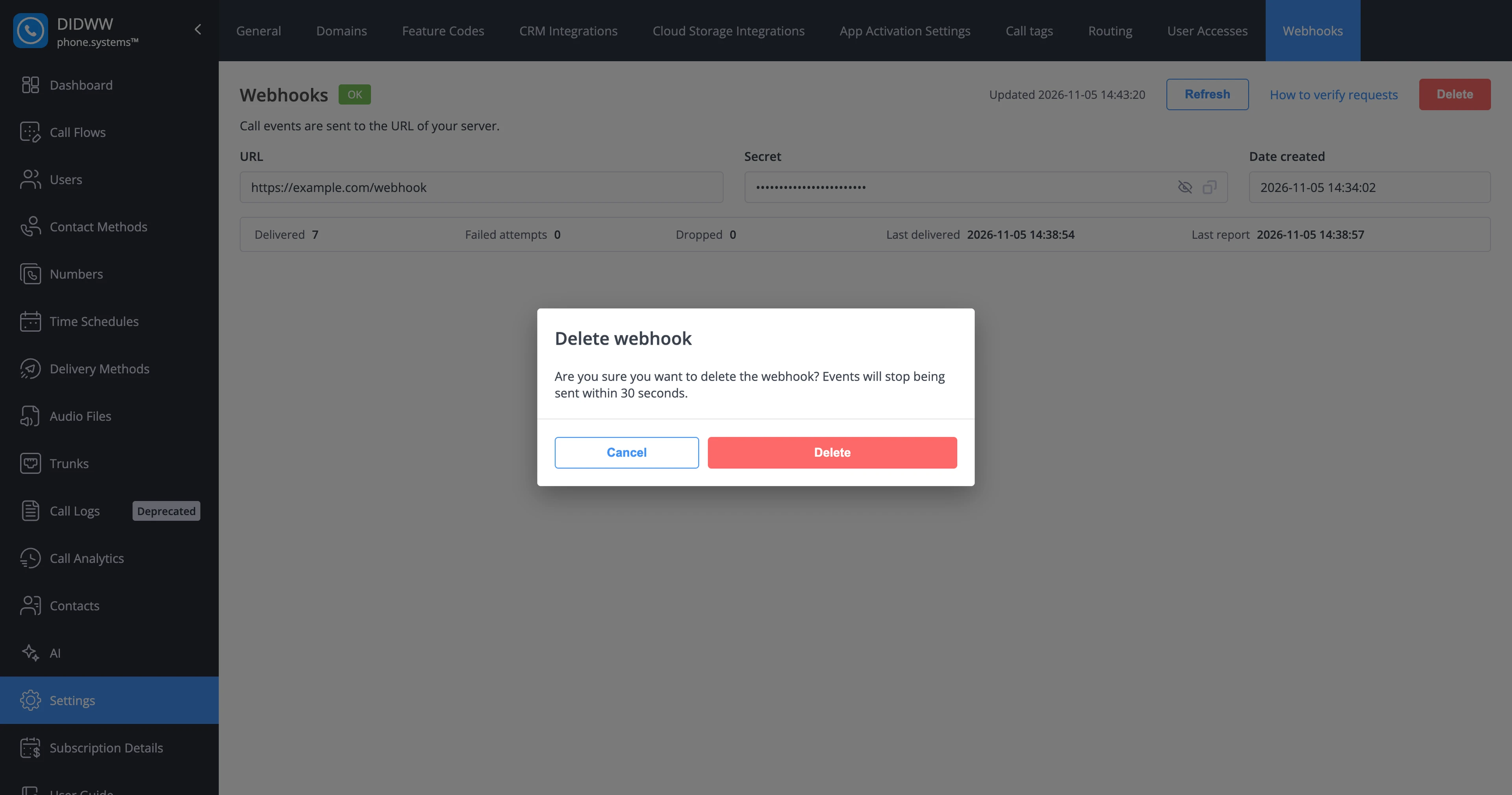
Fig. 3. Confirm the deletion#
Replace the secret#
The secret cannot be regenerated. To replace it, for example if it was exposed:
Add the webhook again with the same URL.
Copy the new secret and update it on your server.
Events of calls that happen between the two steps are not sent.