

User Accesses#
Use the User Accesses page to review users who can access the phone.systems™ PBX dashboard and manage PBX invitations.
User profiles and PBX invitations are created on the Users page. An invitation to the PBX dashboard is separate from an invitation to the phone.systems™ app.
In phone.systems™, go to Settings > User Accesses to view the Users and PBX invitations tables.
Users#
The Users table displays users who have access to the PBX dashboard.
Field |
Description |
|---|---|
The email address used to access the PBX dashboard. |
|
First name |
The user’s first name. |
Last name |
The user’s last name. |
Role |
The user’s PBX role. |
Status |
The current state of the user’s PBX access. |
Last login |
The date and time of the user’s most recent PBX login. |
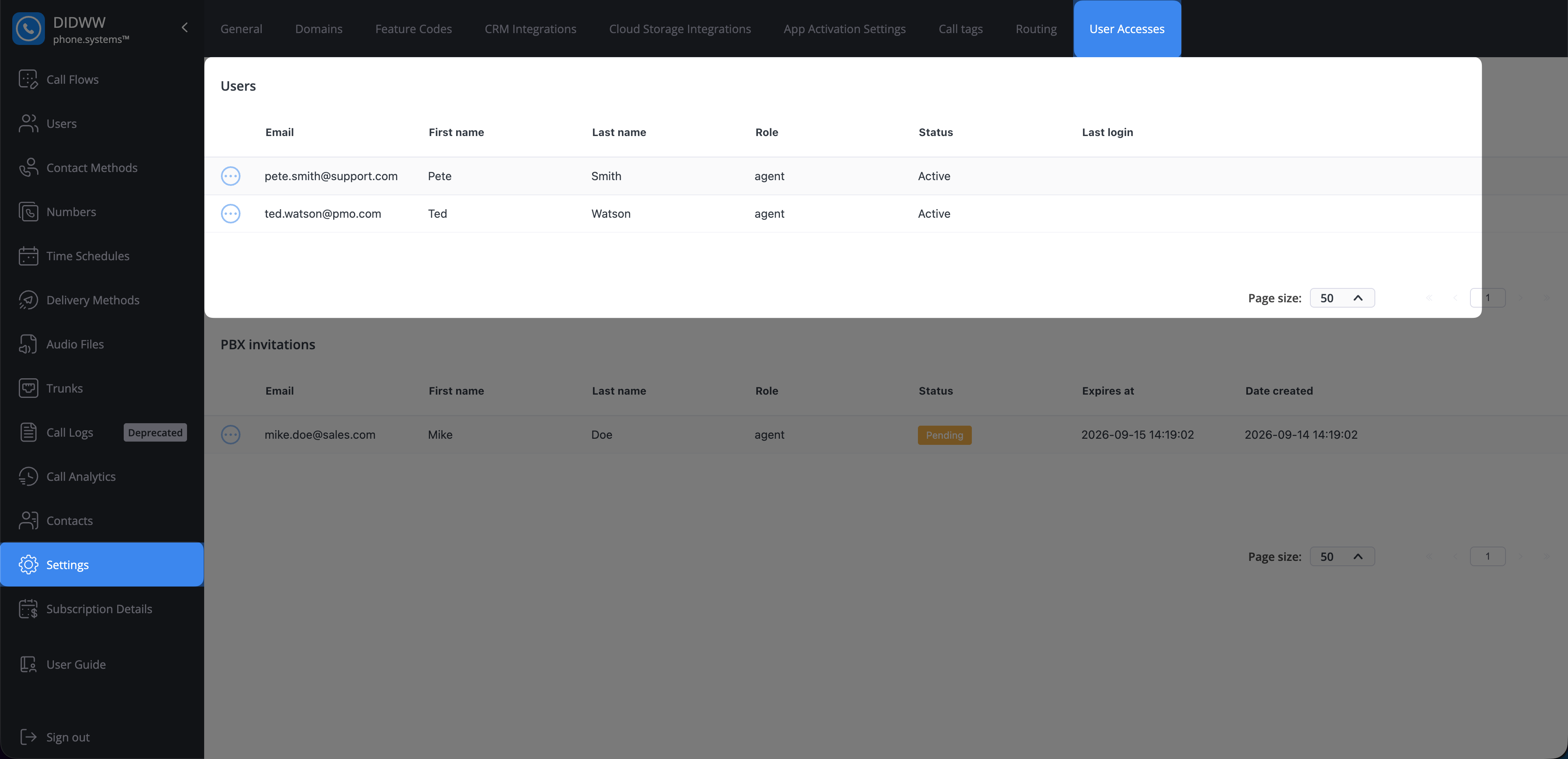
Fig. 1. Users with PBX access.#
Disable a user#
To prevent a user from accessing the PBX dashboard:
In phone.systems™, go to Settings > User Accesses, then find the user in the Users table.
Click Actions.
Select Disable.
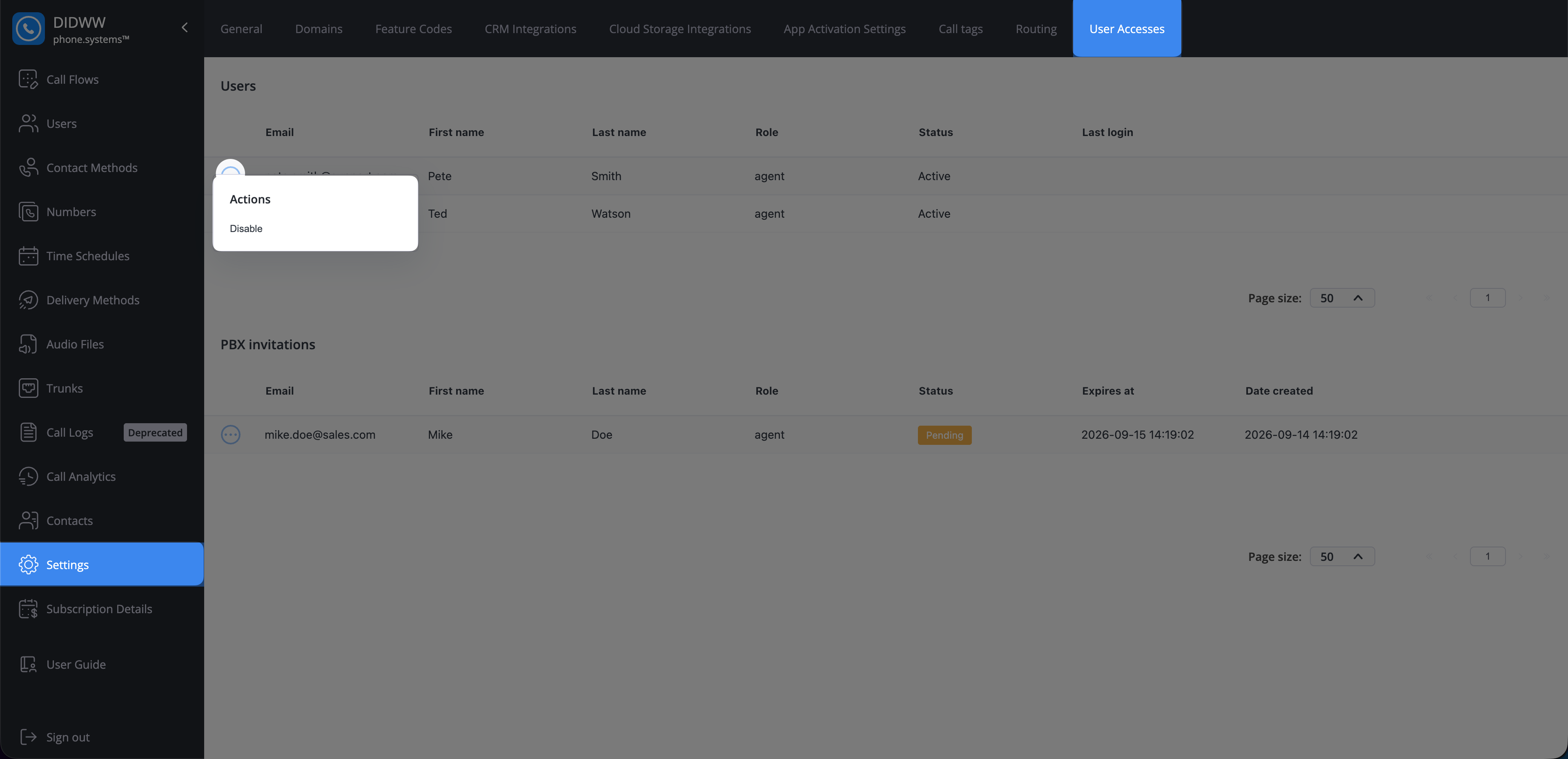
Fig. 2. Disable a user.#
PBX invitations#
The PBX invitations table displays invitations that have been sent to users.
New PBX invitations are assigned the agent role. The current invitation form does not provide a role selector.
Field |
Description |
|---|---|
The email address to which the invitation was sent. |
|
First name |
The invited user’s first name. |
Last name |
The invited user’s last name. |
Role |
The PBX role assigned to the invited user. |
Status |
The current state of the invitation. A newly sent invitation has the Pending status. |
Expires at |
The date and time when the invitation expires. |
Date created |
The date and time when the invitation was created. |
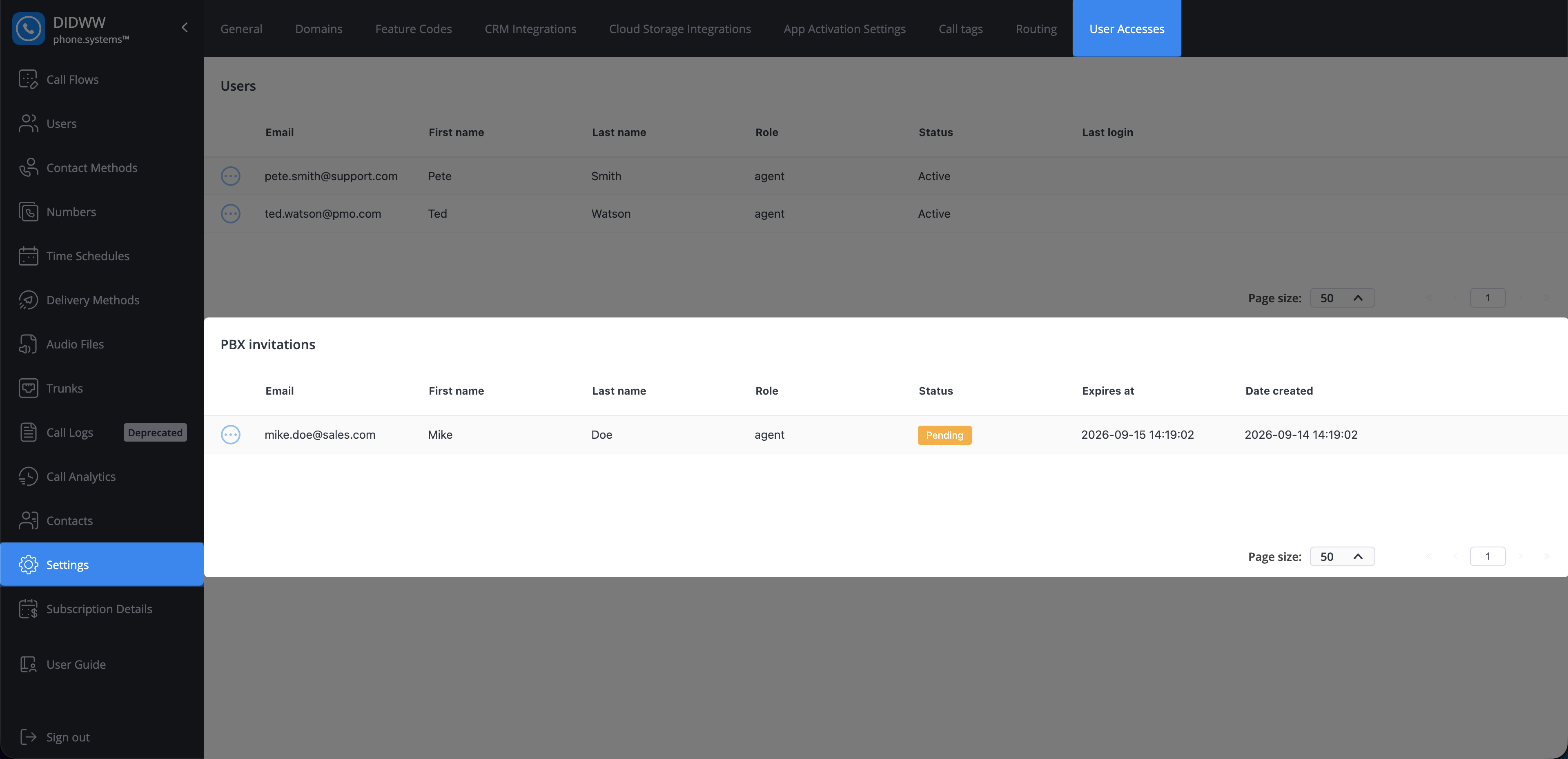
Fig. 3. PBX invitations.#
Re-invite a user#
Re-invite a user when the original invitation has expired or the user needs another invitation email.
In phone.systems™, go to Settings > User Accesses, then find the invitation in the PBX invitations table.
Click Actions.
Select Re-invite.
Revoke an invitation#
In phone.systems™, go to Settings > User Accesses, then find the invitation in the PBX invitations table.
Click Actions.
Select Revoke.
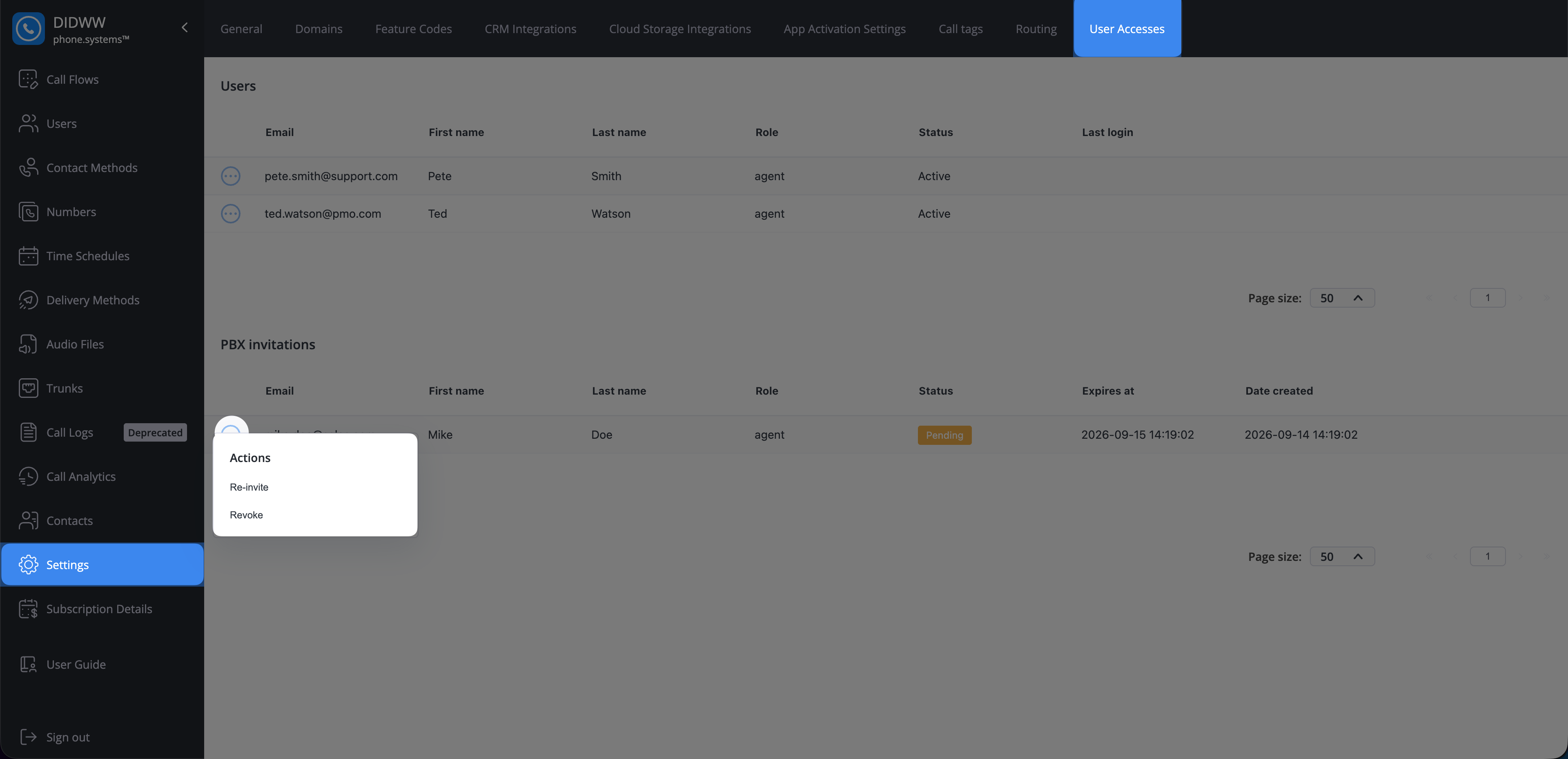
Fig. 4. PBX invitation actions.#
User roles#
The agent role is currently the only role available for invited users. Users with this role can access Call Analytics and Contacts. They cannot access the administrative PBX configuration available to users who launch phone.systems™ from the DIDWW customer portal.
Sign in to phone.systems™#
Invited users sign in directly with their email address and password. Before signing in for the first time, the user must accept the PBX invitation and create a password.
Note
DIDWW account administrators access phone.systems™ by launching it from the DIDWW customer portal. They do not use the direct login page described above.
Open the phone.systems™ login page.
Enter the email address associated with the PBX invitation.
Click Continue.
Enter the password and click Sign in.
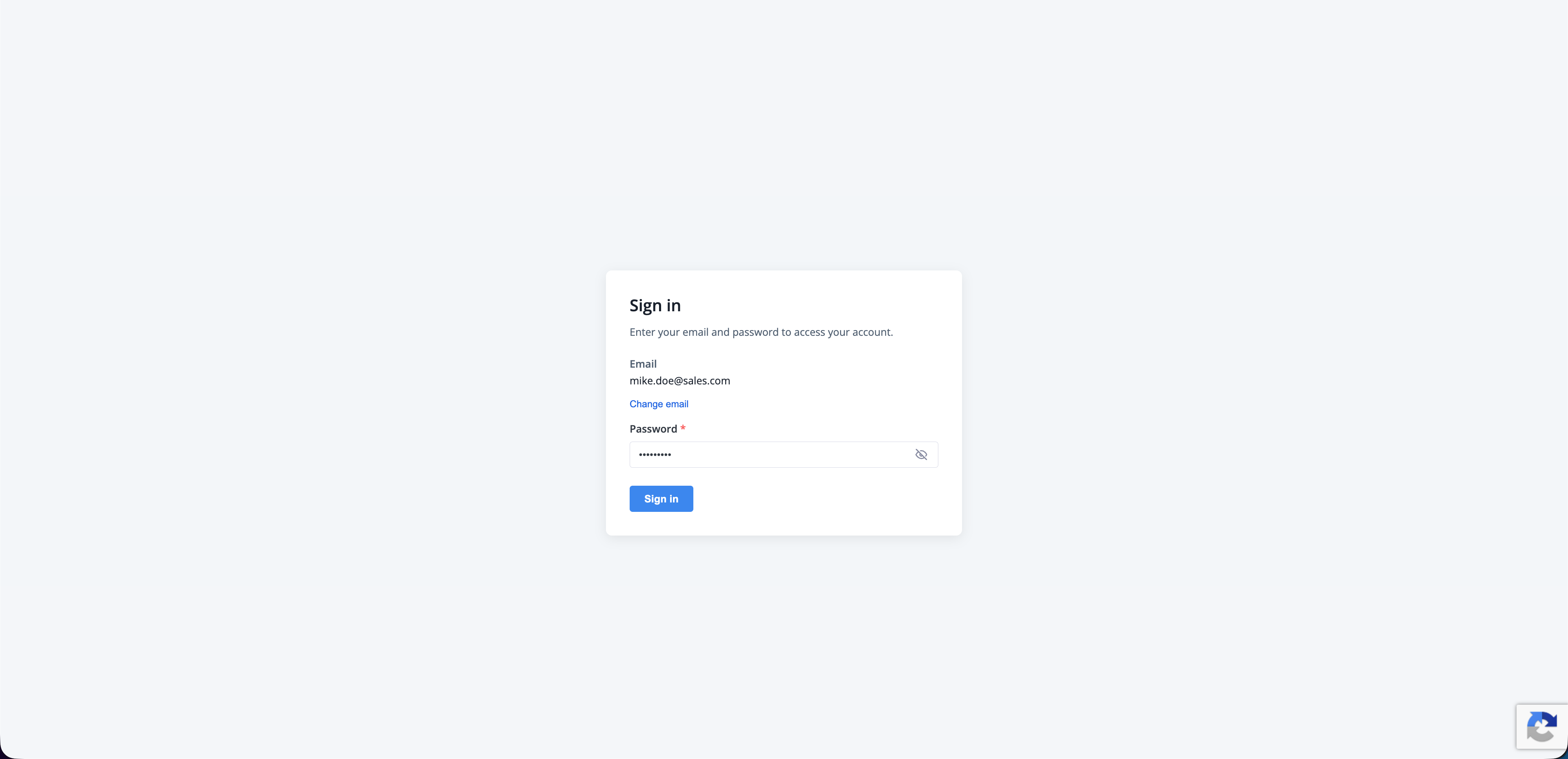
Fig. 5. Sign in directly to phone.systems™.#