

Routing Attempts#
Review how calls were routed, step by step.
Routing Attempts lists one record for each attempt phone.systems™ makes while routing a call. Use it to troubleshoot delivery issues (for example, failed or disconnected calls) by checking where the call was sent, which route and gateway were used, and which disconnect code was returned. It is also useful when you need to verify routing behavior for a specific destination or time period.
Important
Times and timestamps are shown in the time zone of the device you are using. For example, if your device is set to UTC+1, Routing Attempts displays times in UTC+1.
Filters#
Filter |
Description |
|---|---|
Time range |
Filters routing attempts by selecting a predefined period or setting a custom start and end date and time. |
Numbers |
Filters routing attempts for inbound and outbound calls by entering one or more phone numbers. For outbound calls, each entered number is matched against the source number. For inbound calls, each entered number is matched against the destination number. |
Destination |
Filters by destination type (for example, User or PSTN number). |
Gateway |
Filters by the termination gateway. |
Route |
Filters by the outbound route. |
Source number |
Filters by the calling number. |
Destination number |
Filters by the called number. |
Disconnect code |
Filters by the disconnect code. |
Global tag |
Filters by the system global tag. |
Note
Filters can be used individually or in combination.
If you do not see all available filters, click More filters to add additional filters to the filter bar.
The Numbers filter accepts multiple values separated by commas or spaces (for example,
12025550123, 12025550124or12025550123 12025550124).The selected time range is retained when you navigate between Call History, Routing Attempts, and Call Statistics. It resets when you leave Call Analytics.
Routing Attempt Table#
The Routing Attempts table displays one record per routing attempt performed by phone.systems™.
The following columns are available:
Column |
Description |
|---|---|
Time start |
The date and time when the routing attempt started. |
Waiting time |
The time between the start of the routing attempt and the connection attempt. |
In call time |
The duration of the call for this routing attempt, if the call connected. |
Source |
The source used for this routing attempt (for example, a Call Flow). |
Source number |
The calling number used for this routing attempt. |
Destination |
The destination entity for this routing attempt (for example, a user or a PSTN number). |
Destination number |
The number the call was routed to during this routing attempt. |
Disconnect code |
The disconnect code returned when the routing attempt ended. |
Outbound route |
The outbound route used for the routing attempt. |
View Routing Attempt Details#
Viewing a single routing attempt allows you to inspect its routing attempt record in a dedicated details view.
Use this view when you need to investigate a specific call attempt in more detail for example, to confirm why it succeeded or failed and how it was routed. It helps you validate the call outcome, review timing and participants, and cross-check routing information while troubleshooting or preparing reports.
To view a routing attempt:
Go to Call Analytics → Routing Attempts.
Locate the required routing attempt in the table.
Click Actions → View.
The routing attempt details view provides the same information shown in the Routing Attempts table and includes additional fields grouped into sections, such as timing, result, participant details, and routing information.
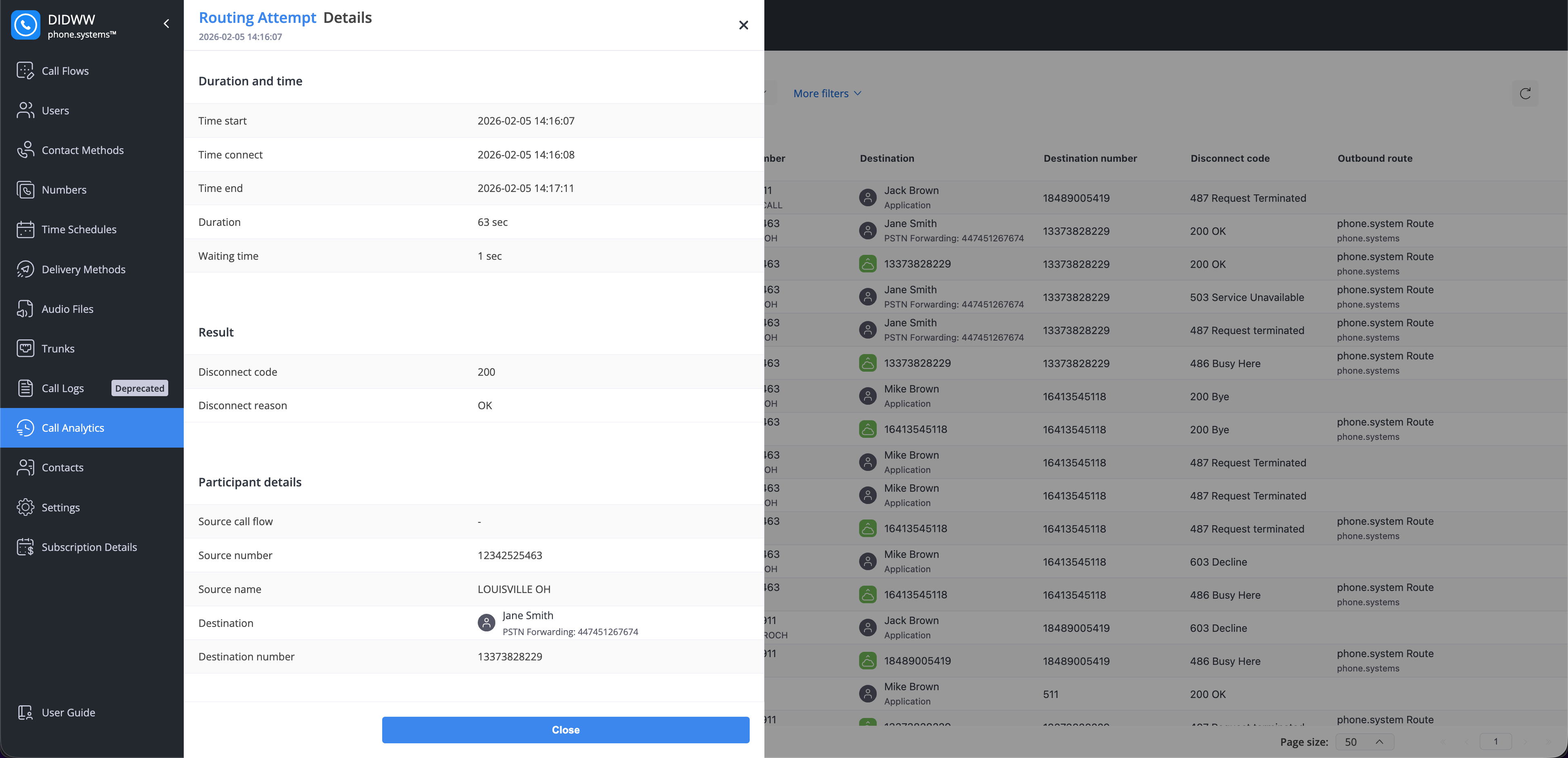
Fig. 1. Routing attempt details window#
Open Related Records#
In the routing information section of the routing attempt details view, you can open related records linked to the same call using a shared Global tag.
Use these links to quickly trace a specific call across views without reapplying filters. This is useful when you need to review what happened to a call (outcome, duration, routing path) or when investigating failed/short calls and verifying how the system routed them.
To open related records:
In Call Analytics → Routing Attempts, locate the required routing attempt.
Click Actions → View.
In the details window, click View next to:
Related call history to open Call History
Related routing attempts to open Routing Attempts
phone.systems™ opens the selected page with the corresponding Global tag filter applied, showing the related record(s).
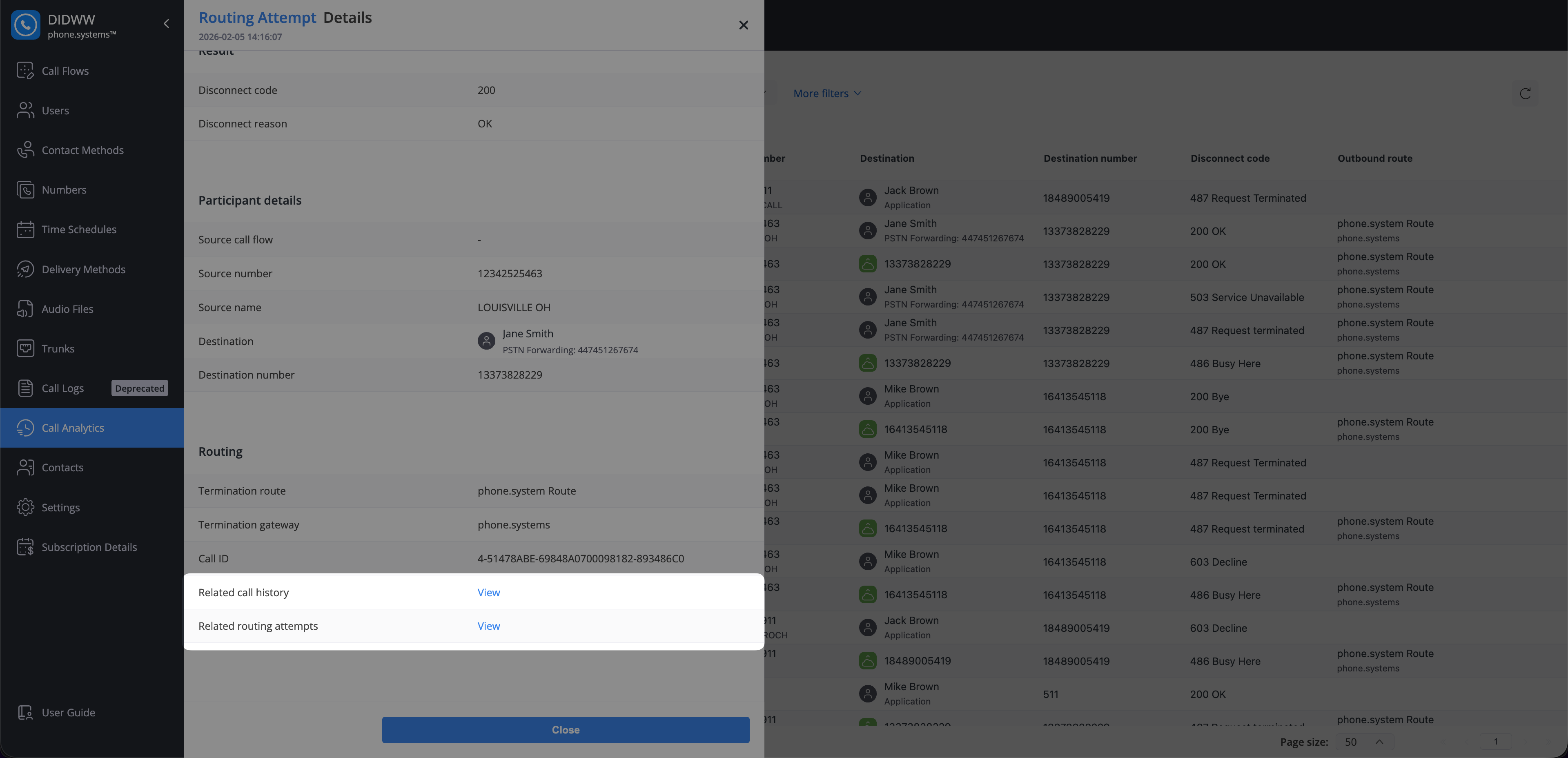
Fig. 2. Related record links#
Routing Attempts Page Actions#
Use the actions in Routing Attempts to reload the view, see the total number of matching records, and navigate through pages.
Use Reload to refresh the list and fetch the latest routing attempts while keeping your current filters and page selection. This is useful if new records may have appeared since you opened the page or after you changed something and want to see updated results.
To reload the Routing Attempts page, click the reload icon in the top-right corner.
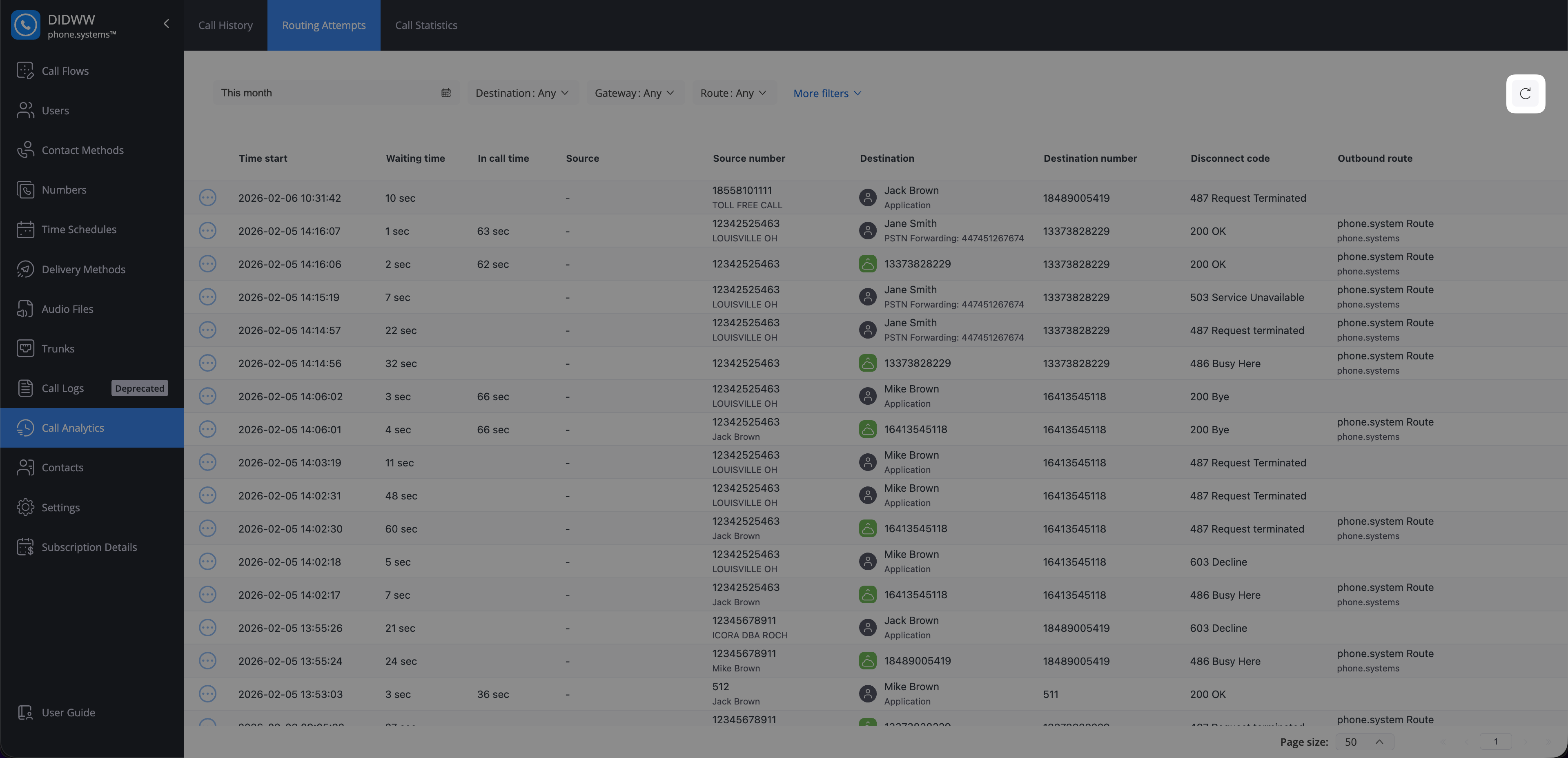
Fig. 3. Reload Routing Attempts view#
Routing Attempts displays results across multiple pages. By default, each page shows 50 records. If you want to see more results at once, increase the page size up to 100. Use the pagination controls to move to the next or previous page.
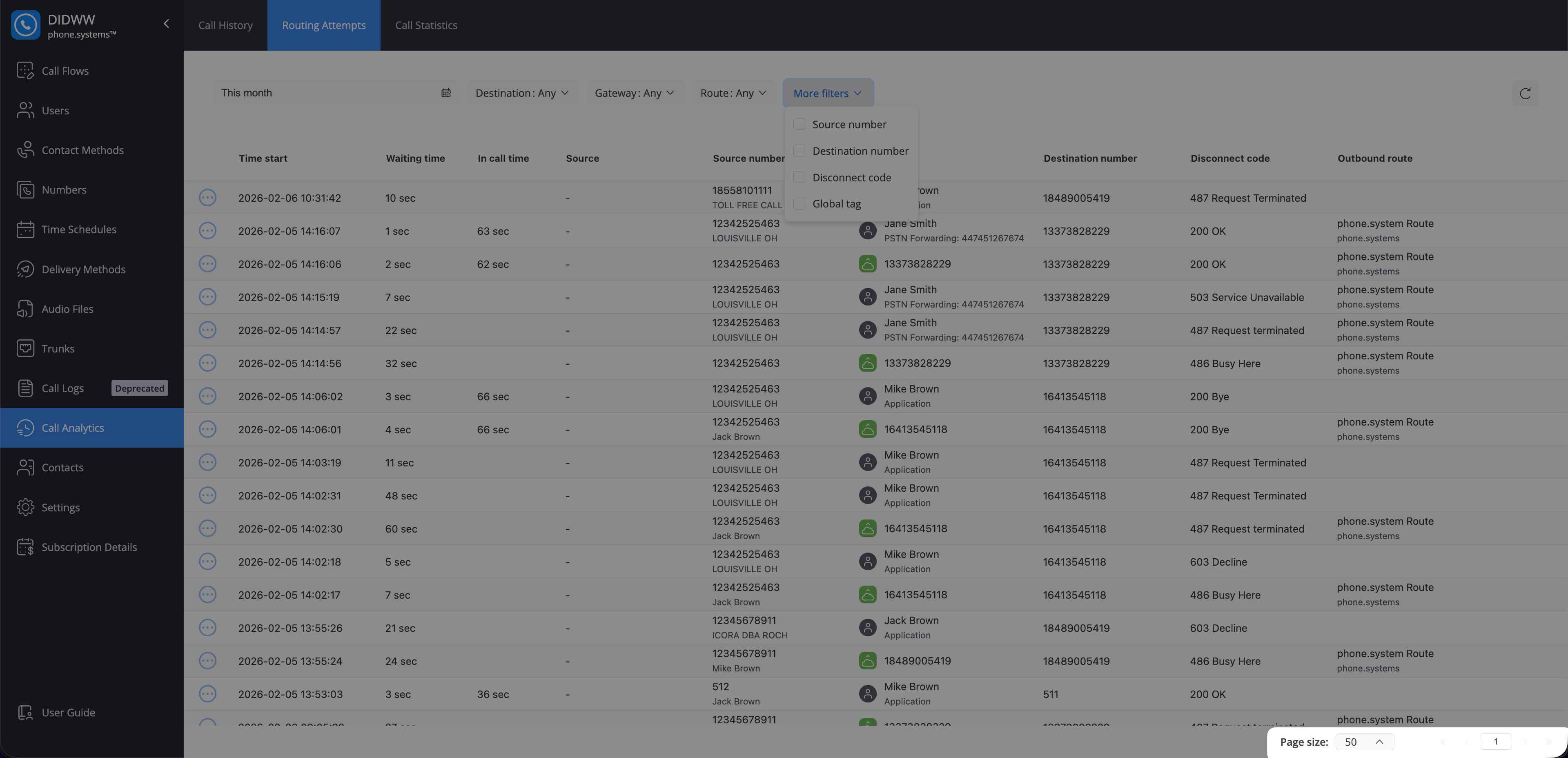
Fig. 4. Pagination controls#
The Routing Attempts counter, next to Page size, shows the total number of routing attempts that match the current filters across all pages. Use it to count routing attempts without paging through the results, for example to see how many attempts returned a specific disconnect code.
The counter updates when you change the filters or the time range.
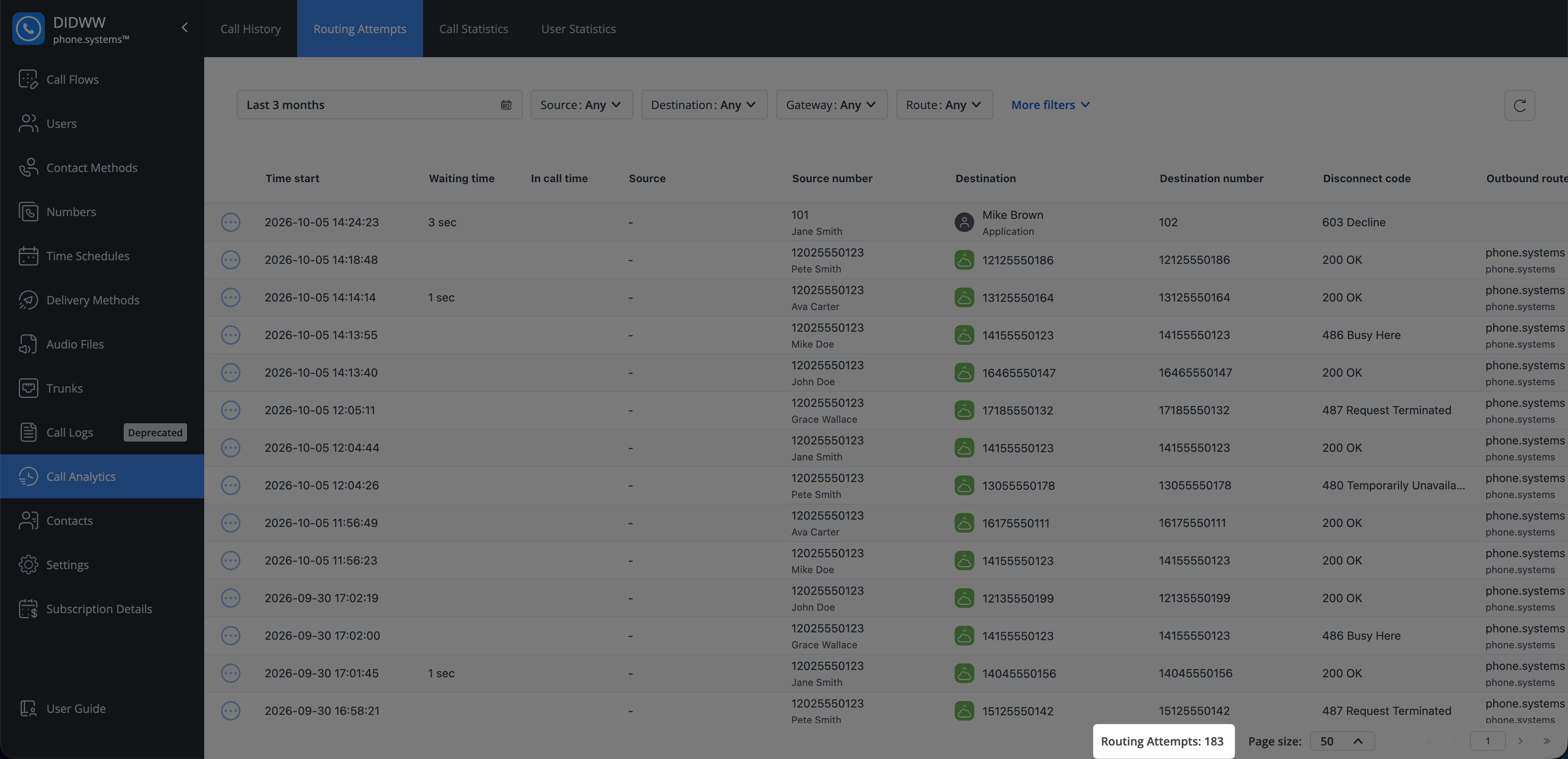
Fig. 5. Routing Attempts counter#