

phone.systems™ Click-to-Call Chrome Extension#
The phone.systems™ Click-to-Call Chrome extension connects phone numbers displayed on web pages with the phone.systems™ desktop app. It lets you place calls from websites, CRM systems, and other browser-based tools without re-entering the number in the app.
Key features#
Automatically detect and highlight phone numbers on web pages, including numbers loaded after the page opens.
Call detected numbers through the phone.systems™ desktop app.
Open numbers in the app dial pad or copy them in E.164 format.
Enter or paste numbers manually in the extension.
Format local numbers using the selected default country.
Before you begin#
Google Chrome is required.
An active phone.systems™ subscription is required.
An installed and activated phone.systems™ desktop app is required. See Install and Activate the phone.systems™ App.
Install the extension#
Install the extension from the Chrome Web Store.
Click Add to Chrome.
In the confirmation window, click Add Extension.
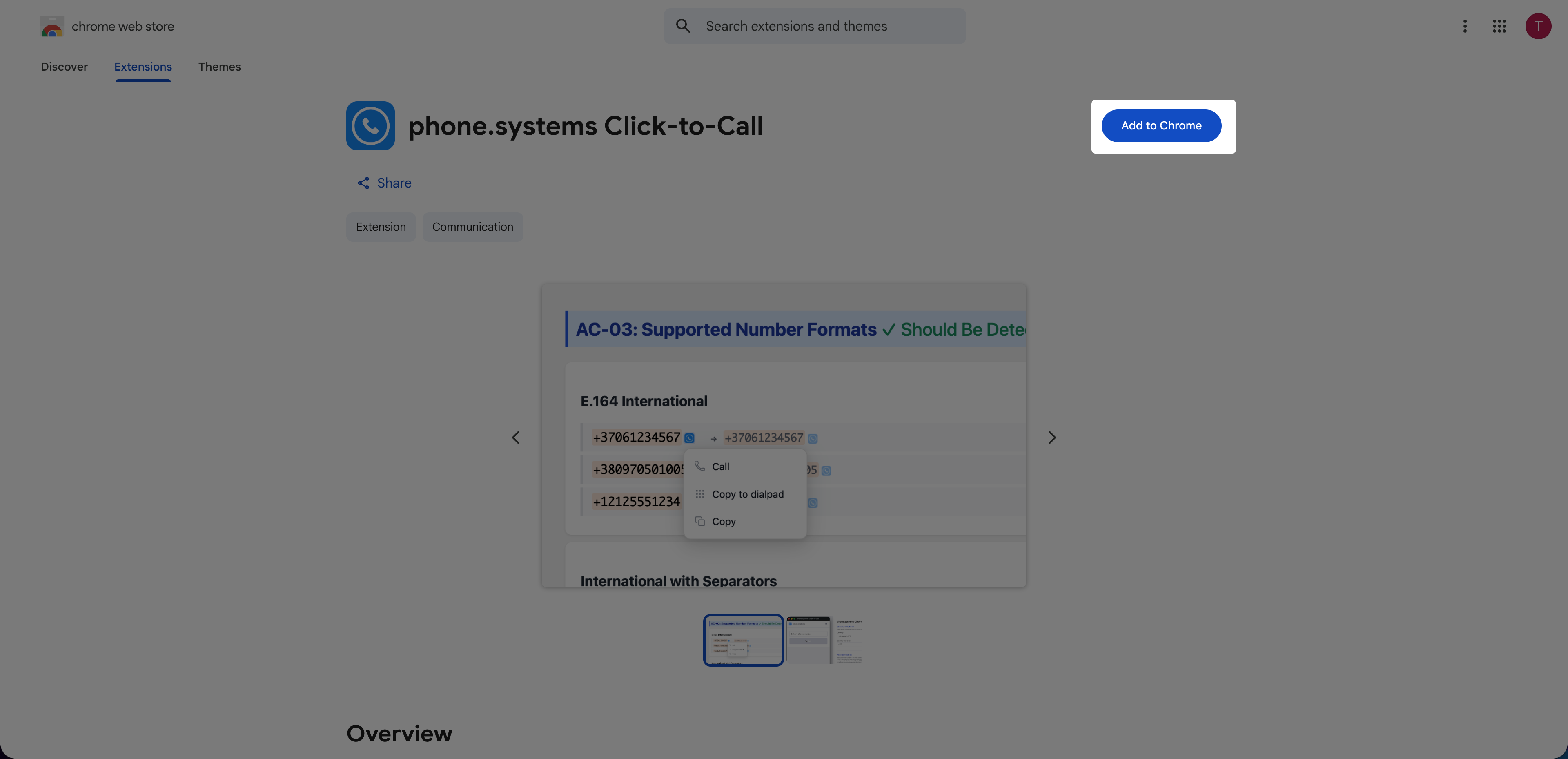
Fig. 1. Install the phone.systems™ Click-to-Call extension.#
Configure the extension#
Configure how the extension detects and formats phone numbers on web pages.
Step 1: Open the extension settings#
Open phone.systems Click-to-Call from the Chrome Extensions menu.
Click the Settings icon.
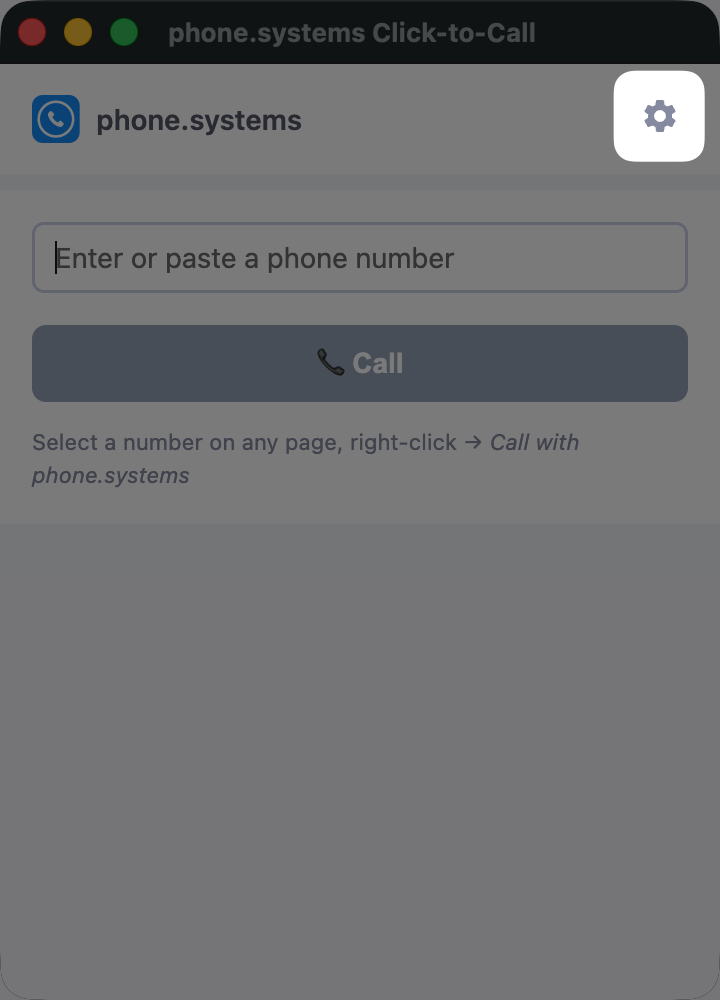
Fig. 2. Open the extension settings.#
Step 2: Configure number detection#
The extension converts supported numbers to E.164 format, which includes a + symbol and
the country code, before calling or copying them. For numbers without a
country code, it uses the default country selected in the settings.
Under Default Country, select your Country. To use a country not listed, select Other / Custom and enter the Country Dial Code.
Under Page Detection, select Enable number detection on web pages to detect phone numbers and show the phone.systems™ action icon next to them. Clear the checkbox to disable number detection.
Select or clear Highlight phone numbers on pages. This controls the background highlighting of detected numbers. The phone.systems™ action icon remains available when highlighting is off.
Under Lithuanian Local Numbers, enable Enable Lithuanian local mobile number normalisation to convert Lithuanian mobile numbers beginning with
8to+370format. Clear the checkbox if this conversion is not needed.Click Save Settings.
To restore the default extension settings, click Reset to Defaults, then click Save Settings.
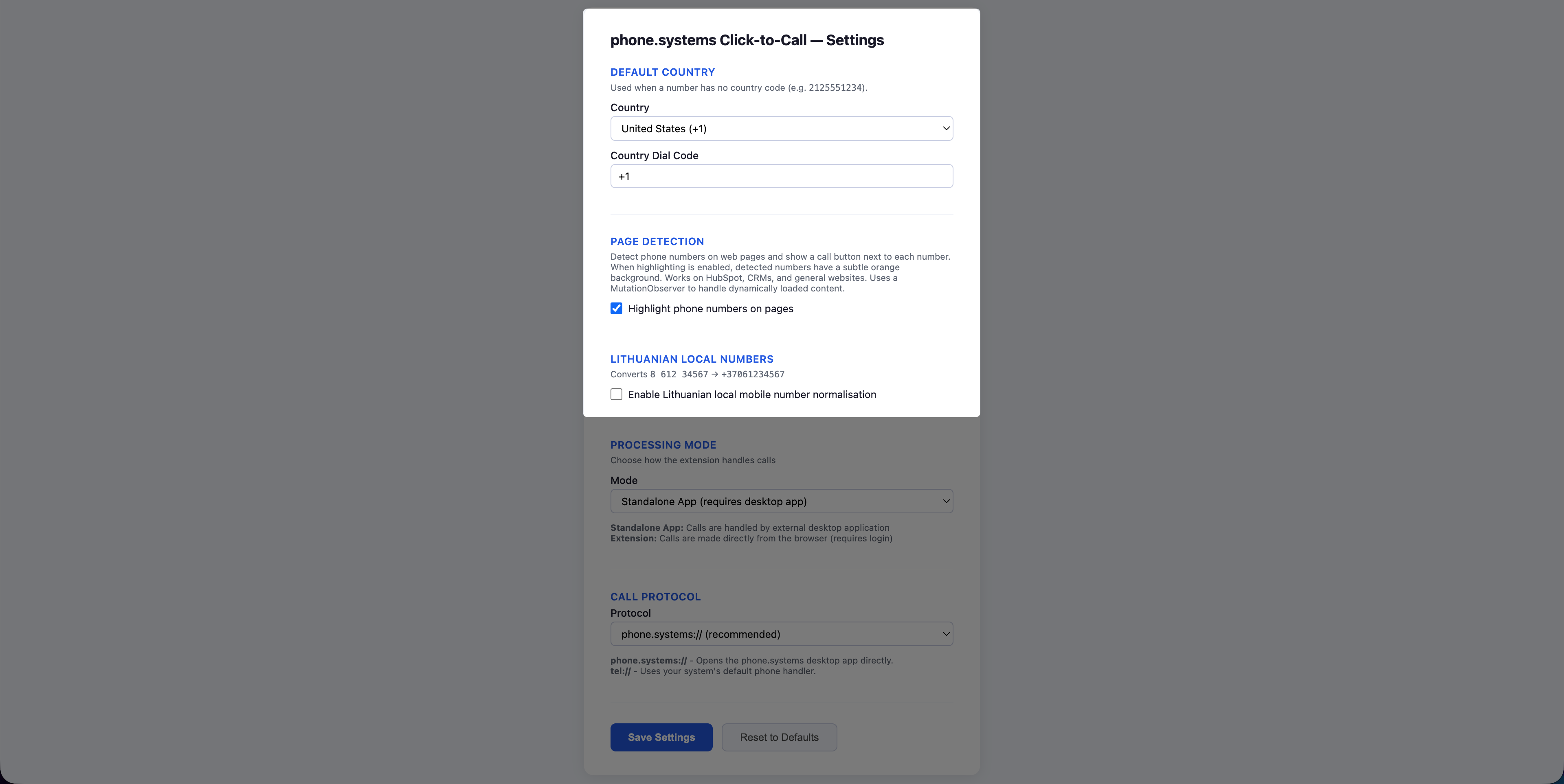
Fig. 3. Configure number detection and formatting.#
Call or copy a detected number#
The extension adds a phone.systems™ icon next to supported phone numbers on web pages, including numbers loaded after the page opens.
Open the web page containing the phone number.
Click the phone.systems™ icon next to the number.
Select the required action:
Call places a call through the phone.systems™ desktop app.
Copy to dialpad opens the number in the phone.systems™ app Dial Pad without placing a call.
Copy copies the number to the clipboard in E.164 format.
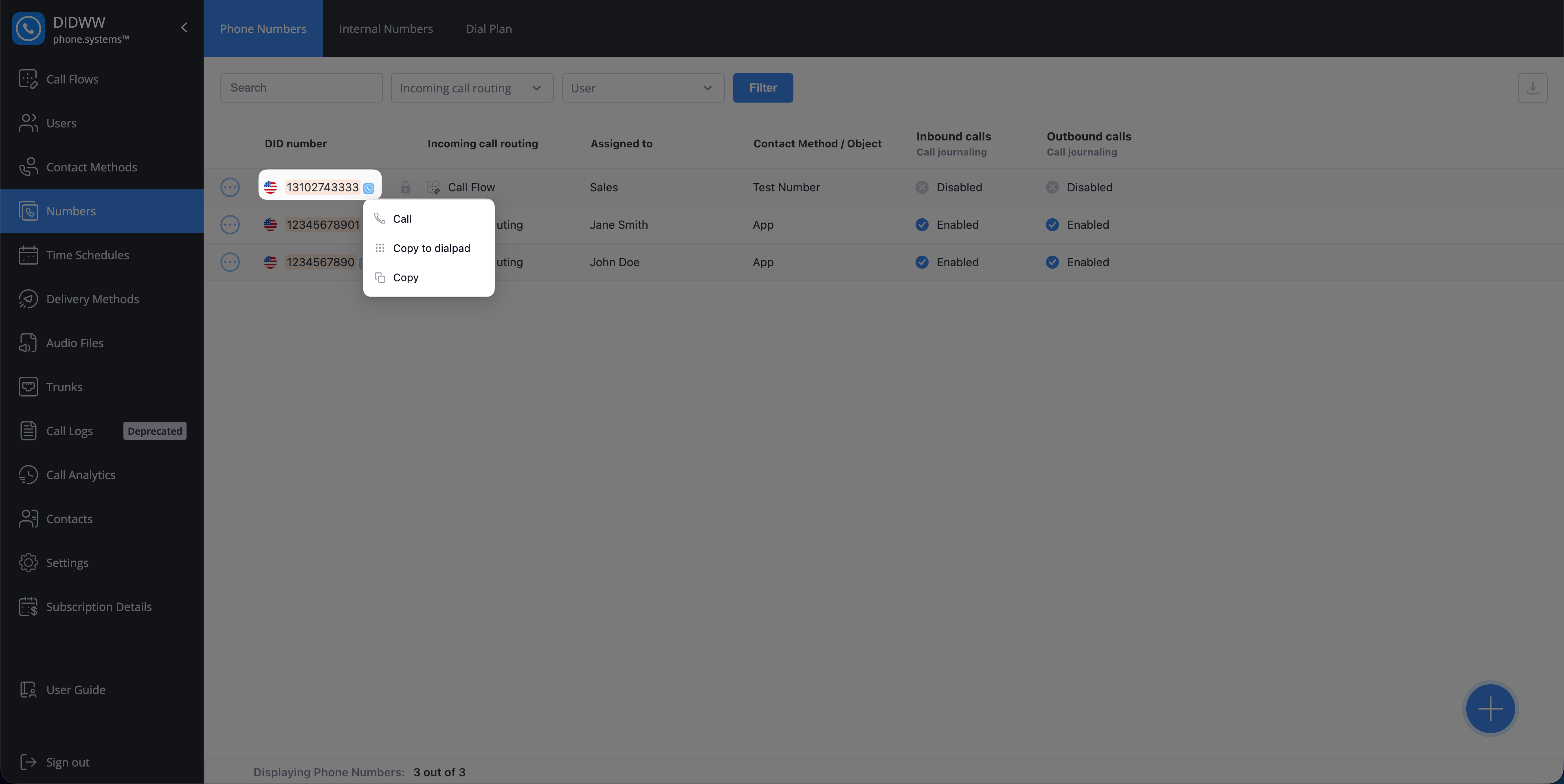
Fig. 4. Call or copy a detected phone number.#
Call a number manually#
You can also enter or paste a number directly into the extension, including numbers that are not detected on a web page.
Open phone.systems Click-to-Call from the Chrome Extensions menu.
Enter or paste a phone number.
Check the formatted number displayed next to Normalised.
Click Call to place the call through the phone.systems™ desktop app.
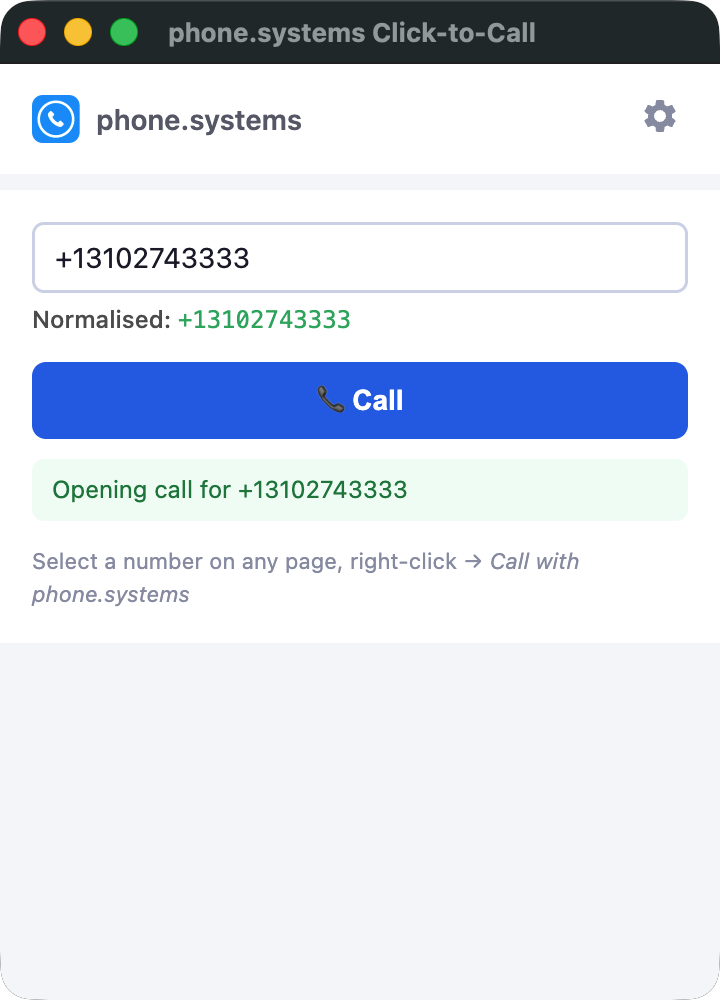
Fig. 5. Enter a phone number and place a call.#
Enable or disable the extension#
Disable the extension in Chrome when you do not want it to detect phone numbers on web pages. You can enable it again without reinstalling it.
Open the Chrome menu and select Extensions > Manage Extensions.
Locate phone.systems Click-to-Call.
Turn the extension switch on or off.
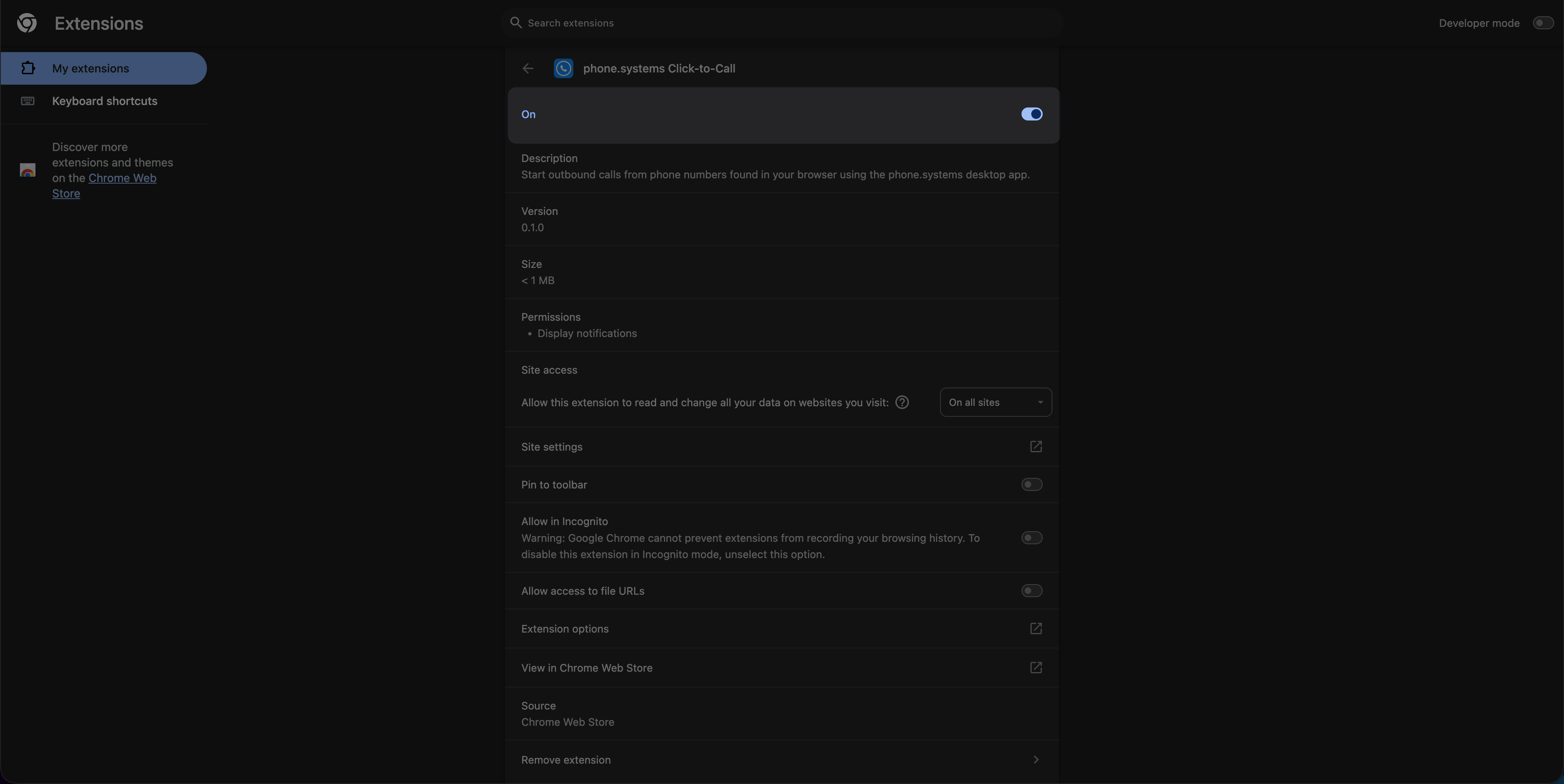
Fig. 6. Enable or disable the extension in Chrome.#
Common issues#
If you cannot detect a number or open a call, check the following settings.
The phone.systems™ app does not open
Make sure the desktop app is installed and activated. If Chrome asks for permission to open phone.systems™, allow it.
A local number is formatted incorrectly
Check Country and Country Dial Code in the extension settings. You can also enter the number with its full country code.
A number is not detected
Check that the extension is enabled in Chrome and that Enable number detection on web pages is selected in the extension settings. Numbers in editable fields, links, buttons, code blocks, or unsupported formats may not be detected. Use manual number entry to call the number.