

Object: Audio Playback#
Audio Playback allows an audio message such as a voice recording or music-on-hold to be played to caller. After the audio file has been played, the call is passed to the object connected to the right-hand socket of the Audio Playback object.
Fig. 1. Audio Playback Object#
The information to be entered for this object is:
The name of the Audio Playback object.
An audio message that should be played to the caller. In general, this audio file will have previously been uploaded from a local drive or recorded, and stored in the phone.systems™ Audio Files.
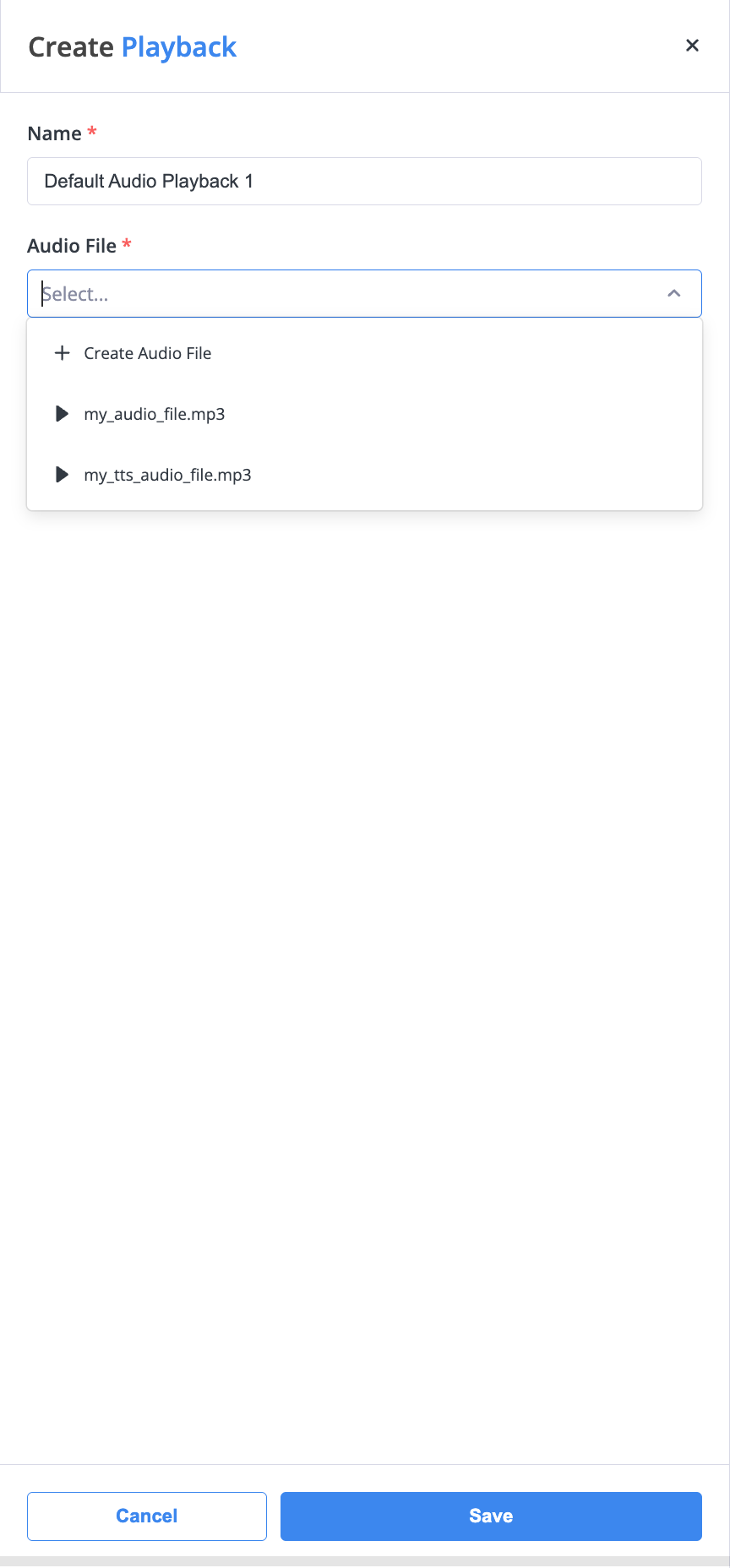
Fig. 2. Create audio file option#
If an audio file has not been created yet, you can generate one from the Audio File field in the Audio Playback object window. Open the Audio File dropdown and click Create Audio File.
In the Text to speech window, enter the message, select a Voice from the list of available voices, and click Generate. After previewing the generated audio, enter a filename and click Save to store the file in your audio library. For the full text-to-speech audio file creation flow, see Text to speech audio files.
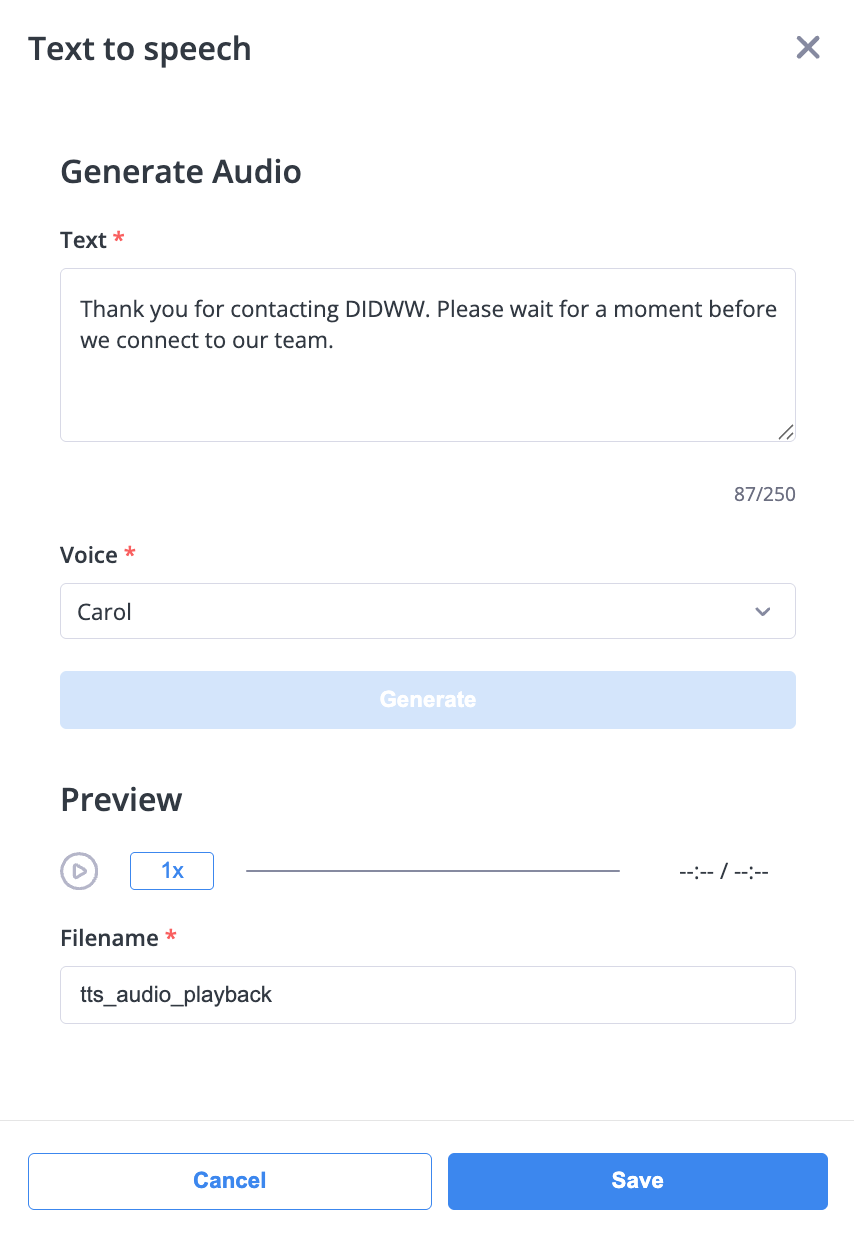
Fig. 3. Text to speech window#
A usage example for the Audio Playback object is shown below, where a voice message is played to the caller, after which the call is passed to a Ring Group object (“Mike Brown”) for further processing.

Fig. 4. Example#