

Manage phone.systems™ subscription seats#
You can increase or decrease the number of seats in your phone.systems™ subscription in the DIDWW User Panel. Changes take effect immediately. A confirmation message appears, and Your subscription shows the new number of seats and Billing amount. The Renew date stays the same.
In the DIDWW User Panel, go to Cloud Phone System.
Click Edit subscription and select Manage seats.
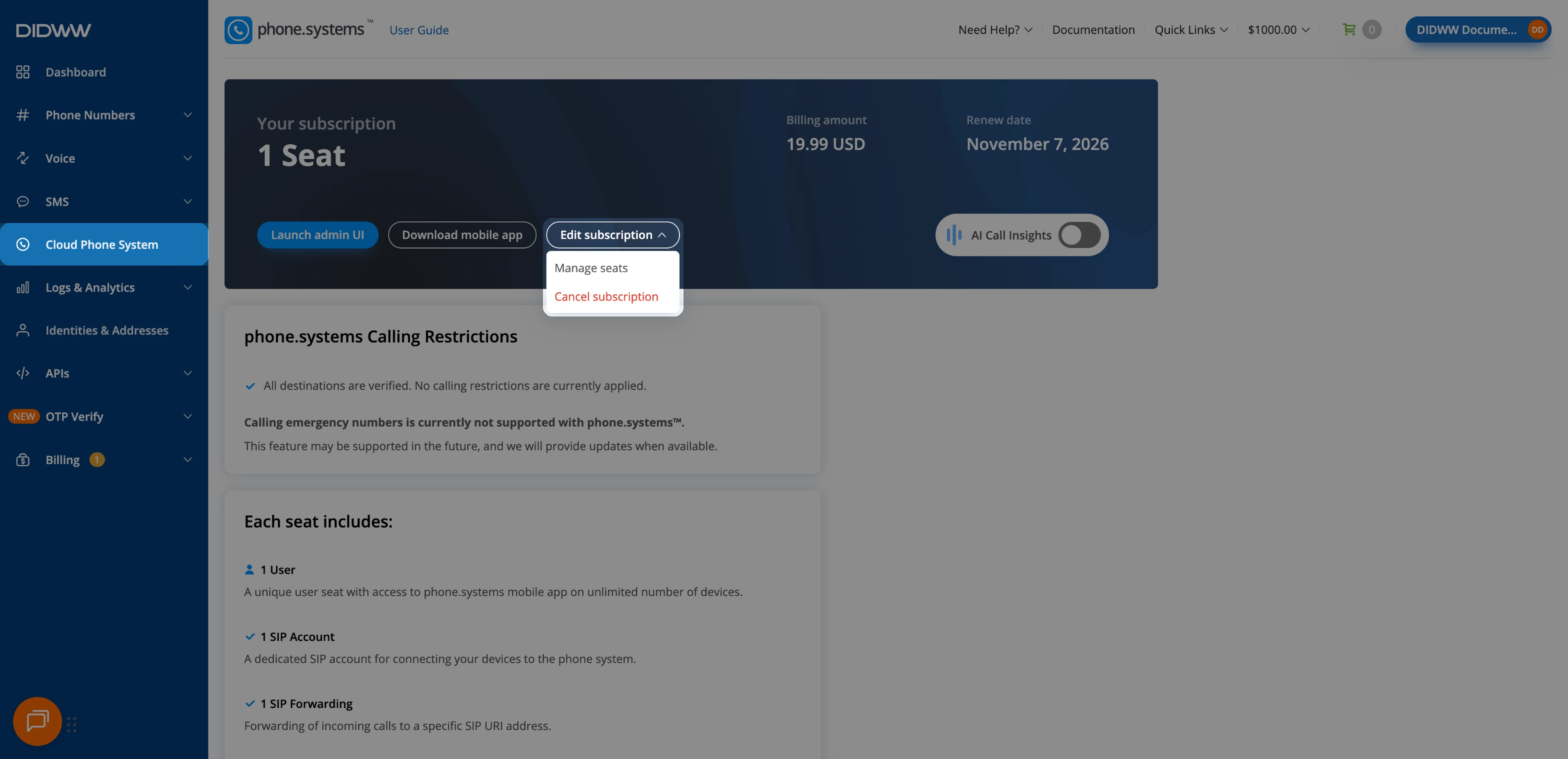
Fig. 1. Edit subscription menu#
Increase seats#
In the DIDWW User Panel, go to Cloud Phone System, click Edit subscription, and select Manage seats.
In the Edit phone.systems subscription window, click + or enter the new number of Seats.
Review the costs:
Prorated cost is the charge for the added seats for the rest of the current Billing period.
Next billing amount is the monthly charge for all seats from the next Renew date.
Total is the amount charged now.
Click Buy Now.
The Total is charged from your DIDWW account balance immediately. Make sure the balance covers it before you click Buy Now.
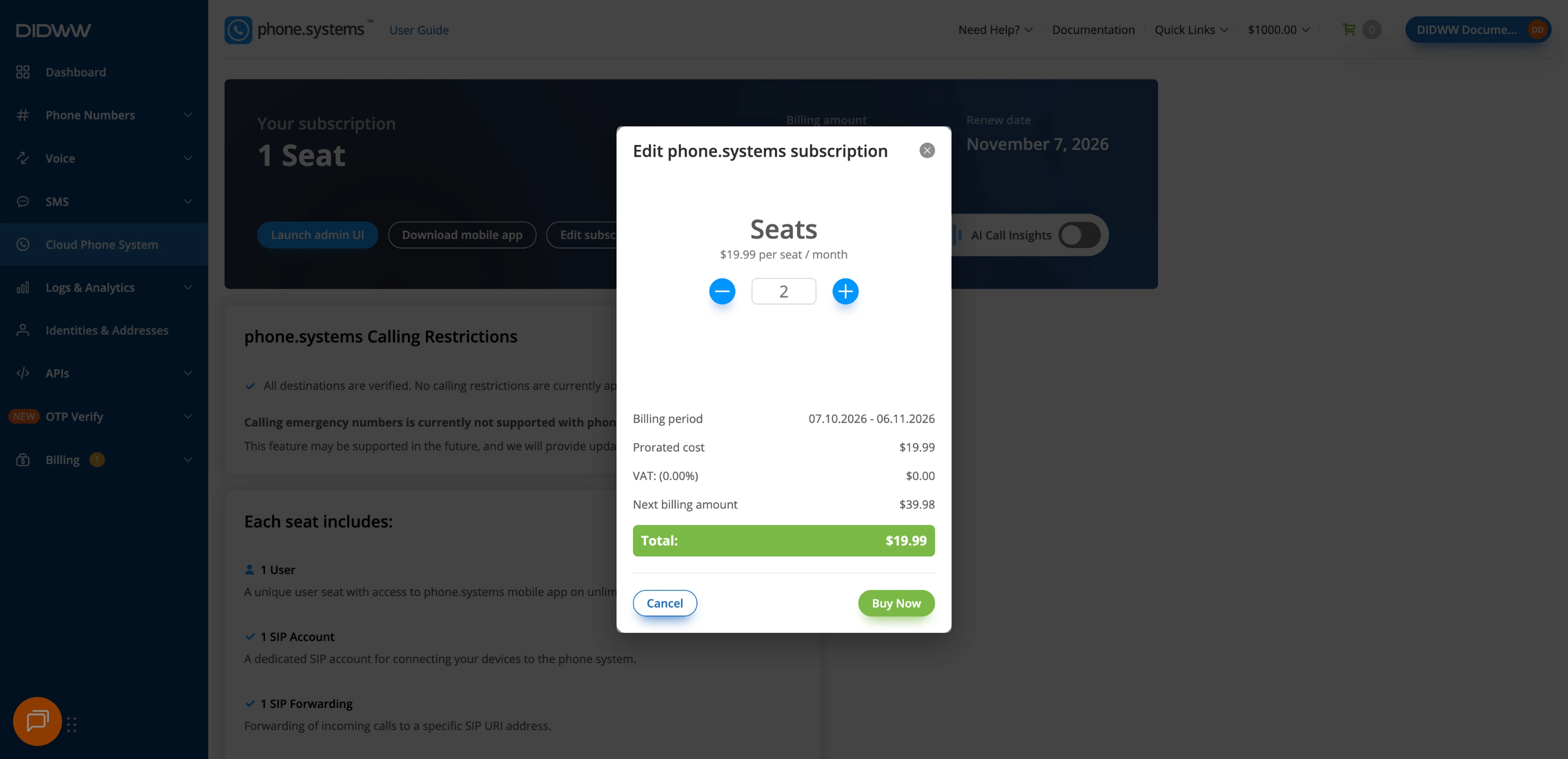
Fig. 2. Increasing seats#
Decrease seats#
In the DIDWW User Panel, go to Cloud Phone System, click Edit subscription, and select Manage seats.
In the Edit phone.systems subscription window, click − or enter the new number of Seats.
Review the Next billing amount, which shows the monthly charge for the remaining seats.
Click Update Subscription.
Decreasing seats does not charge or refund the current Billing period, so the Total is $0.00. You can remove only seats that are not assigned to users. To remove a seat that is in use, delete the user in phone.systems™ first.
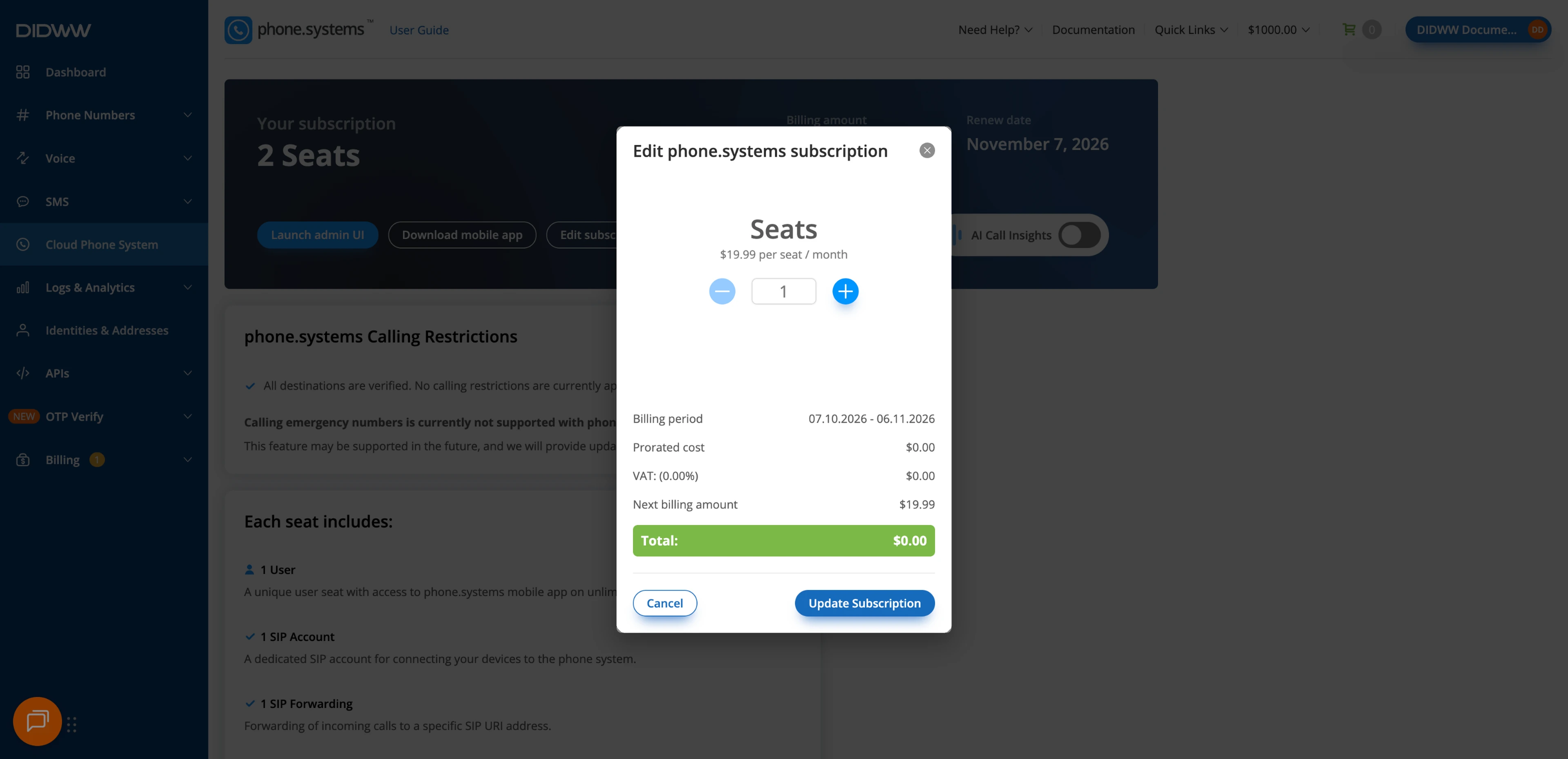
Fig. 3. Decreasing seats#