

ActiveCampaign and phone.systems™ Integration#
Connecting phone.systems™ with ActiveCampaign CRM allows you to manage customer calls and synchronize contact data. The integration includes the following features:
Sync contacts automatically: Keep contacts updated between phone.systems™ and ActiveCampaign CRM.
Call journaling: Calls can be logged in ActiveCampaign for tracking and reference.
Create new contacts automatically: When an unknown number calls, a new contact can be created in ActiveCampaign automatically.
Upload AI call insights results: AI-generated call analytics can be added to call logs.
Note
Call journaling and AI call insights are available only on the ActiveCampaign Enterprise plan.
Connecting phone.systems™ with ActiveCampaign#
This guide provides detailed steps on integrating phone.systems™ with ActiveCampaign. Follow the instructions below to complete the setup process.
Note
To connect phone.systems™ with ActiveCampaign, generate the API URL and API Key in the ActiveCampaign account Settings.
Step 1: Sign in to your ActiveCampaign account#
To get started, open the ActiveCampaign website and sign in to your account or create a new one.
Step 2: Open Developer settings in ActiveCampaign#
In ActiveCampaign, click Settings in the top right corner.
From the Settings menu, open the Developer section.
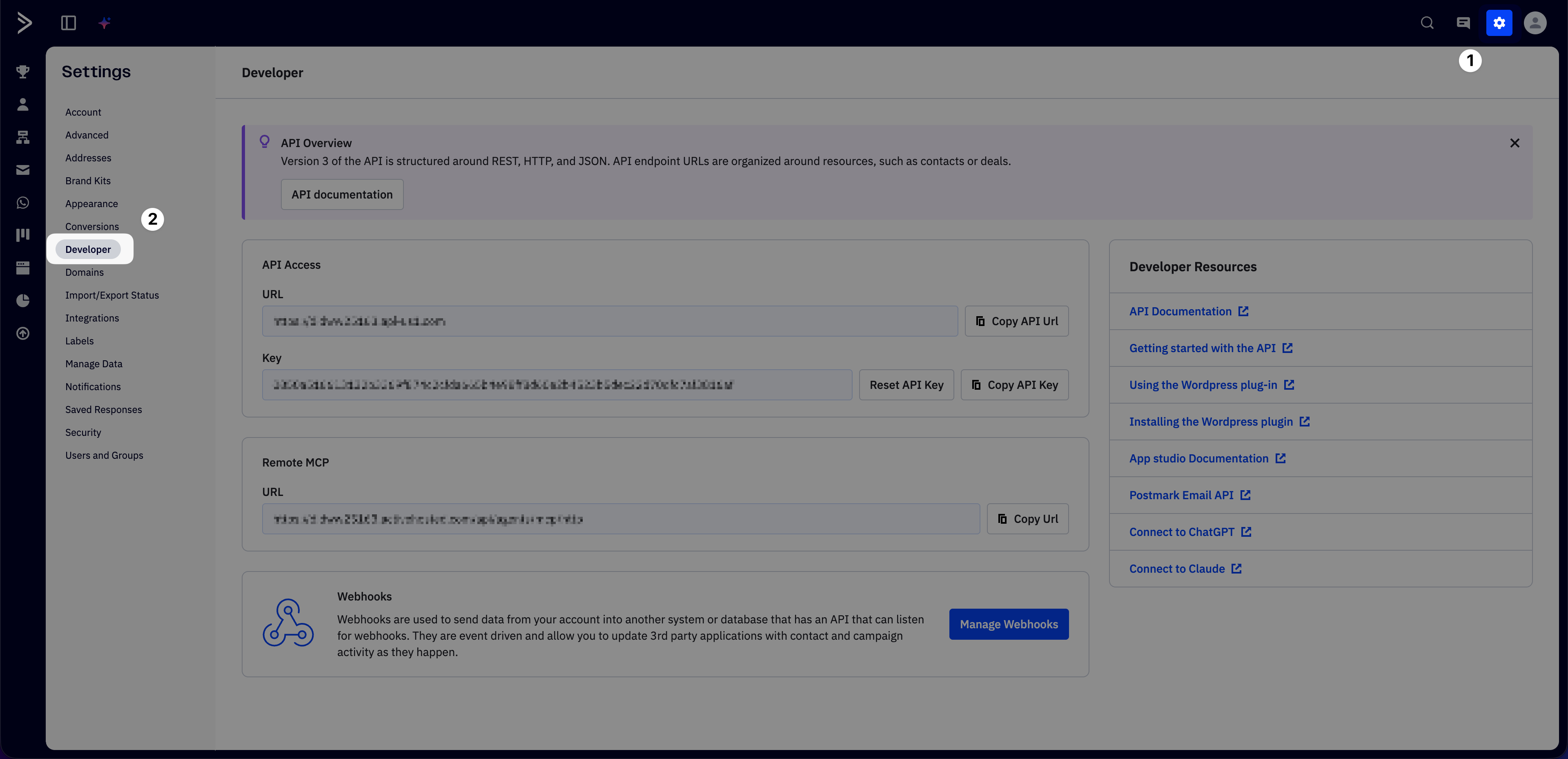
Fig. 1. Open Developer settings in ActiveCampaign#
Step 3: Launch phone.systems™ and connect to ActiveCampaign#
In the phone.systems™ interface, click Settings.
Open the CRM Integrations tab at the top of the screen. Alternatively, use this direct link: phone.systems™ CRM Integrations
Click Connect to link your ActiveCampaign with phone.systems™.
Note
Clicking Connect will open the Connect ActiveCampaign form to continue the integration setup.
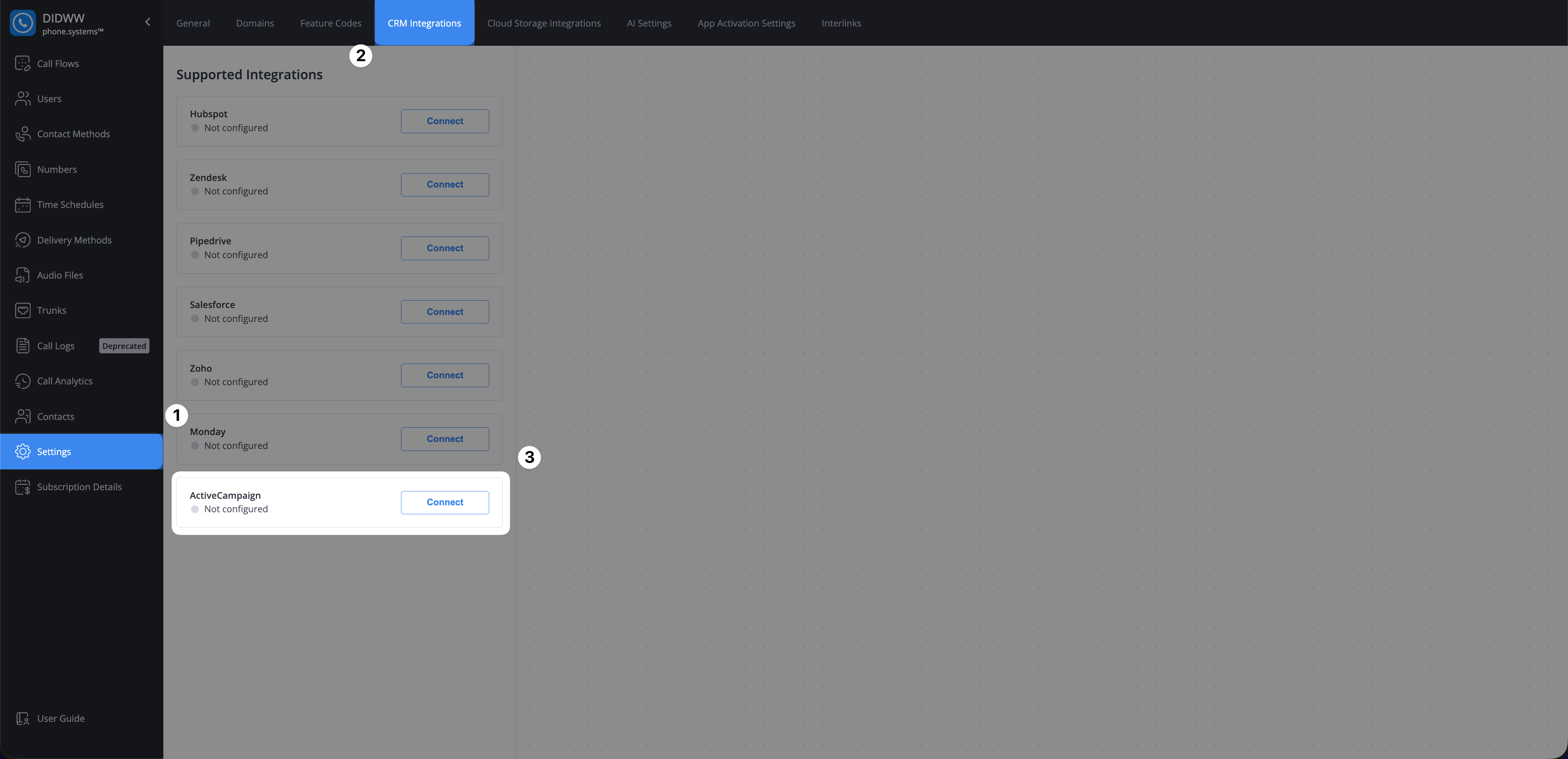
Fig. 2. Open the Connect ActiveCampaign form in phone.systems™#
Step 4: Copy the API credentials from ActiveCampaign#
On the ActiveCampaign Developer page, locate the API Access section and copy the following values:
Click Copy API URL and keep the value for the next step.
Click Copy API Key and keep this value as well.
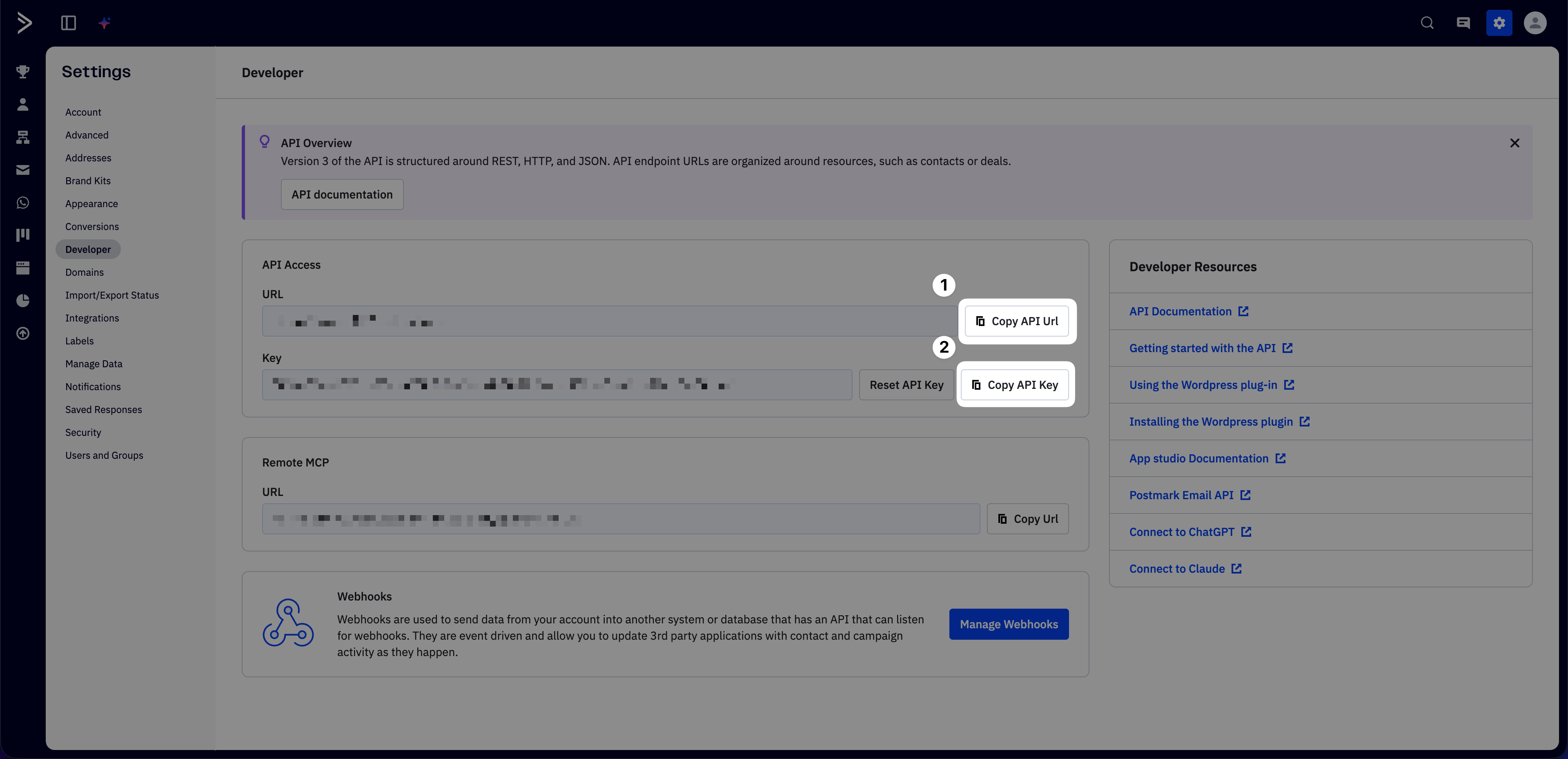
Fig. 3. Copy API URL and API Key in ActiveCampaign#
Step 5: Paste the API credentials into phone.systems™#
Return to the Connect ActiveCampaign form in phone.systems™ and fill in the following fields:
Paste the API URL into the API URL field.
Paste the API Key into the API Key field.
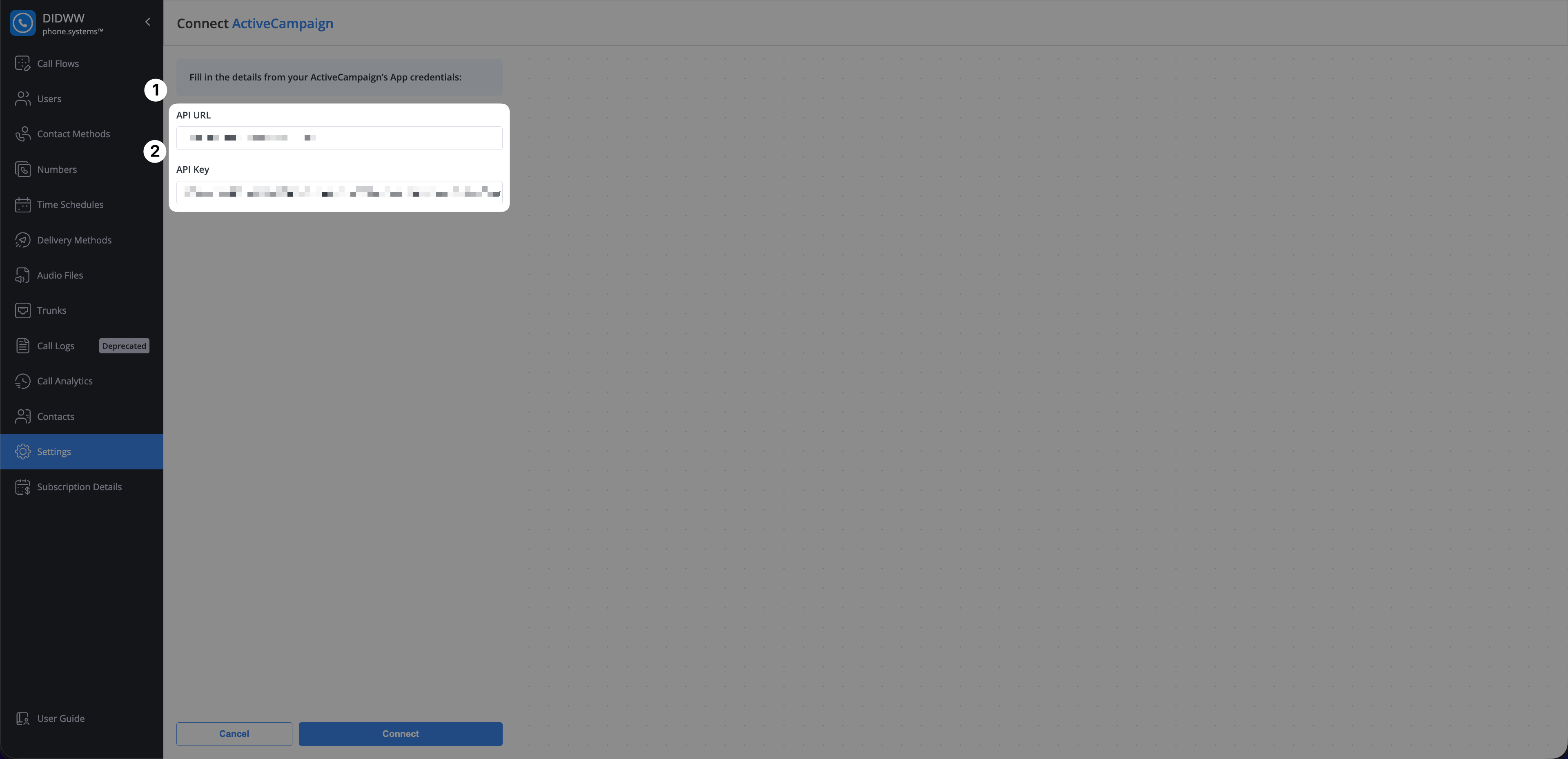
Fig. 4. Paste API URL and API Key into phone.systems™#
Step 6: Connect the phone.systems™ ActiveCampaign integration#
Click Connect to complete the integration setup.
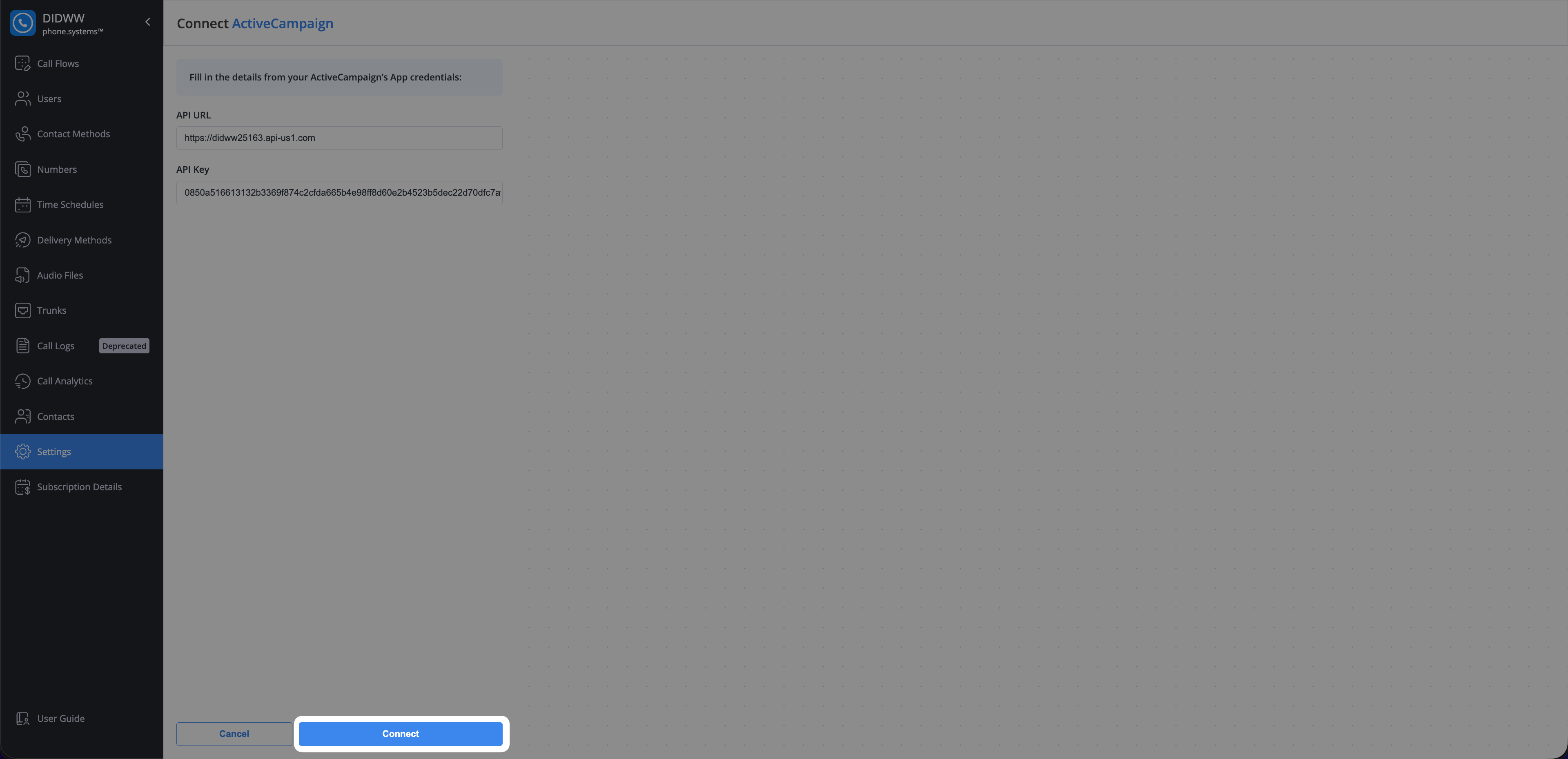
Fig. 5. Connect your ActiveCampaign to phone.systems™#
After the connection is established, the integration status changes to Synchronizing, and then to Connected once the initial synchronization is complete.
Note
Existing contacts from ActiveCampaign are synchronized automatically during this step.
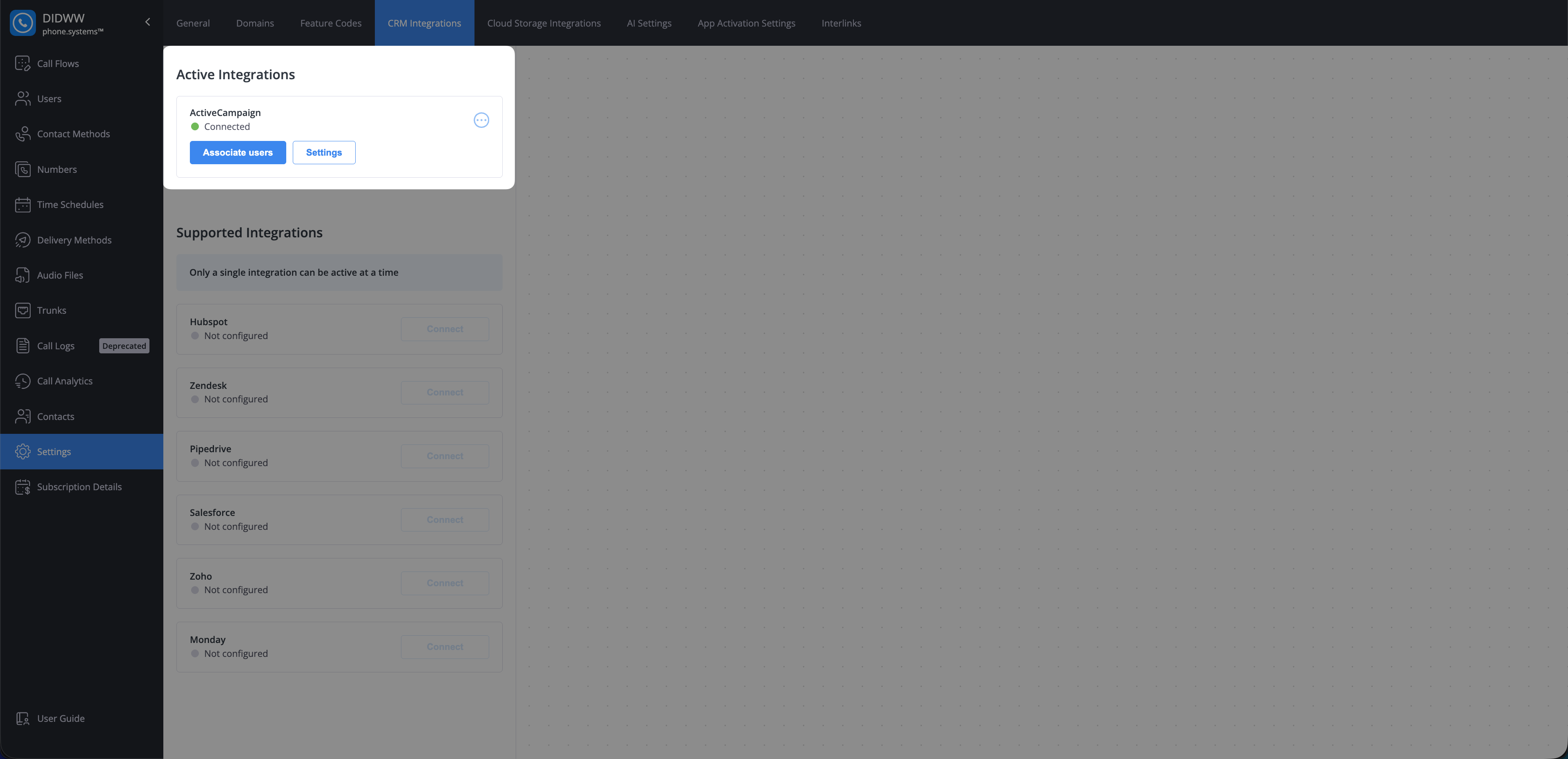
Fig. 6. Active ActiveCampaign connection in phone.systems™#
Step 7: Enable phone-only contacts in ActiveCampaign#
ActiveCampaign requires an email address by default when creating new contacts. To allow phone.systems™ to create and synchronize contacts using only a phone number, phone-only contacts must be enabled in the ActiveCampaign advanced settings.
This allows the integration to automatically create or update contacts based on calls and other phone activity.
Important
Enabling phone-only contacts is a permanent change and cannot be undone. Learn more about phone-only contacts.
Go to the ActiveCampaign user interface and open Settings.
Navigate to Advanced Settings and find the Phone-only contacts section.
Enable the Phone-only contacts toggle.
Click Save Settings.
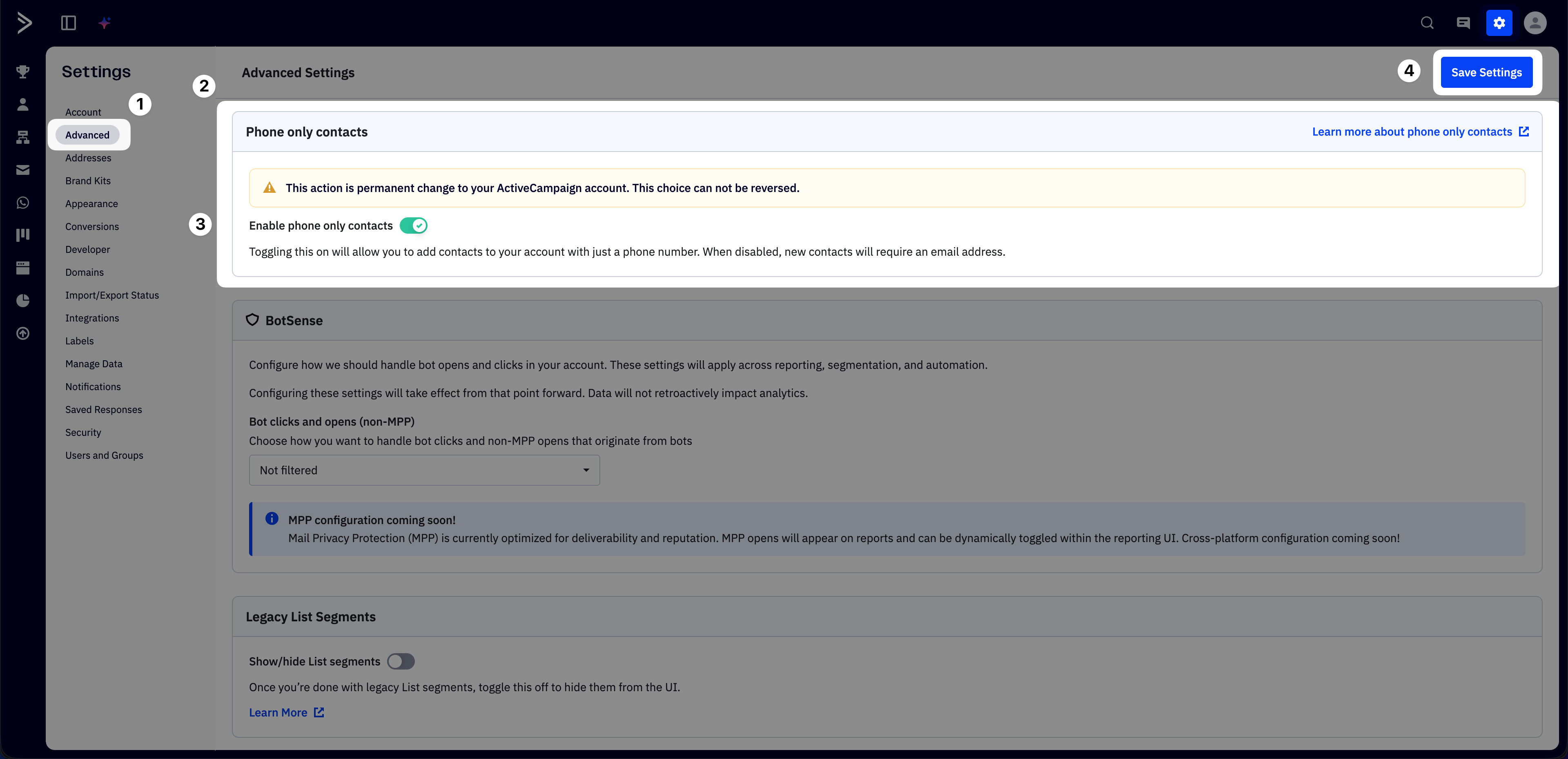
Fig. 7. Active ActiveCampaign connection in phone.systems™#
Associate users for ActiveCampaign#
After the ActiveCampaign integration is successfully connected, you can associate ActiveCampaign users with their corresponding phone.systems™ users.
User association enables call journaling by ensuring that inbound and outbound calls are logged on the correct contacts in ActiveCampaign. Only calls handled by associated users are recorded. Calls handled by users who are not associated are not journaled.
Note
Call journaling for ActiveCampaign is available only on the ActiveCampaign Enterprise plan.
Go to phone.systems™ Settings, then open CRM Integrations.
Under Active Integrations at the top of the page, you will see ActiveCampaign marked as Connected.
Click Associate users.
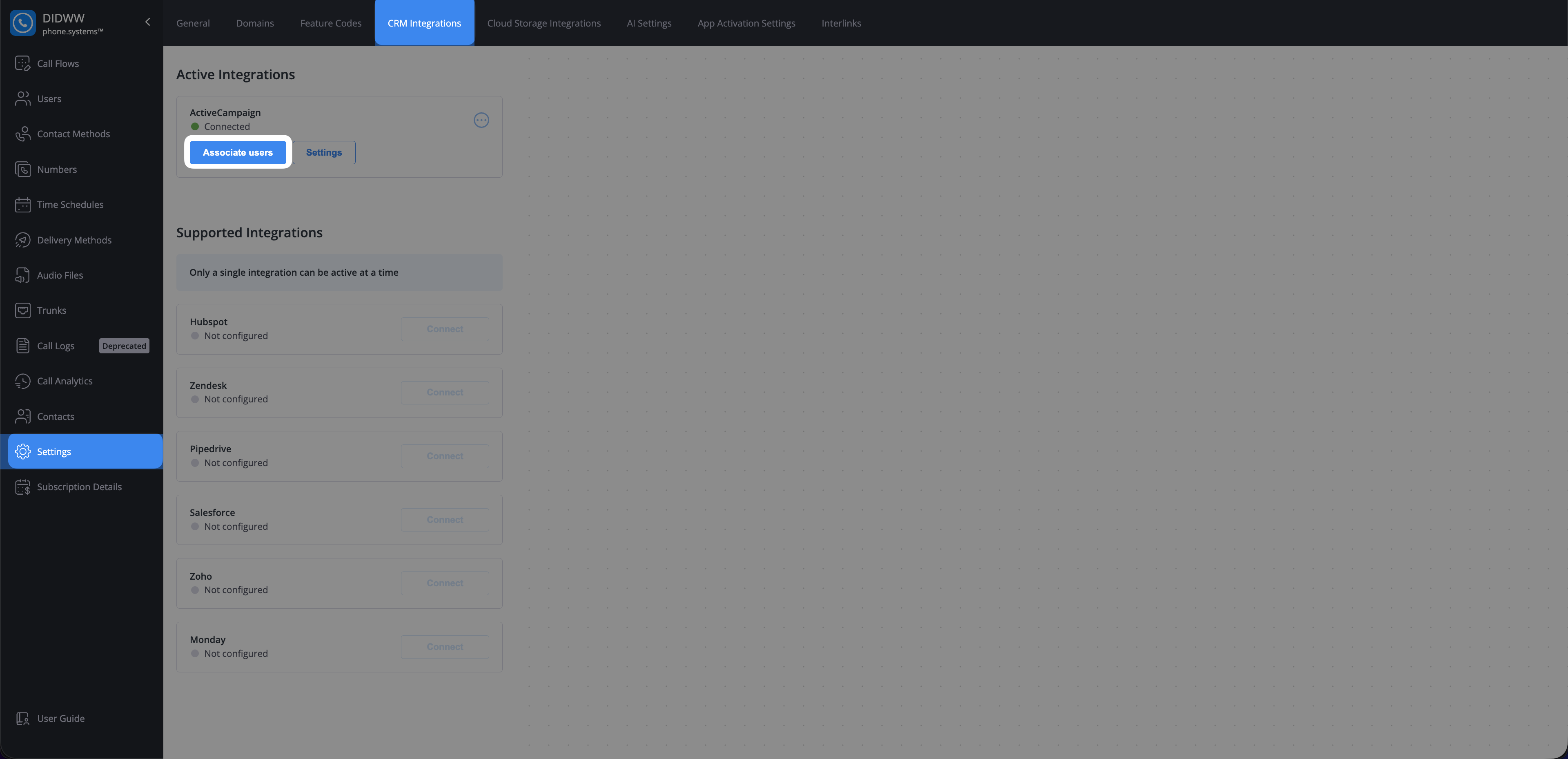
Fig. 8. Associate users button for ActiveCampaign integration#
After clicking Associate users, a dialog opens where you can link ActiveCampaign users with corresponding phone.systems™ users.
Match each ActiveCampaign user with the appropriate phone.systems™ user.
Click Save to apply the changes.
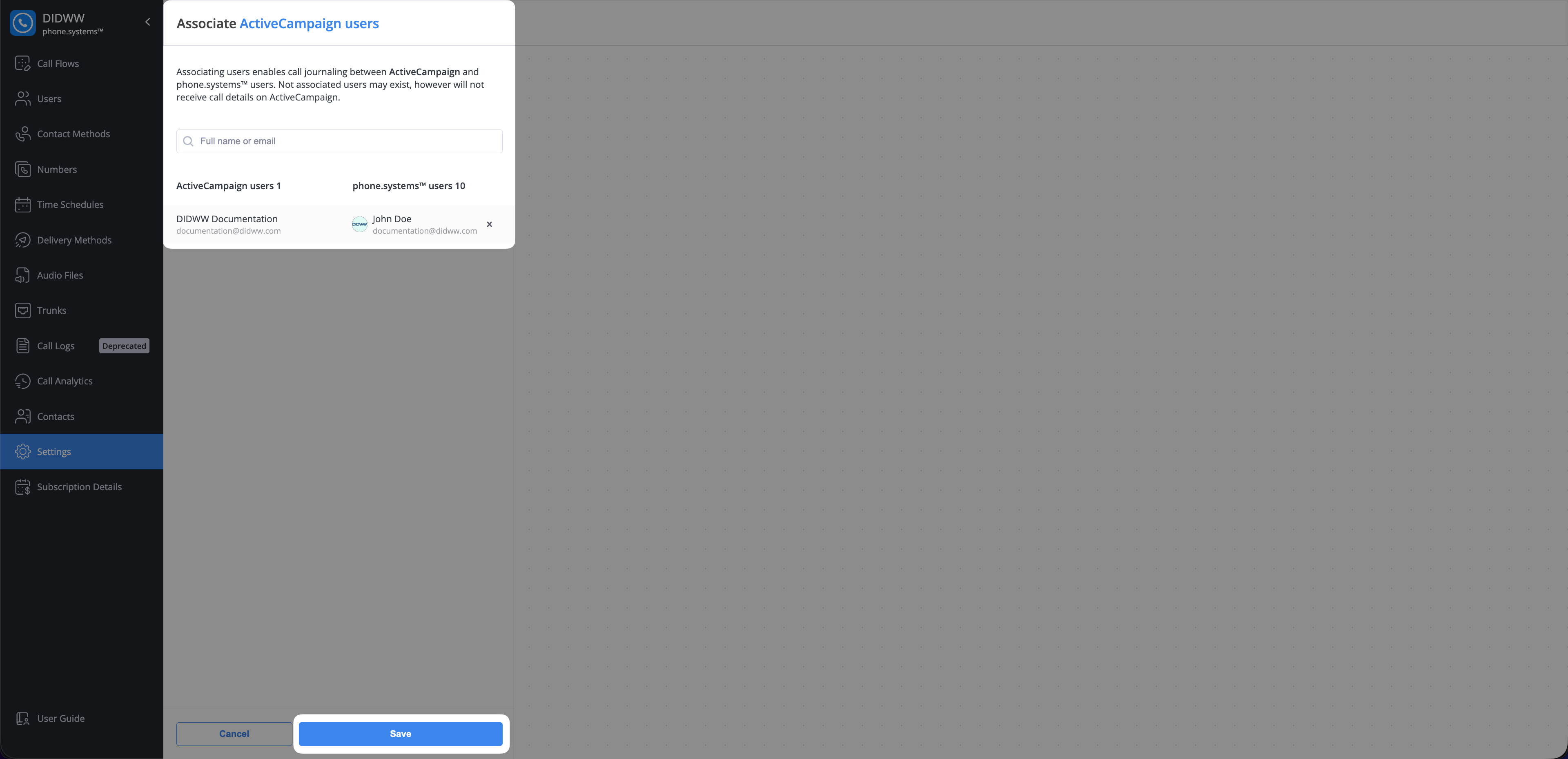
Fig. 9. Associate ActiveCampaign users with phone.systems™ users#
Configuring ActiveCampaign Integration Settings#
After the ActiveCampaign integration is connected, you can configure how calls and contacts are synchronized between phone.systems™ and ActiveCampaign.
These settings control call journaling behavior, automatic contact creation, and the upload of additional call-related data. Configuration applies only to phone numbers with call journaling enabled.
In phone.systems™ go to Settings, then open CRM Integrations.
Under Active Integrations at the top of the page, you will see ActiveCampaign marked as Connected.
Click Settings.
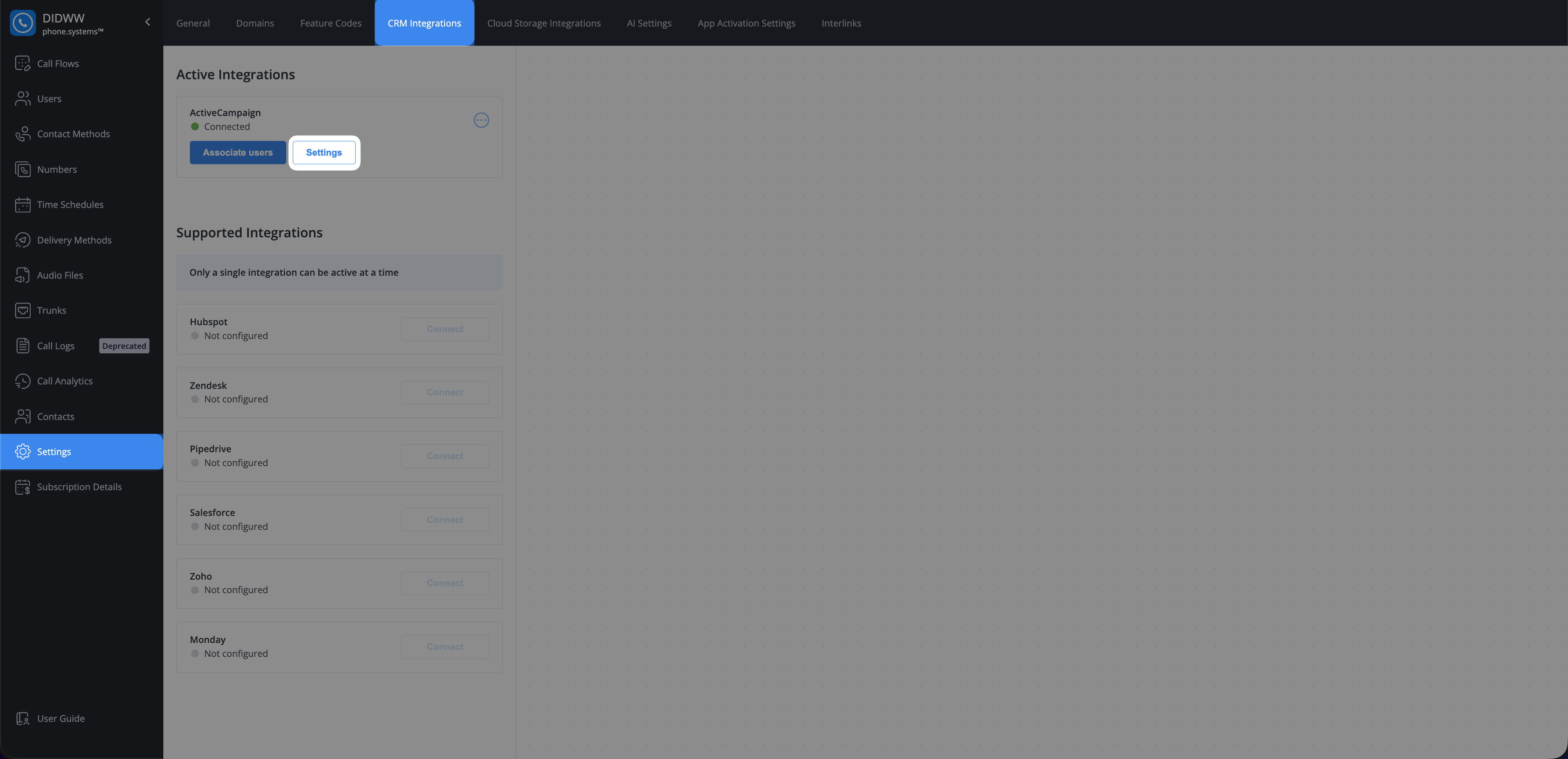
Fig. 10. ActiveCampaign integration settings button#
After clicking Settings, a dialog opens where you can link ActiveCampaign users with corresponding phone.systems™ users.
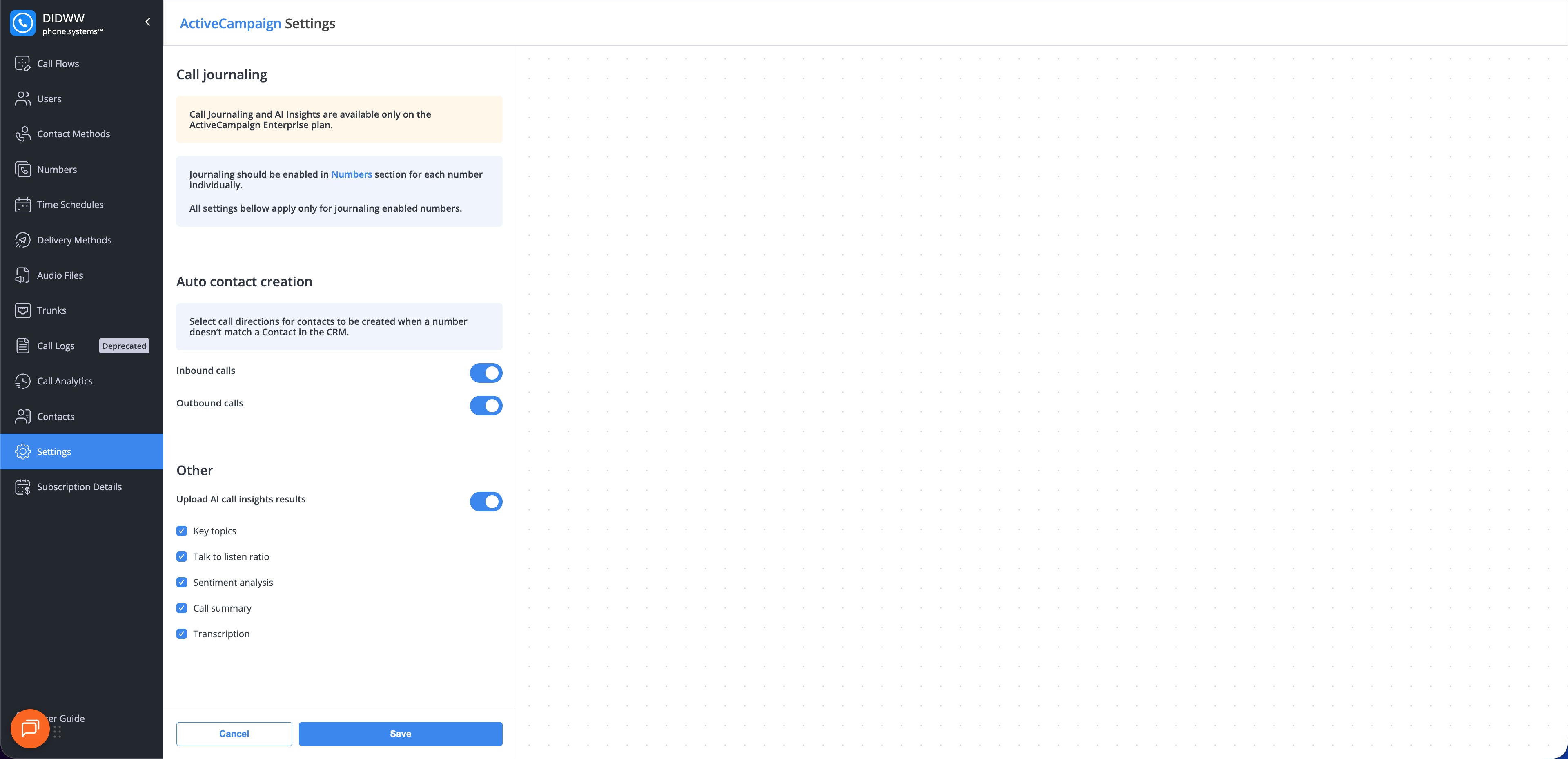
Fig. 11. ActiveCampaign integration settings menu#
Call journaling#
Important
Call journaling is available only on the ActiveCampaign Enterprise plan.
Each phone number must be configured individually for call journaling.
Auto Contact Creation and Other Settings apply only for numbers with enabled call journaling.
Call journaling automatically logs inbound and outbound calls as activities on related contacts in ActiveCampaign.
Enable call journaling for each required number in the phone numbers menu.
Auto contact creation#
This feature automatically creates a new contact when a call is handled from a number that does not match an existing contact.
Setting |
Description |
|---|---|
Inbound calls |
Create a contact for inbound calls from unknown numbers. |
Outbound calls |
Create a contact for outbound calls to unknown numbers. |
Important
ActiveCampaign does not notify phone.systems™ when a contact is deleted.
Contacts that still exist in ActiveCampaign cannot be deleted from phone.systems™. To remove a contact from phone.systems™, delete it in ActiveCampaign first.
Other settings#
These settings control what additional call-related data is automatically uploaded to ActiveCampaign.
Setting |
Description |
|---|---|
Upload AI call insights results |
When enabled, detailed analytics from our AI engine will be added to the call log. This can include:
|
Important
AI Call Insights are available only on the ActiveCampaign Enterprise plan.
To utilize the AI features, AI Call Insights must be enabled.